How to send Slack direct message to multiple users


Enhance team collaboration by mastering the art of sending direct messages to multiple users on Slack.
Sending direct messages to multiple users on Slack is a straightforward process that fosters efficient communication within teams.
Whether you're coordinating a project, sharing updates, or collaborating on specific tasks, reaching out to multiple team members simultaneously can streamline the conversation.
Before we begin, if you are looking to send Google form submissions directly to Slack, check SlackNotify.app
Here's a detailed guide on how to send Slack direct messages to multiple users:
How to send Slack direct message to multiple users
Navigate to Direct Messages:
Open Slack and locate the left sidebar. Click on the "+" icon next to "Direct Messages."
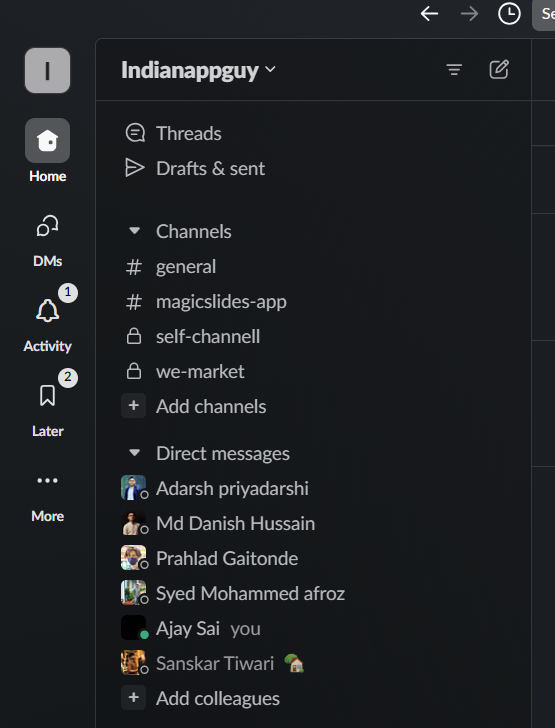
Select Users:
Begin typing the names or usernames of the individuals you want to message. Slack will display suggestions based on your input.
Click on the desired users to add them to the message.
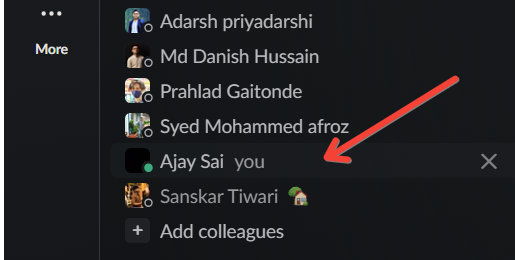
Compose Your Message:
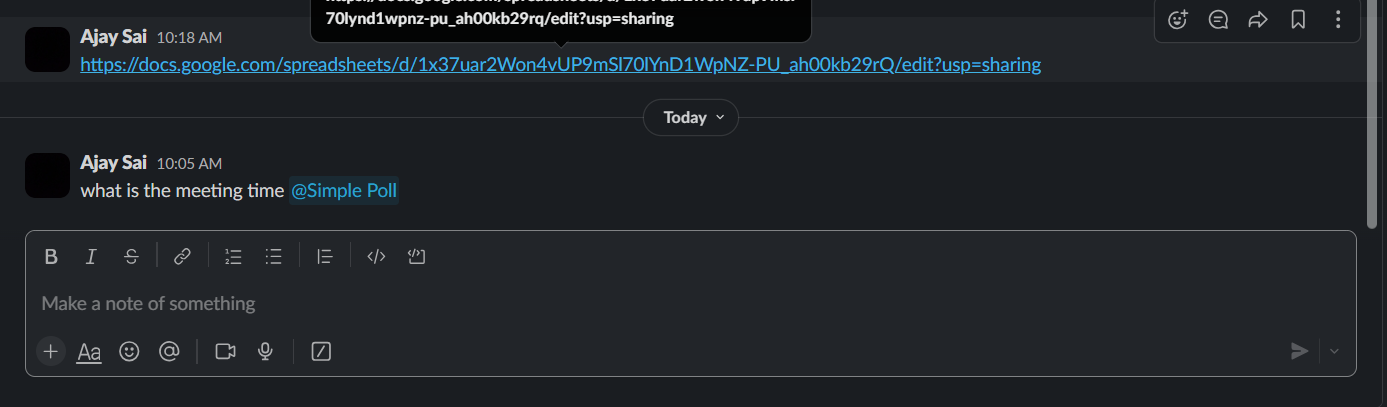
Once you've selected the users, the message input field will appear. Start typing your message.
Slack supports various text formatting options, emojis, and attachments, allowing you to convey information in a rich and engaging manner.
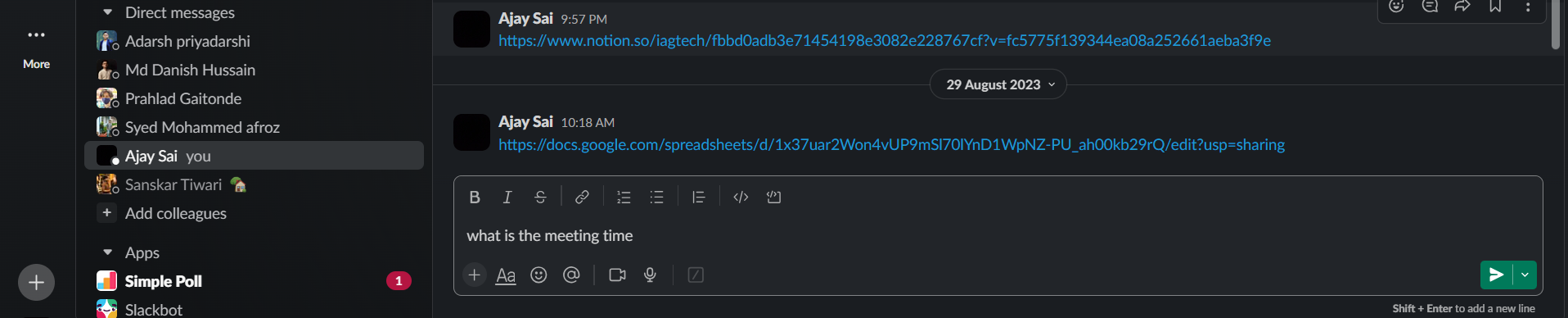
Consider Using Mentions:
To ensure that specific users pay attention to your message, you can use the '@' symbol followed by their username to mention them directly.
This will notify them even if they have notifications muted for the channel.
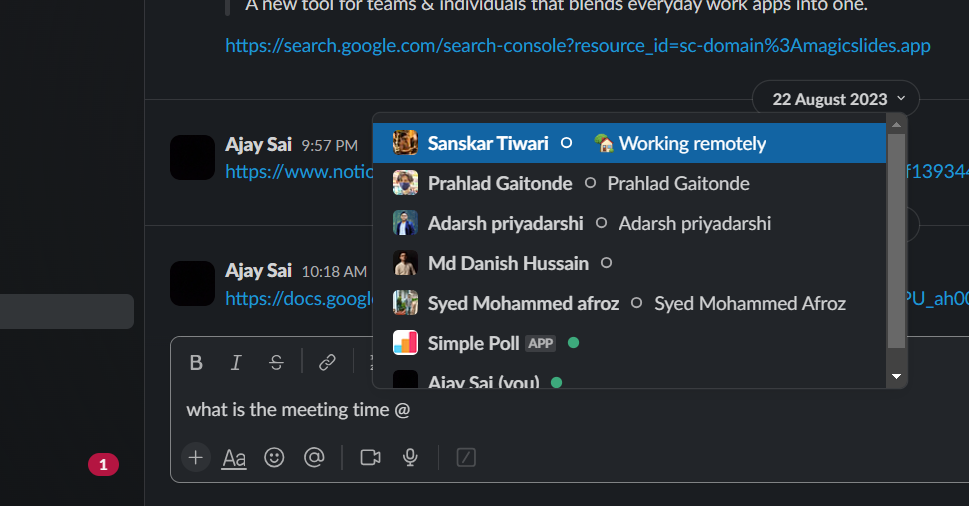
Send the Message:
Once your message is ready, click the "Send" button. The message will be delivered to all the selected users simultaneously.
Stay Mindful of Notifications:
When sending messages to multiple users, be mindful of the notification settings of your teammates.
Some may have specific channels or direct messages muted, so it's essential to consider individual preferences for a seamless communication experience.
Along with sending direct messages to multiple users, set up Google Form submission notifications to Slack. This ensures that any time a Google Form is filled out, your team members receive instant Slack notifications
Conclusion:
By following these steps, you can enhance collaboration and streamline communication in your Slack workspace, ensuring that important messages reach the right audience efficiently.
Whether you're managing a small team or coordinating with a larger group, leveraging Slack's direct messaging features contributes to a more organized and productive work environment.
Frequently Asked Questions:
Can I send direct messages to multiple users on Slack simultaneously?
Yes, you can easily send direct messages to multiple users by selecting them in the Direct Messages section.
Are there formatting options for messages in Slack direct messages?
Absolutely! Slack supports various text formatting, emojis, and attachments to make your messages engaging.
Can I mention specific users in direct messages to ensure their attention?
Yes, use the '@' symbol followed by their username to mention specific users and notify them directly.
Is there an alternative method to initiate direct messages in Slack?
Certainly! You can use the Quick Switcher by pressing "Ctrl" + "K" (Windows/Linux) or "Cmd" + "K" (Mac) and typing "/msg" followed by the usernames.


