How To Sort Cells In Google Sheets?


Master Google Sheets sorting! Learn how to organize data effortlessly with our step-by-step guide on sorting cells for ultimate efficiency.
Are you swimming in a sea of data, desperately seeking a lifeline to streamline your information? Look no further than Google Sheets, a powerful tool that can turn chaos into order with just a few clicks. In this comprehensive guide, we'll walk you through the basics and then delve into the step-by-step process of sorting cells in Google Sheets.
How To Sort Cells In Google Sheets
Before we embark on our sorting adventure, ensure you have Google Sheets open. If you don't have an account, sign in to your Google account or create one—it's a free ticket to the world of efficient data management.
Navigating to Your Desired Sheet
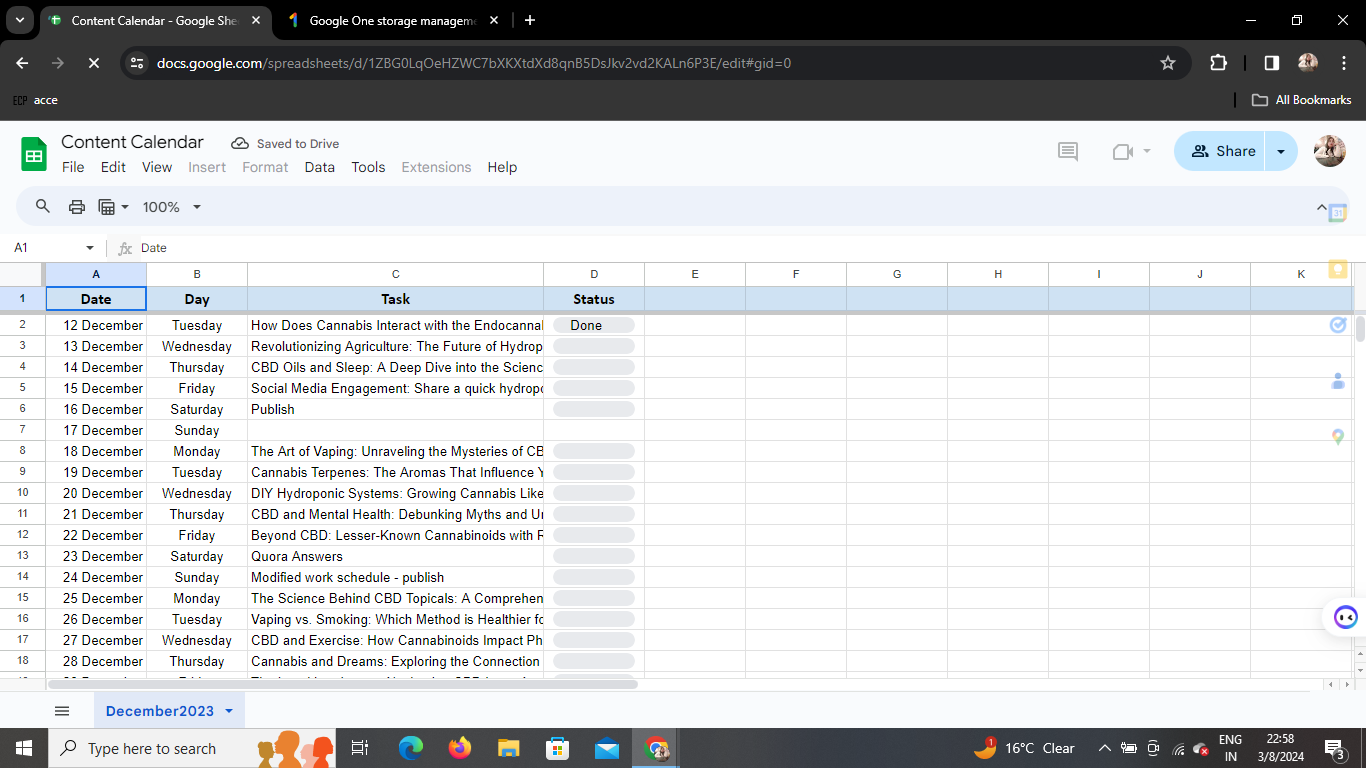
Once you're in Google Sheets, locate and open the sheet you want to sort. Google Sheets' best part lies in its cloud-based accessibility, enabling you to access your data from any device, anywhere.
Selecting Cells for Sorting
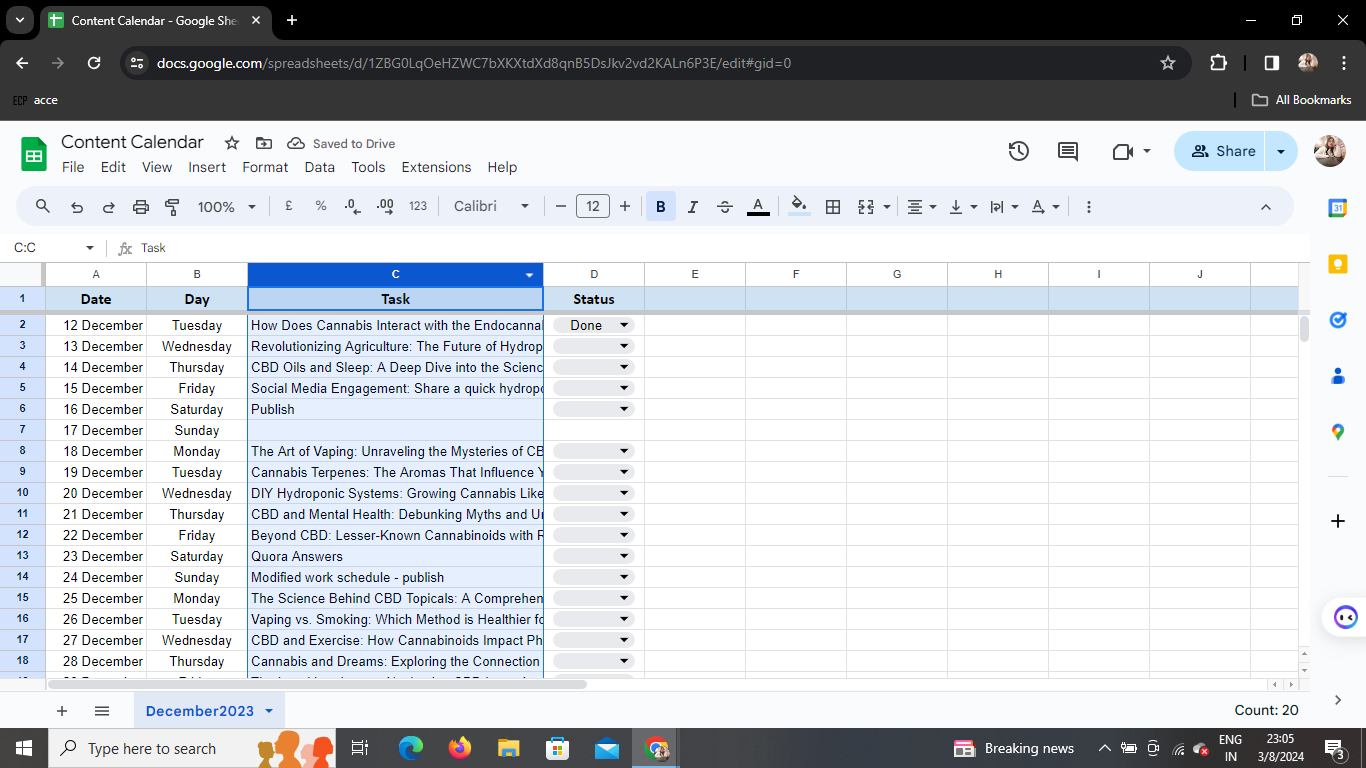
With your sheet open, identify the range of cells you wish to organize. Click and drag to select the data you want to sort. This could be a single column, a row, or an entire table—Google Sheets adapts to your specific needs.
Right-Click Magic
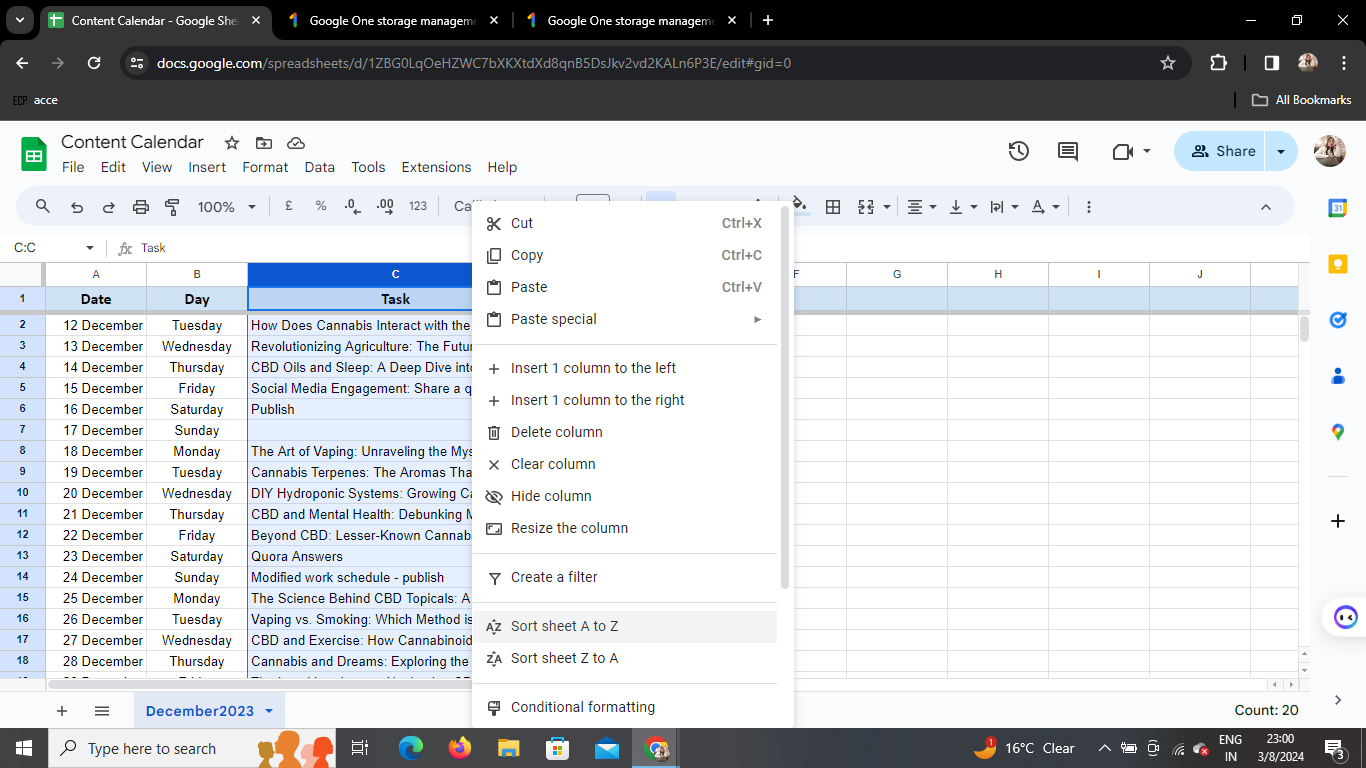
The magic happens with a simple right-click. Hover your cursor over the selected cells, right-click, and watch a dropdown menu unfold.
Choosing Your Sorting Method
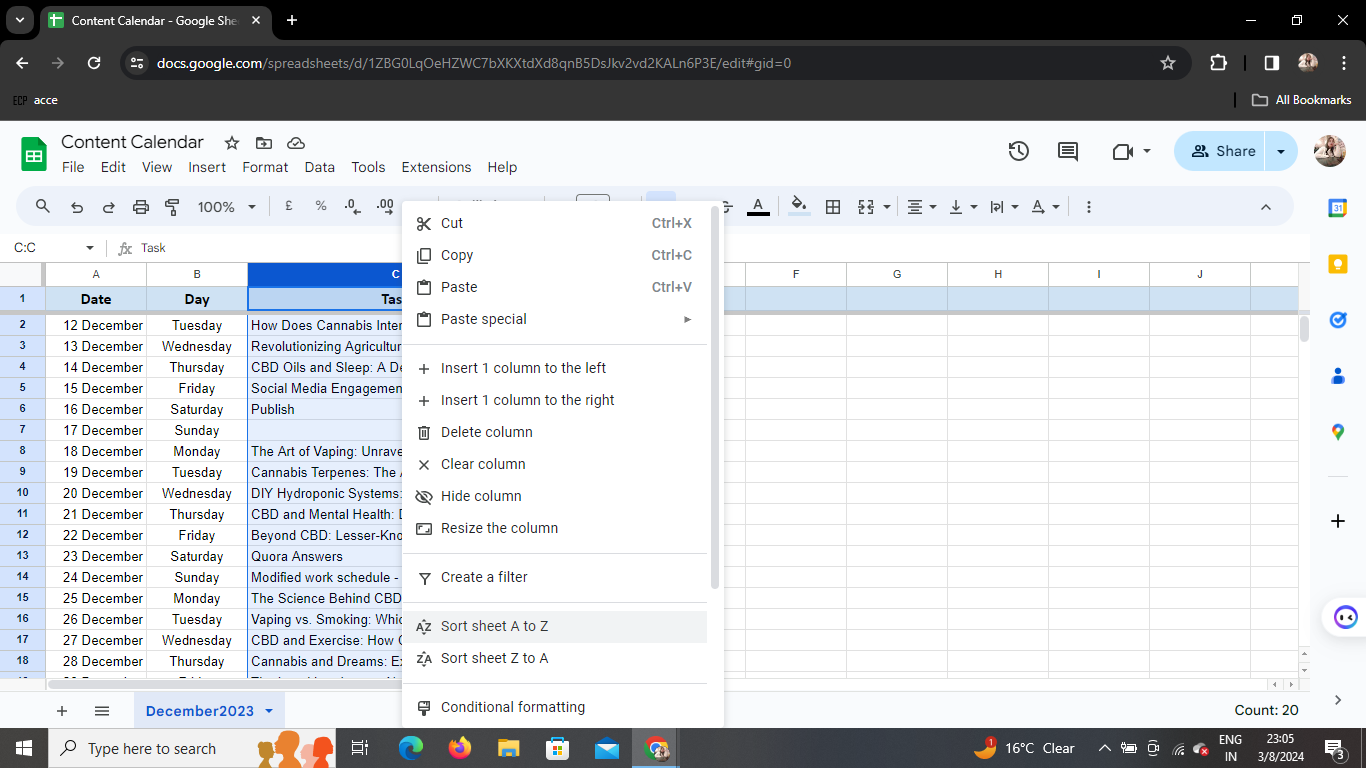
In the dropdown menu, find and click on the "Sort range" option. Another menu will materialize, offering you two primary sorting options: "A-Z" for ascending order and "Z-A" for descending order.
A to Z: Ascending Order
If you opt for "A-Z," your data will arrange itself in ascending alphabetical or numerical order.
Z to A: Descending Order
Conversely, choosing "Z-A" will organize your data in descending order, providing a quick way to sift through the highest to lowest values.
Witnessing the Transformation
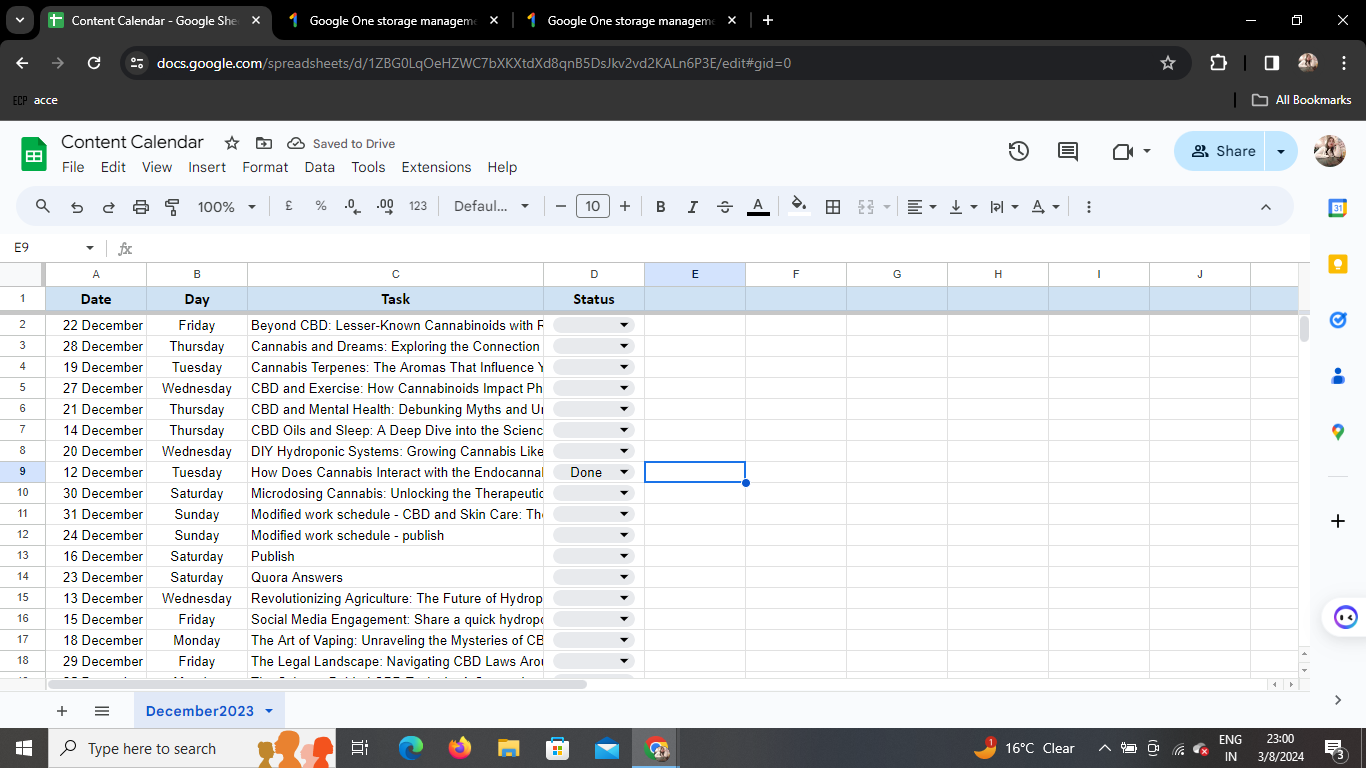
Once you've made your selection, brace yourself for the satisfying moment when your selected cells seamlessly rearrange according to your chosen sorting criteria. It's like tidying up a messy room, but in the digital realm.
Conclusion
Congratulations! You've mastered the art of sorting cells in Google Sheets. With this newfound skill, you can elevate your data organization game and navigate through your information with ease. Google Sheets empowers you to be the master of your data, turning chaos into clarity.
Frequently Asked Questions
How do I access Google Sheets?
Simply go to your Google account, click on the "Google Apps" menu (represented by nine dots), and select "Sheets."
Can I sort multiple columns simultaneously?
Yes, you can! Hold down the "Shift" key while selecting additional columns, and proceed with the sorting steps.
Is there a way to undo a sorting action?
Absolutely. Press Ctrl + Z (Windows/Linux) or Command + Z (Mac) to undo your last action.
Can I sort data based on custom criteria?
Google Sheets offers a powerful custom sorting feature. In the "Sort range" menu, choose "Custom sort range" to define your criteria.
Does sorting affect my original data?
No need to worry! Sorting in Google Sheets creates a new order for display purposes; it doesn't alter the actual data.
Embrace the power of organization with Google Sheets and transform your data into a well-ordered masterpiece. Happy sorting!


