How to Stop Responses in Google Forms? Step-by-Step Guide


Learn how to stop responses in Google Forms using the Accepting Responses toggle. Simple step-by-step guide with FAQs and tips to manage forms easily.
To stop getting responses in Google Forms you need to open your form and go to the Responses tab. Then you turn off the Accepting responses toggle. This will immediately stop your form from getting responses.
When you do this your form will stop collecting data. If someone tries to fill out your form, they will see a message that says this form is no longer accepting responses. This is a way to control who can respond to your form without getting rid of it or losing the responses you already have.
If you want to stop responses, in Google Forms, you should use the Accepting responses toggle. Google Forms is a tool, and this toggle is a big help. It is easy to use. It works for all kinds of forms, like surveys or quizzes or when you are signing people up for an event. You can use Google Forms for things, and this toggle makes it easy to manage your form.
How to stop responses in Google forms
If you’re looking for a clear, no-confusion walkthrough on how to stop responses in Google Forms, this step-by-step process will help you do it in under a minute.
Step 1. Open your Google Form
Navigate to Google Forms and open the form for which you want to stop accepting responses.
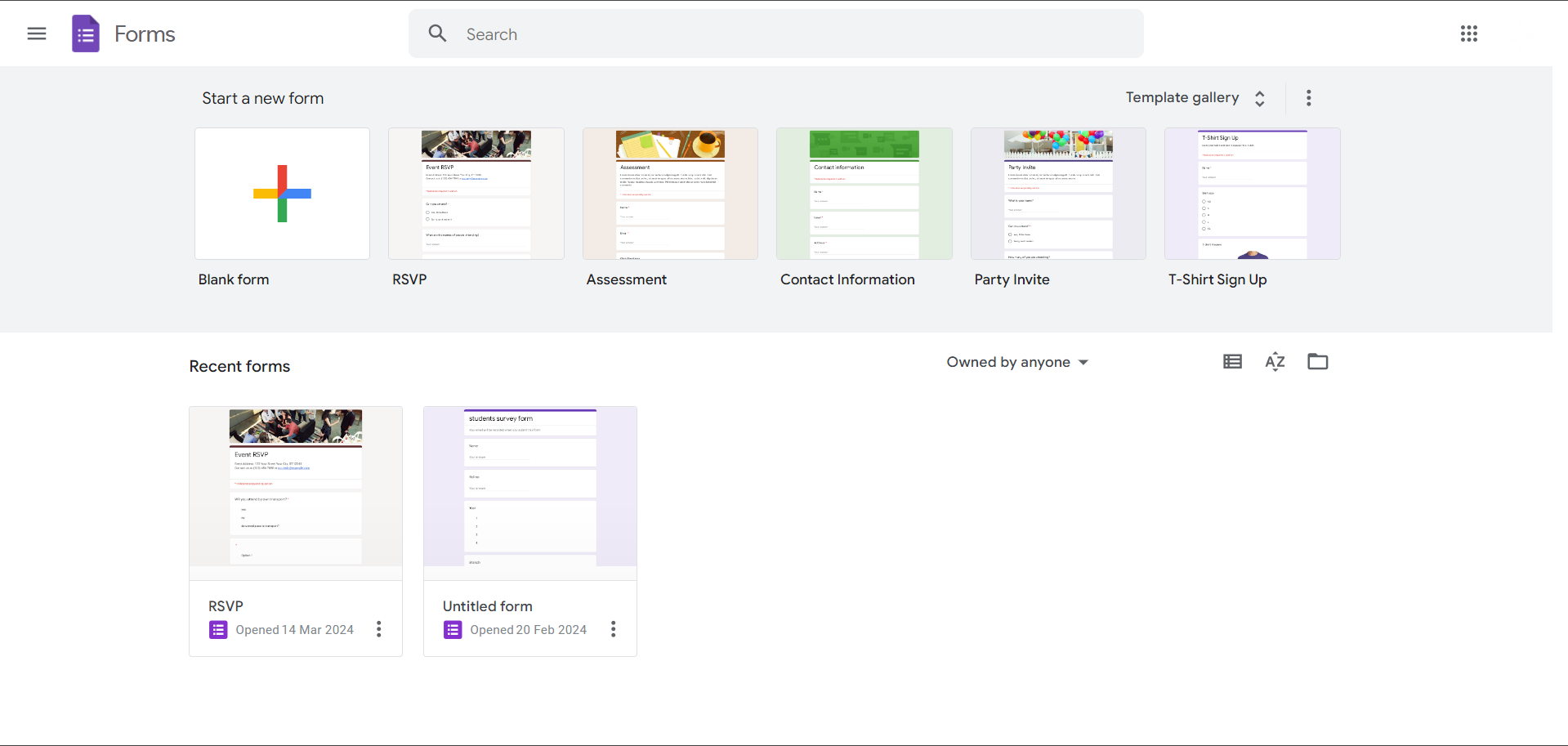
Step 2. Access form settings
Click on the “Settings” gear icon located in the top-right corner of the form builder interface.
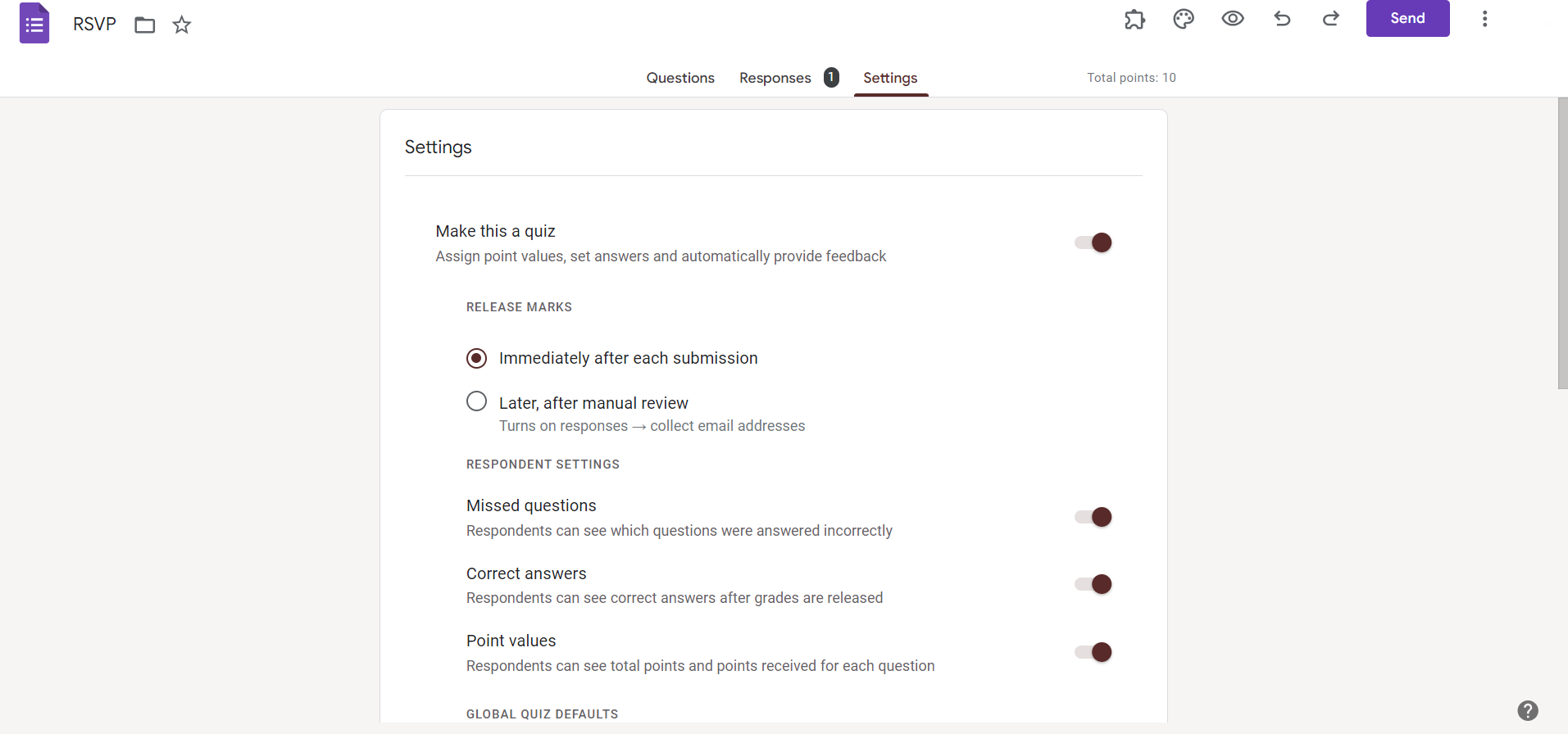
Step 3. Toggle response collection
In the settings menu, find the “Responses” section.
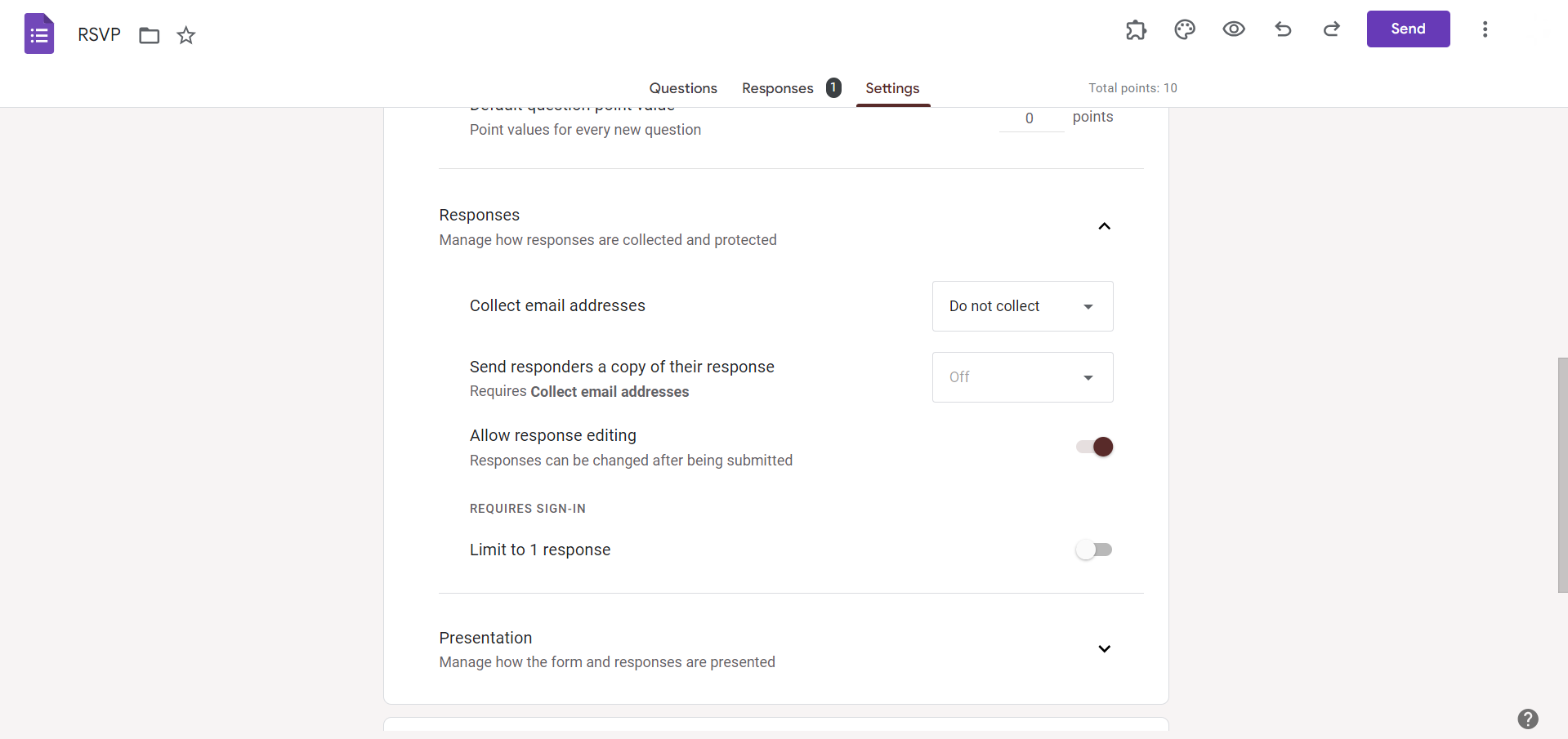
Toggle the switch labeled “Accepting responses” to the off position. If the option to turn off is not available in settings hover over to respomses tab, will be available there in that case.
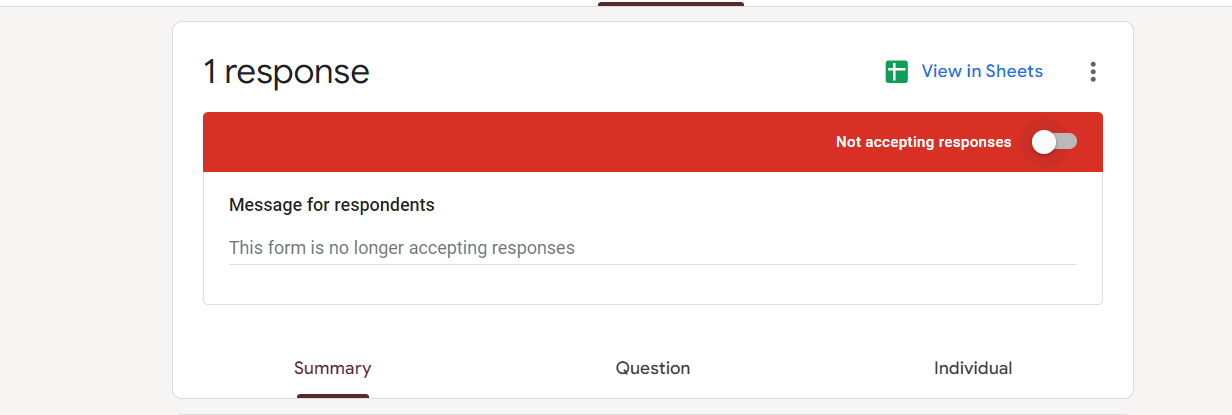
Step 4. Confirm changes
A dialog box will appear confirming that the form is no longer accepting responses. Click “OK” to confirm and close the dialog.
Improve Your Workflow with AI
Once your form responses are collected, you often need to turn them into reports or presentations. This is where tools like MagicSlides AI presentation tool can help.
Instead of manually creating slides, It can convert your Google Form data into a structured presentation within minutes. It’s especially useful for:
- Business reports
- Survey analysis
- Team presentations

Conclusion
Stopping responses in Google Forms is a straightforward process that allows you to control the data collection timeline according to your needs. Whether you’re closing a survey after a set deadline or ending data collection once you’ve gathered sufficient responses, the steps outlined above enable you to manage your forms effectively. By toggling response collection off, you can ensure that no further submissions are accepted, maintaining the integrity and relevance of your data. Utilize this feature to streamline your data collection process and maintain control over your Google Forms projects.
Frequently Asked Questions
Can I resume accepting responses after stopping them in Google Forms?
Yes, you can simply toggle the “Accepting responses” switch back on in the form settings.
Will stopping responses in Google Forms affect existing submissions?
No, stopping responses will not alter or delete any existing submissions in the form.
Can I set a specific date and time to automatically stop responses in Google Forms?
Currently, Google Forms does not offer an automated feature to stop responses at a predefined time.
Is there a way to notify respondents when responses are no longer accepted?
Google Forms does not provide built-in notification options, but you can manually inform respondents.


