How to strikethrough on Google Slides


Elevate your Google Slides game by learning how to effortlessly add strikethrough for impactful presentations.
Adding formatting elements like strikethrough can significantly enhance the visual appeal and convey additional meaning in your Google Slides presentations. While the process may seem elusive at first, incorporating strikethrough is a simple and effective way to highlight changes or revisions. In this comprehensive guide, we'll walk you through each step, empowering you to seamlessly integrate strikethrough into your Google Slides presentations.
How to strikethrough on Google Slides
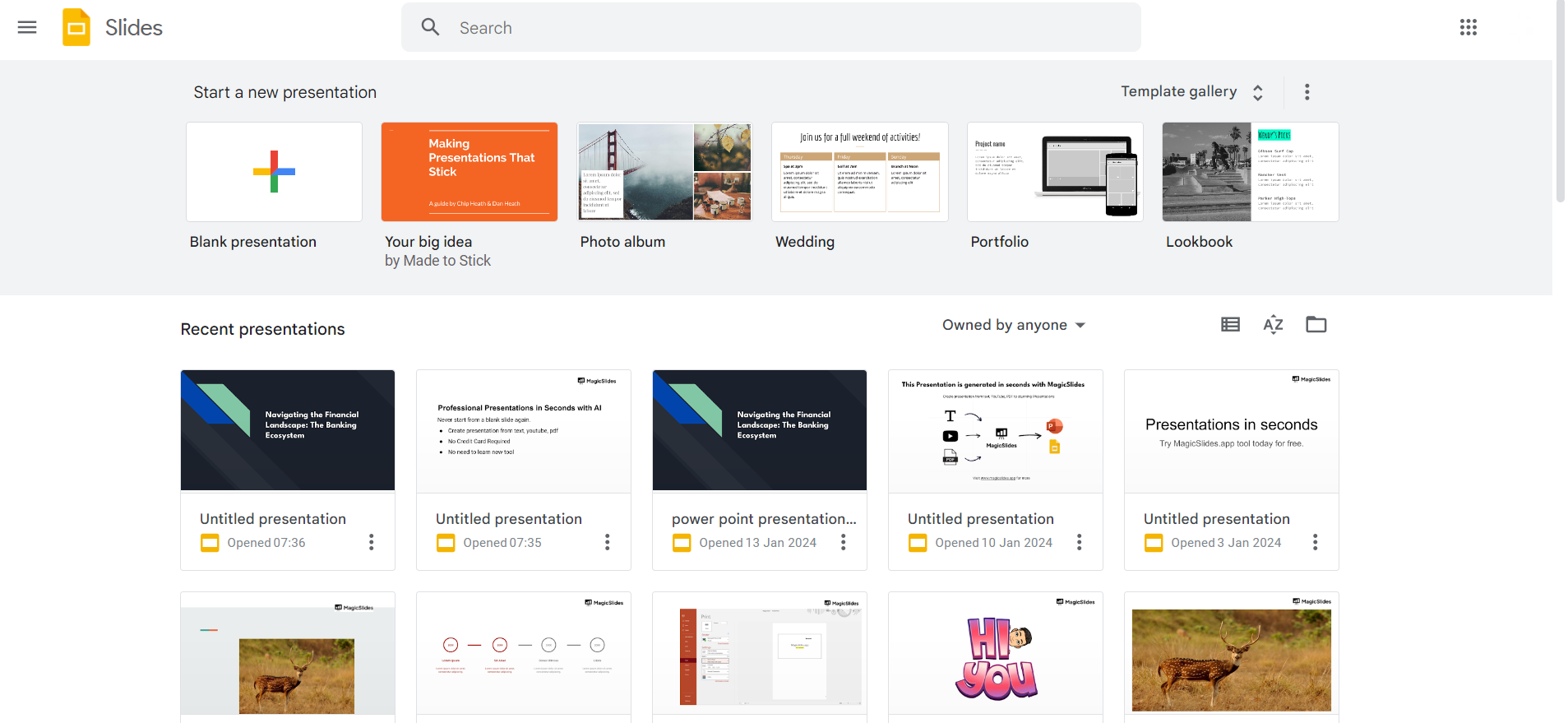
Open Google Slides:
Launch your web browser and go to the Google Slides homepage (slides.google.com). Sign in to your Google account if not already logged in.
Access the Text:
Open the slide containing the text where you want to apply strikethrough.
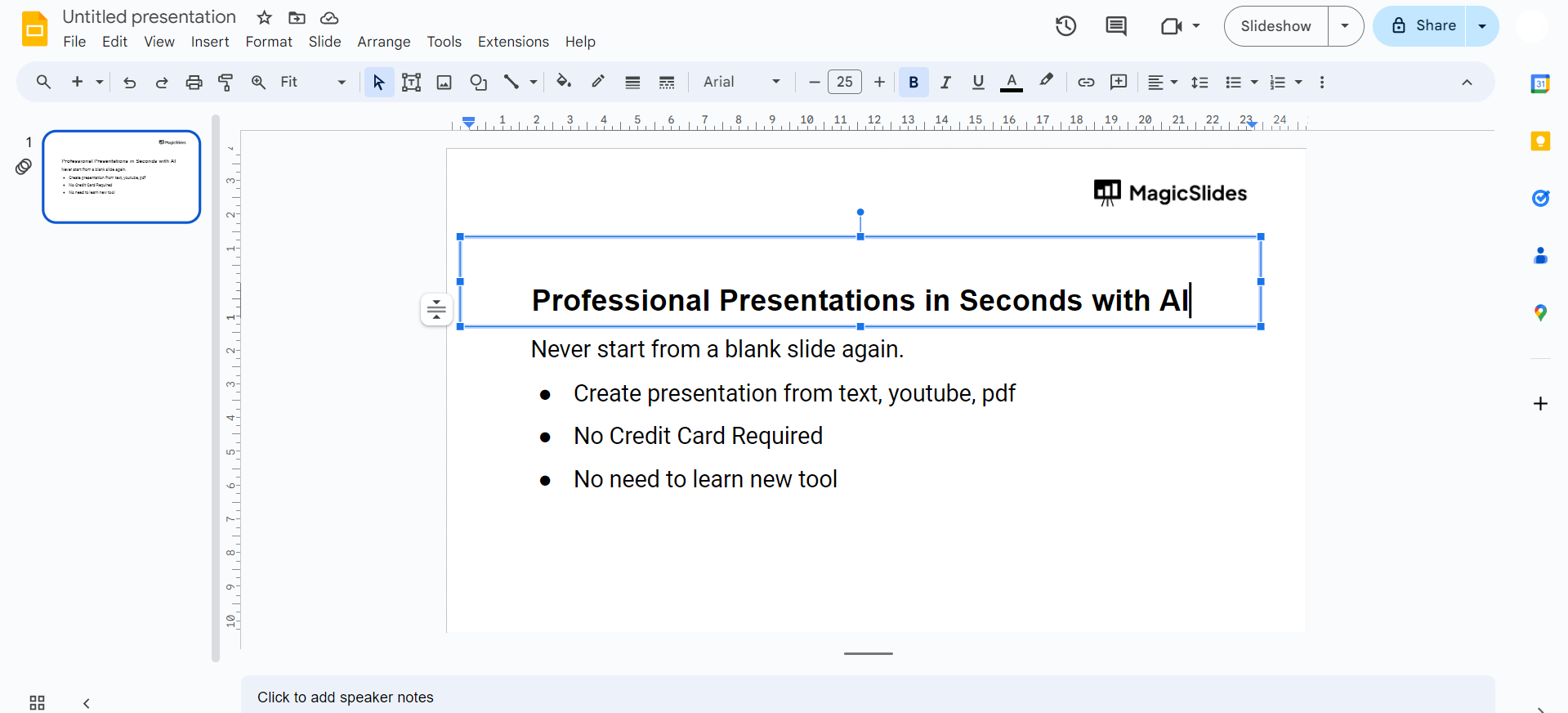
Highlight the Text:
Click and drag to highlight the specific text to which you want to add strikethrough.
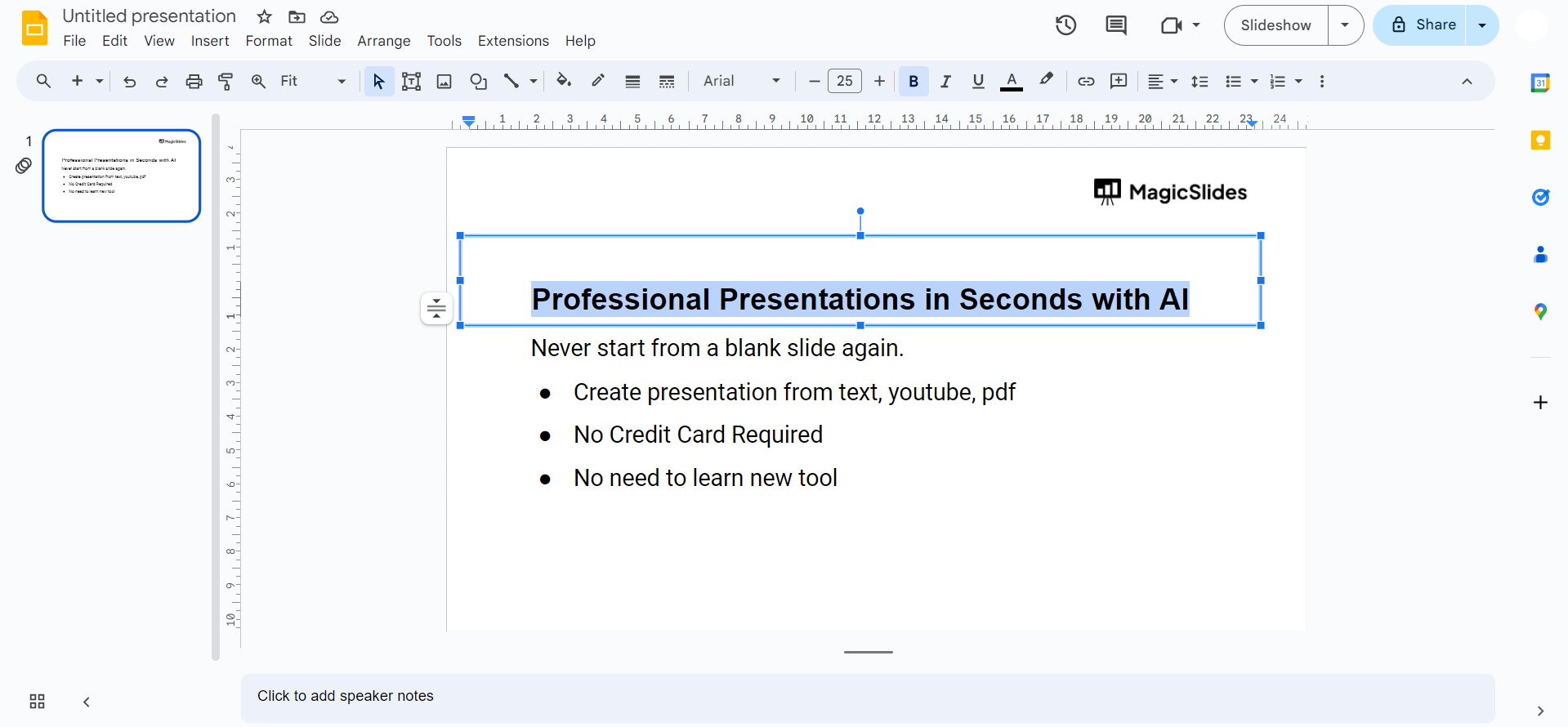
Apply Strikethrough:
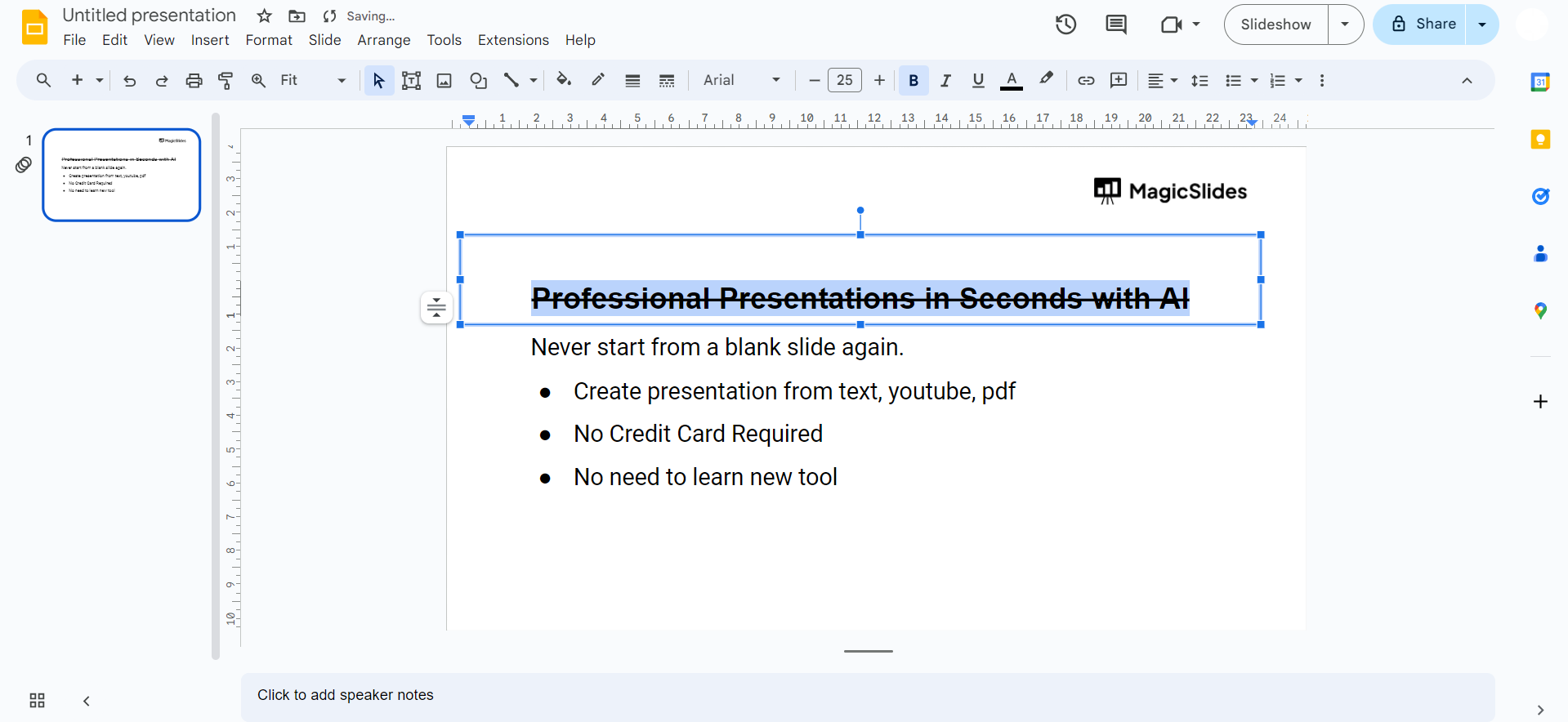
Right-click on the highlighted text. From the context menu, hover over "Format." Select "Text" and then click on "Strikethrough."
Check for Strikethrough:
Verify that the selected text now appears with a strikethrough format.
Conclusion:
Enhancing your Google Slides presentation with strikethrough text is a valuable skill that can convey changes, emphasize points, or showcase revisions. By following the step-by-step guide outlined above, you can effortlessly integrate this formatting feature into your slides, adding a layer of clarity and professionalism to your content. Whether you're a student, educator, or business professional, mastering the art of strikethrough in Google Slides can elevate the impact of your presentations. Keep this guide handy, and take your slide formatting to the next level with confidence.
Frequently Asked Questions:
Can I apply strikethrough to specific words within a text box in Google Slides?
Yes, highlight the desired words and follow the same steps to apply strikethrough.
Is there a keyboard shortcut for adding strikethrough in Google Slides?
No, currently Google Slides doesn't have a direct keyboard shortcut for strikethrough. It's done manually.
Will the strikethrough formatting carry over if I export my Google Slides presentation?
Yes, if you export your presentation to a compatible format like PDF, the strikethrough will be retained.
Can I remove strikethrough from text in Google Slides once applied?
Yes, follow the same steps used to apply strikethrough, but choose the "Strikethrough" option again to toggle it off.


