How to turn a pdf into a powerpoint


Convert your PDF to a dynamic PowerPoint presentation with these straightforward steps for engaging content.
In today's fast-paced digital world, the ability to repurpose content efficiently is a valuable skill. If you've ever found yourself wanting to breathe new life into a static PDF document, the good news is you can seamlessly convert it into a vibrant PowerPoint presentation. In this guide, we'll explore the step-by-step process, empowering you to harness the full potential of your content.
How to turn a pdf into a powerpoint
Step 1: Choose the Right Conversion Tool
Before diving into the conversion process, select a reliable PDF to PowerPoint converter. Various online tools and software options are available, each offering unique features. Opt for one that aligns with your specific needs, ensuring a smooth and accurate transformation. You can choose MagicSlides.app’s flagship AI PPT converter tool to turn your PDF to PPT. Access using the link: https://www.magicslides.app/tools/pdf-to-ppt
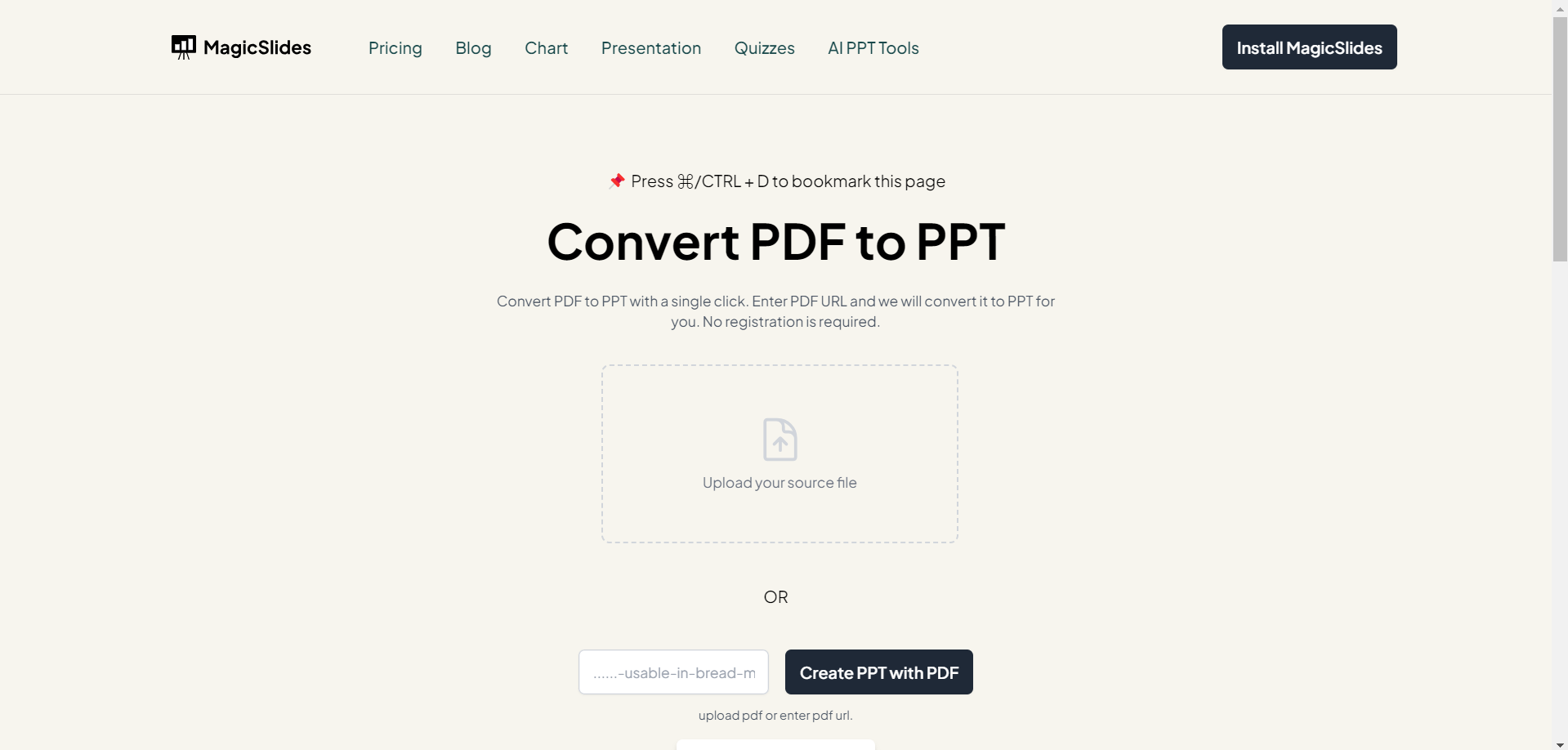
Step 2: Upload Your PDF File
Once you've chosen your preferred conversion tool, upload the PDF document you wish to transform. Most platforms provide a user-friendly interface, allowing you to easily locate and select your file. This initiates the conversion process, preparing your content for the dynamic world of PowerPoint.
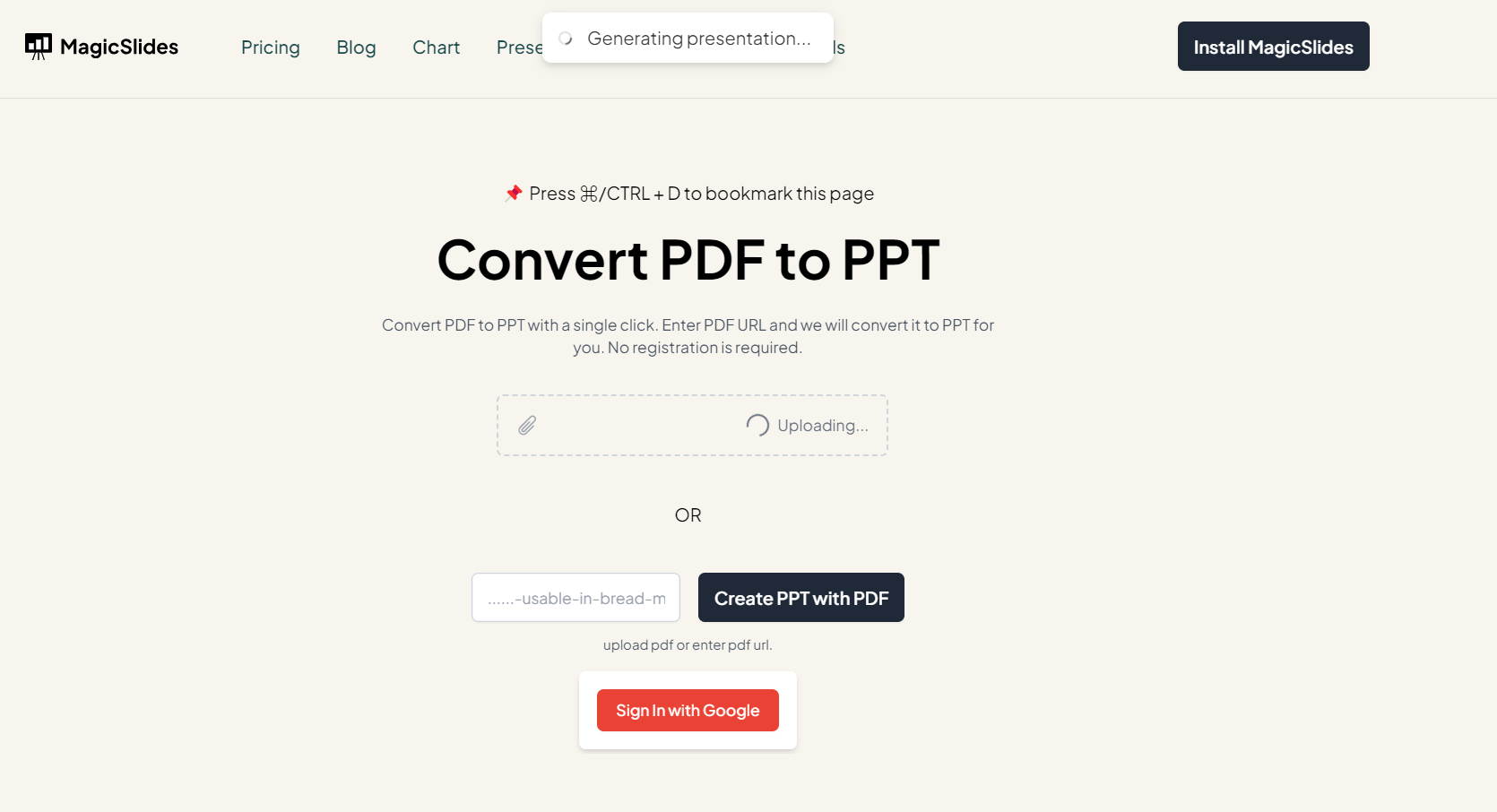
Step 3: Review and Edit Slides
After the conversion is complete, take a moment to review the PowerPoint slides. While modern conversion tools do an excellent job, it's essential to check for any formatting adjustments that may be needed. This step ensures your presentation maintains a polished and professional appearance. If you wish to edit slides click on the download button and do the editing part.
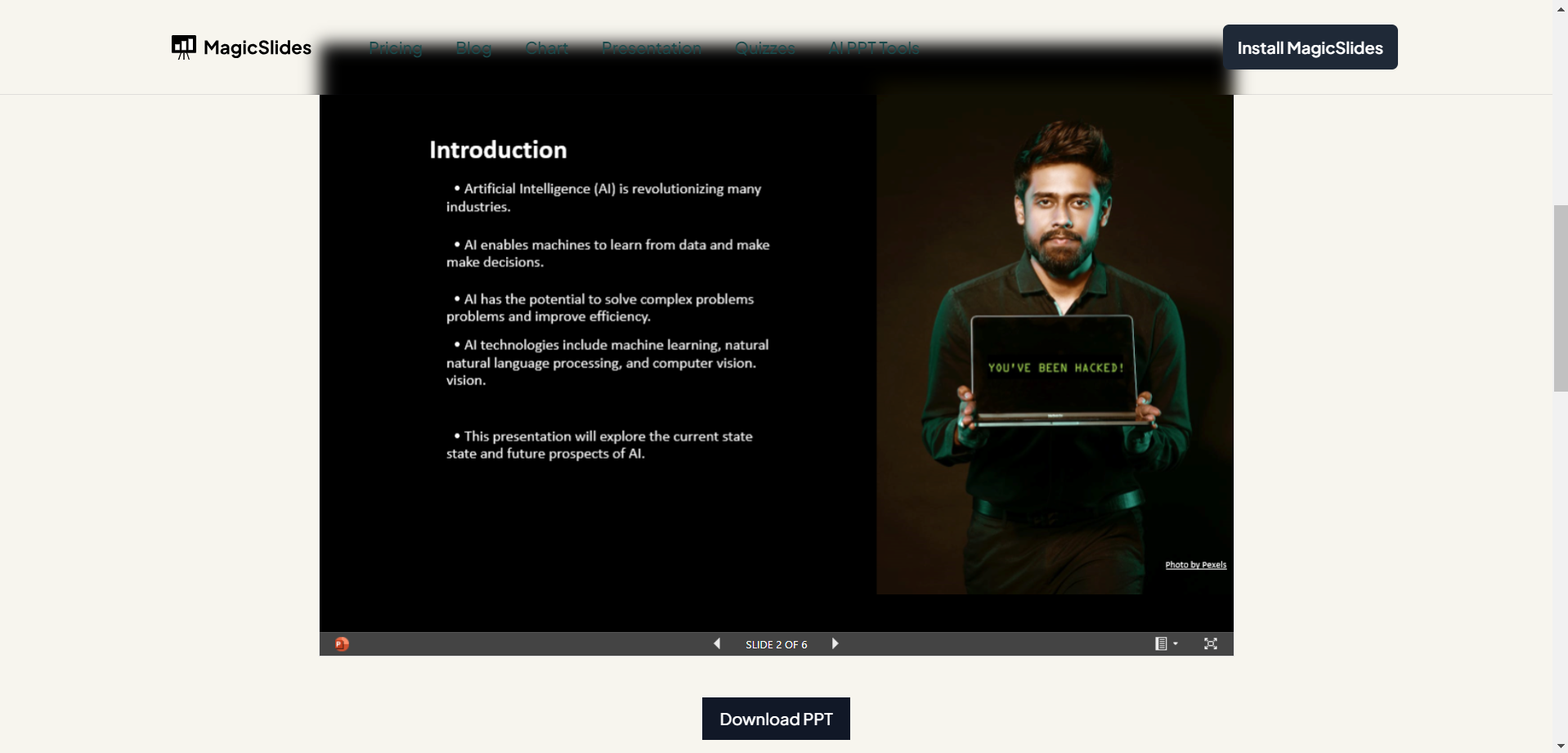
Step 4: Enhance Visual Appeal
PowerPoint presentations thrive on engaging visuals. Leverage the flexibility of the platform to enhance your slides further. Add images, infographics, or other multimedia elements to captivate your audience and convey your message effectively.
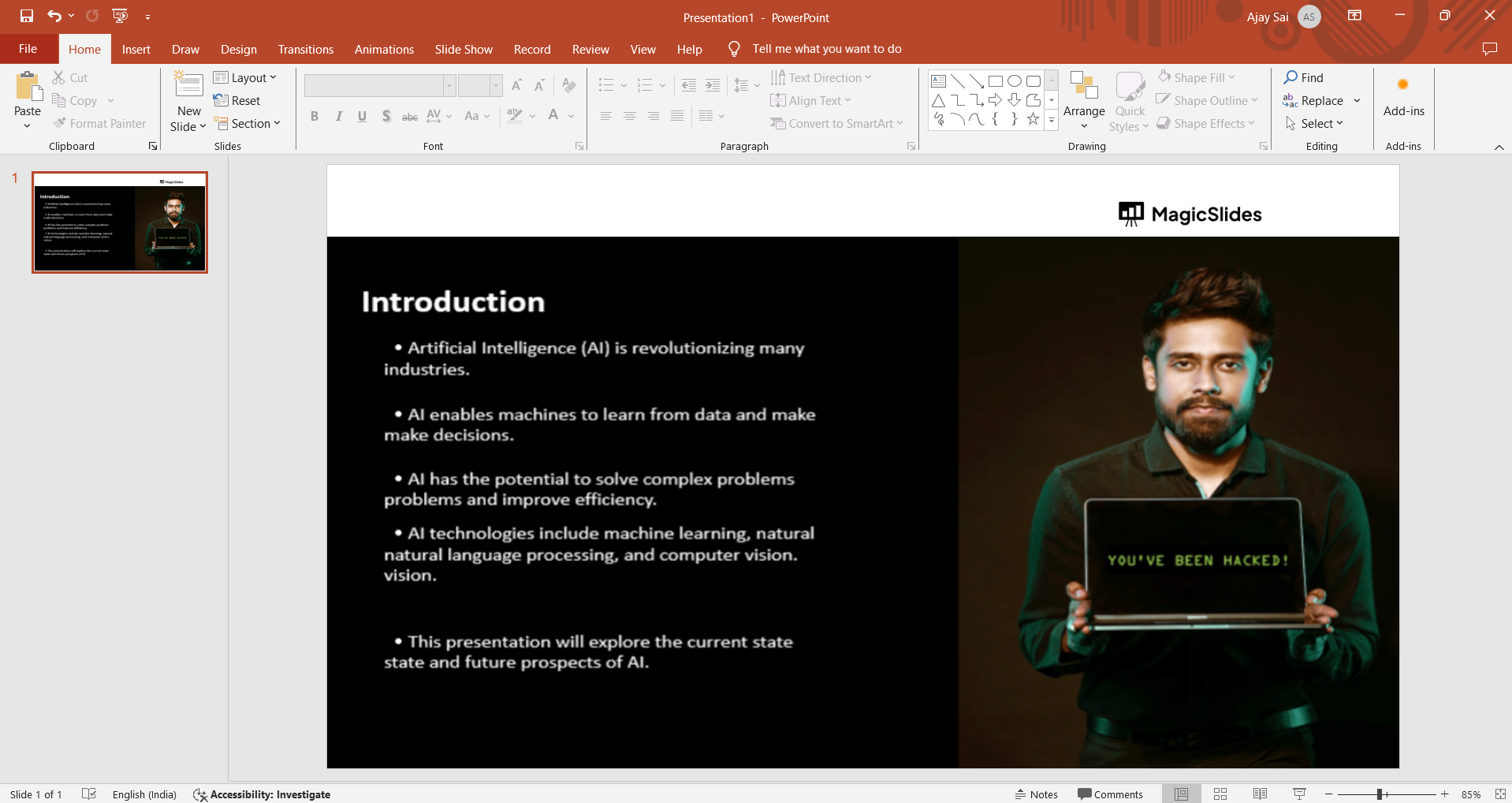
Step 5: Refine Text and Formatting
Go beyond a mere copy-and-paste approach. Take the opportunity to refine text, adjust fonts, and fine-tune formatting. This step enables you to tailor the presentation to your audience, making information easily digestible and visually appealing.
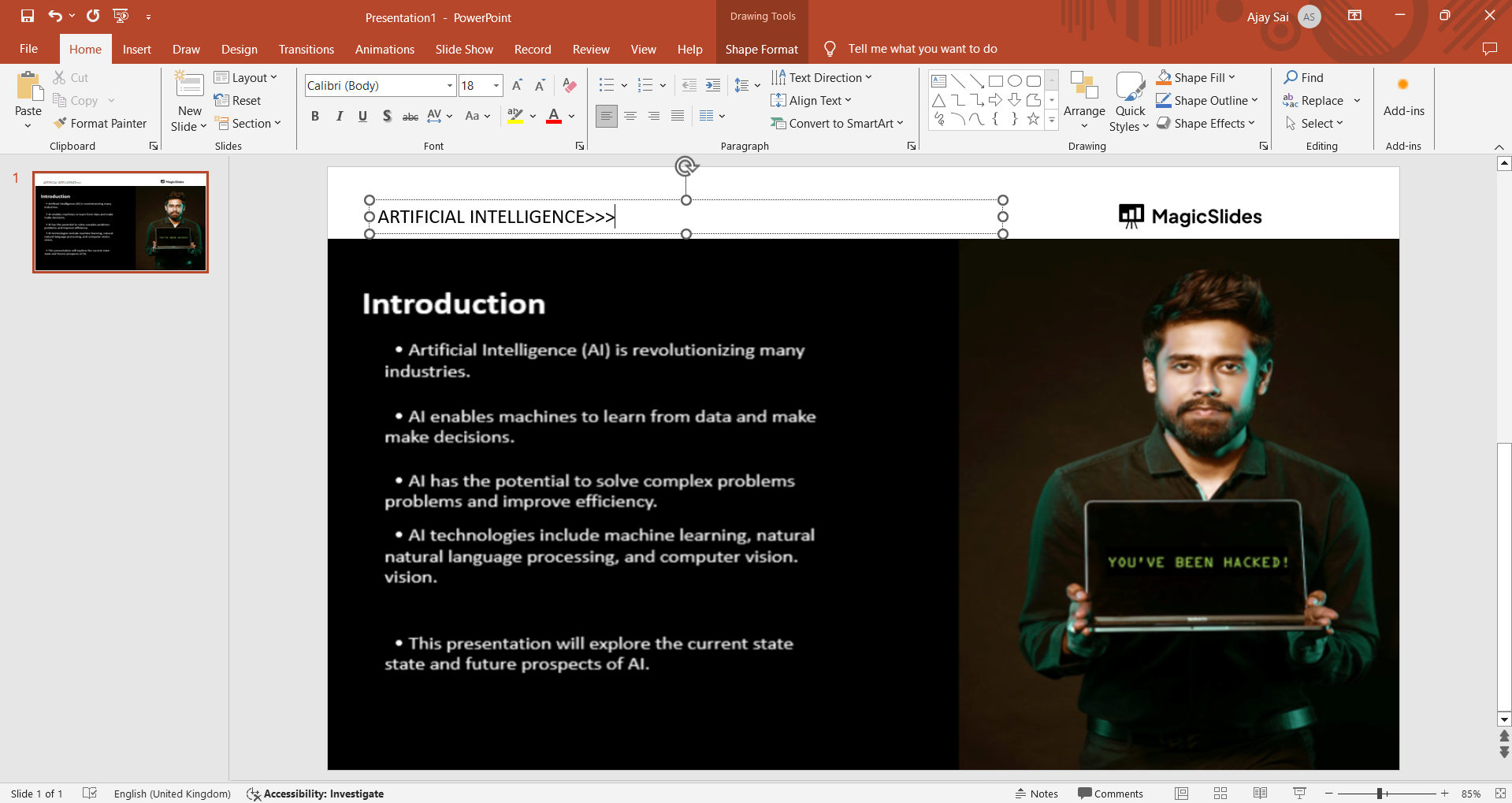
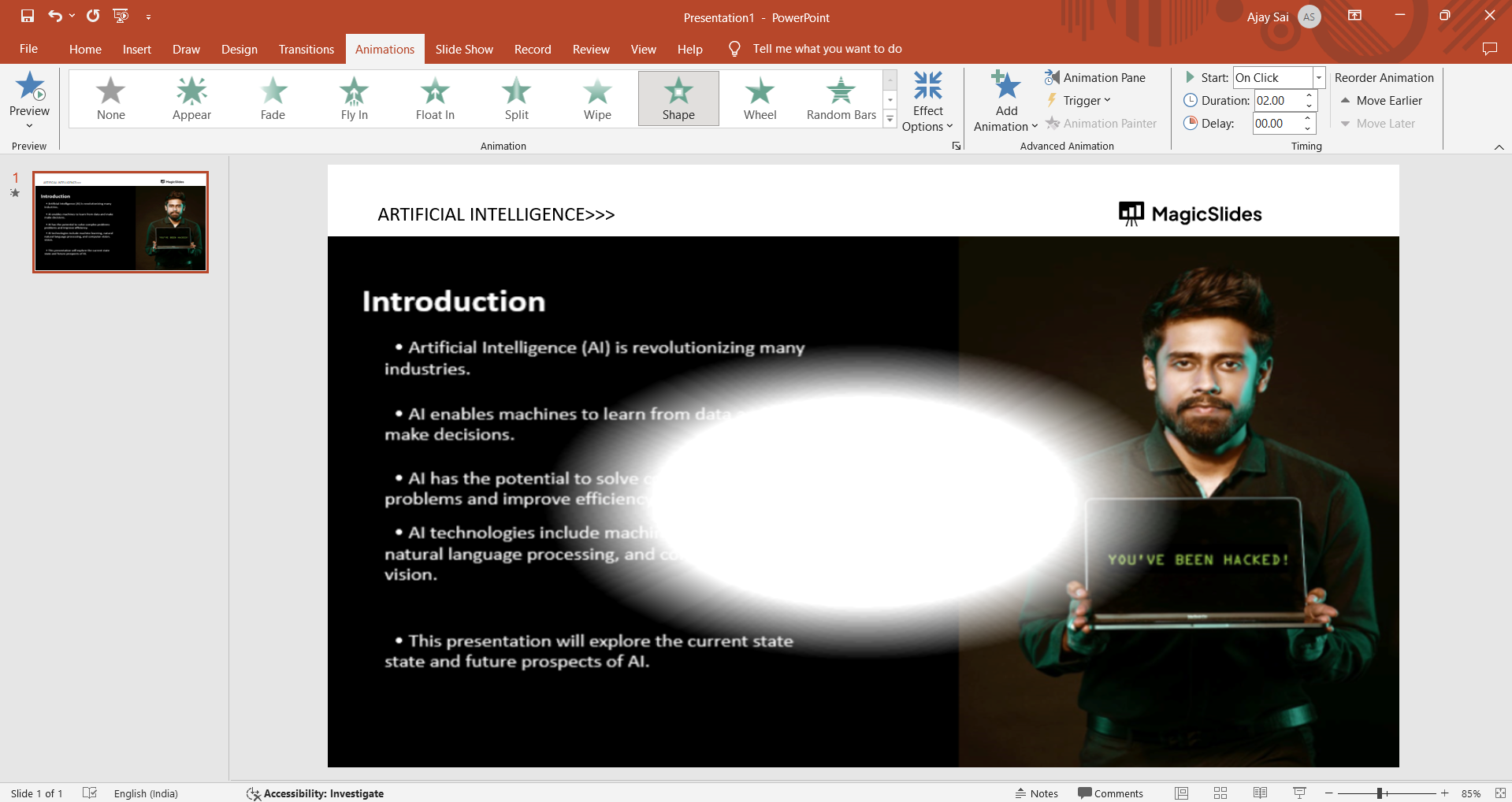
Step 6: Incorporate Animations and Transitions
One of the perks of PowerPoint is its ability to bring content to life with animations and transitions. Strategically incorporate these features to create a dynamic and engaging flow throughout your presentation. This step ensures that your audience remains captivated from slide to slide.
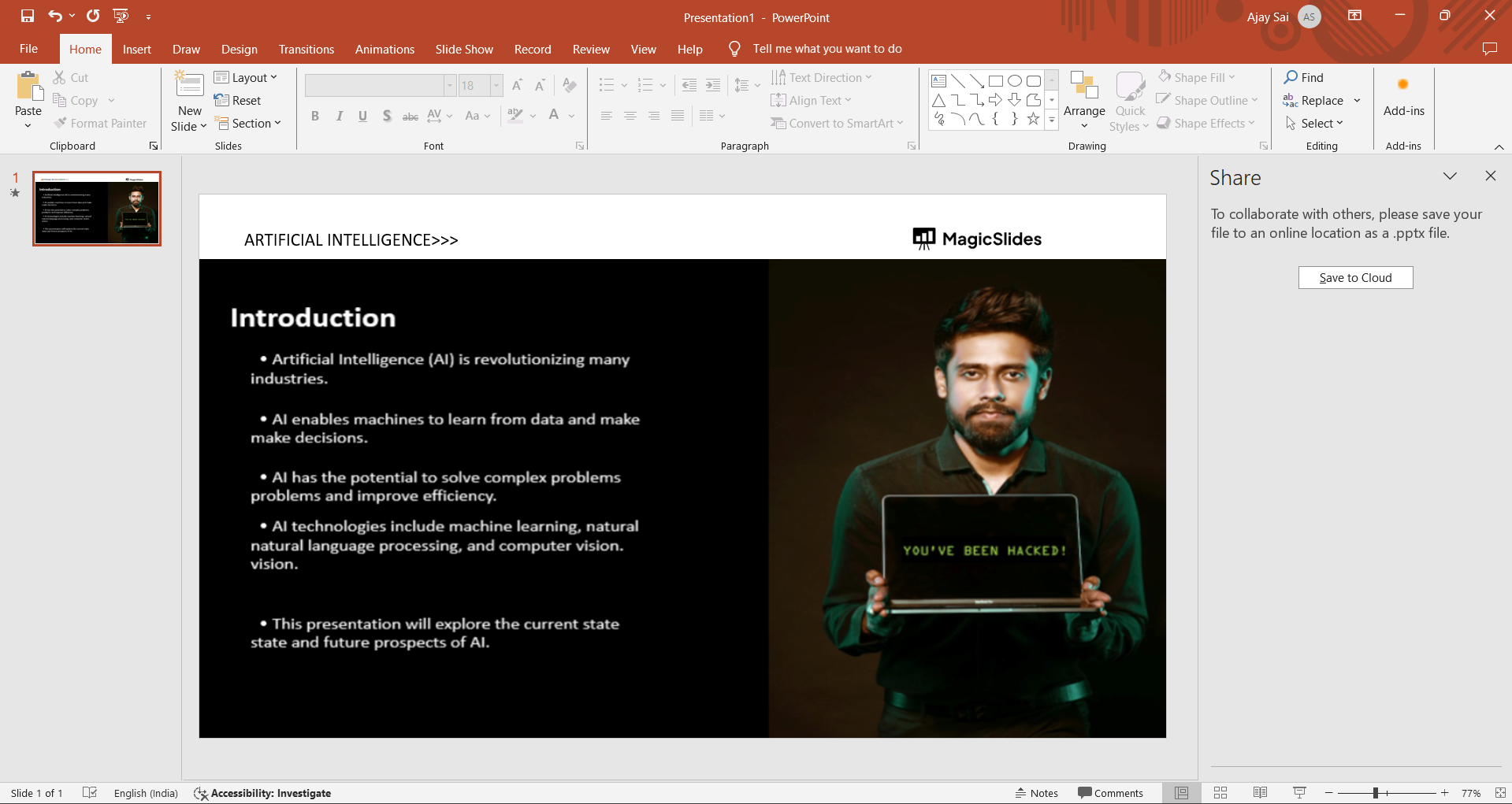
Step 7: Save and Share Your PowerPoint Masterpiece
Once satisfied with your transformed presentation, save it in the desired format. PowerPoint offers various file formats for compatibility. Whether you're sharing it online or presenting in person, choose the format that suits your needs.
Conclusion:
By following these steps, you've successfully converted a static PDF into a dynamic PowerPoint presentation. This not only breathes new life into your content but also opens up exciting possibilities for engagement and interaction. Embrace the transformative power of PowerPoint, and let your ideas shine in a visually compelling way.
Frequently Asked Questions:
Q1: Why convert a PDF to a PowerPoint presentation?
Ans) Transforming a PDF into PowerPoint allows for dynamic, visually appealing presentations with added elements like animations, transitions, and multimedia, enhancing audience engagement.
Q2: Can I customize the converted PowerPoint slides?
Ans) Absolutely! After conversion, review and customize slides as needed. Adjust formatting, refine text, and incorporate additional elements to tailor the presentation.
Q3: Are there specific tools for PDF to PowerPoint conversion?
Ans) Yes, numerous online tools and software specialize in this conversion. Choose one that suits your requirements, ensuring a seamless and accurate transformation.
Q4: What tips enhance the impact of a converted PowerPoint presentation?
Ans) To maximize impact, add visuals like images and infographics, utilize animations and transitions strategically, and ensure a cohesive and visually appealing design.
Have a look @these tutorial blogs by us:
- How To Flip An Image In Powerpoint In 2024: https://www.magicslides.app/blog/How-to-mirror-an-image-in-powerpoint
- How To Add A Background In Powerpoint: https://www.magicslides.app/blog/How-to-add-a-background-in-powerpoint
- How To Add Mp4 Audio To Google Slides: https://www.magicslides.app/blog/How-to-add-mp4-audio-to-google-slides
- How To Automatically Play Your Google Slides: https://www.magicslides.app/blog/How-to-automatically-play-google-slides


