How to Unarchive a Slack Channel


Revive dormant conversations and rekindle collaboration by learning how to effortlessly unarchive a Slack channel.
Archiving a channel is a useful feature to keep your Slack workspace organized, but what if you need to revive a conversation?
This step-by-step guide walks you through the process of unarchiving a Slack channel, restoring it to active status.
Before we begin, if you are looking to send Google form submissions directly to Slack, check SlackNotify.app. It will include all info submitted and sent directly to the Slack channel of your choice
How to Unarchive a Slack Channel
Open your Slack application:
Launch the Slack application or visit the Slack website and log in to your workspace.
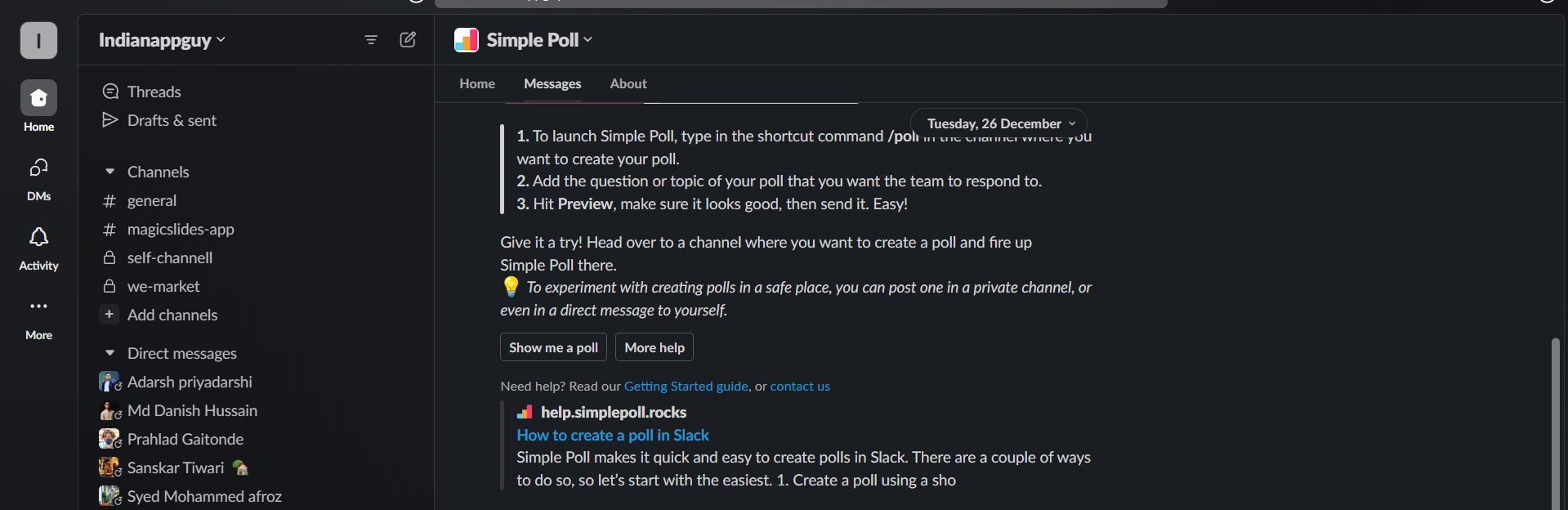
Access the Channel Browser:
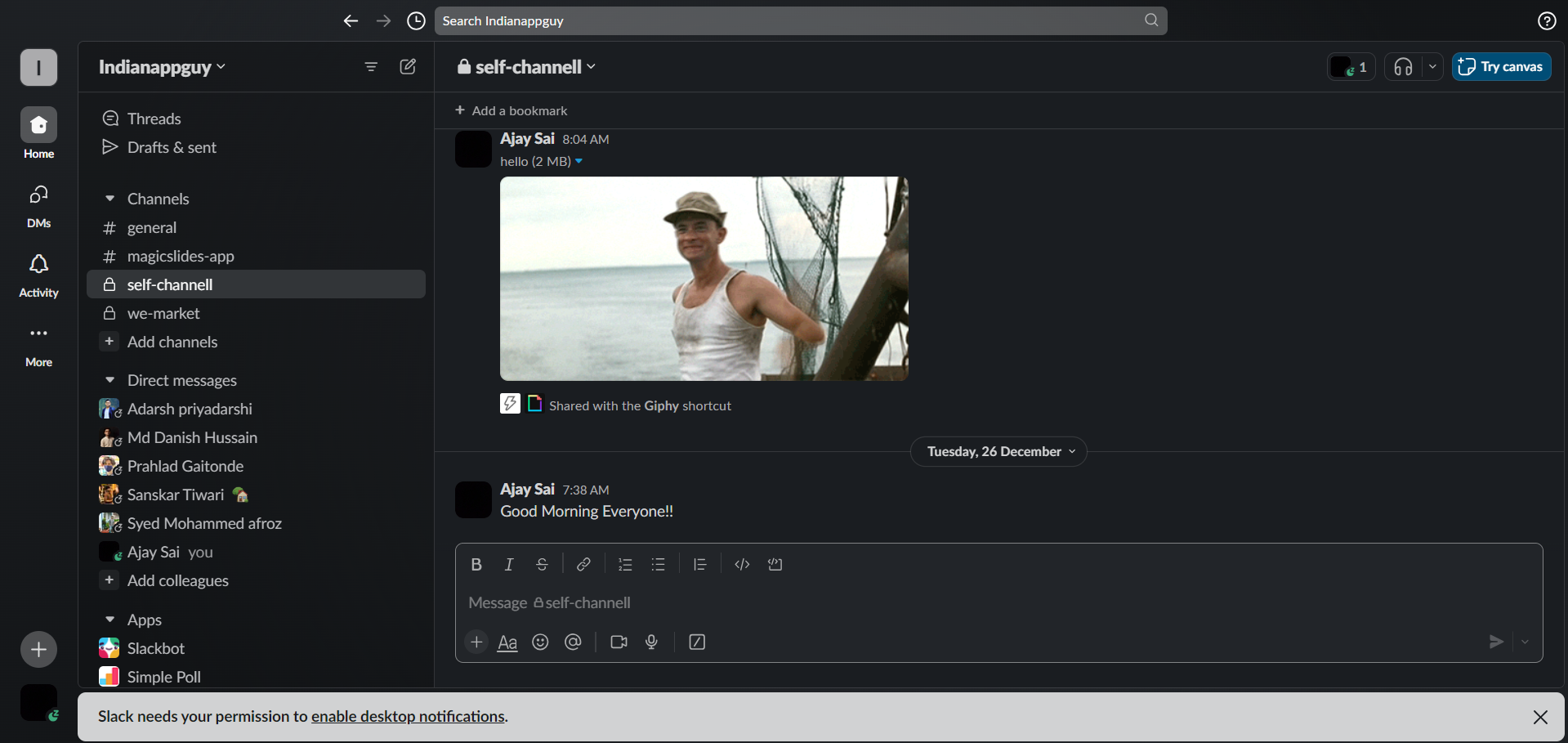
Once logged in, navigate to the left sidebar and click on "Channels" to open the channel browser. This is where you'll manage your channels.
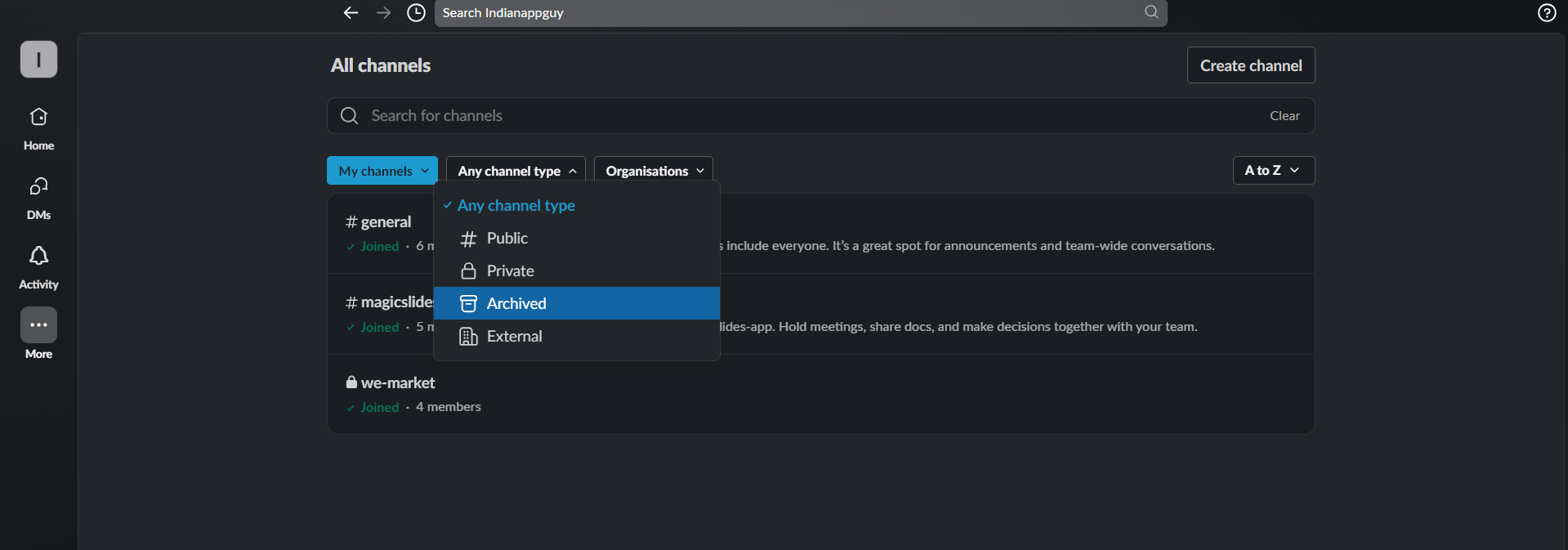
View Archived Channels:
In the channel browser, scroll down to the bottom, and look for the "More" link. Click on it to reveal additional options.
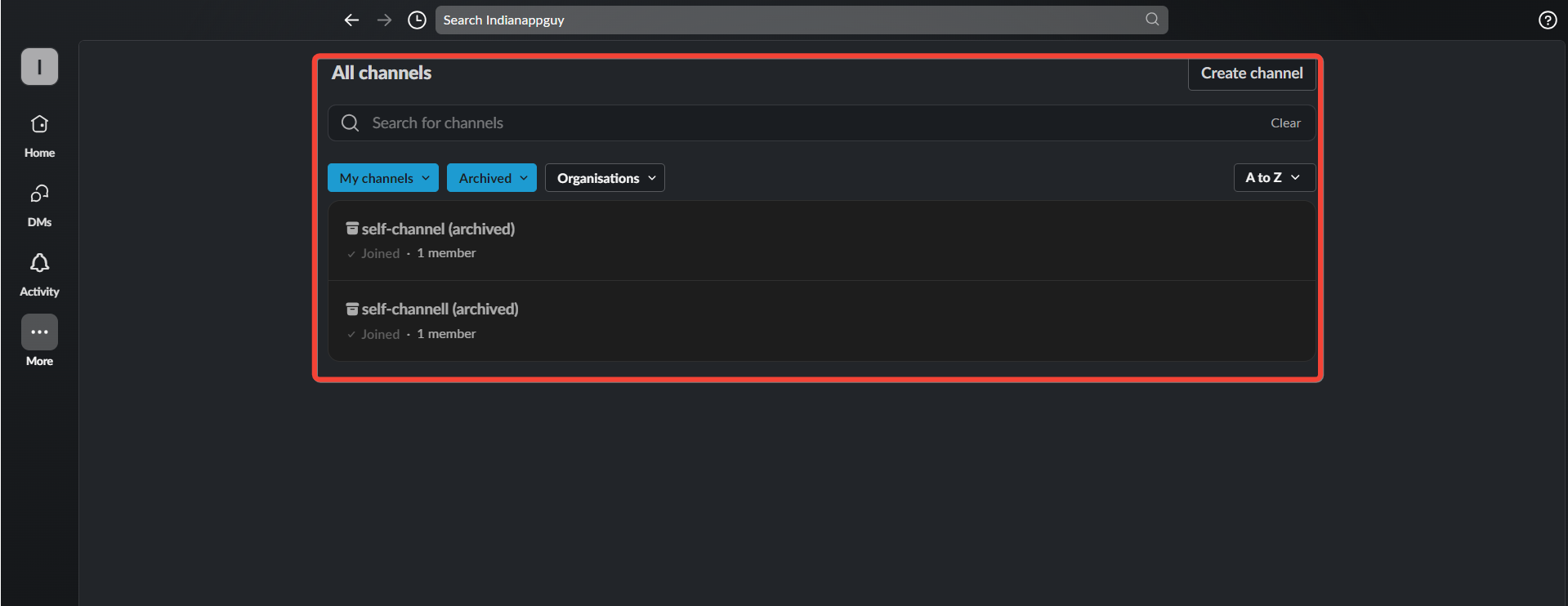
Locate the Archived Channel:
Within the additional options, find and click on "Additional options." This will take you to the "Archived" section, where all your archived channels are listed.
Unarchive the Channel:
In the "Archived" section, locate the channel you want to unarchive. Right-click on the channel name, and a menu will appear. Select the "Unarchive" option from the menu.
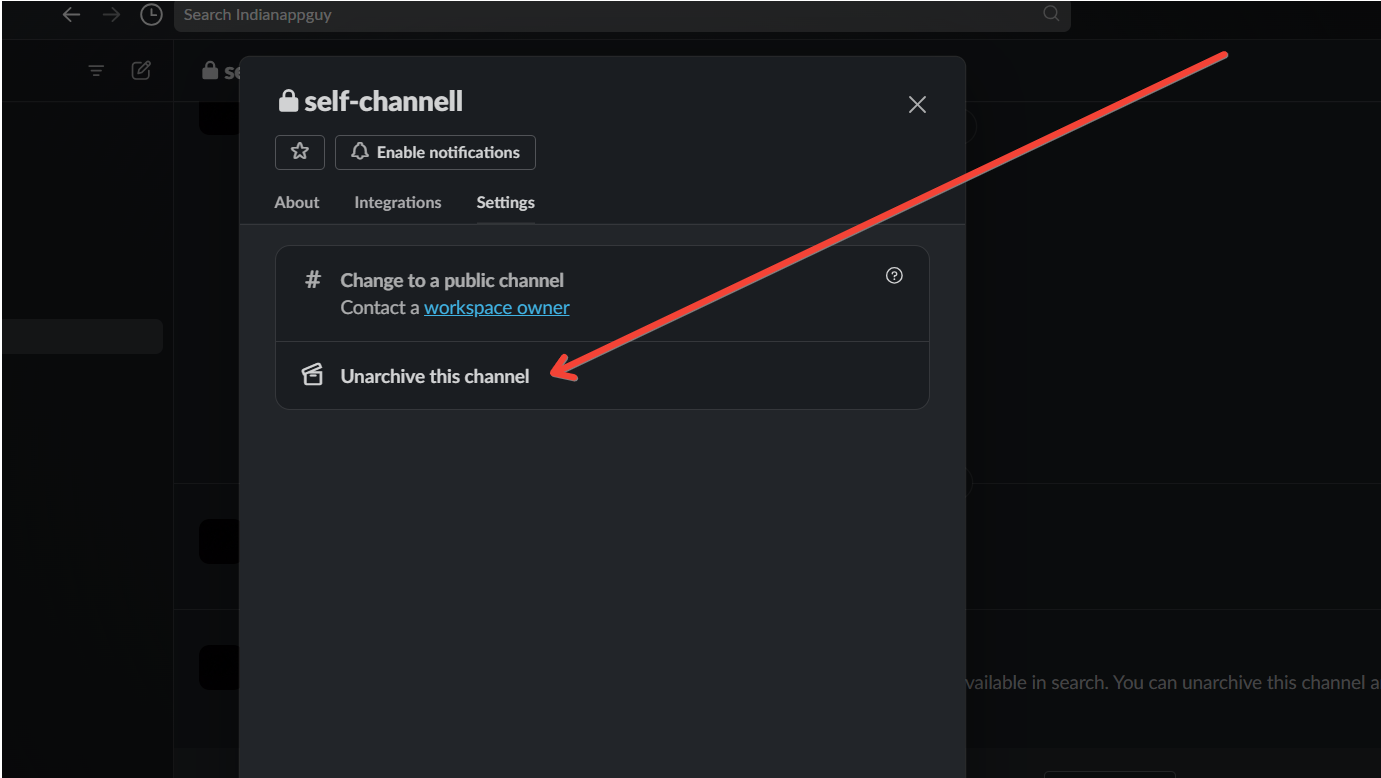
Confirm Unarchiving:
Slack will prompt you to confirm the unarchiving action. Confirm the process, and the channel will be instantly unarchived.
When unarchiving a Slack channel, consider using Google Form notifications to keep the conversation going.
Each form submission will trigger a notification in the newly un archived channel, ensuring nothing important is missed.
Conclusion:
Unarchiving a Slack channel is a straightforward process, allowing you to easily bring back important discussions and collaborations.
Whether it's for project revival or ongoing communication, mastering this feature adds flexibility to your workspace management, ensuring a seamless and efficient collaboration experience.
Frequently Asked Questions:
Can Anyone Unarchive a Slack Channel?
Generally, only workspace admins or members with appropriate permissions can unarchive channels.
What Happens to Messages When a Channel Is Unarchived?
All messages and content are restored, allowing members to pick up where they left off.
Can I Unarchive a Channel on the Slack Mobile App?
Yes, you can unarchive a channel on the mobile app by accessing the channel browser.


