How to unblock someone on Slack Application


Unlock the power of communication on Slack with our guide to unblocking and unmuting users effortlessly.
In the dynamic world of remote collaboration, Slack has emerged as a powerful tool for teams to communicate seamlessly.
However, managing interactions is essential, and there might be instances where you've muted or blocked someone.
Perhaps it's time to reevaluate and reconnect. In this guide, we'll walk you through the step-by-step process of unblocking and unmuting users on Slack.
Before we begin, if you are looking to send Google form submissions directly to Slack, check SlackNotify.app
How to unblock someone on Slack Application
Step 1: Accessing User Preferences
To unblock or unmute someone on Slack, you need to access your user preferences. Here's how:
Navigate to the user's profile in the Slack sidebar.
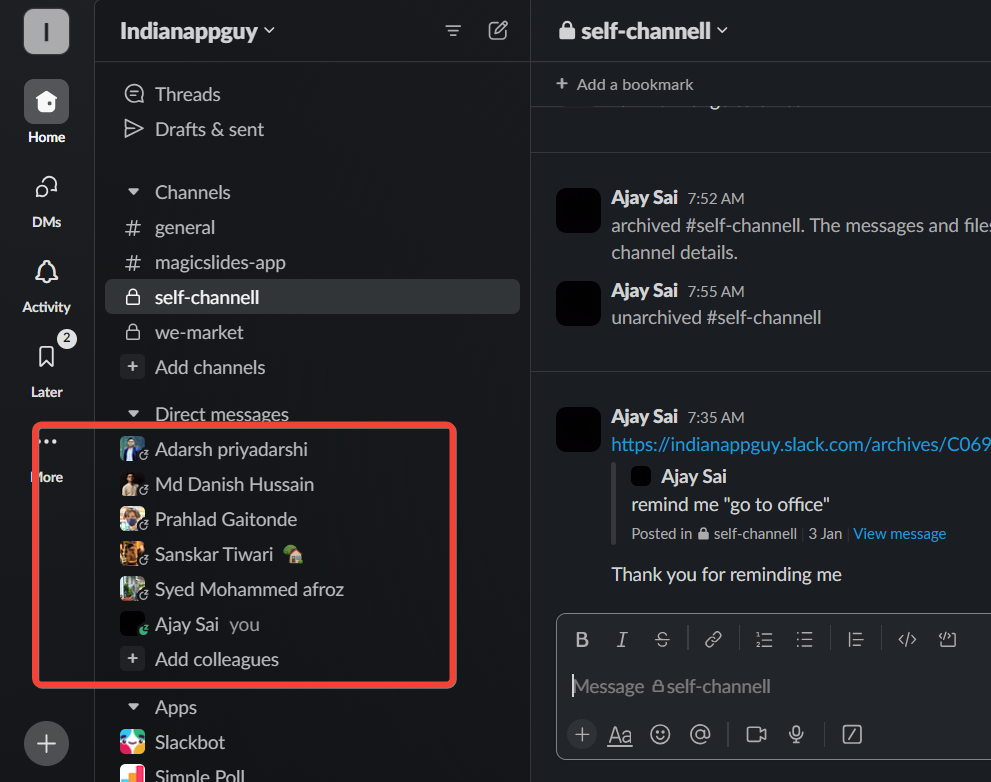
Right-click on their name to reveal the context menu.
Step 2: Unblocking a User:
If you've blocked someone and want to give them access again, follow these steps:
In the context menu, find and click on "Unblock [username]."
Confirm your action if prompted.
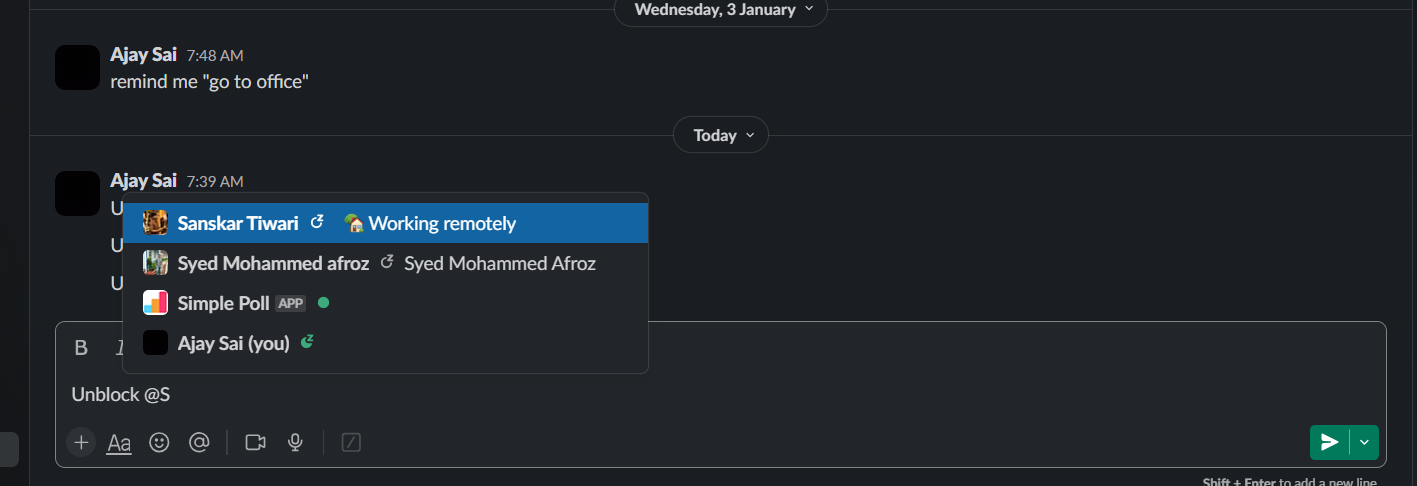
This simple step opens the communication channel, allowing messages and interactions to flow once again.
Step 3: Unmuting a User:
When you've muted someone but wish to hear from them again, you can easily reverse the process:
Locate the user in the Slack sidebar.
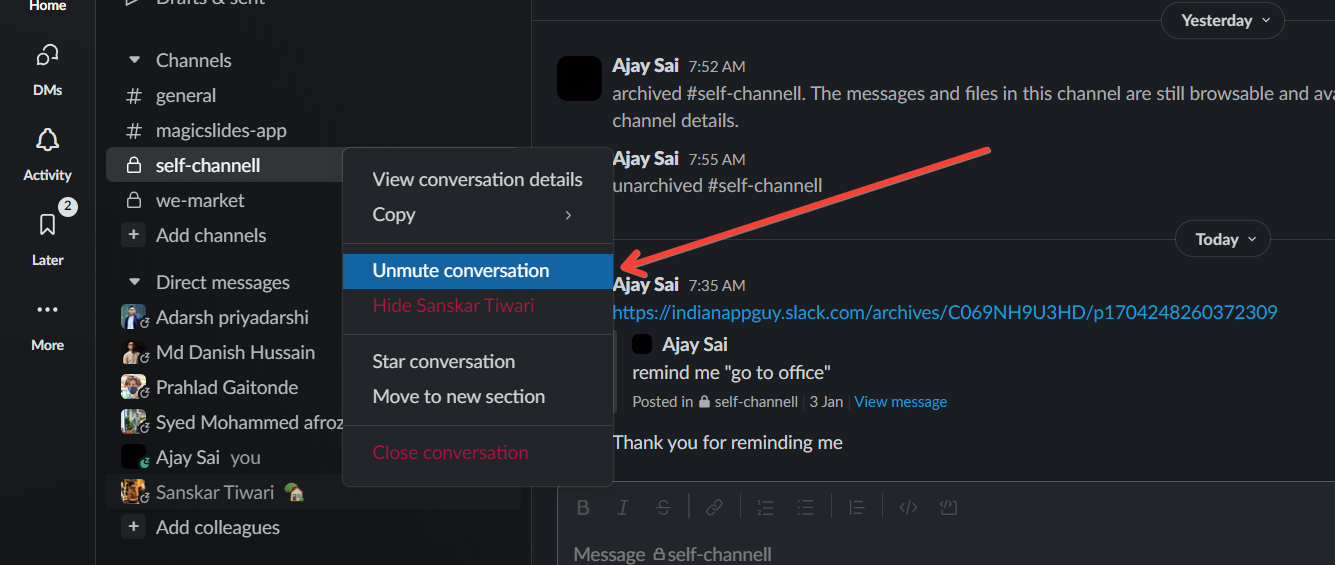
Right-click on their name and choose "Unmute [username]."
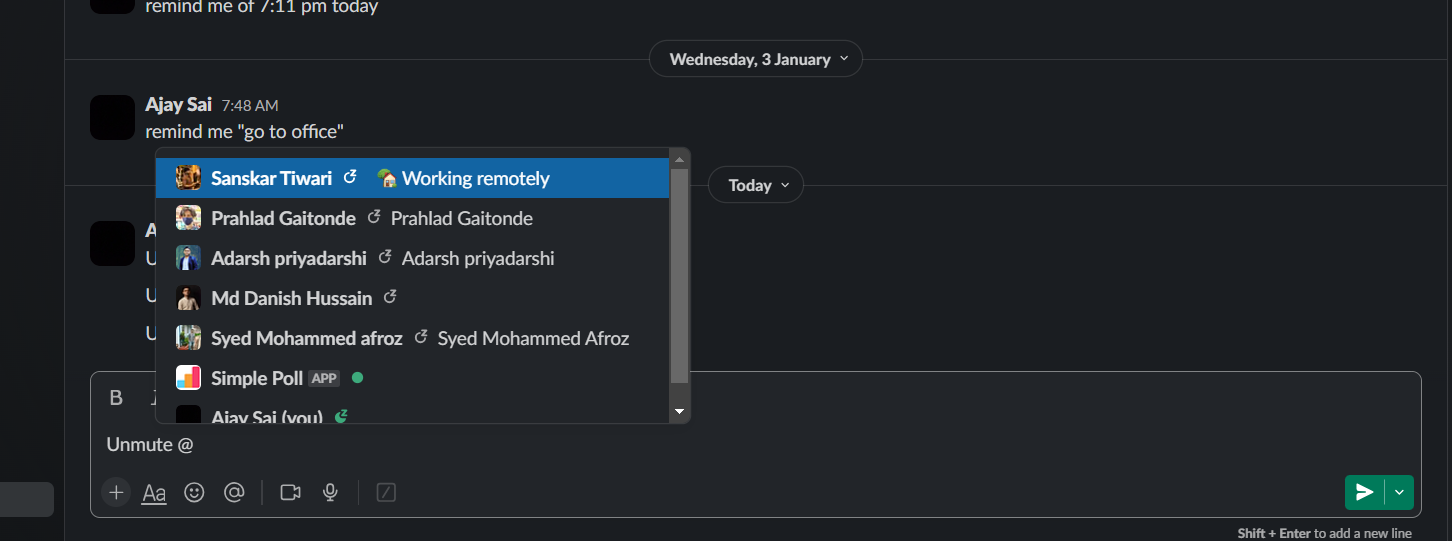
Unmuting restores notifications for messages from that user, ensuring you stay informed.
Step 4: Adjusting Notification Preferences:
For a more tailored approach to communication, consider adjusting your notification preferences. Here's how:
Click on your workspace name in the top left corner.
Select "Preferences" from the dropdown menu.
Under "Notifications," customize your settings to meet your preferences.
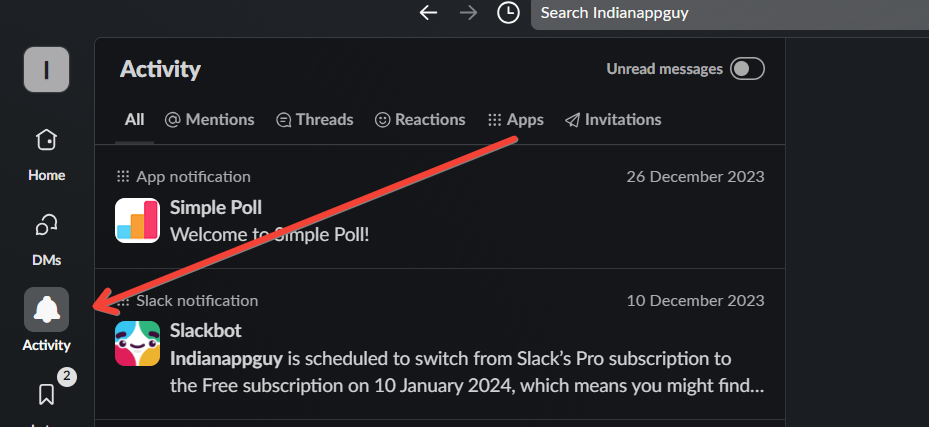
This step allows you to control how and when you receive notifications, ensuring a more personalized Slack experience.
As you manage blocked contacts in Slack, set up a Google Form Slack integration to send real-time notifications for every Google Form submission, keeping your team connected even in busy channels.
Conclusion:
Effective communication is the backbone of successful collaboration, and Slack provides the platform for such interactions.
Unblocking and unmuting users is a simple yet crucial aspect of maintaining open lines of communication. By following these steps, you can ensure that your team conversations remain fluid and inclusive.
As the workplace landscape continues to evolve, mastering the art of managing your Slack interactions will undoubtedly contribute to a more efficient and harmonious virtual workspace.
Frequently Asked Questions:
How do I unblock someone on Slack?
Right-click on the user's name in the sidebar and select "Unblock [username]."
Can I customize notification settings for un blocked users?
Yes, visit Preferences > Notifications to tailor your notification preferences for a personalized experience.
Is unmuting the same as unblocking on Slack?
No, unmuting restores notifications; unblocking allows blocked users to access your profile and messages.
Can I move messages between channels on Slack?
No, Slack lacks a direct "move" feature, but you can copy-paste or use message threads.


