How to use AI to create a Google Slides Presentation


Create AI-powered Google Slides presentations effortlessly using MagicSlides extension for quick, high-quality slide generation
How to Use AI to Create a Google Slides Presentation
Creating engaging presentations can be time-consuming, but with AI-powered tools like MagicSlides.app Google Slides Extension, you can generate high-quality slides in minutes.
This extension integrates directly with Google Slides, allowing you to create AI-driven presentations effortlessly.
Follow this step-by-step guide to learn how to use MagicSlides.app to automate your slide creation process.
Step 1: Install MagicSlides.app Extension
To get started, you need to install the MagicSlides.app AI Presentation Maker extension in Google Slides:
- Open Google Slides in your browser.
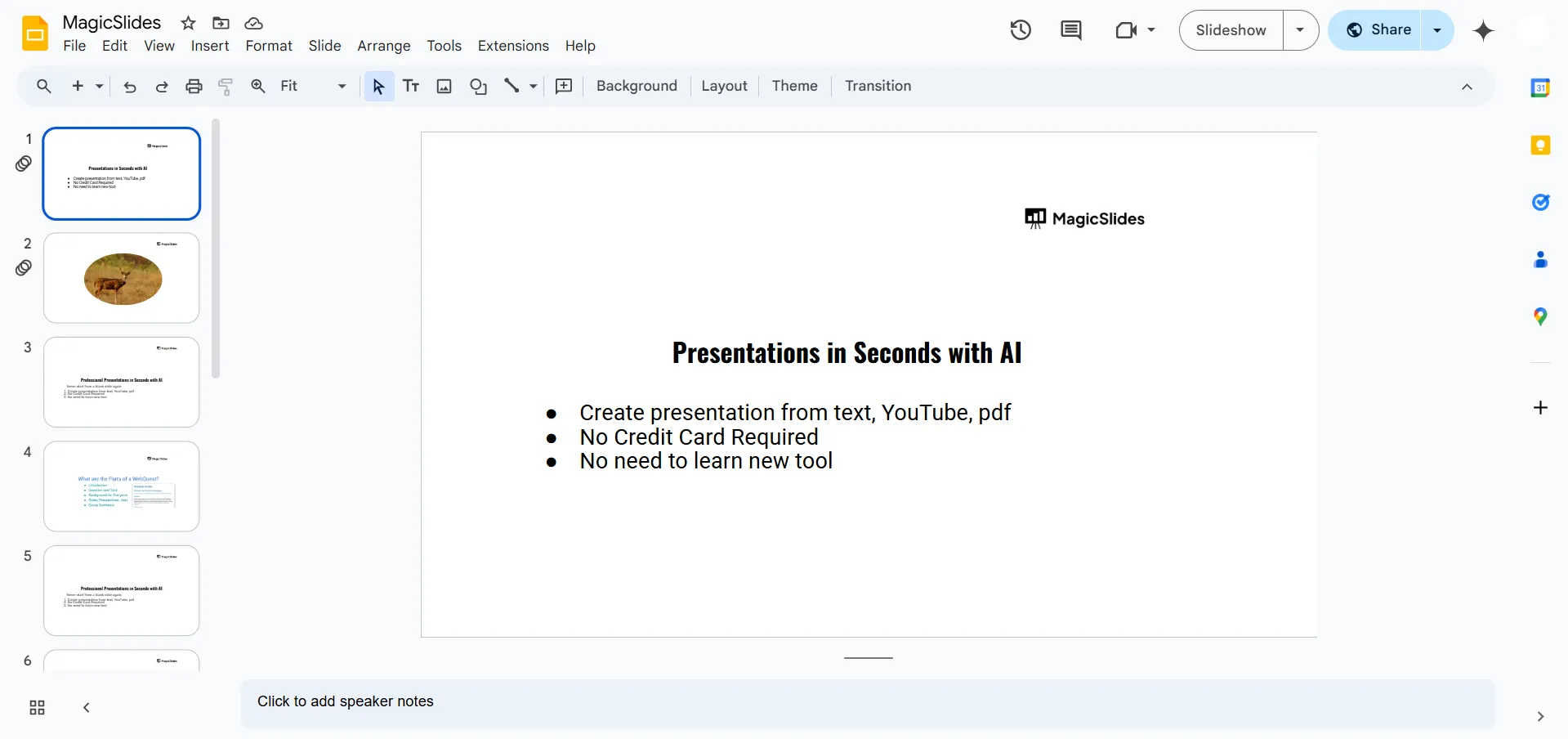
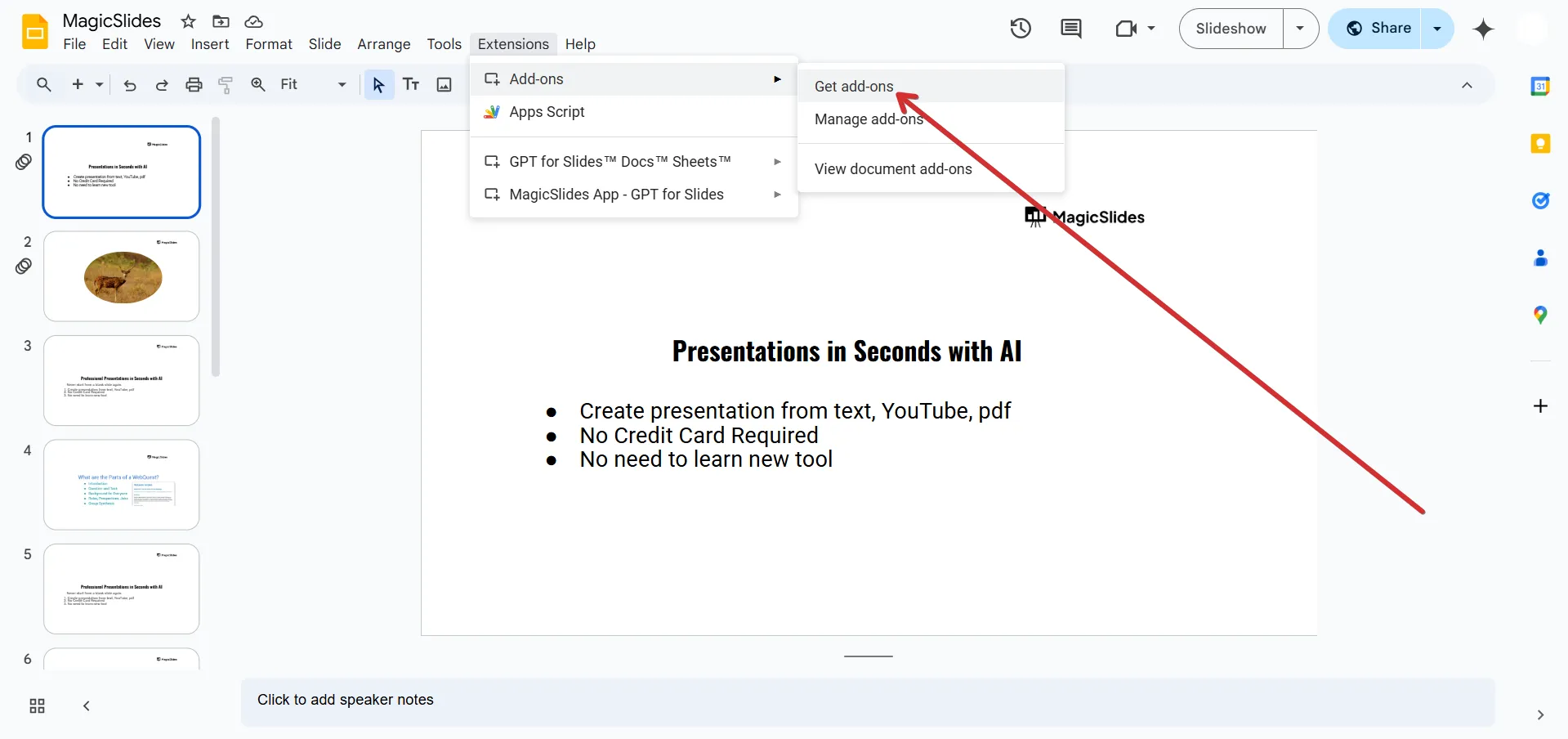
- Click on Extensions in the top menu.
- Select Add-ons > Get add-ons.
- In the Google Workspace Marketplace, search for MagicSlides.app
- Click Install and grant the necessary permissions.
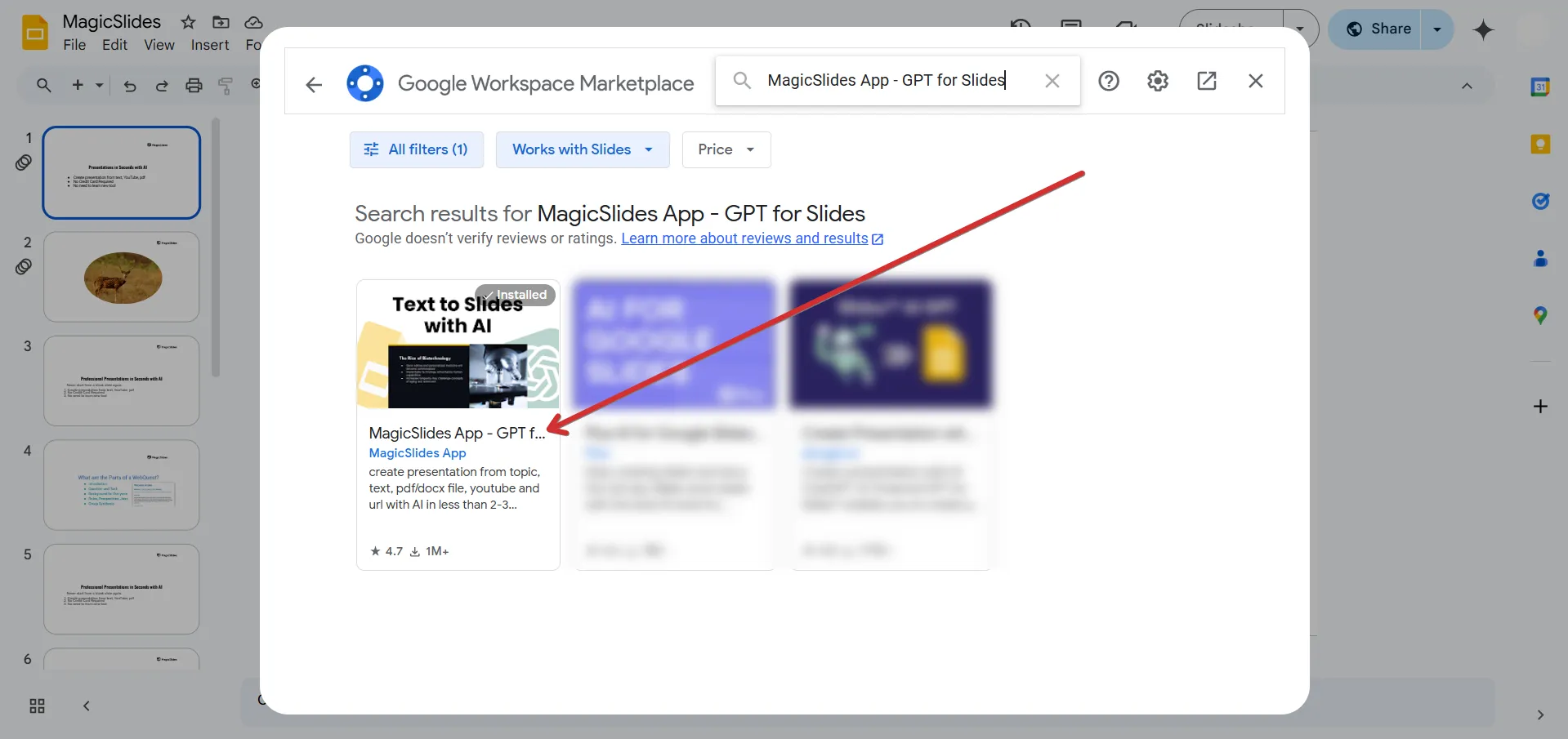
Once installed, MagicSlides.app will be available in your Google Slides Extensions menu.
Step 2: Open MagicSlides.app in Google Slides
After installing the extension, activate it within Google Slides:
- Open a new or existing Google Slides presentation.
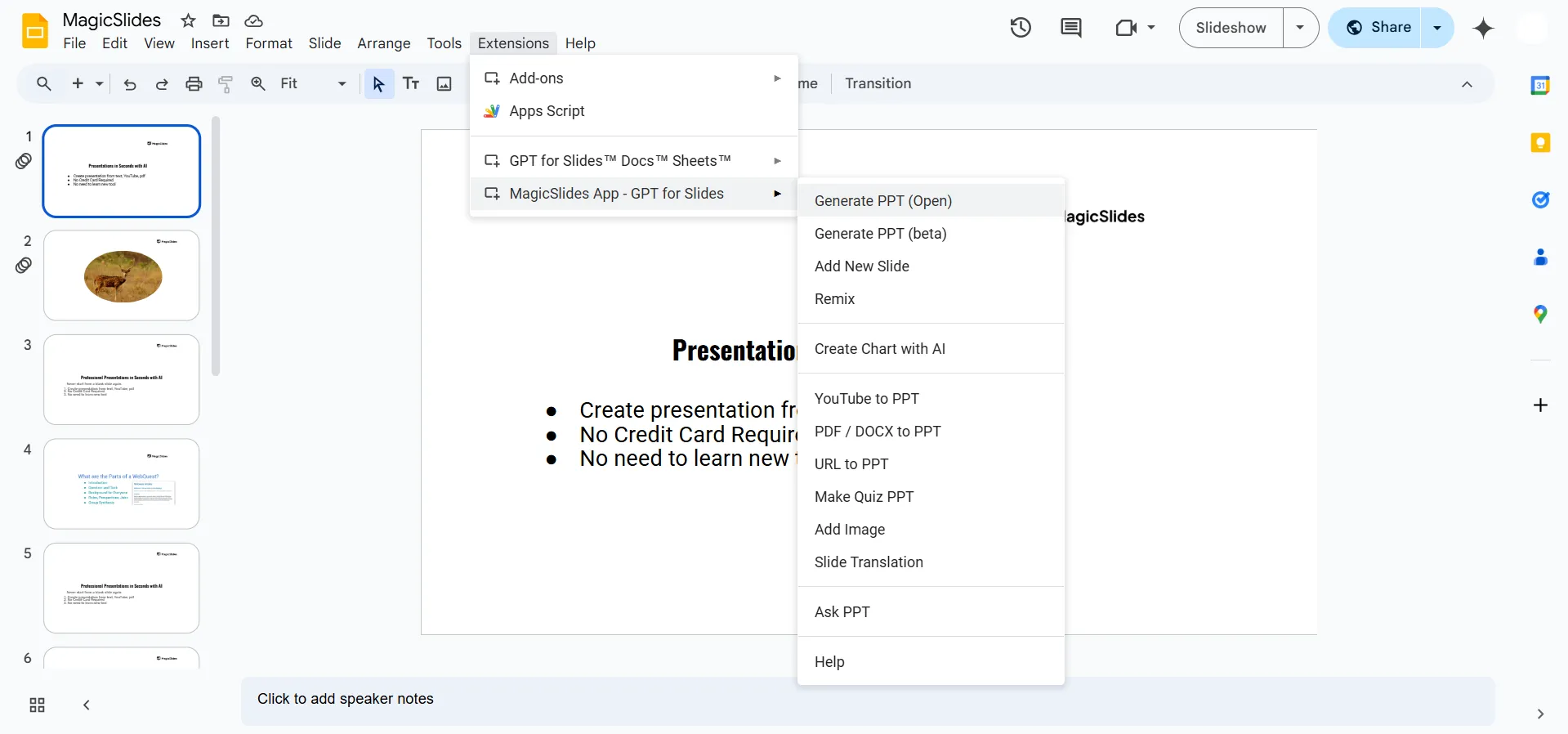
- Click on Extensions in the top menu.
- Select MagicSlides.app AI Presentation Maker > Generate Presentation.
This will open the MagicSlides.app AI panel, where you can start generating your presentation.
Step 3: Enter Your Presentation Topic
Now, it's time to generate your AI-powered slides:
- In the MagicSlides.app AI input bar, type your presentation topic.
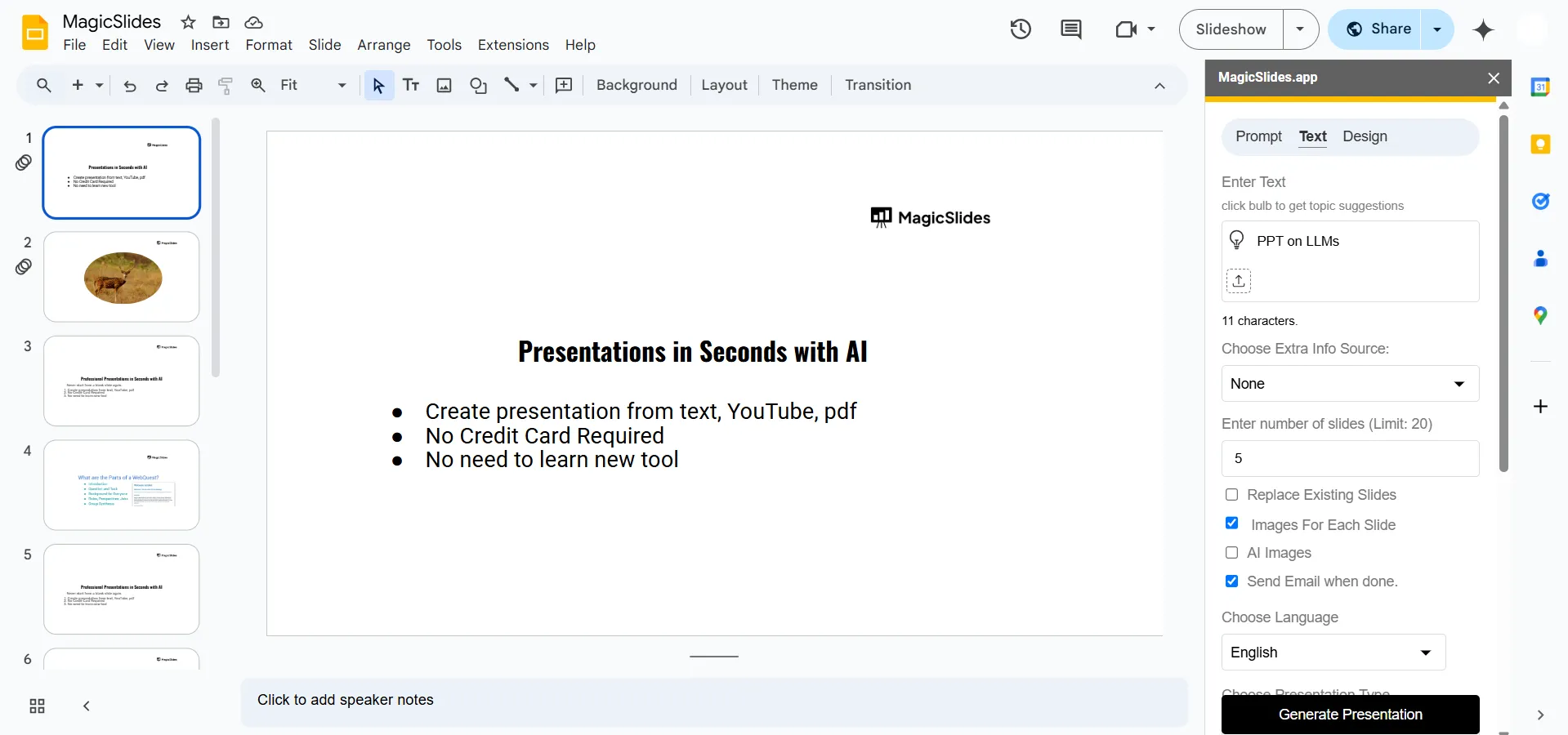
- You can add keywords or brief descriptions to refine the generated content.
- Click on Generate Presentation and let the AI create slides based on your input.
Within moments, MagicSlides.app will produce a structured slide deck tailored to your topic.
Step 4: Review and Edit Your AI-Generated Slides
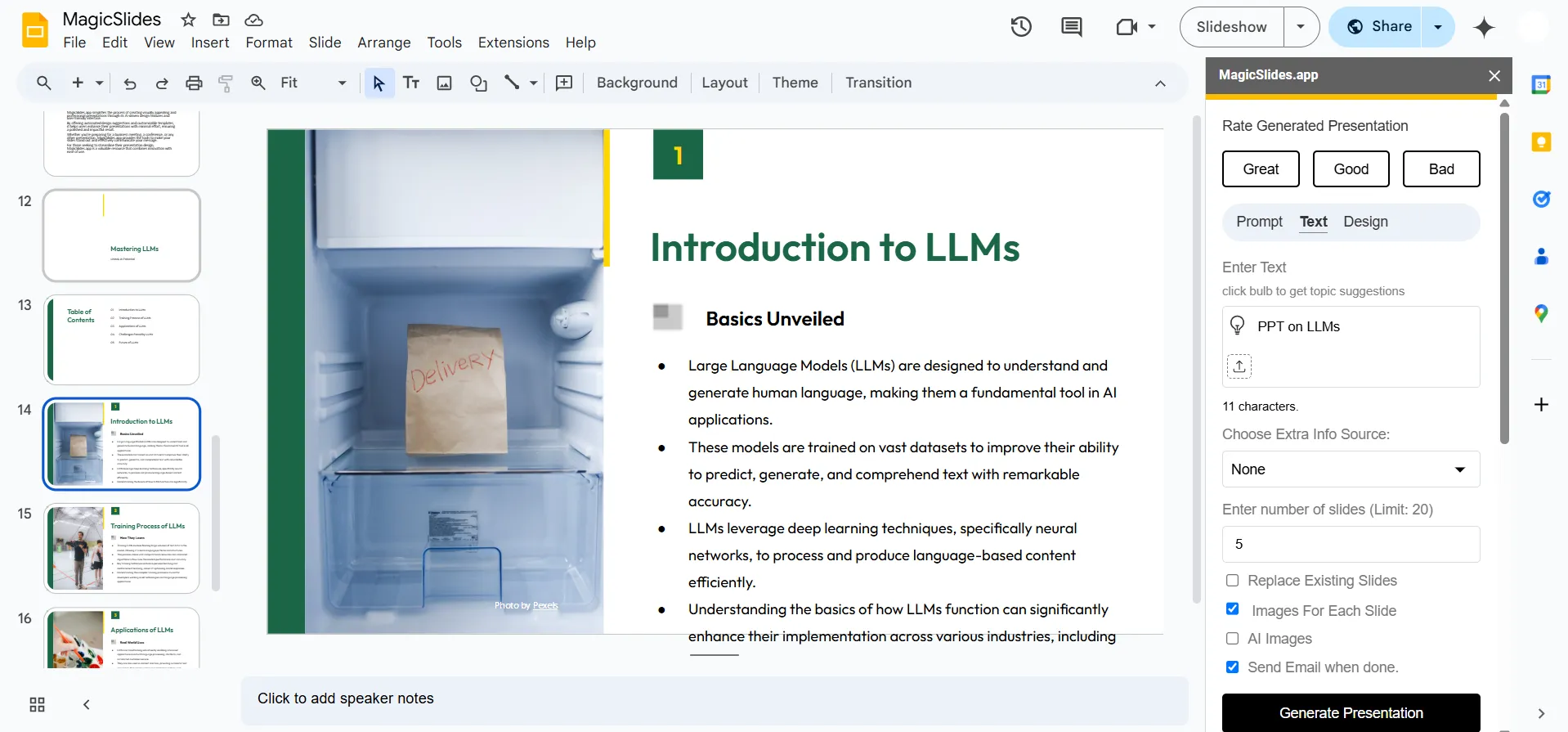
After the AI generates your slides, review them to ensure they align with your requirements:
- Check each slide’s content, images, and layout.
- Make necessary edits to text, fonts, or design elements.
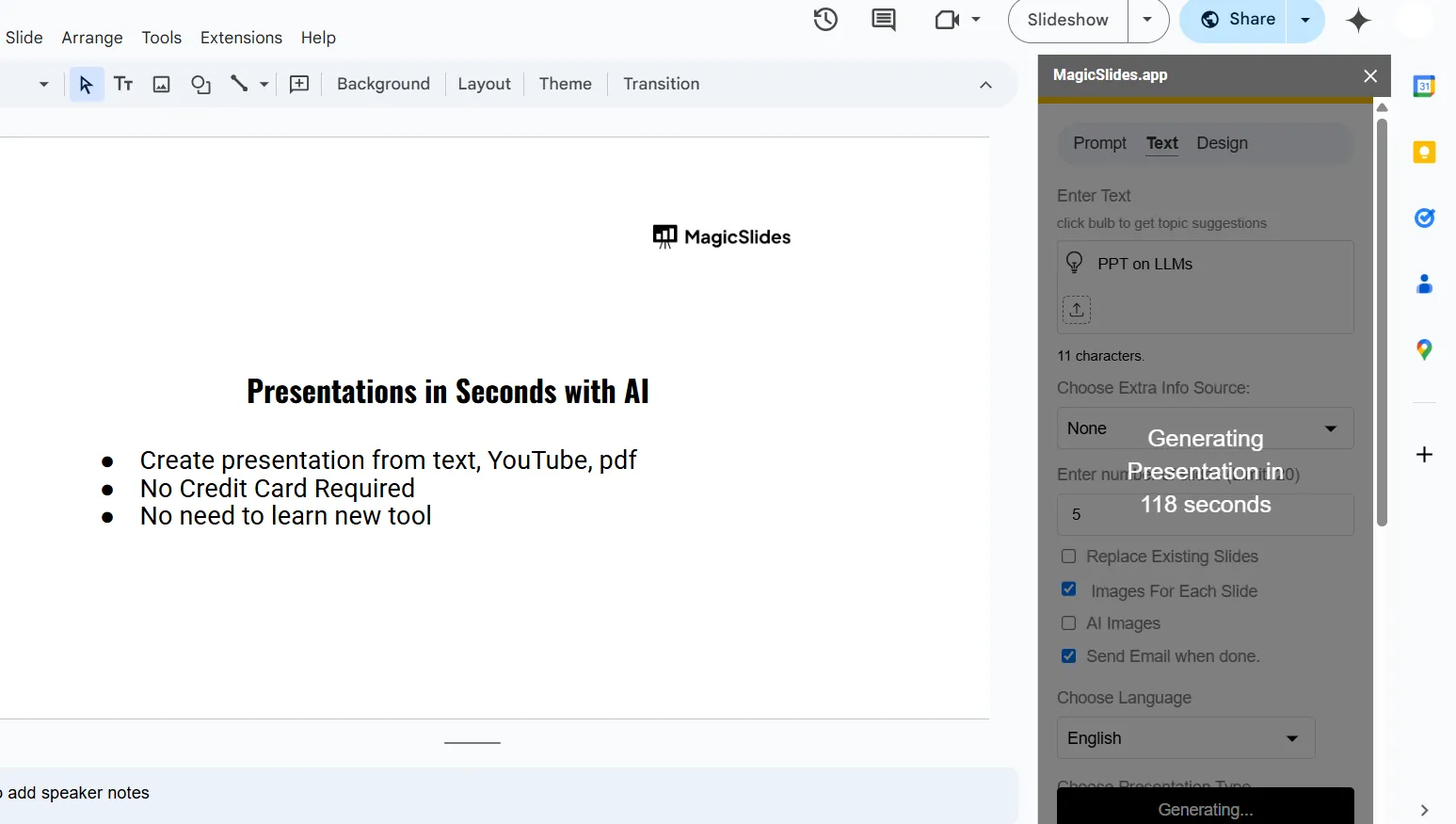
- If you need modifications, you can re-run the AI to regenerate specific slides.
MagicSlides.app allows for customization, so you can refine your slides before presenting.
Step 5: Upgrade for Advanced Features
While the free version of MagicSlides.app offers AI-powered slide generation, upgrading to Pro or Premium unlocks additional features such as:
- YouTube Video to PPT – Convert YouTube content into structured slides.
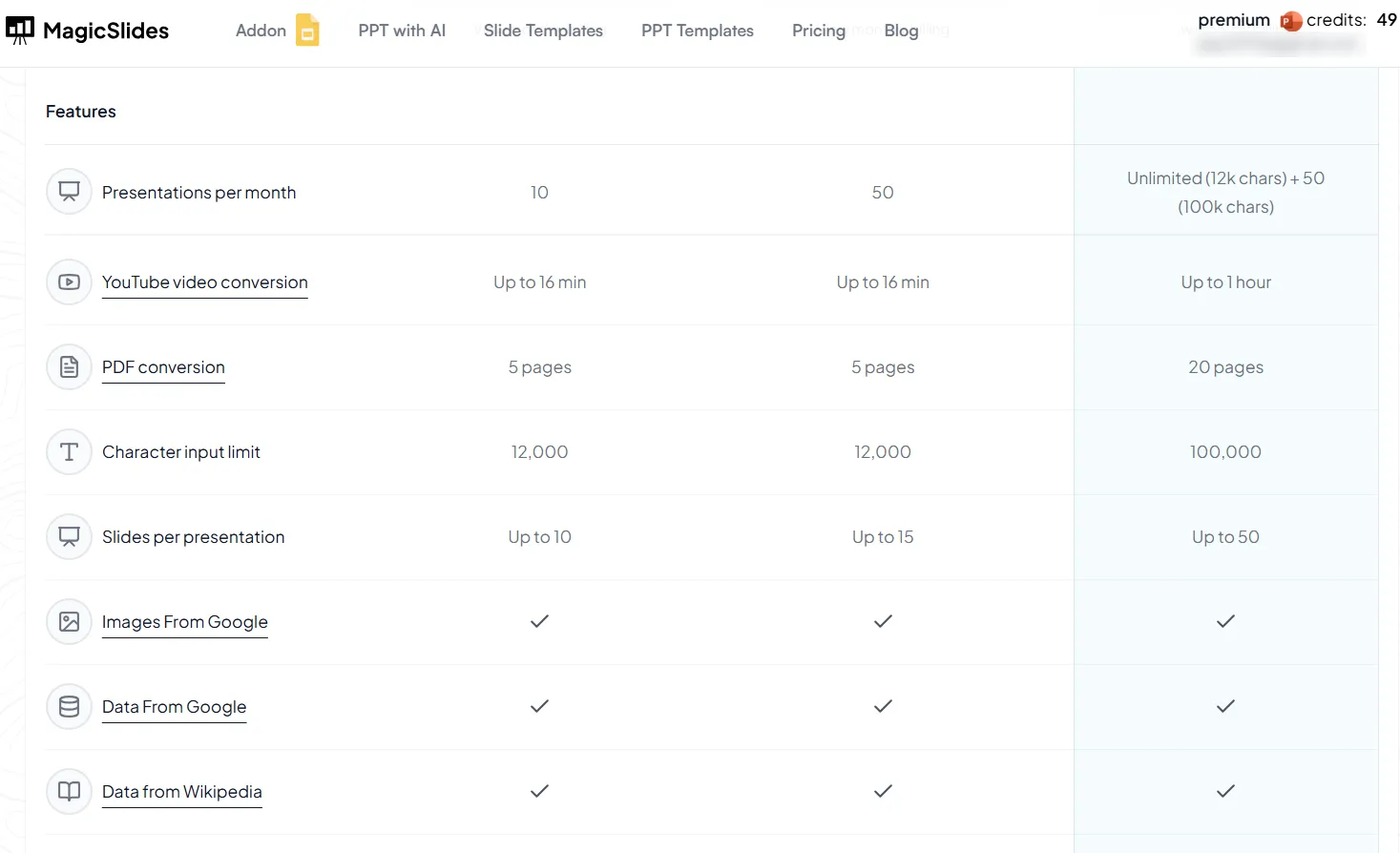
- URL to PPT – Generate presentations from web pages instantly.
- Enhanced AI Customization – Get more control over slide design and content.
Explore more features at MagicSlides Pricing.
Conclusion
Using MagicSlides Google Slides Extension, you can create professional-quality presentations in minutes with AI assistance.
Whether you're a student, educator, or business professional, this tool streamlines your workflow and enhances productivity.
Install the MagicSlides.app extension today and experience AI-powered presentation creation!
Frequently Asked Questions (FAQs)
Is MagicSlides.app Google Slides Extension free?
Yes, MagicSlides.app offers a free version with AI-generated slides. Advanced features are available in Pro and Premium plans.
Can I edit the slides after AI generates them?
Absolutely! You can manually edit the text, images, and layout to personalize your presentation.
How is MagicSlides.app different from other AI presentation tools?
MagicSlides.app integrates seamlessly with Google Slides, offering unique features like YouTube Video to PPT and URL to PPT, making it a powerful and convenient tool for creating presentations.
Start using MagicSlides.app Google Slides Extension today and revolutionize your presentation-making process!


