How To Use Budget Template In Google Sheets?


Effortlessly manage your finances with our step-by-step guide on using a budget template in Google Sheets. Achieve financial clarity today!
Managing your finances is a crucial aspect of adulting, and what better way to do it than with the efficiency of Google Sheets? In this step-by-step guide, we'll walk you through the process of using Google Sheets' budget template, helping you take control of your expenses and savings effortlessly.
How To Use Budget Template In Google Sheets?
Before we dive into the nitty-gritty, make sure you have a Google account. If not, sign up for one – it's quick and free. Once you're logged in, follow these straightforward steps to start your financial journey:
Step 1: Open Google Sheets
Navigate to your Google Drive or directly visit sheets.google.com. If you're not already signed in, enter your credentials to access the Google Sheets dashboard.
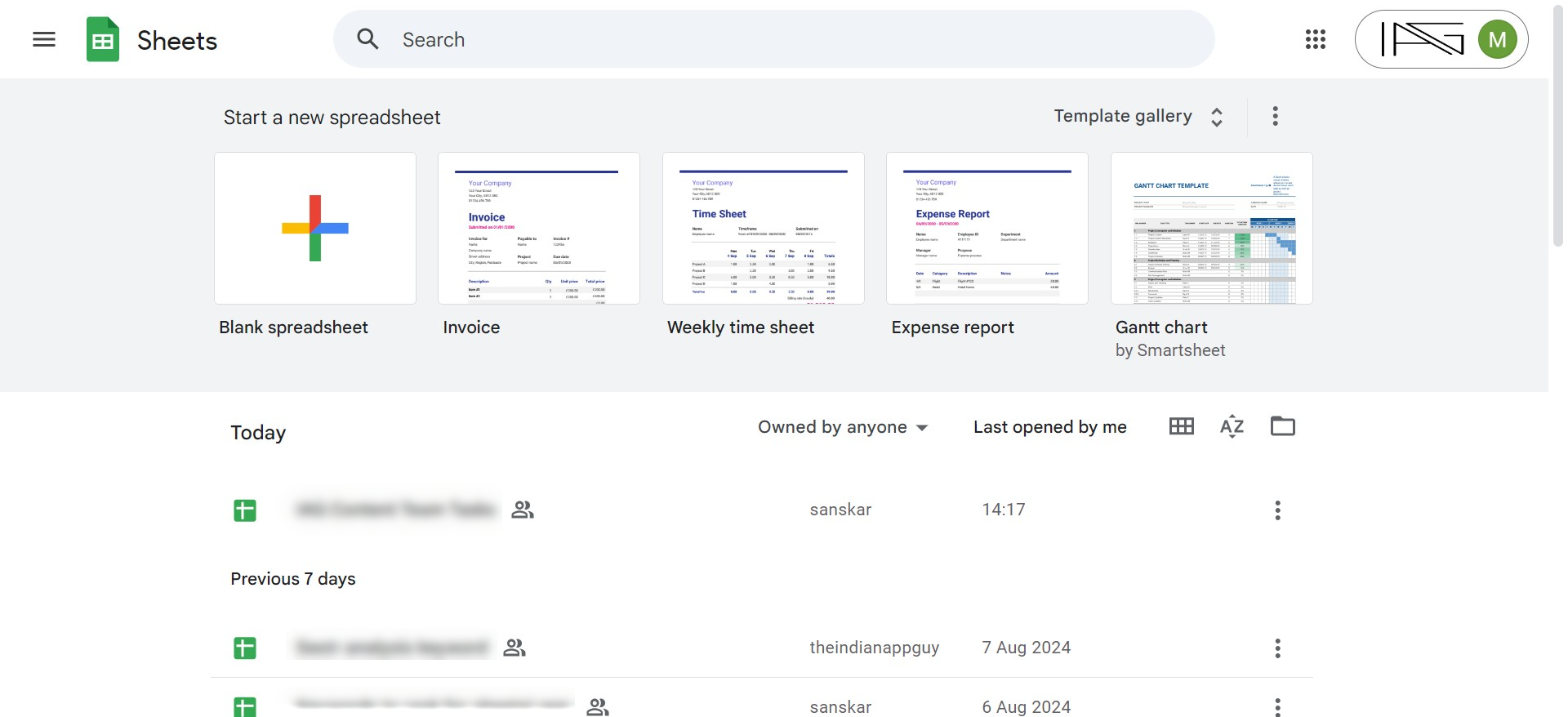
Step 2: Click on Budget Template
Once you're in Google Sheets, locate the search bar and type "budget template." Hit enter, and Google Sheets will present you with a selection of pre-designed budget templates. Choose one that aligns with your preferences and goals by clicking on it.
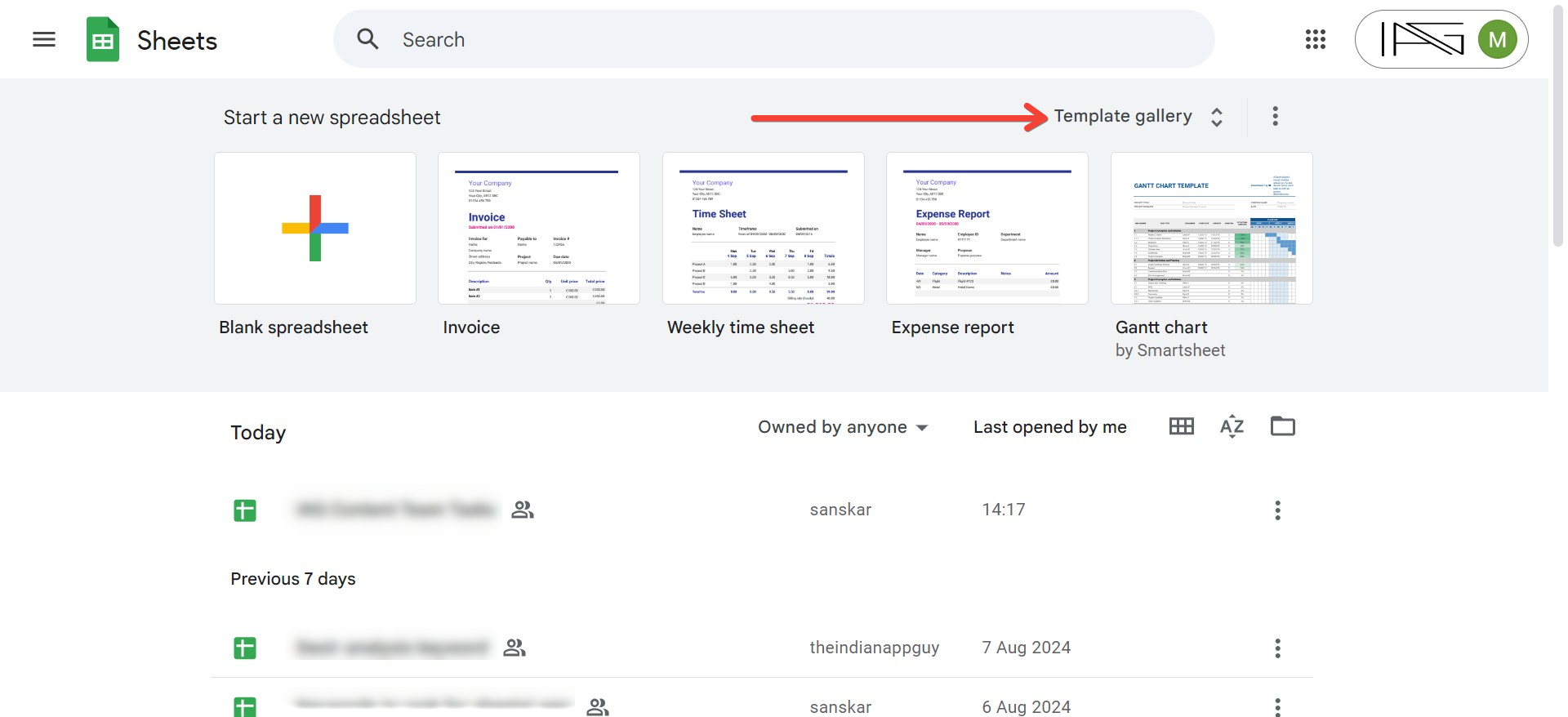
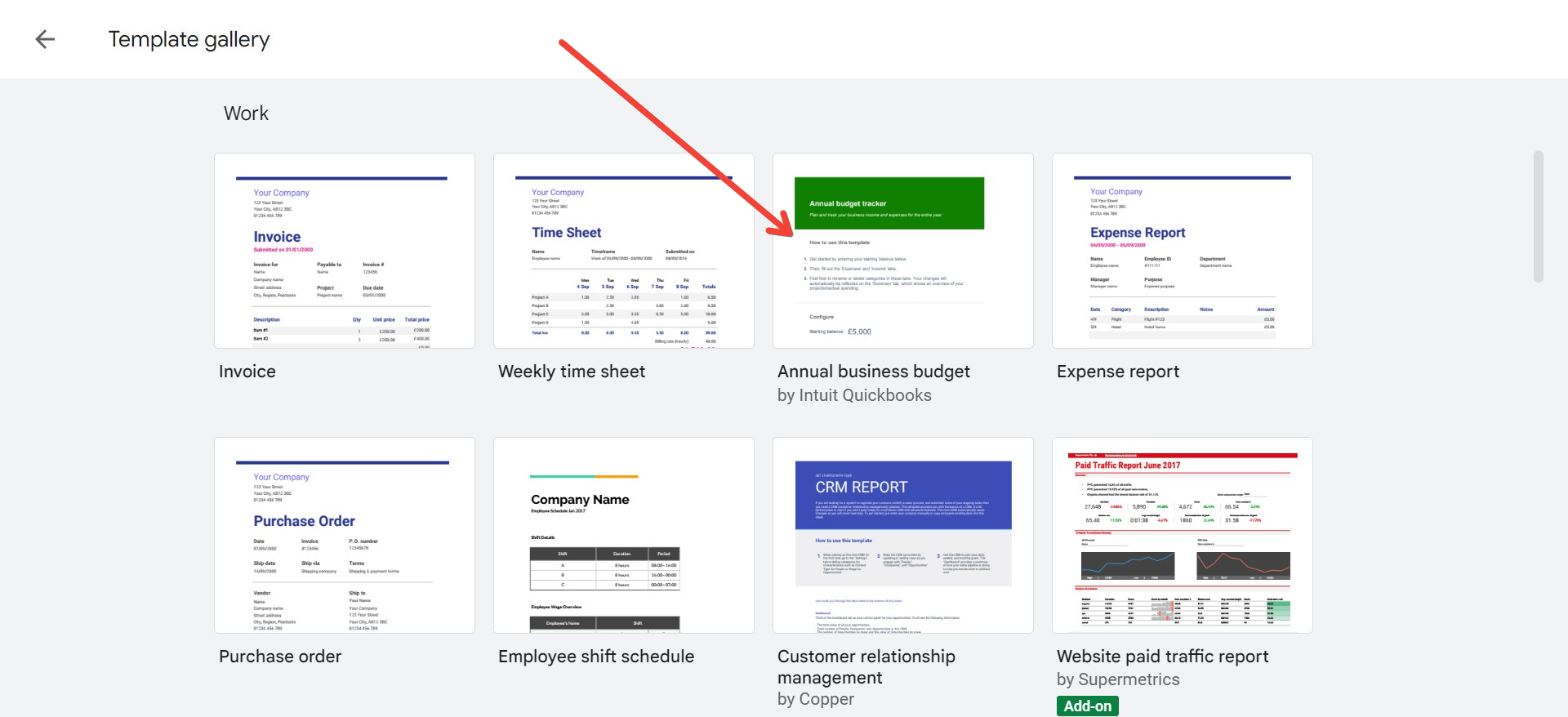
Step 3: Customize Your Budget Template
Congratulations! You've laid the groundwork. Now, it's time to tailor the template to your financial landscape.
- Income and Expenses: Identify the cells designated for income and expenses. Click on these cells to enter your specific figures. Google Sheets automatically updates calculations for you.
- Categories and Labels: Customize budget categories and labels to match your spending habits. Whether it's groceries, entertainment, or savings, make it your own.
- Formatting Options: Experiment with fonts, colors, and styles to enhance visibility and make your budget visually appealing.
Step 4: Select the Cells You Want to Edit
To refine your budget further, select the cells you want to edit. Right-click on the desired cell or cells, and a menu will appear. Choose "Edit" to input or modify information seamlessly.
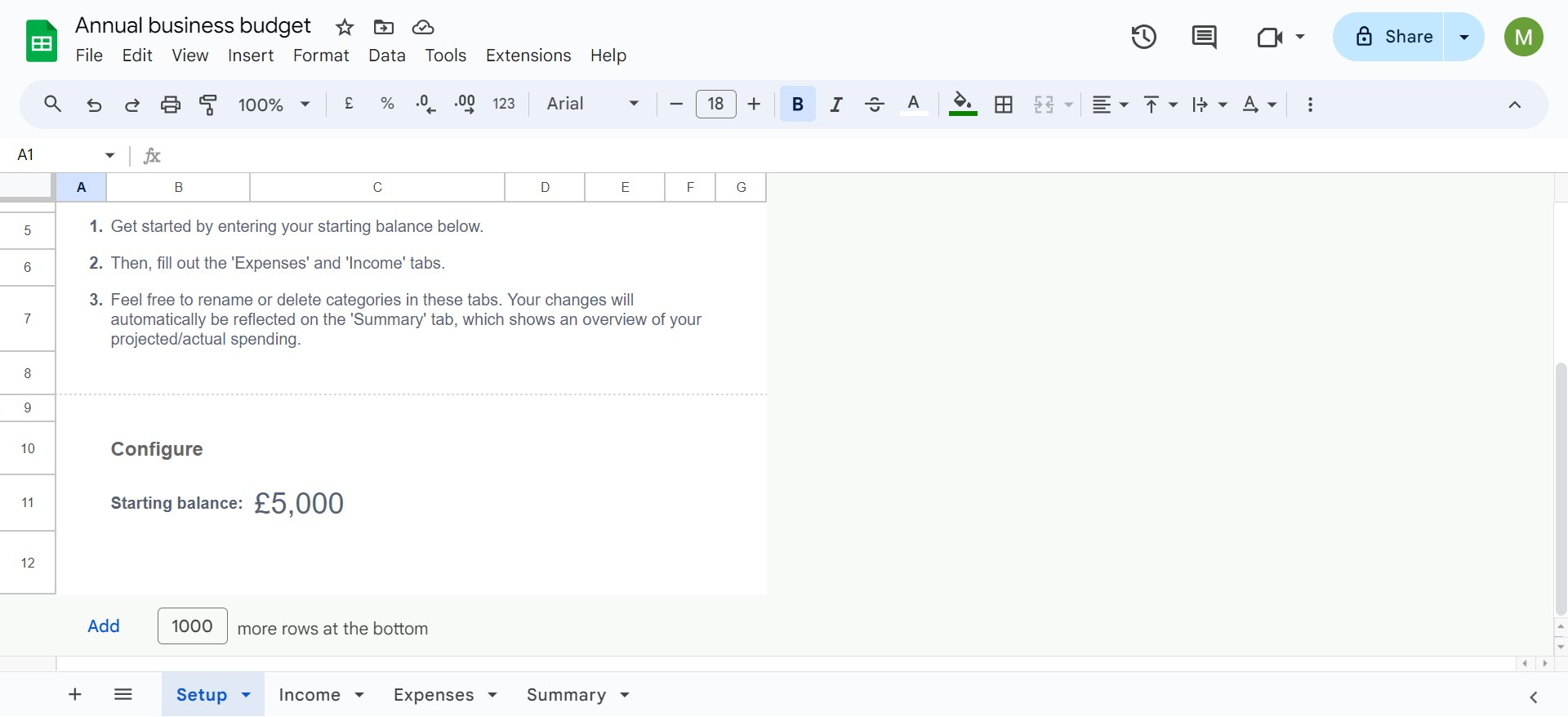
Step 5: Your Budget Template is Ready
Voila! With these simple steps, you've transformed a generic template into a personalized financial roadmap. Your budget is now ready to guide you towards financial success.
Conclusion: Empowering Your Financial Journey
Using Google Sheets for budgeting is a game-changer, providing a user-friendly platform to streamline your finances. Take advantage of its versatility and customizable features to gain insights into your spending patterns and savings goals.
Frequently Asked Questions
Can I access my budget template on multiple devices?
Yes, Google Sheets is cloud-based, allowing you to access your budget template from any device with internet access.
How often should I update my budget?
Regular updates, preferably monthly, ensure your budget remains reflective of your financial situation and goals.
Can I share my budget with others?
Absolutely! Google Sheets allows easy sharing, enabling collaboration with family members or financial advisors.
Are there additional budgeting tools within Google Sheets?
Explore the "Add-ons" section to find various budgeting tools and extensions that can enhance your budgeting experience.
Can I export my budget data to other formats?
Yes, Google Sheets offers export options, allowing you to save your budget data in formats like Excel or PDF for external use.
Empower yourself today by harnessing the capabilities of Google Sheets for budgeting. Take charge of your finances, and watch your financial goals come to life.


