How to use copilot in PowerPoint


Harness the power of Copilot in PowerPoint for streamlined design and content creation assistance
Copilot in PowerPoint is a powerful feature that leverages AI to assist you in creating presentations more efficiently. It can suggest design ideas, provide slide layout recommendations, and even help with content generation. In this guide, we'll walk through a step-by-step process to help you make the most of Copilot in PowerPoint, enhancing your presentation creation experience.
How to use copilot in PowerPoint
Step 1: Open PowerPoint and Enable Copilot
Start by opening Microsoft PowerPoint on your computer. Ensure that you have the latest version installed, as Copilot may be a feature available in newer versions. Once PowerPoint is open, navigate to the "Home" tab and look for the Copilot icon or option. If it's not visible, check for updates or enable add-ins if necessary.

Step 2: Access Copilot Suggestions
With Copilot enabled, begin creating or editing a slide in your presentation. As you work, Copilot will analyze your content and offer suggestions in real time. These suggestions can range from design ideas for your slides to layout recommendations based on the content you're adding.
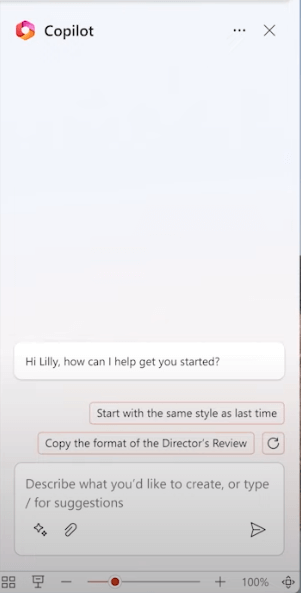
Step 3: Accept or Customize Copilot Suggestions
When Copilot provides a suggestion, you can choose to accept it as-is or customize it further to suit your preferences. For example, if Copilot suggests a design theme for a slide, you can apply it directly or modify colors, fonts, and other elements as needed.
Step 4: Utilize Copilot for Content Generation
Copilot can also assist in generating content for your slides. For instance, if you're working on a bullet list, Copilot can suggest relevant points based on your topic or provide contextual information to enrich your content.
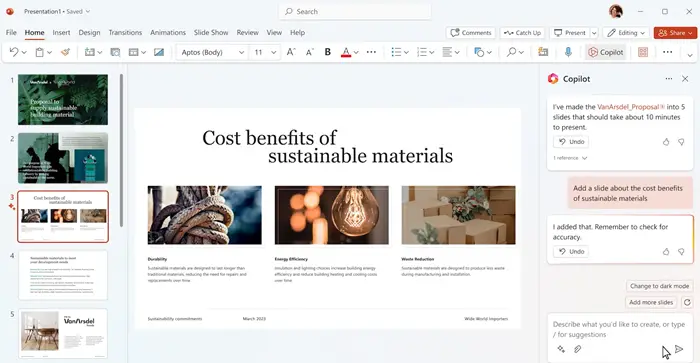
Step 5: Review and Finalize Your Presentation
After incorporating Copilot's suggestions and generating content, review your presentation to ensure everything aligns with your goals and style. Make any final adjustments or additions as necessary before saving or presenting your slides.
Conclusion:
Copilot in PowerPoint is a game-changer for creating engaging and visually appealing presentations. By following this step-by-step guide, you can seamlessly integrate Copilot into your workflow, allowing AI to assist you in design, layout, and content generation tasks. Embracing Copilot can enhance your productivity and creativity, resulting in polished presentations that captivate your audience. Explore the possibilities of Copilot and elevate your PowerPoint presentations to new heights.
→ Along with knowing and using copilot for your Presentations, it is important to stay informed about latest AI tools, checkout this article to know trending AI tools: https://www.magicslides.app/blog/top-ai-tools-for-enhancing-presentations
Frequently Asked Questions:
What is Copilot in PowerPoint?
Copilot in PowerPoint is an AI-powered feature that provides design suggestions and content assistance while creating presentations.
How does Copilot benefit PowerPoint users?
Copilot streamlines the design process by offering layout recommendations, design ideas, and even content generation suggestions, enhancing overall productivity.
Is Copilot available in all versions of PowerPoint?
Copilot may be available in newer versions of PowerPoint. Ensure you have the latest version installed to access this powerful feature.
Can I customize Copilot suggestions to fit my presentation style?
Yes, you can accept Copilot suggestions as-is or customize them to align with your preferences, ensuring a personalized and professional presentation.


