How to use Google forms to collect data


Empower your data collection journey with our guide on utilizing Google Forms for efficient and insightful results.
Google Forms is a versatile tool that streamlines the process of collecting data for various purposes, from surveys to event registrations. In this step-by-step guide, we'll explore how to leverage the features of Google Forms to efficiently gather and manage data. Whether you're conducting market research or organizing a volunteer sign-up, Google Forms provides a user-friendly platform for seamless data collection.
How to use Google forms to collect data
Step 1: Create a Google Form
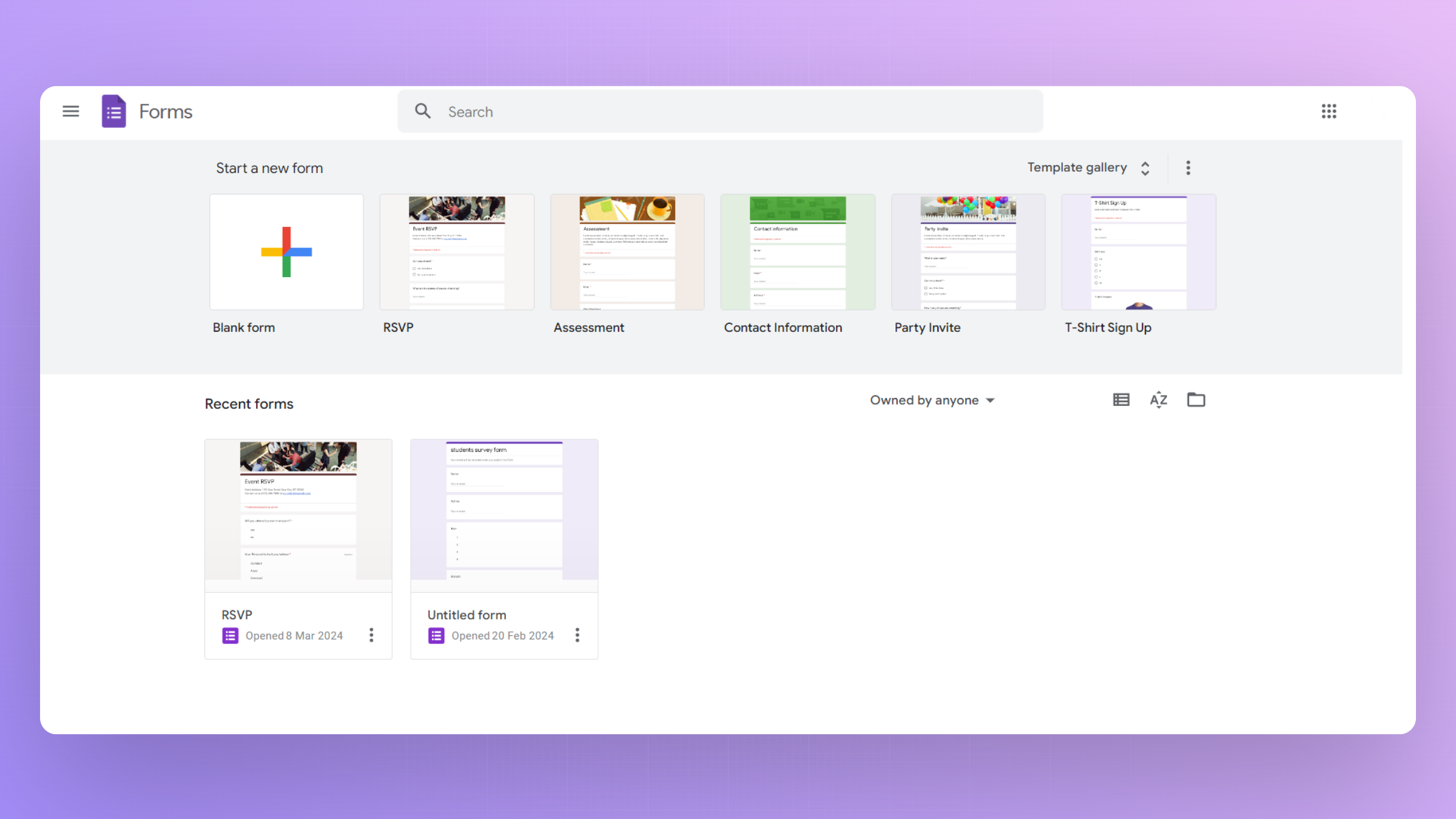
Begin by logging into your Google account and accessing Google Forms. Click on the "+" icon to create a new form.
Customize the form title and add questions according to your data collection needs.
Step 2: Choose Question Types
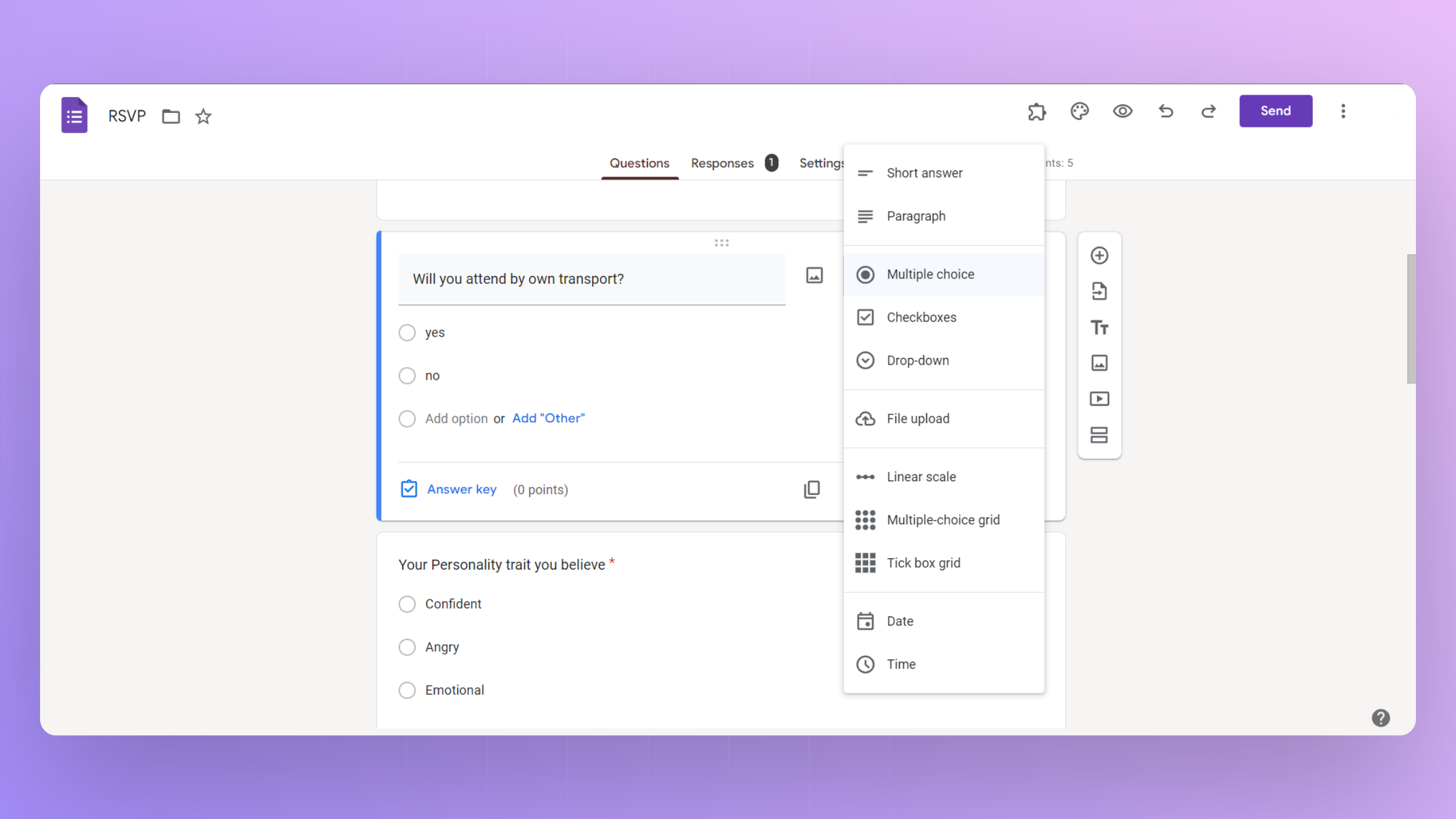
Select from various question types, including multiple-choice, short answer, and dropdown, to gather specific data points.
Tailor the questions to elicit the desired responses from participants.
Step 3: Add Sections (Optional)
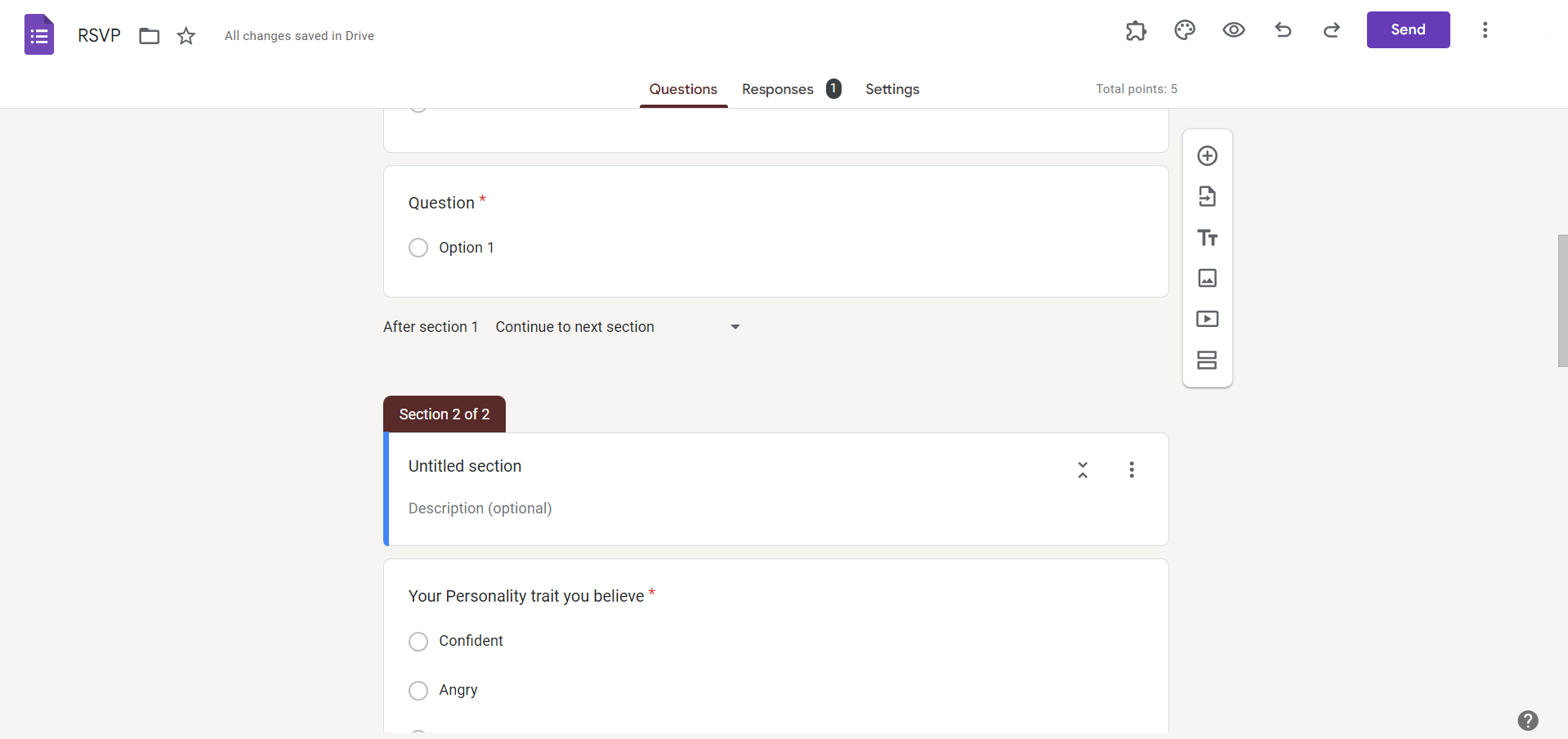
Organize your form by adding sections to group related questions together.
This enhances the structure and clarity of your form, especially for longer surveys or complex data collection projects.
Step 4: Customize Form Settings
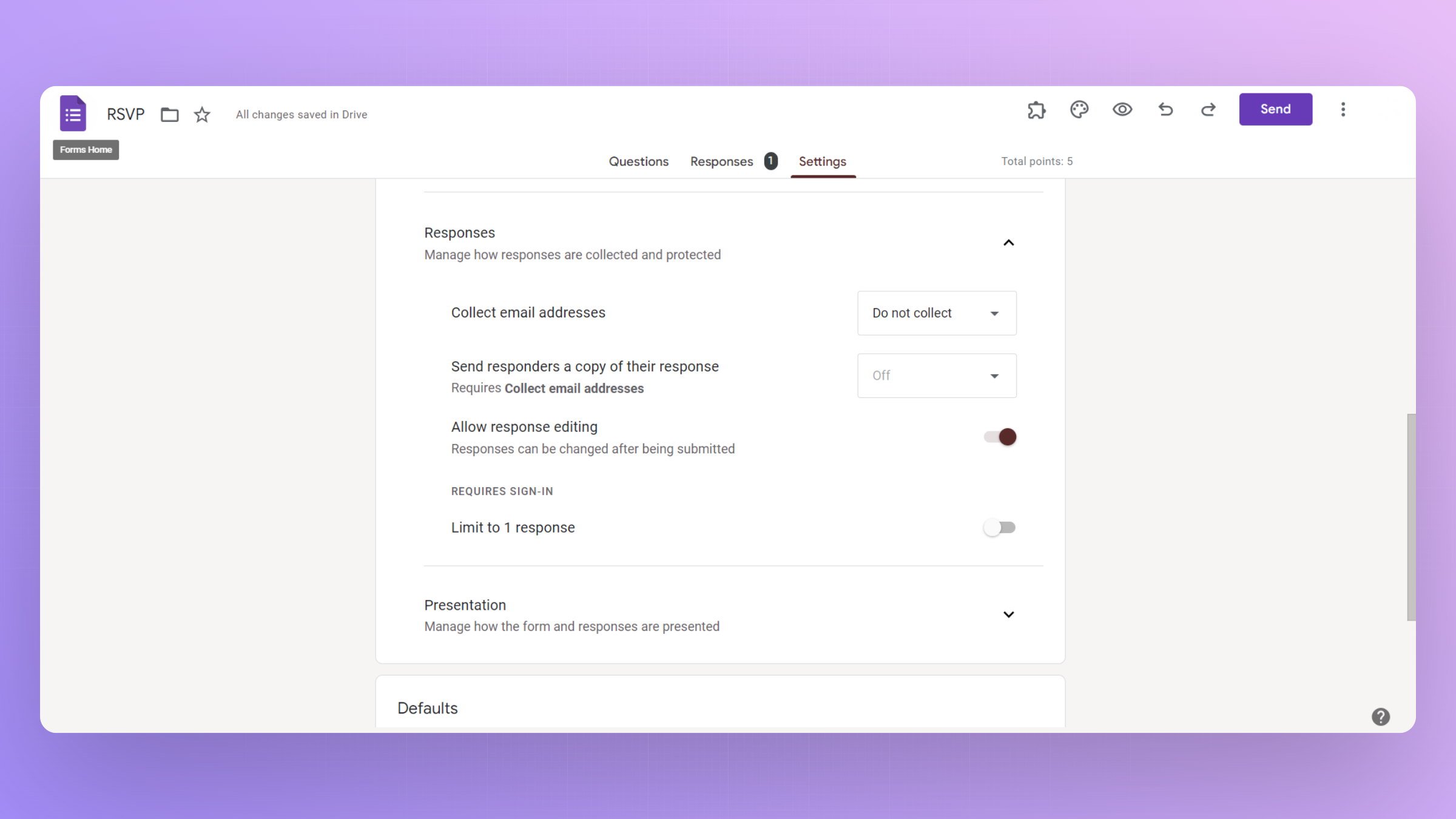
Adjust form settings to meet your preferences, such as allowing respondents to edit their responses, limiting responses to one per person, and adding confirmation messages upon submission.
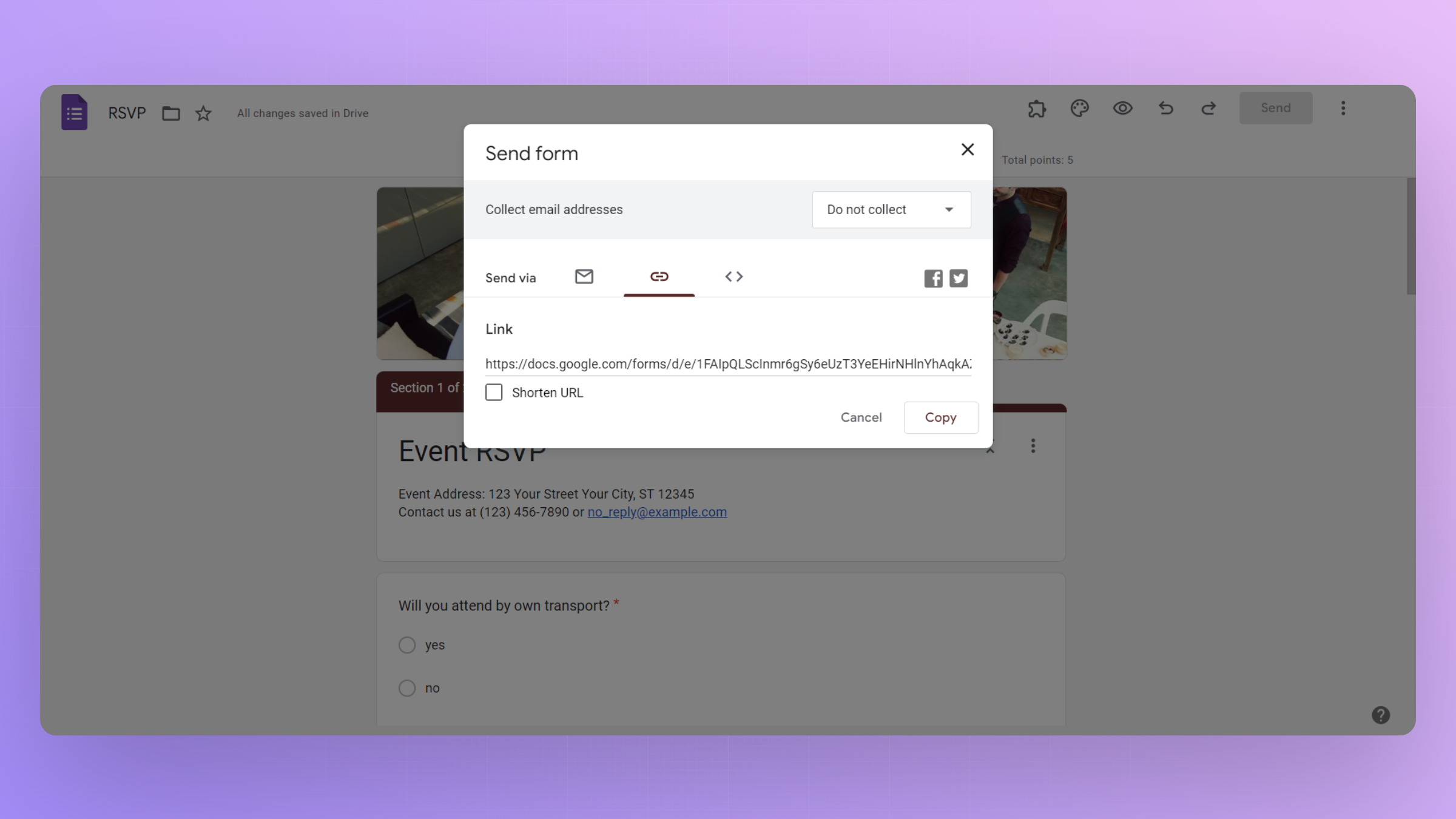
Step 5: Distribute the Form
Share your Google Form by generating a shareable link, embedding it on a website, or sending it directly via email.
Utilize Google's sharing settings to control access and permissions for respondents.
Step 6: Collect and Analyze Responses
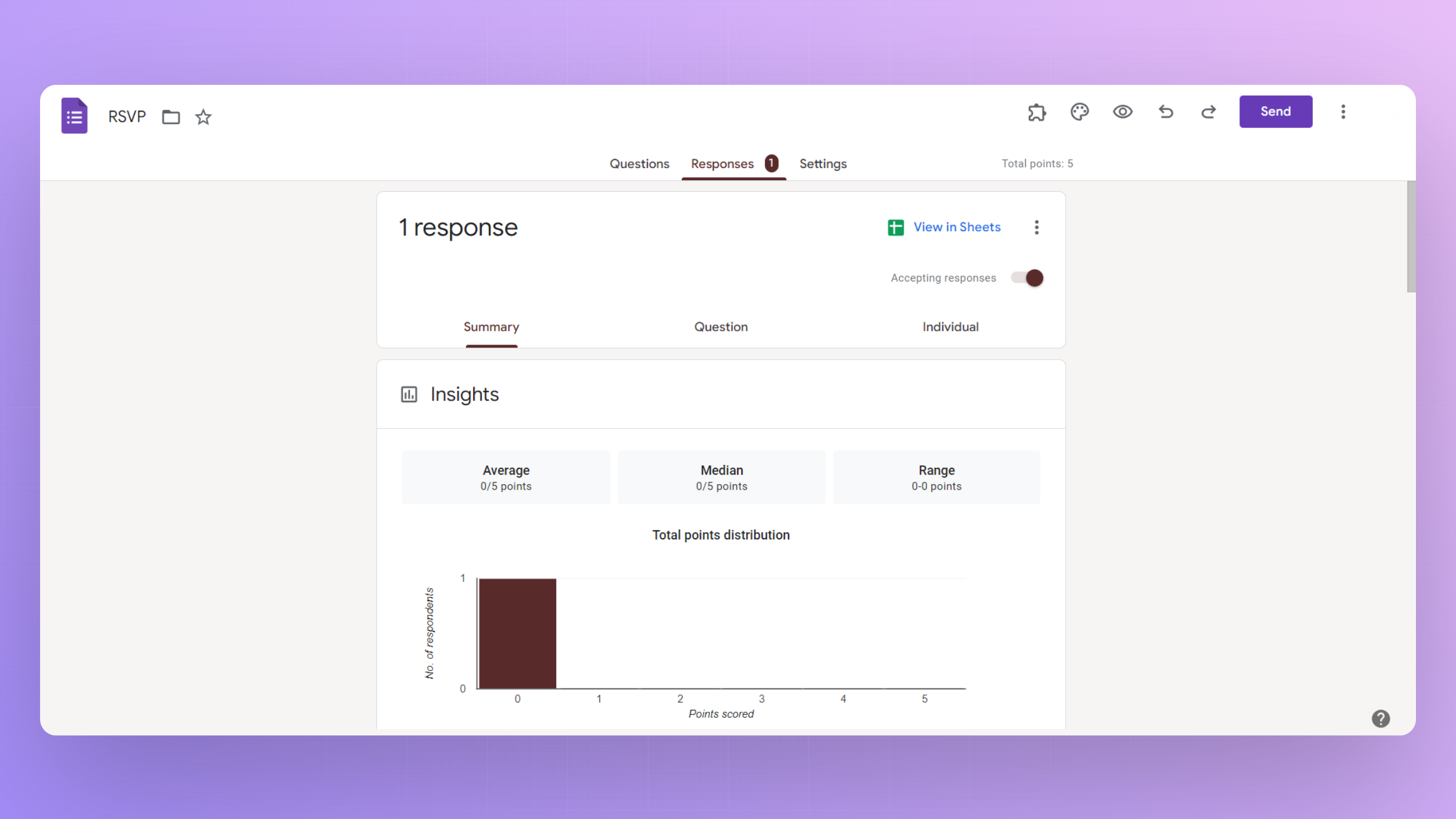
As responses are submitted, view and analyze the data in real-time within Google Forms.
Utilize built-in analytics tools to gain insights and make informed decisions based on the collected data.
Conclusion:
Google Forms offers a user-friendly and efficient solution for collecting data across various contexts, from academic research to business surveys.
By following these steps, you can create, distribute, and analyze data effortlessly, streamlining the entire data collection process.
Harness the power of Google Forms to gather valuable insights and make informed decisions that drive success in your projects and endeavors.
Frequently Asked Questions:
Can I customize the appearance of my Google Form to match my brand or theme?
Yes, Google Forms allows customization of themes, colors, and backgrounds to align with your preferences.
Are there limitations to the number of questions or responses in a Google Form?
Google Forms supports a generous number of questions and responses, making it suitable for various projects.
Can respondents edit their responses after submitting a Google Form?
Yes, you can enable the option for respondents to edit their responses even after submission.


