How to Write a Table of Contents in Google Docs


Learn how to create a dynamic table of contents in Google Docs, including setup, customization, updating, and troubleshooting for professional documents.
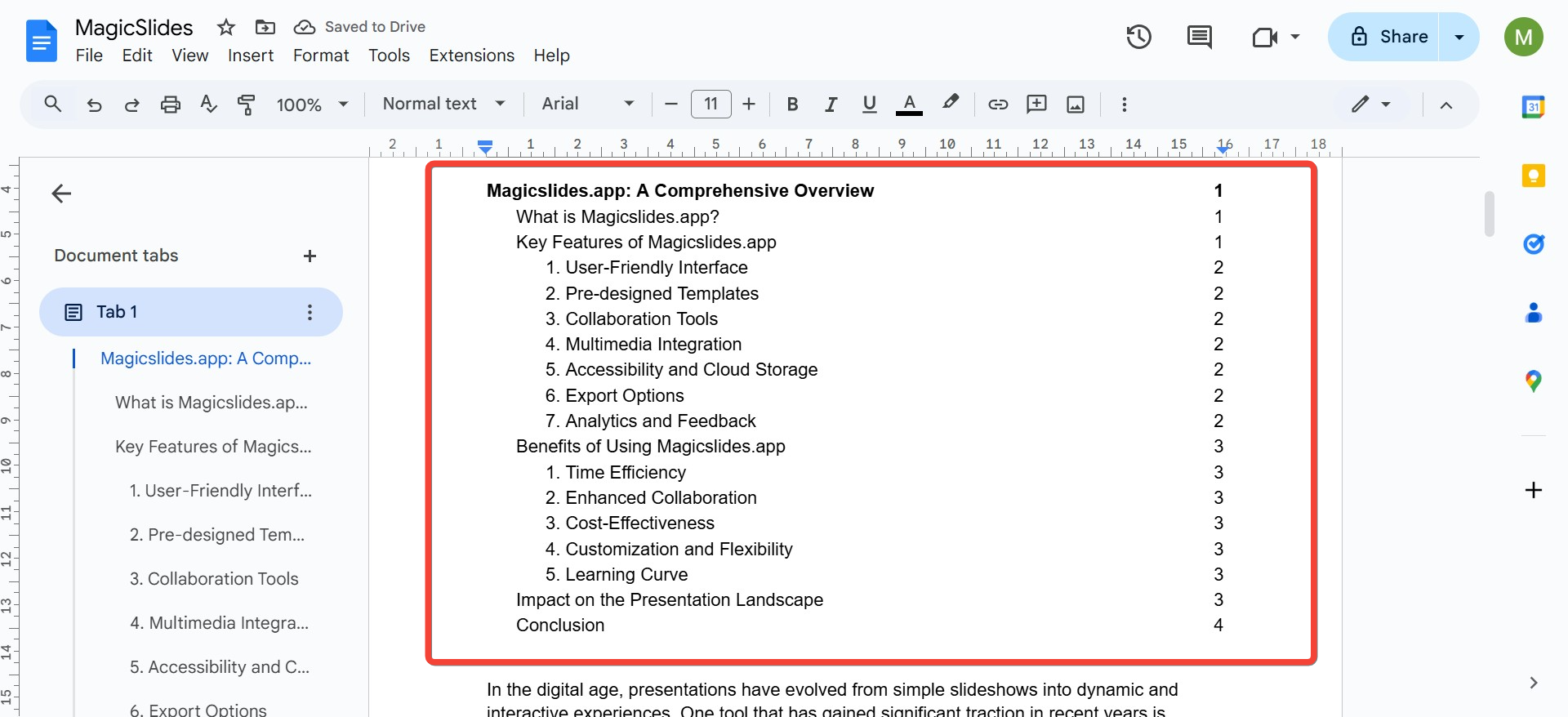
A well-structured table of contents in Google Docs is essential for organizing your document and improving navigation, especially for lengthy reports, essays, or professional documents.
Google Docs makes it easy to create and update a table of contents dynamically, saving you time and effort.
Here’s a step-by-step guide to creating, customizing, and updating a table of contents in Google Docs.
Why Use a Table of Contents in Google Docs?
A table of contents serves as a roadmap for your readers, making it easier to navigate your document. In Google Docs:
- The table of contents links directly to sections in the document for quick access.
- It updates automatically when you add or edit headings, keeping your document organized.
Step-by-Step Guide to Adding a Table of Contents in Google Docs
1. Set Up Your Document with Headings
Before creating a table of contents, you need to structure your document using headings. These headings act as the building blocks for your table of contents.
How to Add Headings:
- Highlight the text you want to make a heading (e.g., a chapter title or section name).
- In the toolbar, click the Styles dropdown (it usually says “Normal text”).
- Choose a heading level:
- Heading 1: Main titles or chapters.
- Heading 2: Subheadings within a chapter.
- Heading 3: Sub-subheadings for detailed breakdowns.
Repeat this process for all the sections in your document.
2. Insert the Table of Contents
Once your headings are in place, you can add the table of contents.
Steps to Insert:
- Place your cursor where you want the table of contents to appear (usually at the beginning or end of the document).
- Click Insert in the top menu.
- Scroll down and select Table of contents.
- Choose one of the available styles:
- Plain text: Displays a basic table of contents without links.
- Links: Displays the table with clickable links to sections.
3. Customize Your Table of Contents
You can adjust your table of contents to match your document's style.
To Customize:
- Update font styles or sizes for headings in your document. The table of contents automatically reflects these changes.
- If you want to include or exclude specific heading levels, modify the headings in the document.
4. Update the Table of Contents
If you add, edit, or move sections in your document, you’ll need to refresh the table of contents to reflect the changes.
How to Update:
- Click on the table of contents in your document.
- Click the Refresh icon (a circular arrow) in the top-left corner of the table.
5. Remove or Replace the Table of Contents
To remove the table of contents:
- Click on the table.
- Press Delete or Backspace.
You can then insert a new table of contents by following the steps above.
Tips for an Effective Table of Contents
- Keep Headings Concise: Use clear and short headings to avoid clutter in the table of contents.
- Use Nested Headings: Structure your document with multiple levels (Heading 1, Heading 2, etc.) for a detailed table of contents.
- Position Appropriately: Place the table of contents in a location that suits the flow of your document, typically right after the title page.
Common Issues and Solutions
- Table of Contents Missing Entries: Ensure all sections are formatted with the appropriate heading styles.
- Table Not Updating: Always click the refresh icon after making changes to the document.
Final Thoughts
Creating a table of contents in Google Docs is an essential skill for crafting organized, professional, and user-friendly documents.
By using headings and Google Docs' built-in tools, you can quickly generate a dynamic table of contents that updates automatically as your document evolves.
With this guide, you’re equipped to improve the structure and accessibility of any document!


