Addon google slides iconPPT with AISlide TemplatesPPT TemplatesPricingBlog
PPT with AISlide TemplatesPPT TemplatesPricingBlog
  1. Home
  2. Blog
  3. Mastering PowerPoint Transitions and Animations: A Complete Tutorial


Mastering PowerPoint Transitions and Animations: A Complete Tutorial

magicslides app

Published By

magicslides app
Mohit Kumar Jha

Approved By

Mohit Kumar Jha

Published On

February 24th, 2026

Reading Time

2 min read

Elevate your presentations! Learn to seamlessly blend PowerPoint transitions and animations for maximum impact

Introduction:
In this blog post, we'll walk you through a streamlined five-step process to seamlessly integrate both transitions and animations, turning your static slides into dynamic and engaging presentations. Let's dive in and discover how to elevate your PowerPoint game.

Mastering PowerPoint Transitions and Animations

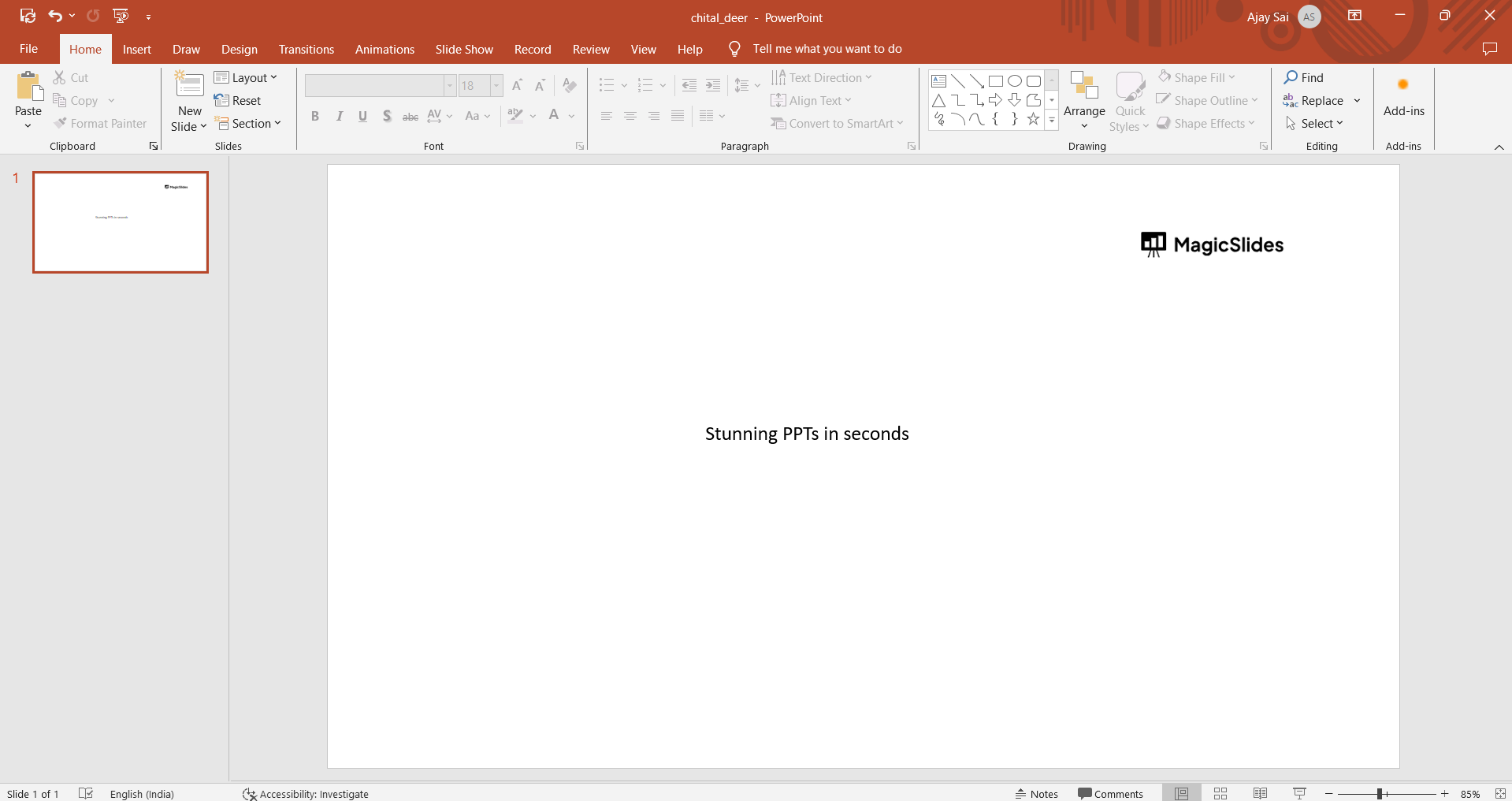
Open PowerPoint and Select a Slide:

Launch PowerPoint and open the presentation. Click on the slide where you want to apply animations and transitions.
notion image

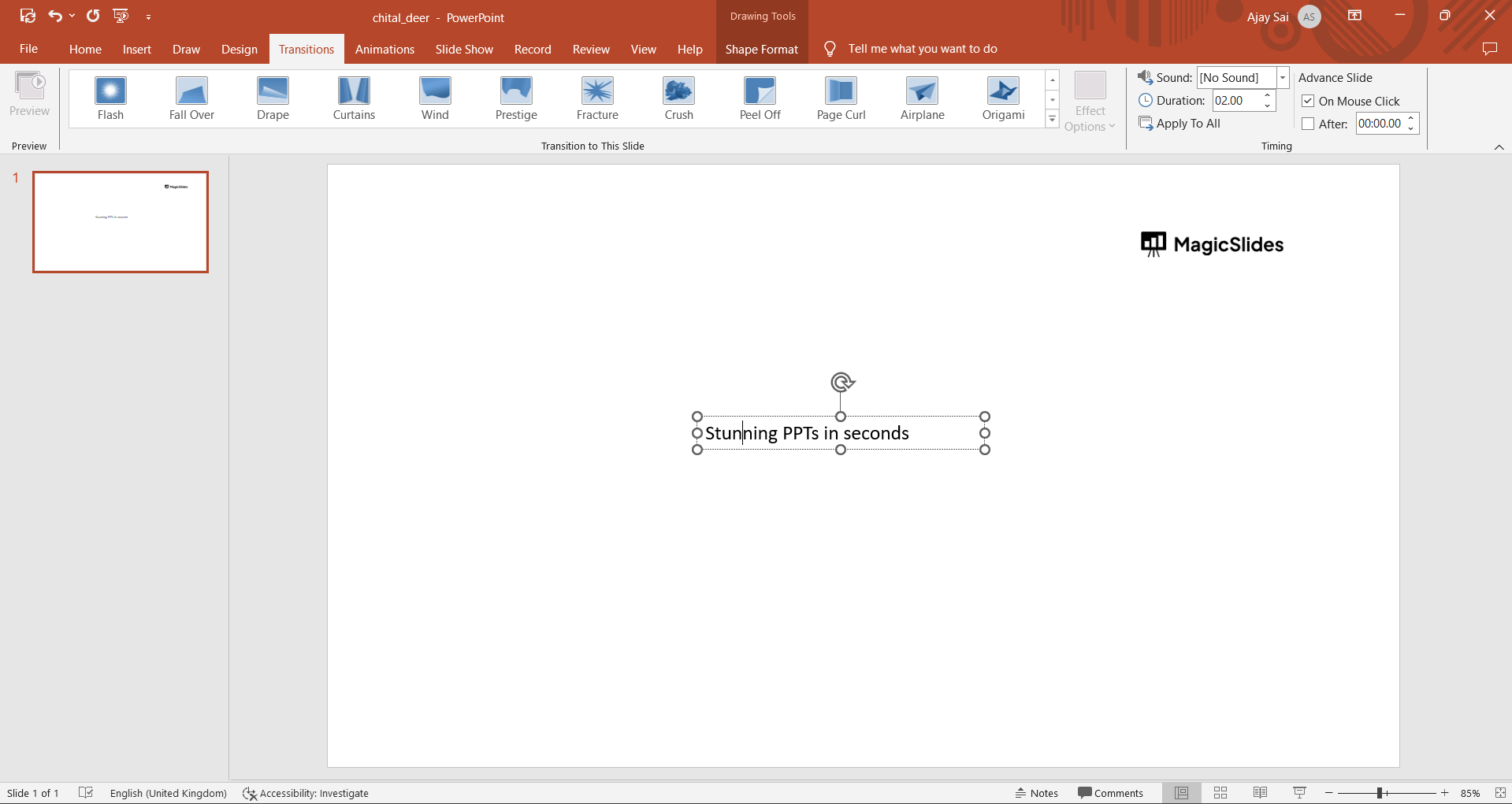
Apply a Transition:

Go to the "Transitions" tab and choose a transition effect for the slide. Adjust any transition options if needed.

notion image

Select an Object for Animation:

Click on the object (text, image, etc.) you want to animate on the slide.
notion image

Apply Animation:

Navigate to the "Animations" tab and choose an animation effect for the selected object. Adjust animation options as necessary.
notion image

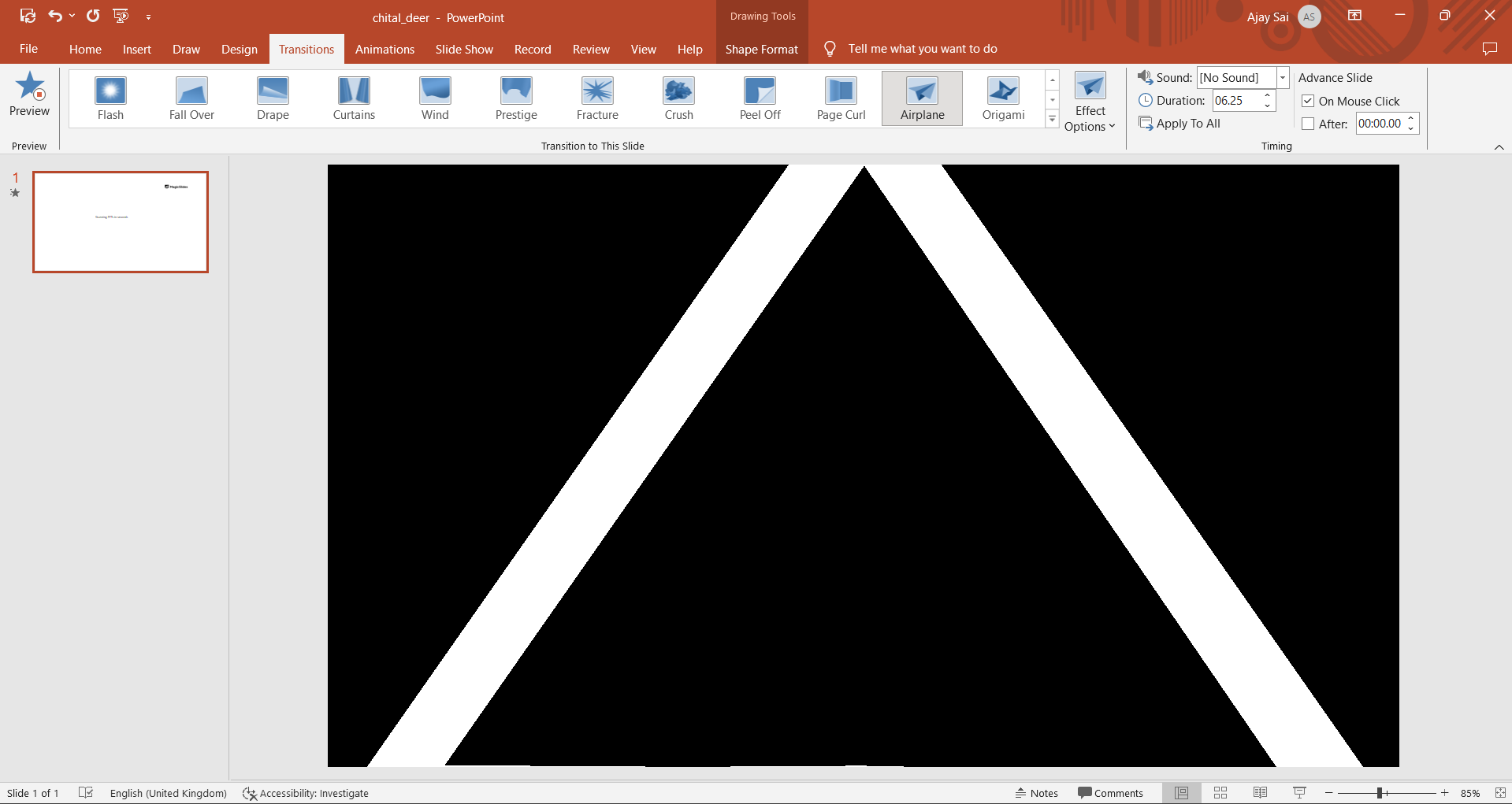
Preview and Save:

Click on the "Preview" button in the "Transitions" and "Animations" groups to review how the slide looks with both transition and animation. Once satisfied, save your presentation.

Conclusion:

By following our five-step guide, you can effortlessly blend transitions and animations, adding a layer of sophistication to your slides without overwhelming your message. So, the next time you create a presentation, remember to consider the visual impact of transitions and animations. Happy presenting!

Frequently Asked Questions:

Q: Why use both transitions and animations?
A: Combining them adds dynamism, keeping your audience engaged and enhancing the overall visual appeal.
Q: How can I avoid overdoing it?
A: Moderation is key; use transitions and animations strategically to complement your message, not overshadow it.

Other blogs:

→ How to Translate in PowerPoint: https://www.magicslides.app/blog/How-to-Translate-in-PowerPoint
→ How To Make A PowerPoint Presentation Into A Video: https://www.magicslides.app/blog/How-to-make-a-PowerPoint-presentation-into-a-video
→ How To Create Charts With Just A Prompt: https://www.magicslides.app/blog/How-to-create-charts-with-just-a-prompt

Share on socials

About the author

Sanskar Tiwari profile photo
Sanskar Tiwari— Founder at MagicSlides

Sanskar is Founder at IAG Tech, For the past 3 years sanskar have build more than 24+ products, taught 100k students how to code.

More from Sanskar

More from the blog

    How to add a hanging indent in google slides

    24 February 2026

    How to make images transparent on google slides

    24 February 2026

    How to add slide numbers in google slides

    24 February 2026

    How to send gifs in slack application

    24 February 2026

    How to make picture background transparent in powerpoint

    24 February 2026

    How to put text over an image in google slides

    24 February 2026

    How to Crop an Image in PowerPoint

    24 February 2026

    How to make a PowerPoint presentation into a video

    24 February 2026

    How to time google slides for 20 seconds

    24 February 2026

Table of Contents

Create Presentations in Seconds

Transform your ideas into professional presentations with AI. No design skills needed.

Try MagicSlides Free

Create Stunning Presentations with AI in Seconds ✨

Transform any topic, text, YouTube video, PDF or URL into beautiful presentations instantly with MagicSlides AI.

Try MagicSlides AI Presentation Maker
MagicSlides AI Presentation

Footer

Solutions

  • MagicSlides App
  • Google Slides Add-on
  • MagicSlides in Chrome
  • MagicSlides in Figma
  • MagicSlides in ChatGPT
  • MagicSlides in Telegram
  • MagicSlides in Zapier
  • MagicSlides in Figma Slides

Tools

  • AI PPT Tools
  • QR Code Generator
  • Design Tools
  • PPT Templates
  • Slide Templates
  • PDF Tools

Examples

  • AI Presentations
  • PPT by MagicSlides
  • Quizzes
  • Charts
  • Coloring Pages

Resources

  • Changelog
  • Documentation
  • API Docs

Top Blogs

  • How to Create Presentation Using ChatGPT
  • 100+ Best Seminar Topics for Students in 2025

Company

  • Help
  • MCP
  • Blog
  • Pricing
  • Affiliate Program
  • Manage Subscription
  • Privacy Policy
  • Contact Us
  • Terms & Conditions
  • Refund & Cancellation Policy

We also built

  • SheetAI - GPT For Sheets
  • MagicForm - GPT For Google Forms
  • SecondBrain.fyi
  • BlogBee - Free Blogging Platform

© 2026 IndianAppGuy Tech Pvt Ltd. All rights reserved.