Which Feature in PowerPoint Allows You to Rearrange the Sequence of Slides?


Learn how to use PowerPoint’s Slide Sorter feature to effortlessly rearrange your presentation’s slide sequence
Rearranging the order of slides in PowerPoint is crucial for presenting ideas logically and effectively.
PowerPoint offers a feature called Slide Sorter that makes this process of rearranging simple and intuitive.
Whether you need to refine your presentation flow or make quick adjustments, this feature is your go-to tool.
In this step-by-step guide, we’ll show you how to use Slide Sorter to rearrange your slides effortlessly.
Rearrange the Sequence of Slides | A Step by Step Guide
Step 1: Open Your PowerPoint Presentation
Launch PowerPoint and open the presentation where you want to rearrange slides.
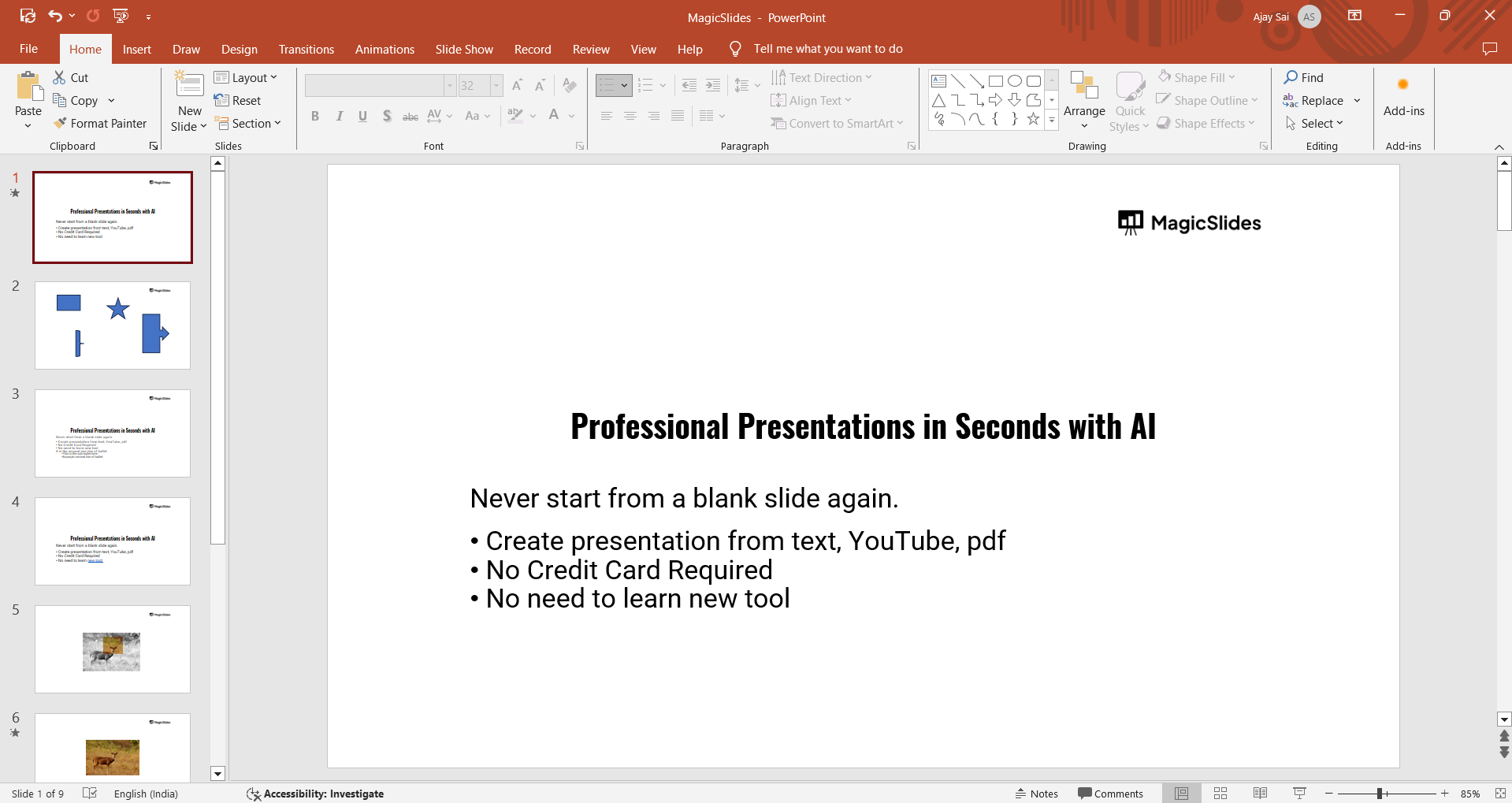
Make sure all your slides are visible in the slide thumbnail pane on the left.
Step 2: Access Slide Sorter View
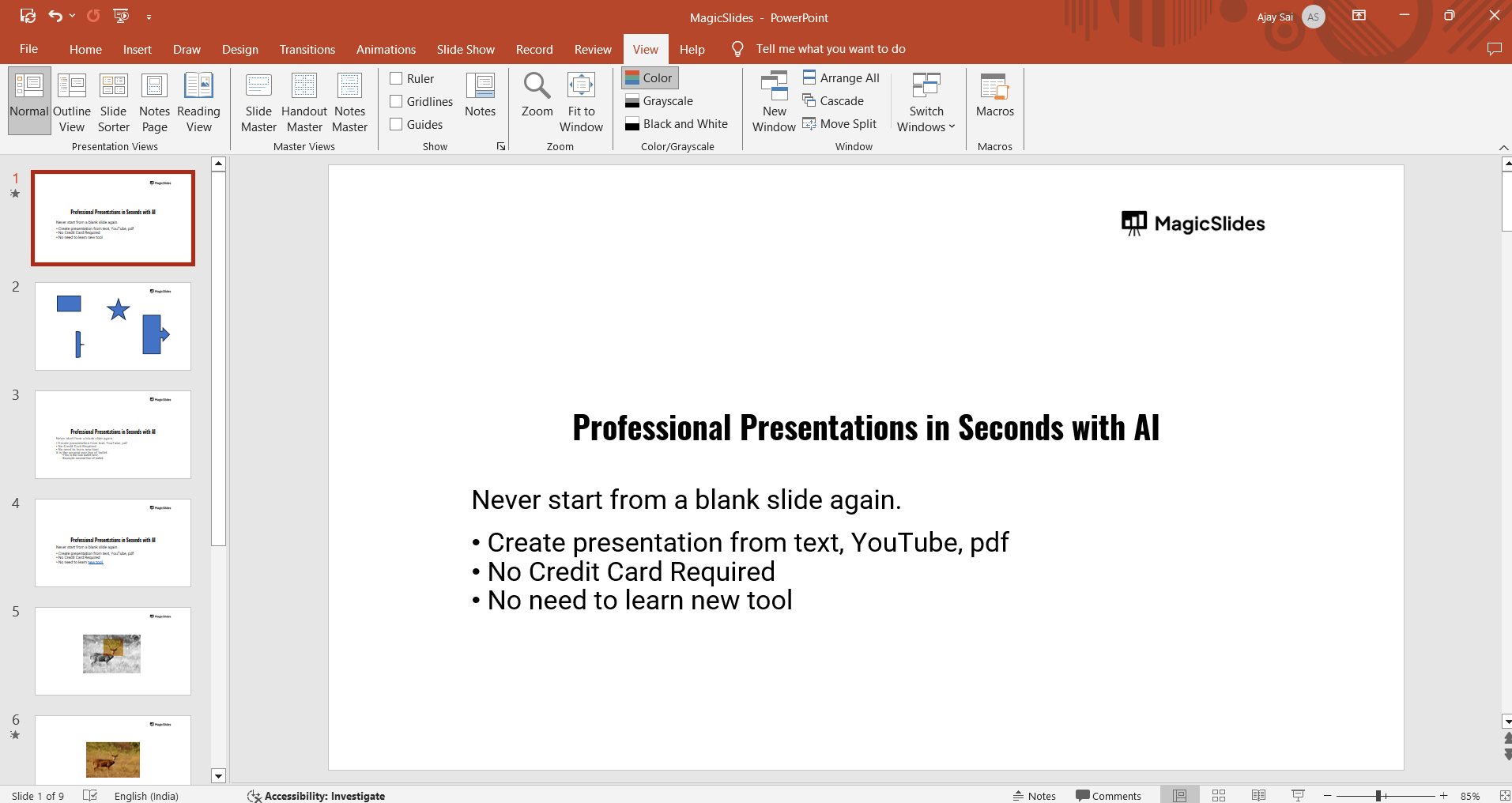
Go to the View tab in the PowerPoint ribbon at the top of your screen.
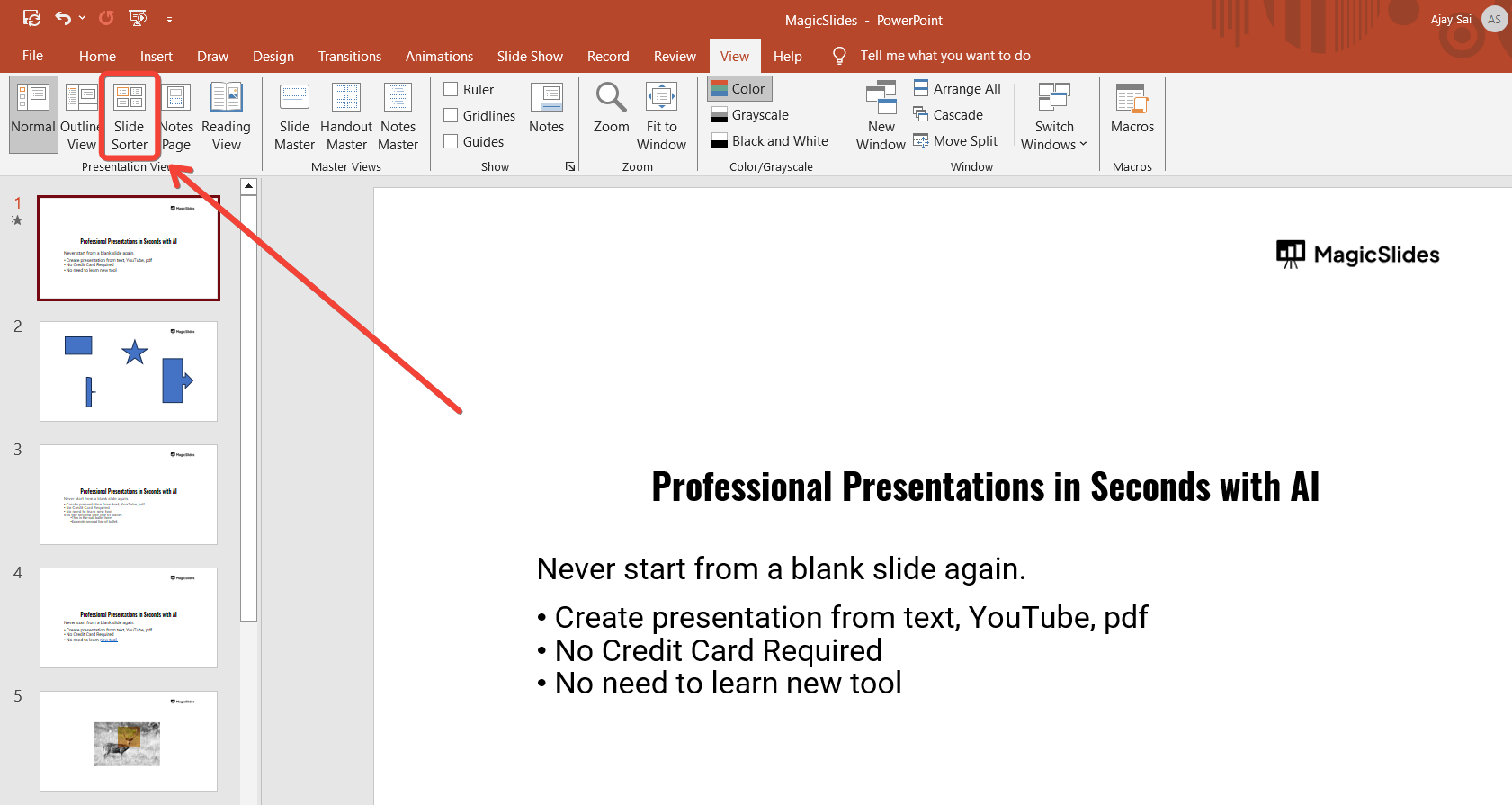
Click on Slide Sorter, which displays all your slides as thumbnails on a single screen.
Step 3: Select the Slide(s) to Rearrange
Identify the slide you want to move.
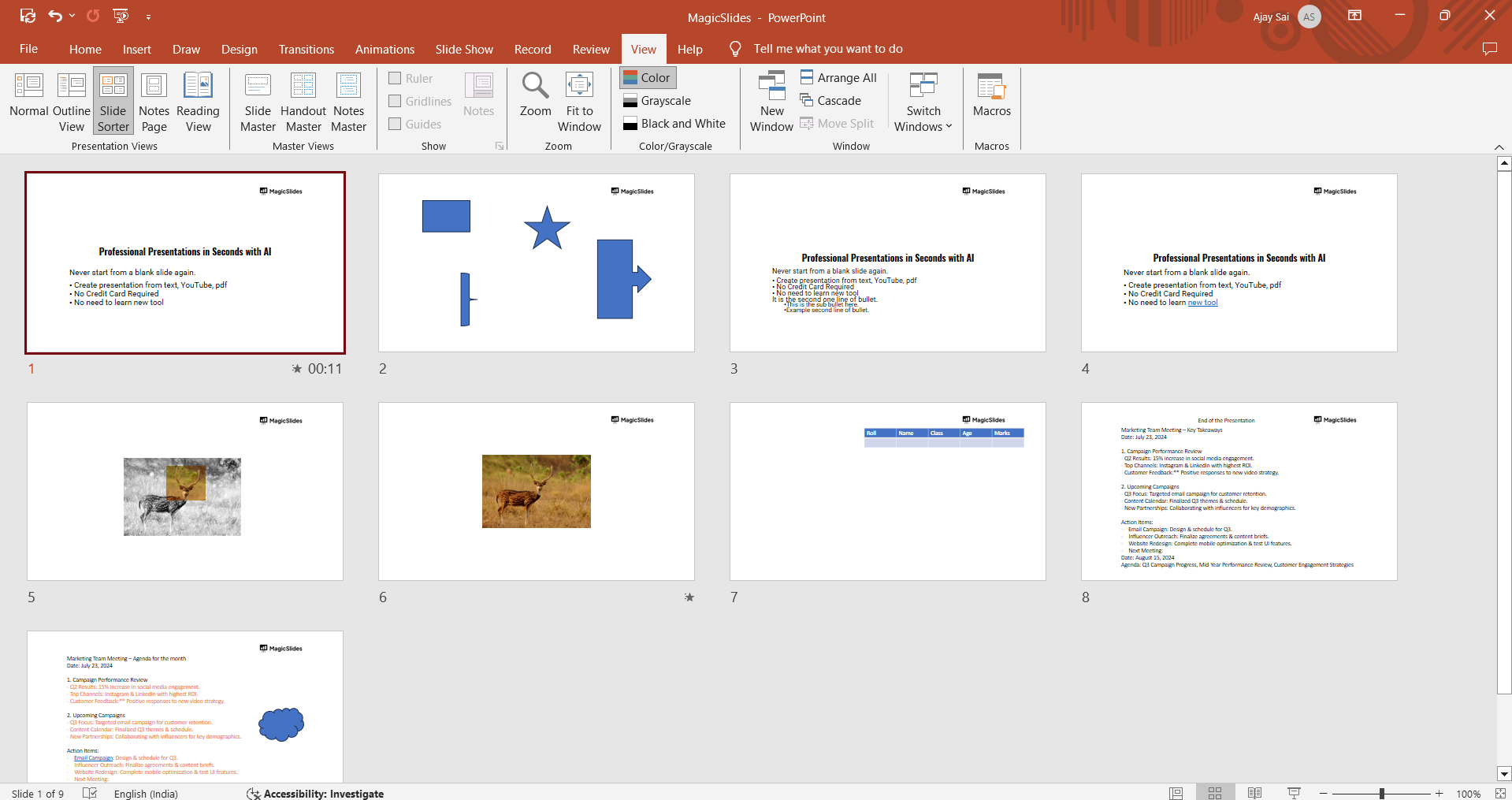
Click on the slide thumbnail to select it. If you want to move multiple slides, hold down the Ctrl (Windows) or Command (Mac) key and click on each slide you want to rearrange.
Step 4: Drag and Drop the Slide(s)
Click and hold the selected slide thumbnail(s).
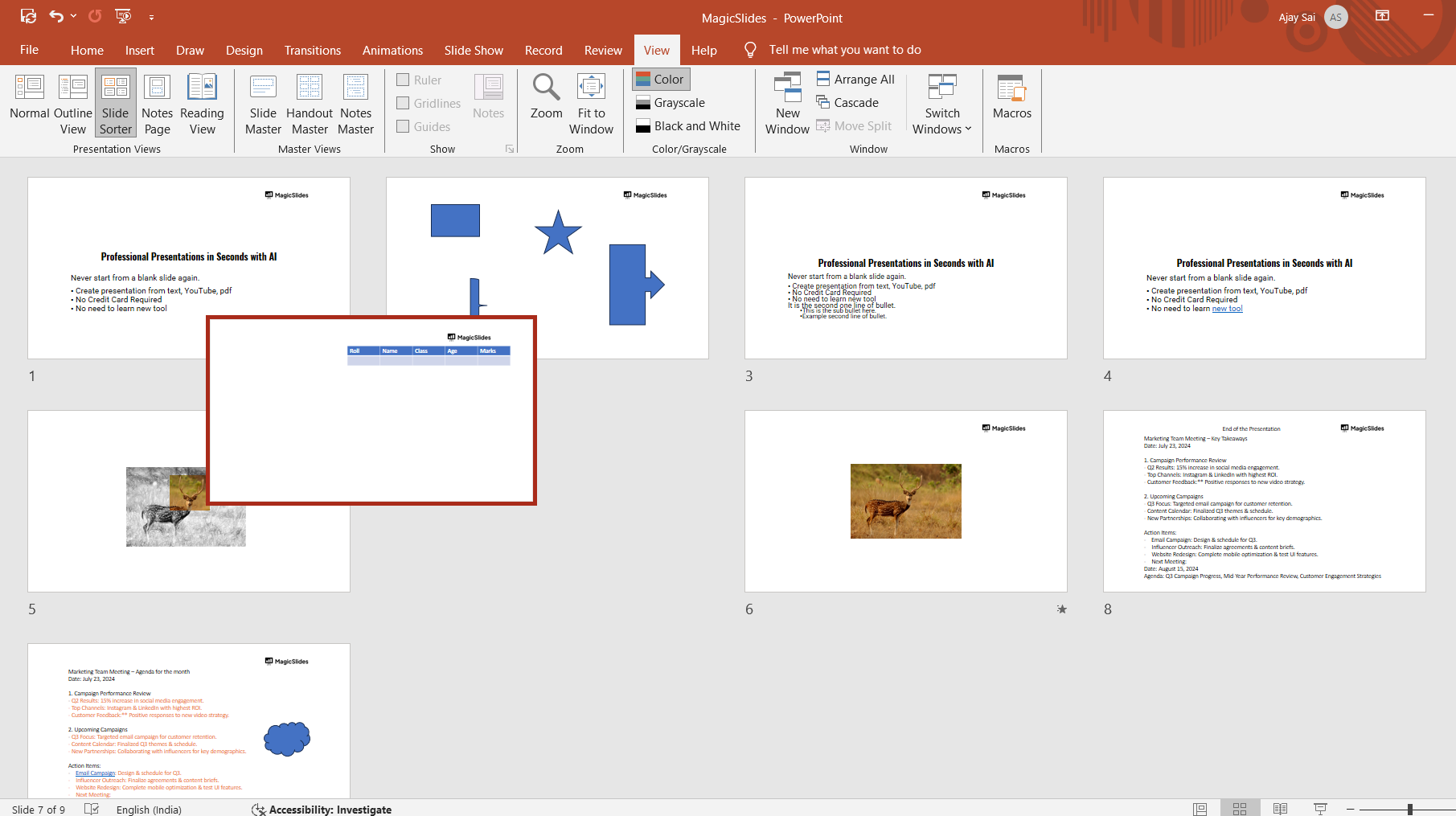
Drag them to the desired position within the sequence. A vertical line will appear between slides to indicate the new placement.
Release the mouse button to drop the slide(s) into place.
Step 5: Switch Back to Normal View (Optional)
Once you’re satisfied with the new slide order, go back to the Normal View by clicking on the Normal option in the View tab.
Double-check your presentation to ensure the flow aligns with your intended message.
Conclusion
The Slide Sorter feature in PowerPoint is an essential tool for organizing your presentation.
By allowing you to easily rearrange slides, it ensures your content follows a logical and impactful sequence.
Mastering this feature can save time and improve the overall effectiveness of your presentation.
FAQs on Rearranging Slides in PowerPoint
Can I rearrange slides without using Slide Sorter?
Yes, you can rearrange slides directly in the slide thumbnail pane on the left in Normal View. Simply drag and drop slides to change their order.
Does Slide Sorter affect animations or transitions?
No, rearranging slides in Slide Sorter does not alter any animations or transitions applied to the slides.
Is Slide Sorter available in all versions of PowerPoint?
Yes, Slide Sorter is a standard feature available in all versions of Microsoft PowerPoint.
With this guide, you can easily refine your presentation's structure and deliver your ideas more effectively.


