Should I include PowerPoint on my Resume


Learn when to include PowerPoint on your resume and how to showcase it effectively
Should I Include PowerPoint on My Resume?
Microsoft PowerPoint is a widely used tool for creating presentations, and listing it on your resume can be beneficial in certain situations.
However, whether or not to include it depends on your job role, industry, and expertise level.
In this guide, we’ll help you decide if PowerPoint should be on your resume and how to list it effectively.
Steps to Decide Whether to Include PowerPoint on Your Resume
Step 1: Assess the Relevance to Your Target Job
Review the job description and check if PowerPoint or presentation skills are mentioned.
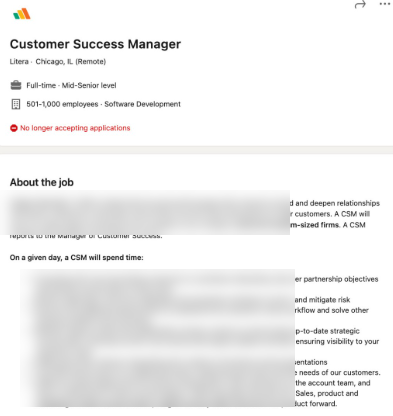
If the role involves presentations, training, or reports, PowerPoint proficiency is a valuable skill.
If it’s a technical or hands-on role with little need for presentations, it may not be necessary.
Step 2: Evaluate Your Level of Proficiency
If you only know basic functions (adding slides, inserting images, and text formatting), it may not stand out.
If you are proficient in animations, transitions, slide master, and interactive elements, it’s worth mentioning.
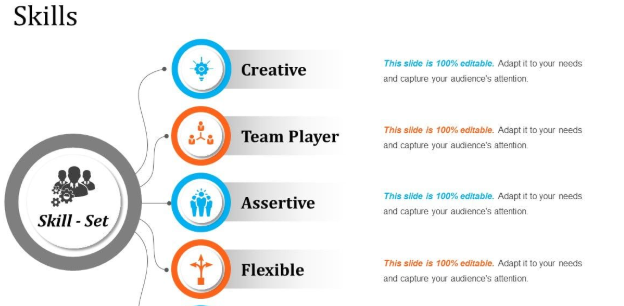
If you can design professional, visually appealing presentations or create pitch decks, highlight that.
Step 3: Determine Where to List It
If PowerPoint is highly relevant, list it under a Skills or Technical Skills section.
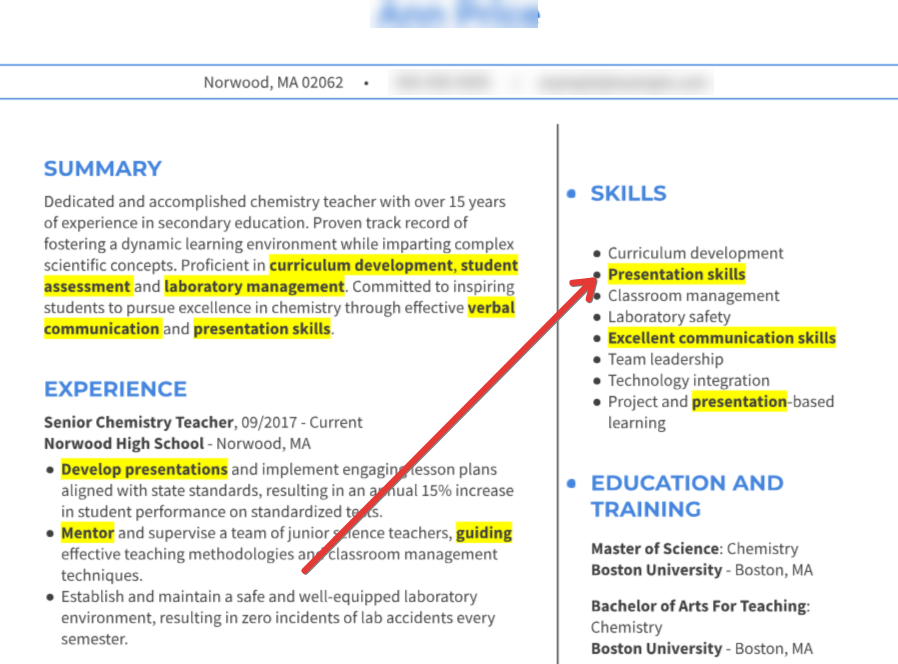
If it’s part of your daily tasks, mention it in your work experience (e.g., "Created engaging presentations for executive meetings using PowerPoint").
For advanced users, adding certifications or coursework related to PowerPoint can strengthen your resume.
Step 4: Use Alternative Ways to Showcase the Skill
Instead of just listing "PowerPoint," highlight how you used it (e.g., "Designed data-driven presentations to communicate key insights to stakeholders").
If applicable, mention tools like Canva, Prezi, or Google Slides alongside PowerPoint.
If you’ve created notable presentations, consider linking to a portfolio or attaching a sample.
Step 5: Keep Your Resume Clean and Focused
Avoid listing PowerPoint if it's a common expectation in your field (e.g., corporate jobs where presentations are routine).
If your resume has limited space, prioritize skills that differentiate you from other candidates.
If applying for creative or design-heavy roles, focus on graphic design tools rather than PowerPoint.
Listing PowerPoint on your resume can highlight your presentation skills, but why stop there? Showcase your ability to create AI-powered presentations effortlessly with MagicSlides.app, which generates professional slides in seconds!
Conclusion
Including PowerPoint on your resume depends on its relevance to the job and your proficiency level.
If it's a key skill for the role, showcase how you've used it effectively rather than just listing it.
For general applications, prioritize higher-impact skills to keep your resume strong and focused.
FAQs About Listing PowerPoint on a Resume
Should I list PowerPoint under technical skills?
Yes, if the role requires creating presentations, PowerPoint can be listed under Technical Skills or Software Proficiency.
How do I describe PowerPoint skills on a resume?
Instead of simply listing "PowerPoint," describe how you used it, e.g., “Designed dynamic presentations to pitch business strategies.”
What if I only have basic PowerPoint knowledge?
If PowerPoint is not a major requirement for the job and you have only basic skills, it's better to leave it out and focus on stronger qualifications.
Now you can confidently decide whether to include PowerPoint on your resume! 🚀


