Using 3D Elements in PowerPoint Presentations: A Comprehensive Guide


Enhance your presentations with 3D elements in PowerPoint presentations. Learn how to create, edit, and add 3D models using MagicSlides.app.
PowerPoint presentations have evolved significantly over the years. While traditional slides with text and images work well, incorporating 3D elements in PowerPoint presentations can make them visually appealing and engaging. Whether you're creating business reports, educational materials, or sales pitches, 3D elements can help communicate ideas more effectively.
In this blog, we’ll explore how you can use 3D elements in PowerPoint presentations, including a step-by-step guide on adding them. We will also introduce MagicSlides.app, an AI-powered tool that allows you to create, edit, and enhance your presentations easily, including integrating 3D elements.
Why Use 3D Elements in PowerPoint Presentations?
Adding 3D models and objects to PowerPoint presentations offers several advantages:
✔ Enhanced Visual Appeal – 3D elements grab attention and make slides more engaging.
✔ Better Storytelling – Visual depth helps illustrate complex ideas more clearly.
✔ Increased Interaction – 3D objects in PowerPoint can be rotated and animated for a dynamic experience.
✔ Professionalism – Using 3D models gives presentations a polished and modern look.
Whether you are an educator, business professional, or marketer, using 3D elements can significantly enhance the effectiveness of your presentations.
How to Add 3D Elements in PowerPoint Presentations
While PowerPoint provides built-in features for 3D elements, creating professional presentations from scratch can be time-consuming. MagicSlides.app is an AI-powered tool that helps generate and edit presentations quickly.
MagicSlides.app Features & Benefits
✅ AI-Powered Presentation Builder – Instantly generate presentations with AI.
✅ Editable Templates – Customize slides, including adding 3D elements.
✅ Integration with Google Slides & PowerPoint – Edit directly within your preferred platform.
✅ Supports GIFs, Images, & AI-Generated Graphics – Enhance presentations with multimedia.
With MagicSlides, you can create high-quality presentations in minutes and then add 3D elements, animations, and more.
How to Use MagicSlides.app to Create and Edit Presentations
Step-by-Step Guide
- Visit MagicSlides.app
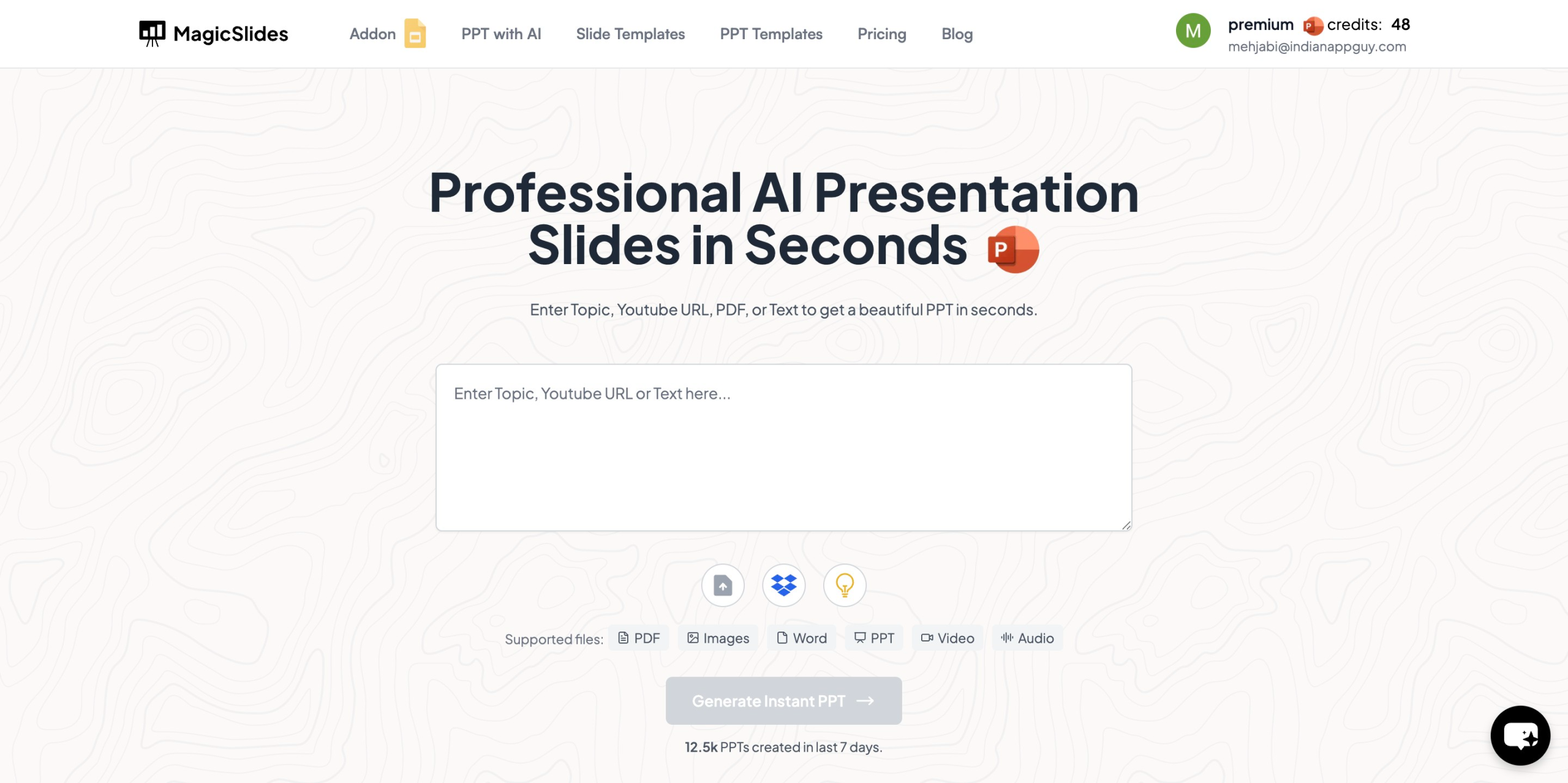
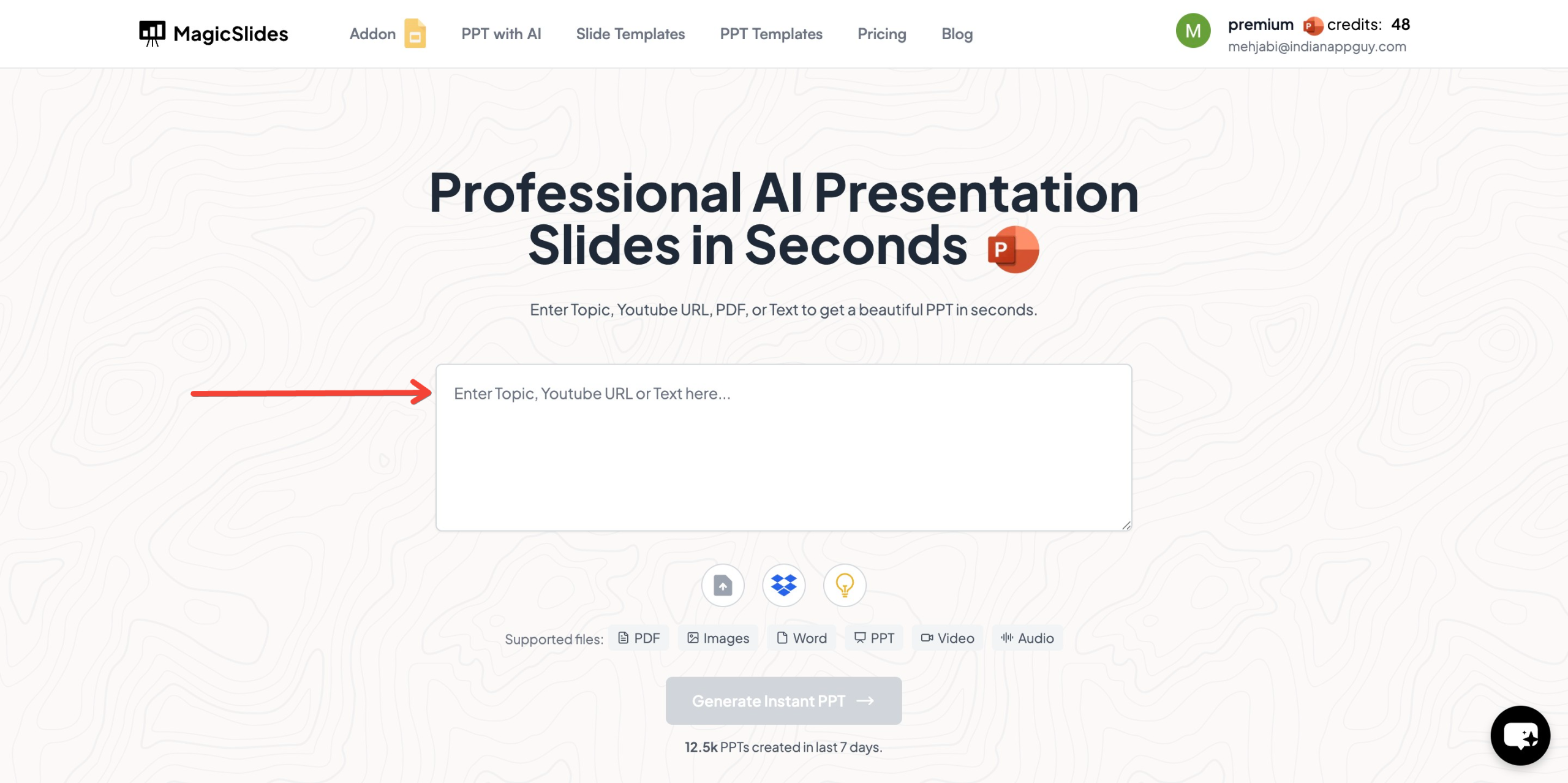
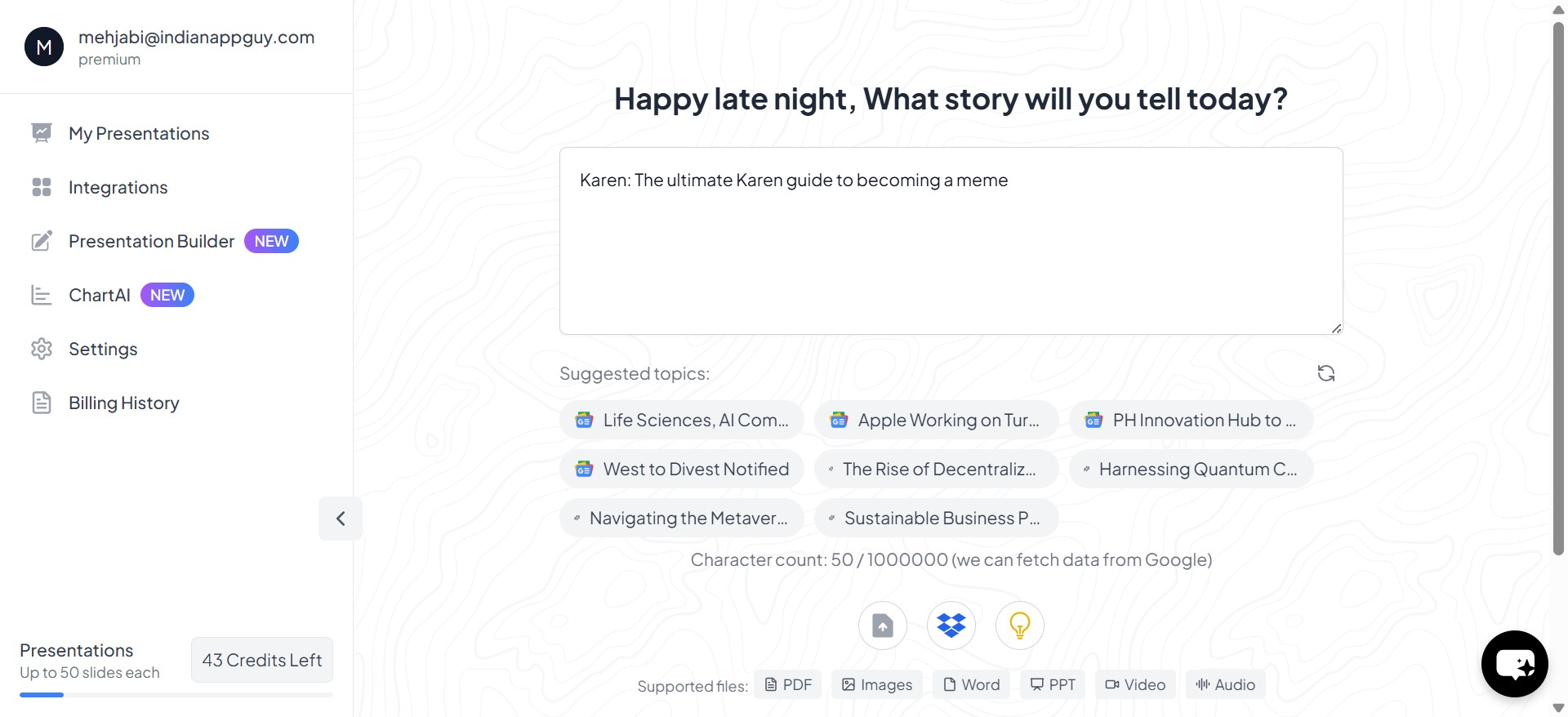
- Enter your topic in the given space.
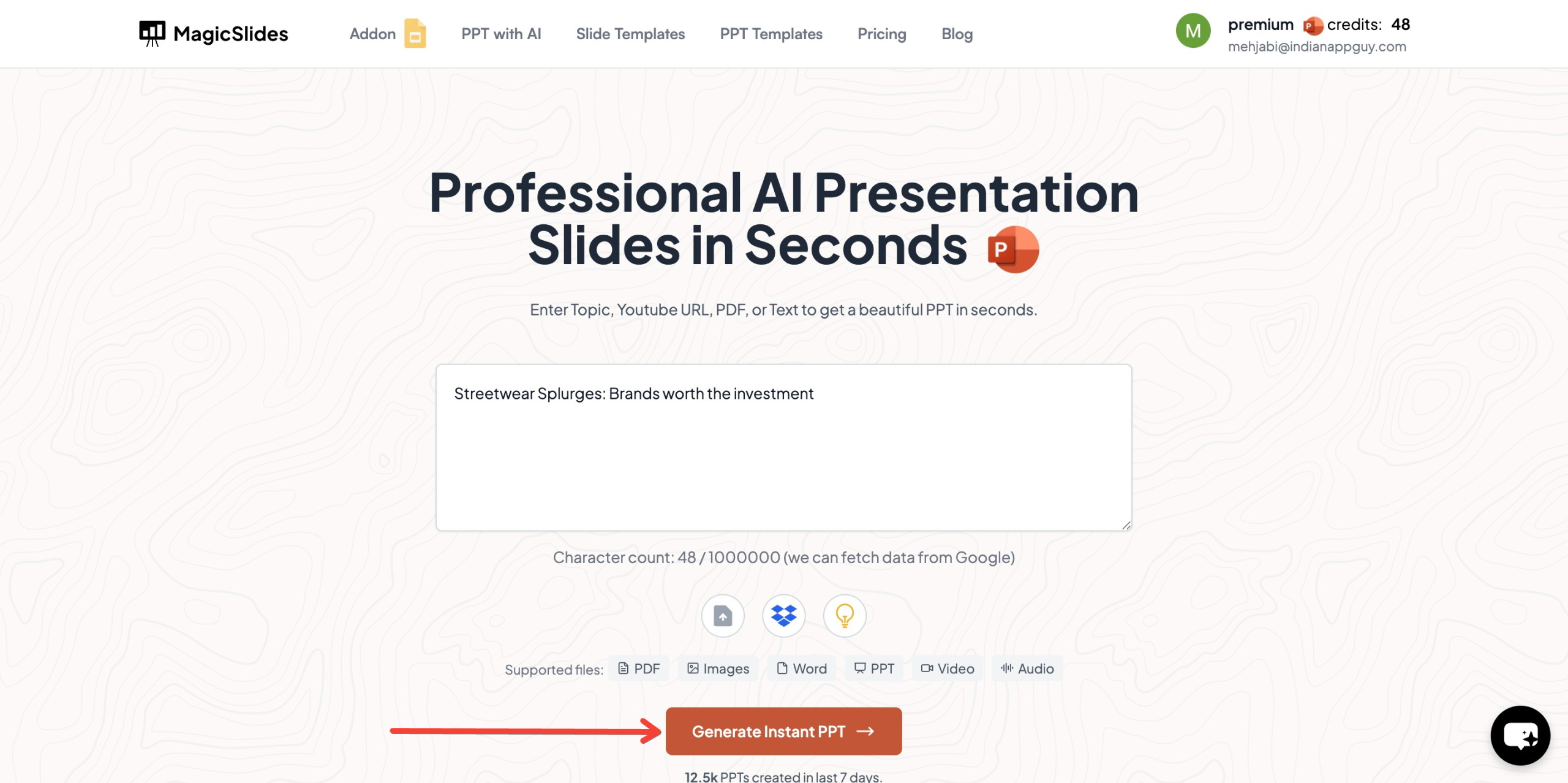
- Click "Generate Instant PPT" to create a presentation.
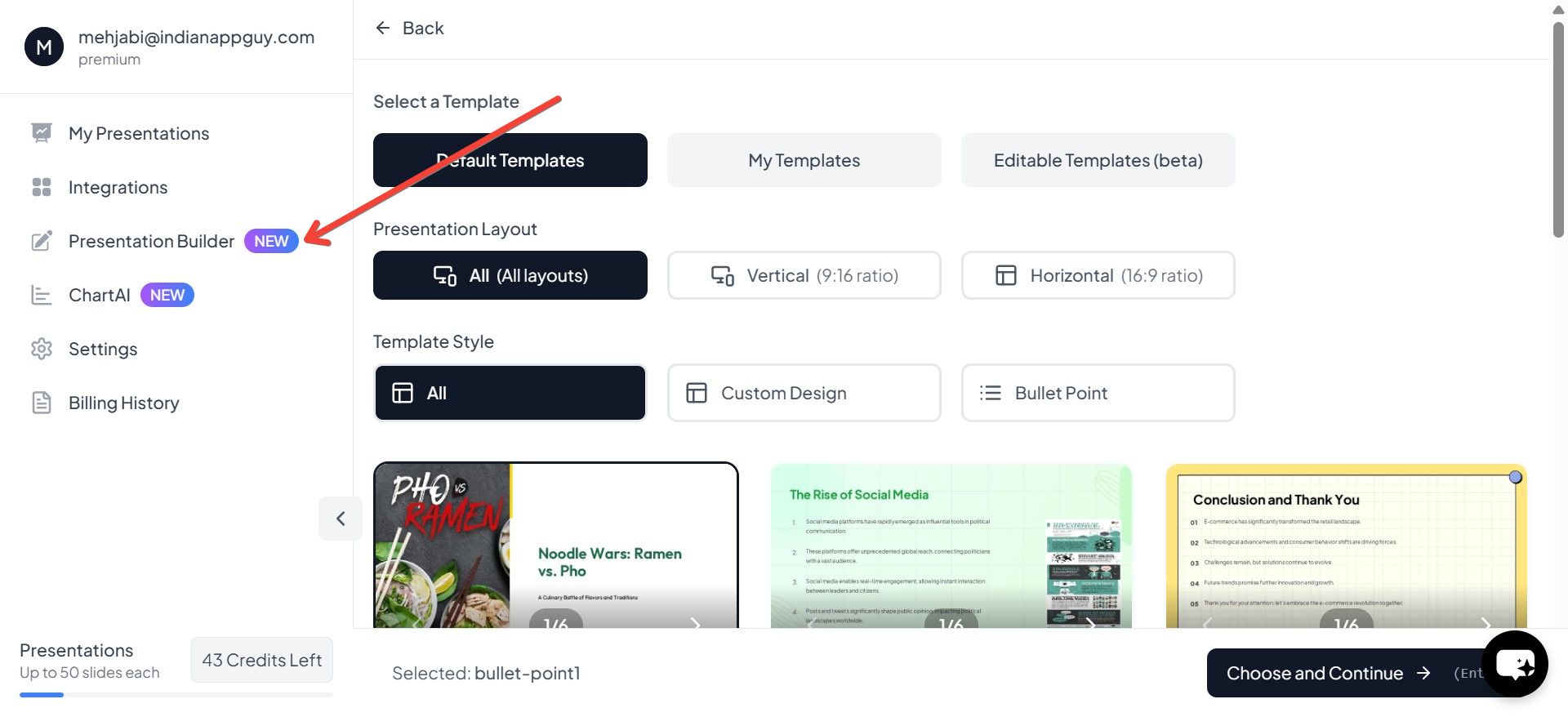
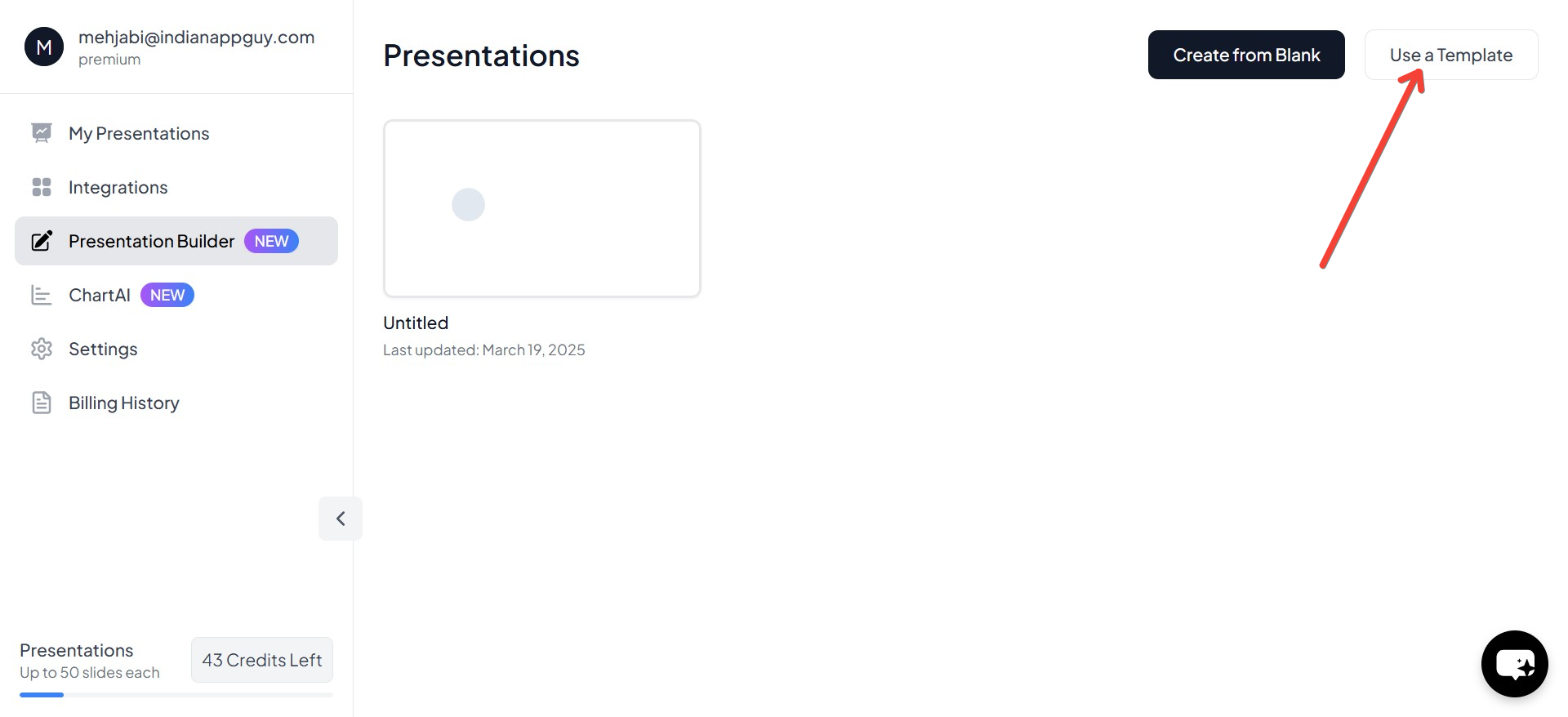
- Select "Presentation Builder" to edit or create a blank presentation.
- Click "Use Template" to start with a customizable template.
- Enter your topic to personalize the slides.
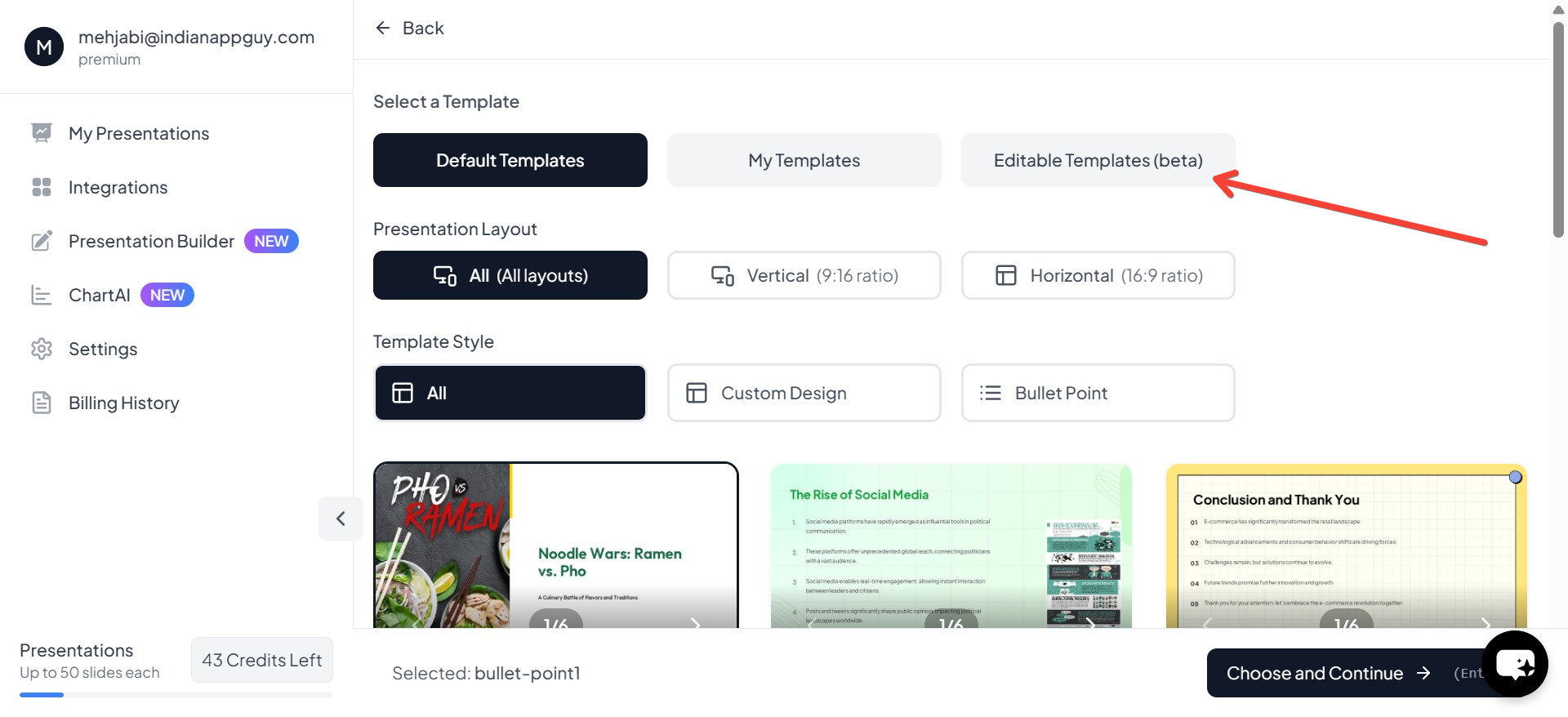
- Choose "Editable Template" to modify the content as needed.
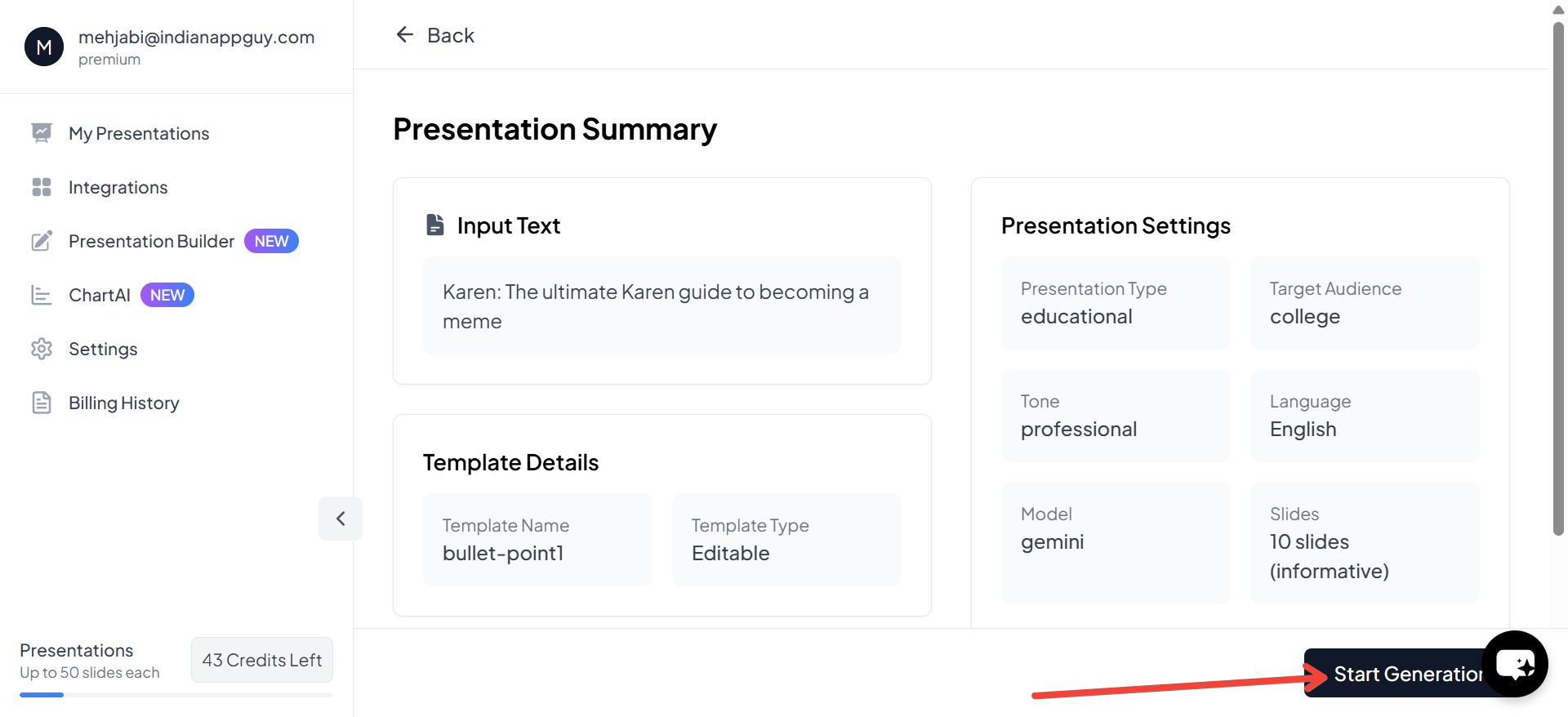
- Click "Start Generation" to let AI create the slides for you.
- Once the presentation is generated, you can now edit it, add 3D elements, images, GIFs, and more.
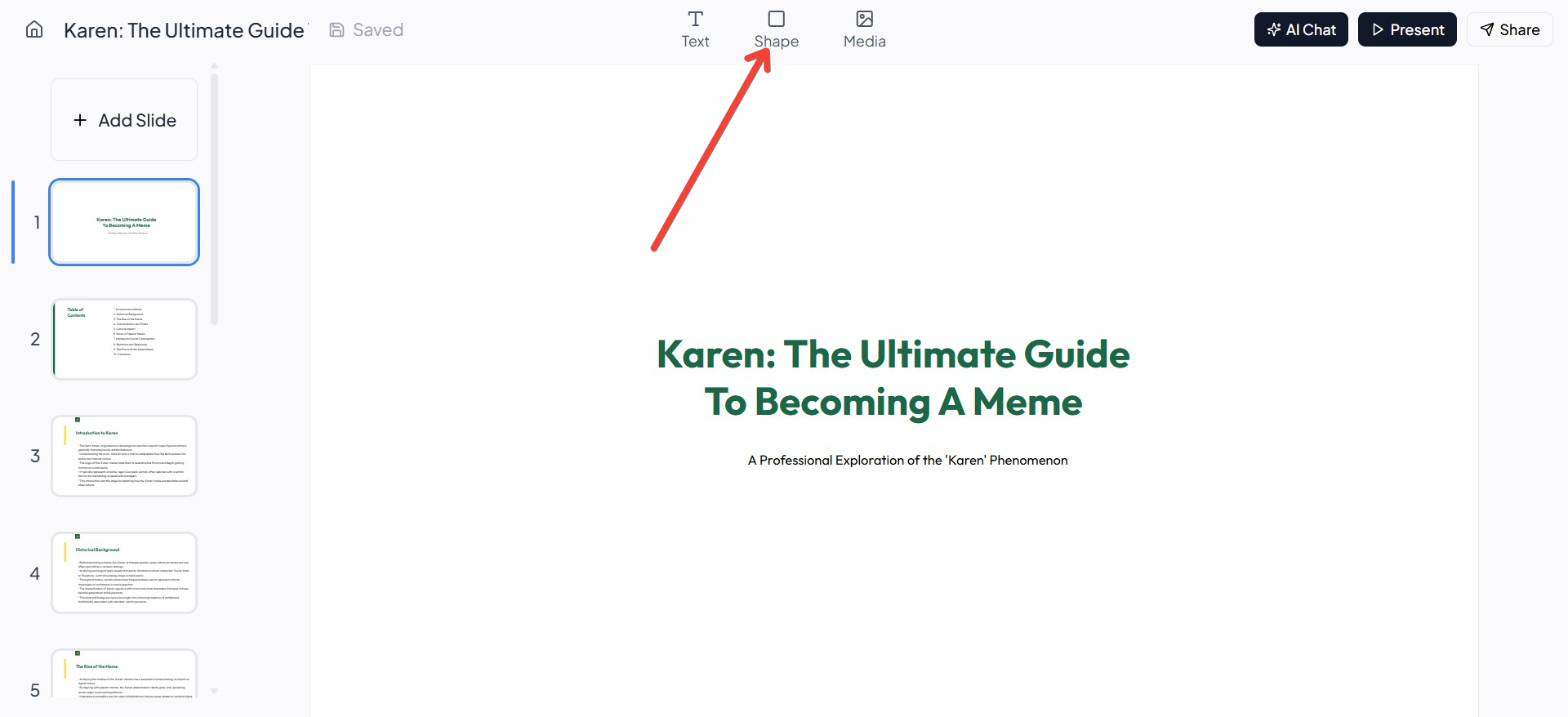
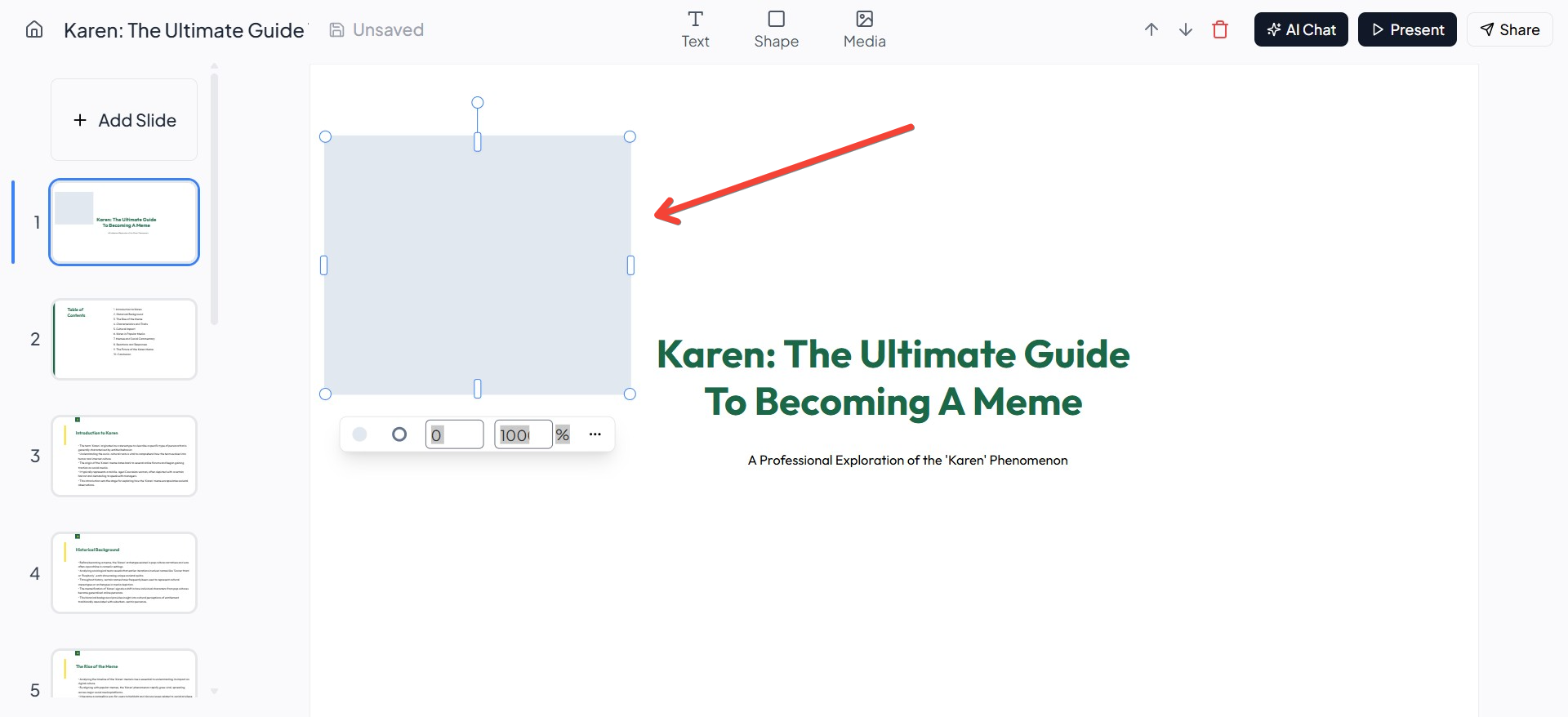
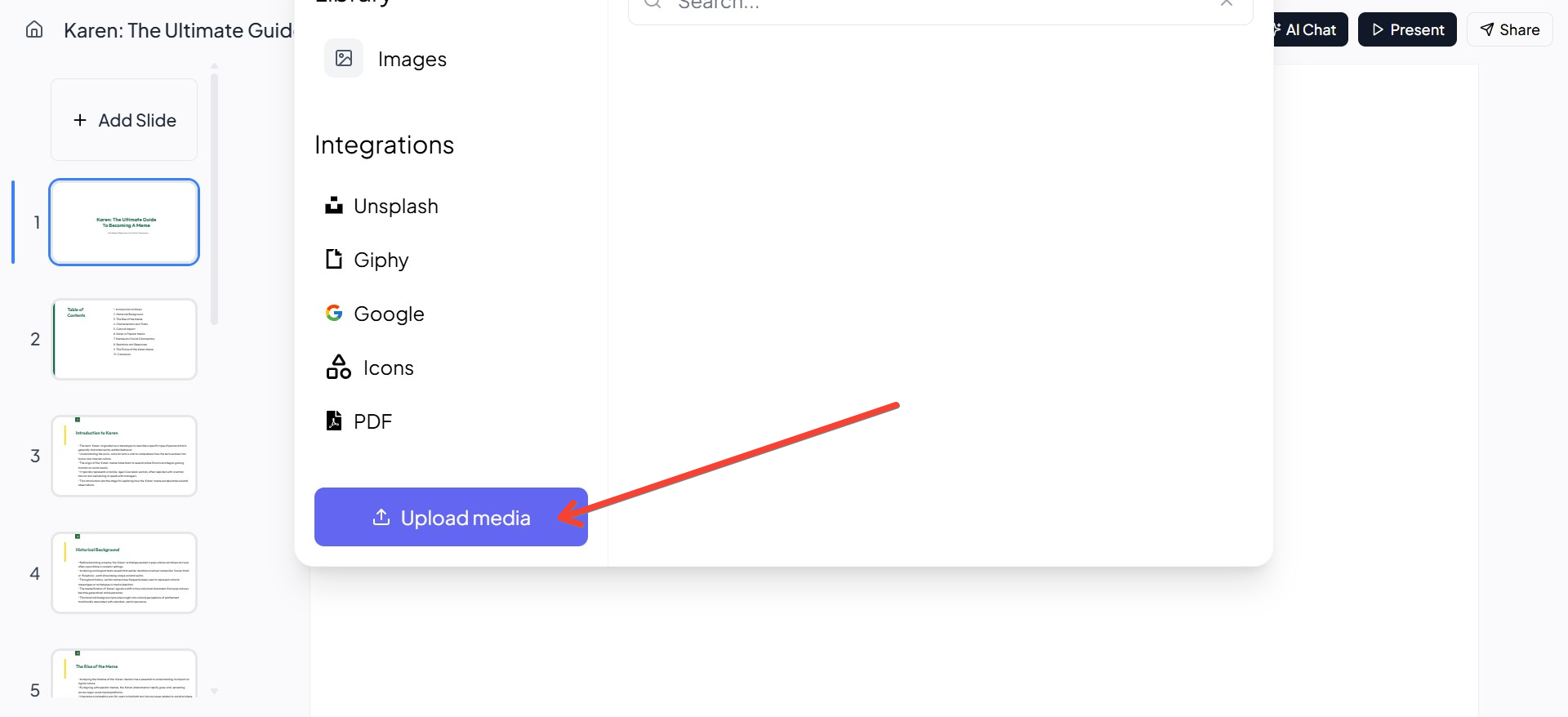
Using MagicSlides.app, you can build presentations from scratch or refine existing ones, making them visually engaging with 3D models, animations, and AI-powered enhancements.
MagicSlides.app Pricing Plans
MagicSlides offers different pricing plans based on the number of presentations, AI features, and advanced functionalities:
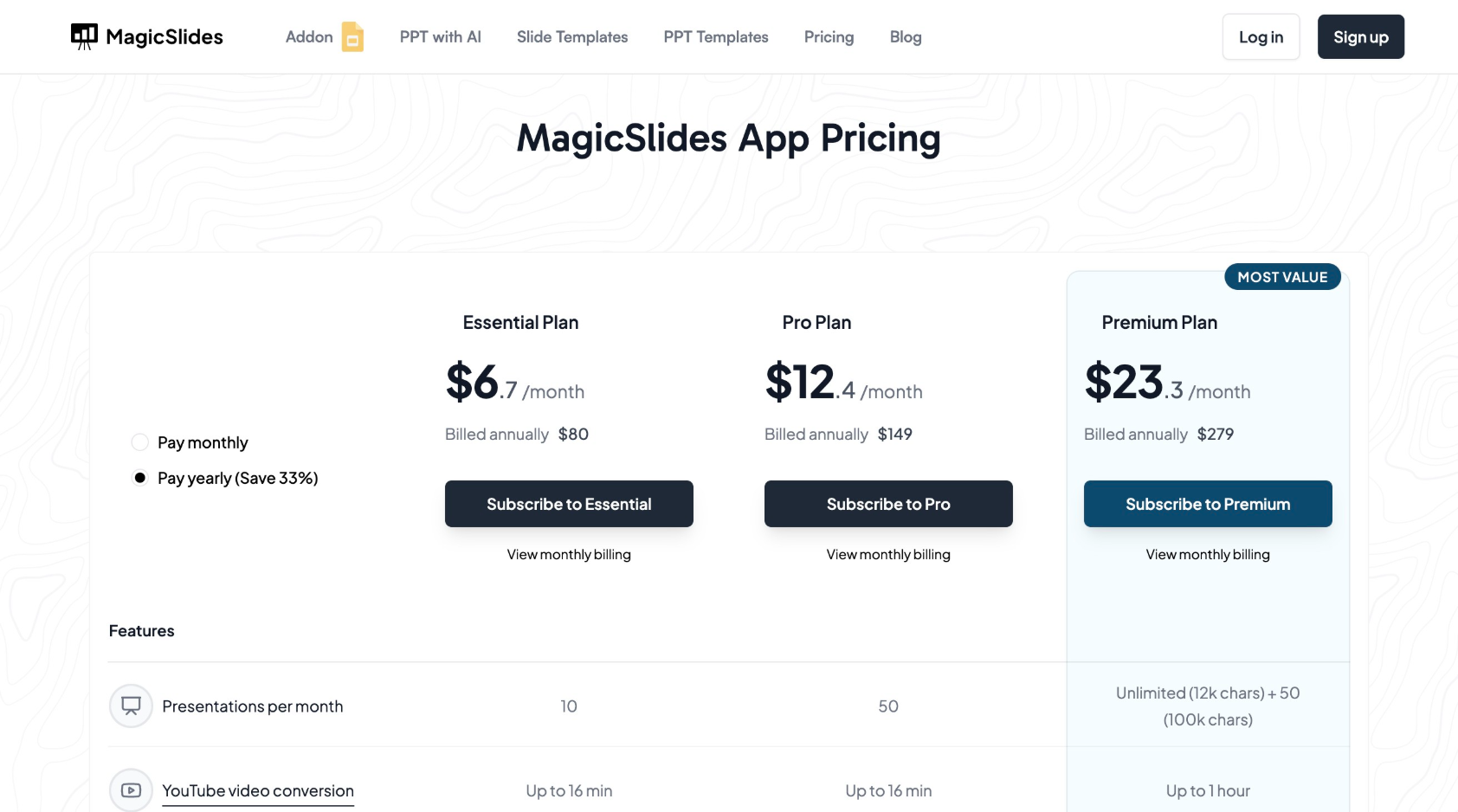
Each plan allows you to generate and edit presentations with AI, integrate Google and Wikipedia data, and use 3D elements in your slides.
Final Thoughts
Using 3D elements in PowerPoint presentations is a game-changer. It enhances visual engagement, improves storytelling, and makes slides more interactive. While PowerPoint has built-in tools for 3D models, AI-powered tools like MagicSlides.app take presentation creation to the next level by allowing users to generate, edit, and enhance slides with ease.
💡 If you're looking for a fast and efficient way to create professional presentations, try MagicSlides.app today and elevate your PowerPoint experience with 3D elements! 🚀


