How to View Google Slides Anonymously: A Comprehensive Guide


Discover how to view Google Slides anonymously using various methods like Incognito mode, guest access, and URL modifications for privacy.
Google Slides is a popular platform for creating and sharing presentations. While collaboration is a key feature of Google Slides, there are times when you might want to view a presentation without revealing your identity or Google account.
This could be for various reasons, such as privacy concerns or simply wanting to explore content without leaving a trace.
In this blog post, we will discuss how to view Google Slides anonymously, complete with detailed instructions and practical tips.
Why View Google Slides Anonymously?
There are several reasons you might want to view Google Slides anonymously:
- Privacy: You may want to explore presentations without disclosing your identity.
- Research: Viewing competitors’ presentations without revealing your interest can help in market research.
- Avoiding Tracking: Some users prefer not to be tracked by analytics tools often embedded in shared presentations.
Methods to View Google Slides Anonymously
Method 1: Using Incognito Mode
One of the simplest ways to view Google Slides anonymously is to use your browser’s Incognito or Private mode. This prevents your browsing history and cookies from being stored.
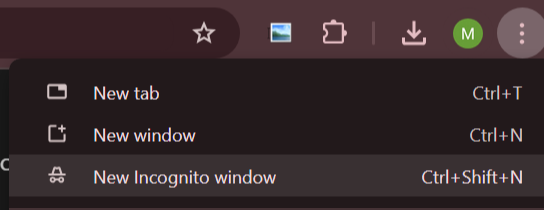
Step-by-Step Instructions:
- Open Your Browser: Launch the web browser of your choice (e.g., Google Chrome, Firefox, or Safari).
- Access Incognito Mode:
- Open the Google Slides Link: In the Incognito window, paste the link to the Google Slides presentation you wish to view. This can be a link shared with you directly or one you found online.
- View the Presentation: The presentation will open without any association with your Google account, allowing you to view it anonymously.
Method 2: Use a Different Browser or Account
If you want to maintain some level of anonymity without using Incognito mode, you can use a different browser or a secondary Google account that isn’t linked to your main identity.
Step-by-Step Instructions:
- Open a Different Browser: If you usually use Chrome, try Firefox, Safari, or Microsoft Edge.
- Sign In with a Different Account: If you have another Google account (e.g., a work or personal account that is not your primary one), sign in to that account instead.
- Access the Google Slides Link: Paste the link to the presentation in the address bar of the new browser or window.
- View the Presentation: You can now view the Google Slides presentation without your primary account being logged in.
Method 3: Download the Presentation as a PDF
If the presentation is publicly accessible, you can download it as a PDF file to view it offline without revealing your identity.
Read our blog here to know how to download your presentation as a PDF.
Step-by-Step Instructions:
- Open the Google Slides Link: Use either Incognito mode or a different browser/account to access the presentation.
- Download as PDF:
- Open the PDF: Once downloaded, you can open the PDF file using any PDF viewer. This allows you to view the content without being linked to your Google account.
Method 4: View Using a Viewer Link
If the presentation creator has enabled the option to view the slides without logging in, you can use a special viewer link.
Step-by-Step Instructions:
- Get the Google Slides Link: Obtain the link to the Google Slides presentation.
- Modify the URL: Change the end of the URL from /edit to /preview. For example:
- Open the Modified Link: Paste the modified link into your browser’s address bar. This will allow you to view the presentation without requiring sign-in.
Method 5: Use Google Slides as a Guest
For presentations shared with restricted access, some users may allow guest viewing. You can access the presentation as a guest if this option is enabled.
Step-by-Step Instructions:
- Open the Google Slides Link: Use a browser (preferably Incognito) to paste the shared link.
- Check for Guest Viewing Options: If the owner of the presentation has allowed guest viewing, you may be prompted to view it as a guest. Follow the prompts to access the content.
Important Considerations
- Respect Privacy and Copyright: While viewing anonymously can provide privacy, always ensure that you respect the content creator’s rights and privacy.
- No Interaction: When viewing anonymously, you typically won’t have the ability to interact with the presentation (e.g., making comments or editing).
- Security Risks: Be cautious when clicking on unknown links, as they may lead to phishing sites or malicious content.
Conclusion
Viewing Google Slides anonymously can be accomplished using various methods, from utilizing Incognito mode to modifying URLs for guest access.
Understanding these techniques will empower you to browse and gather information discreetly, ensuring your privacy remains intact.
Whether you’re conducting research or simply want to explore presentations without revealing your identity, these methods will help you achieve your goal efficiently.
If you have any questions or need further assistance, feel free to reach out! Happy viewing!


