How to view speaker notes in google slides app in few simple steps


Accessing speaker notes is one of the most important parts of presentation as it provides many benefits, here is a simple guide
Here is a step by step guide to see the speaker notes on Google Slides.
Step 1: Launch the Google Slides Application: Start by opening the Google Slides app on your mobile device.
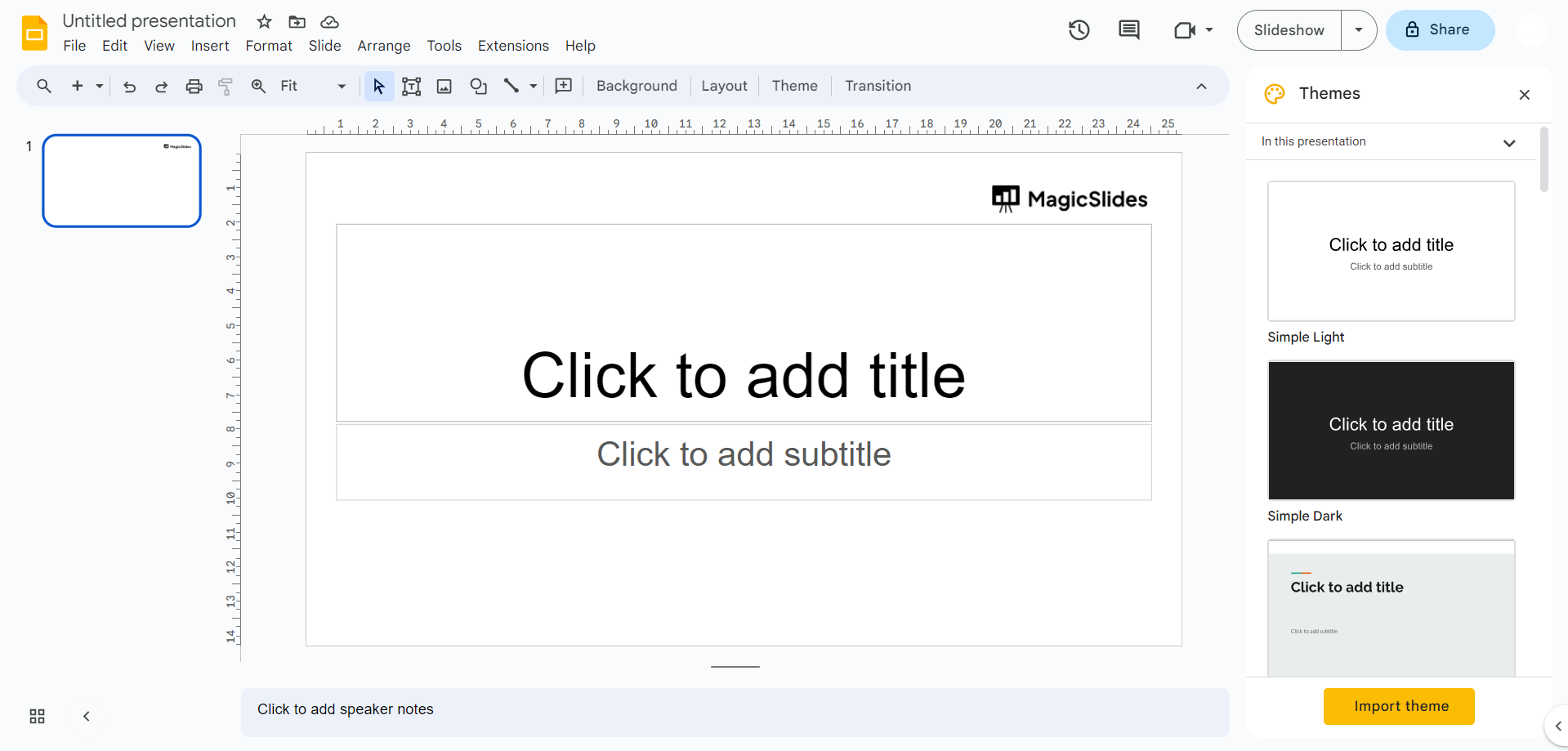
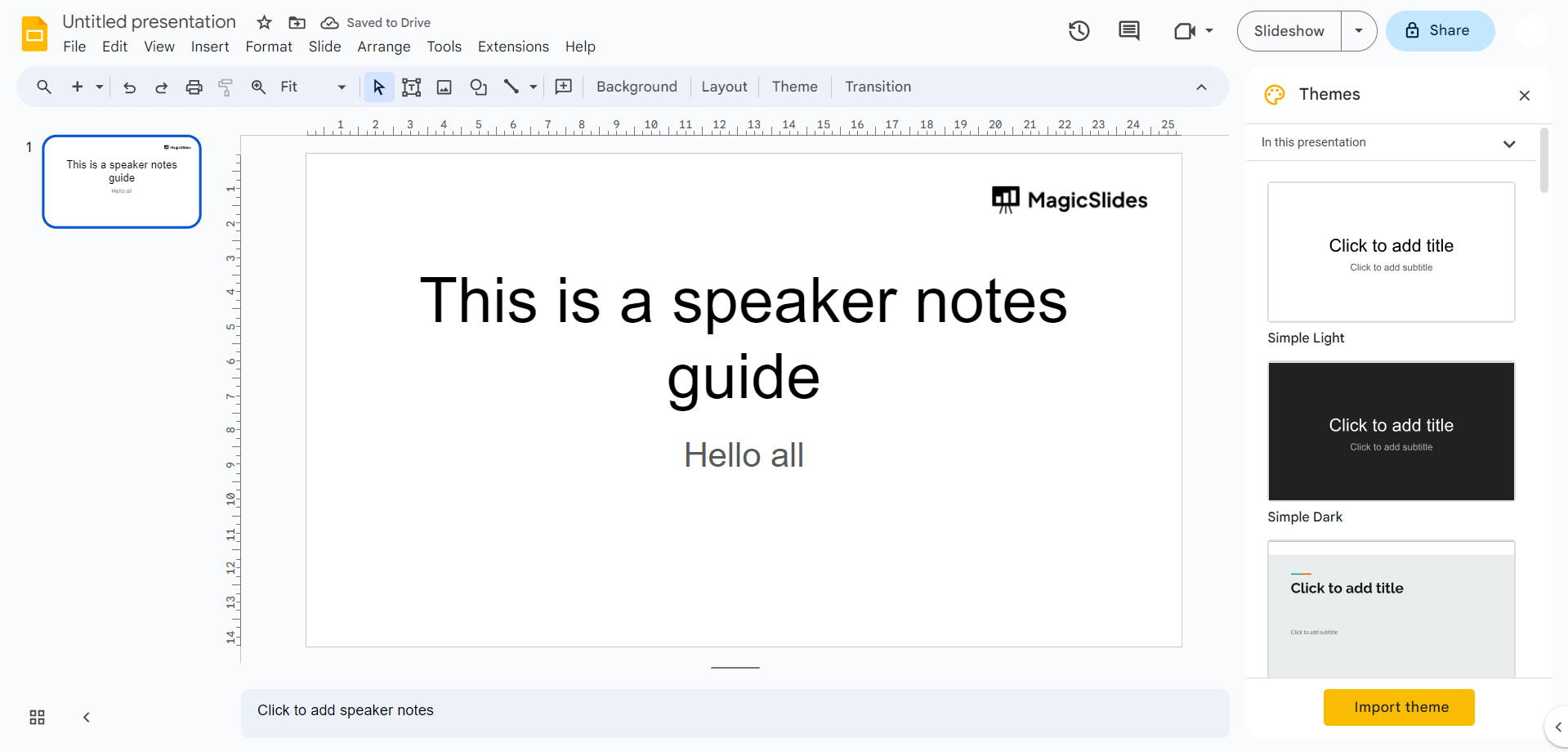
Step 2: Access a Presentation: Choose the presentation you wish to access in order to view speaker notes.
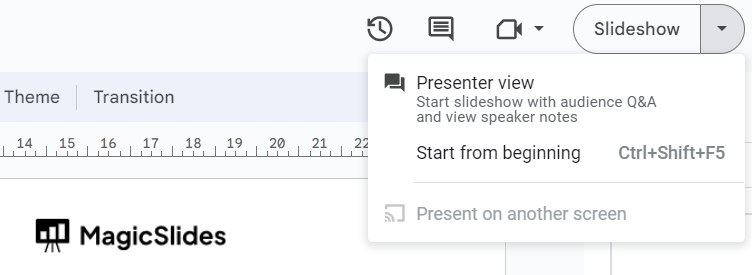
Step 3: Activate Presenter View (if available): Look for a feature that enables presenter or speaker view. If Google has introduced this functionality, it should grant you access to speaker notes.
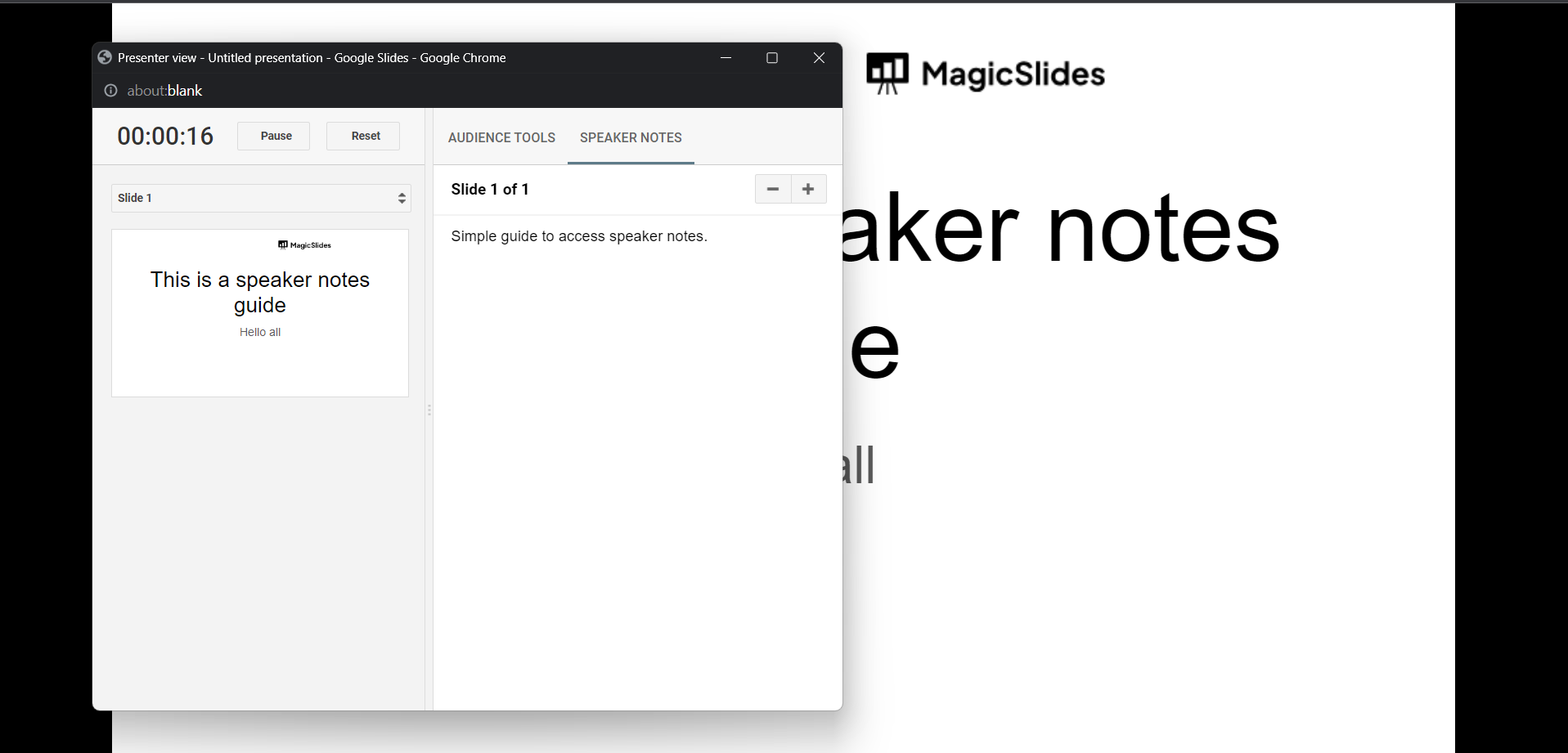
Step 4: Gestures or Taps for Notes (if supported): In the event that speaker notes are supported within the mobile app, they may become visible when you perform a swipe upwards or tap on a specific part of the screen while in presenter view. Ola! we can now see the speaker notes.
Step 5: Keep Your App Updated: If you're unable to locate this feature, ensure that your Google Slides app is up to date. Visit your device's app store, such as the Google Play Store for Android or the App Store for iOS, to verify and install any available updates.
Step 6: Consult Online Documentation: You can also refer to Google's official documentation or their support forums for the latest information regarding the ability to view speaker notes within the mobile app. Google frequently provides comprehensive guides and announcements about their product enhancements.


