Addon google slides iconPPT with AISlide TemplatesPPT TemplatesPricingBlog
    PPT with AISlide TemplatesPPT TemplatesPricingBlog
    1. Home
    2. Blog
    3. What AI feature in PowerPoint helps Design Visually Appealing Slides?


    What AI feature in PowerPoint helps Design Visually Appealing Slides?

    Ajay Sai

    Published By

    Ajay Sai
    Mohit Kumar Jha

    Approved By

    Mohit Kumar Jha

    Published On

    November 12th, 2025

    Reading Time

    3 min read

    Design Ideas in PowerPoint uses AI to create visually appealing slides with suggested layouts and designs

    What AI feature in PowerPoint helps Design Visually Appealing Slides?

    The AI feature in PowerPoint that helps design visually appealing slides is called Design Ideas.
    This powerful tool uses artificial intelligence to analyze the content of your slides and suggest various design options that enhance the overall look and feel of your presentation.
    Whether you're working with text, images, or other elements, Design Ideas offers creative layouts and styles that can make your slides more engaging and professional.
    It's particularly helpful for users who may not have a strong design background, allowing them to quickly create polished presentations.

    Steps to Use Design Ideas in PowerPoint

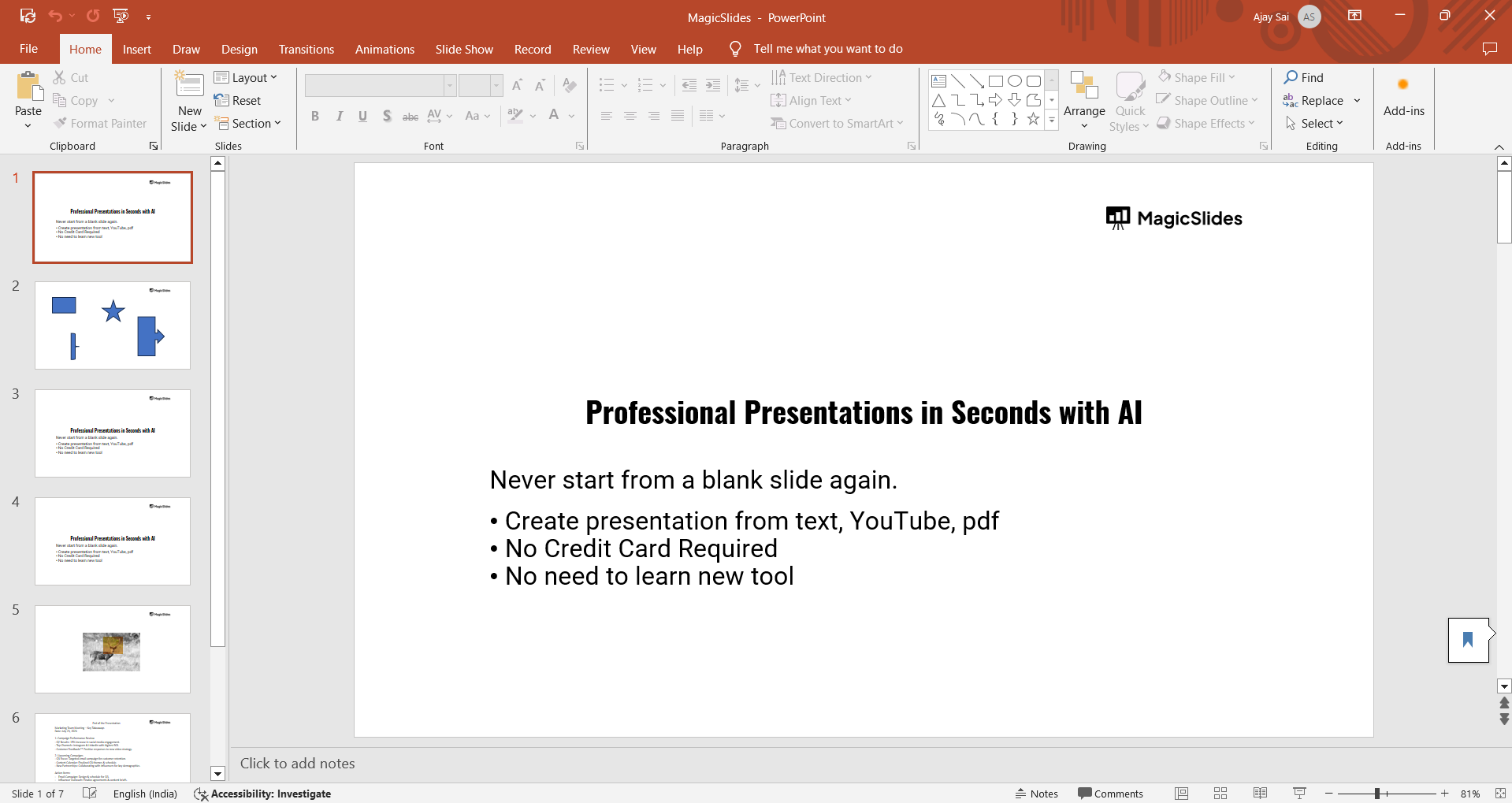
    Open Your PowerPoint Presentation:

    Start by opening the PowerPoint presentation where you want to use the Design Ideas feature.
    notion image

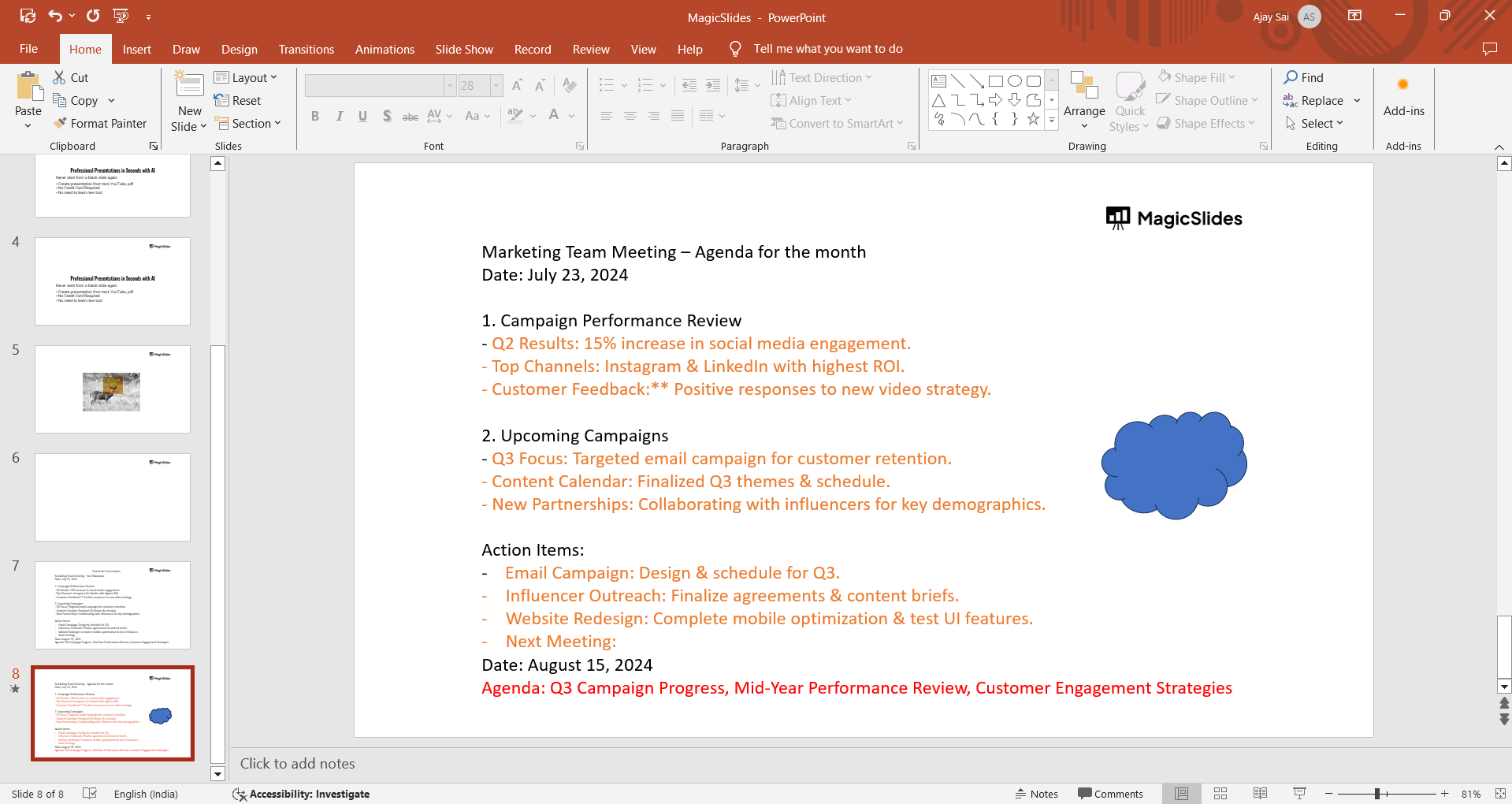
    Add Content to a Slide:

    Make sure the slide you want to enhance has some content, such as text, images, or charts.
    notion image

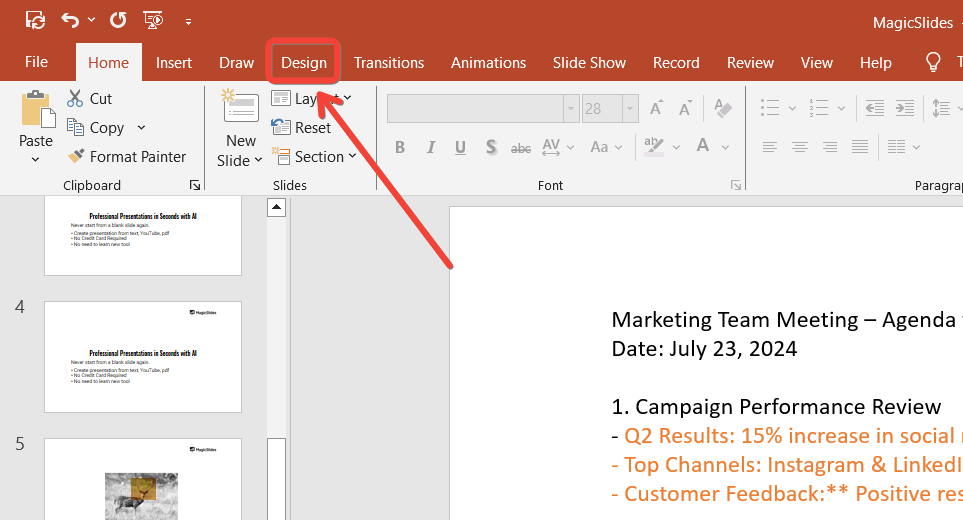
    Go to the Design Tab:

    Navigate to the "Design" tab in the PowerPoint ribbon at the top of the screen.
    notion image

    Click on Design Ideas:

    On the right side of the "Design" tab, click on the "Design Ideas" button to open the Design Ideas pane. Make sure to update PPT timely as Design Ideas is a new feature.

    notion image

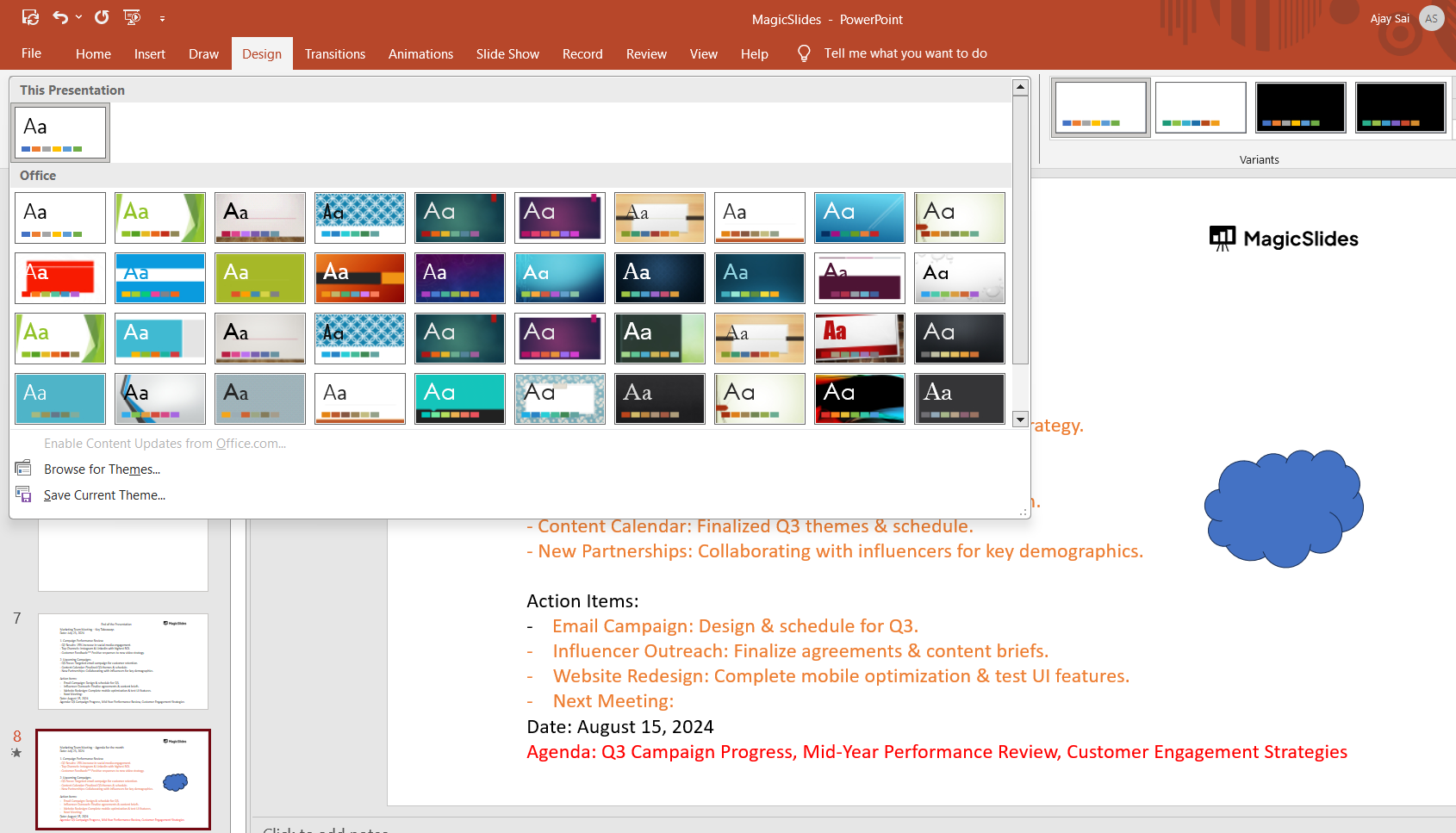
    Select a Design:

    Browse through the suggested designs in the Design Ideas pane. Click on the design you like, and it will be automatically applied to your slide.
    notion image

    Conclusion

    Using the Design Ideas feature in PowerPoint is a great way to enhance the visual appeal of your presentations with minimal effort.
    By following the steps outlined in this post, you can easily access and apply professionally designed layouts that make your slides stand out.
    Whether you're preparing for a business meeting, a lecture, or any other type of presentation, Design Ideas ensures that your content is not only informative but also visually engaging. Give it a try in your next project, and see how it can transform your slides into polished, eye-catching presentations!
    Tired of maing presentations? what if we tell you you can make presentation with just a prompt, convert YouTube videos to PPTs, convert website content to PPTs? Yes! checkout magicslides.app that does all and enjoy the free credits to make presentations in seconds.

    FAQs are here to guide!

    Can I use Design Ideas on a blank slide?

    No, Design Ideas works best when there is content like text or images on the slide.

    How do I disable Design Ideas?

    Go to "File" > "Options" > "General," and uncheck the box for "Automatically show me design ideas."

    Can I customize the suggested designs?

    Yes, after applying a design, you can further customize it using the formatting tools in PowerPoint.

    Share on socials

    About the author

    Sanskar Tiwari profile photo
    Sanskar Tiwari— Founder at MagicSlides

    Sanskar is Founder at IAG Tech, For the past 3 years sanskar have build more than 24+ products, taught 100k students how to code.

    More from Sanskar

    More from the blog

      250+ Good Morning Messages for Her (Romantic, Deep, Cute & Sweet)

      30 January 2026

      200+ Heart Touching Birthday Wishes for Sister (Short, Funny and More)

      29 January 2026

      50+ History Presentation Topics For 2026

      28 January 2026

      How to Add Music to Your Canva Presentation: A Step-by-Step Guide

      27 January 2026

      15 Quick Tips To Use ChatGpt At Work

      22 January 2026

      11 Best AI Tools for Business in 2025

      22 January 2026

      How to Create an Infographic That Clearly Communicates Your Message

      20 January 2026

      How to Create a Sales Presentation Template in Google Sheets

      20 January 2026

      How to Make a Pie Chart on Google Slides in Simple Steps

      19 January 2026

    Table of Contents

    Create Presentations in Seconds

    Transform your ideas into professional presentations with AI. No design skills needed.

    Try MagicSlides Free

    Create Stunning Presentations with AI in Seconds ✨

    Transform any topic, text, YouTube video, PDF or URL into beautiful presentations instantly with MagicSlides AI.

    Try MagicSlides AI Presentation Maker
    MagicSlides AI Presentation

    Footer

    Solutions

    • MagicSlides App
    • Google Slides Add-on
    • MagicSlides in Chrome
    • MagicSlides in Figma
    • MagicSlides in ChatGPT
    • MagicSlides in Telegram
    • MagicSlides in Zapier
    • MagicSlides in Figma Slides

    Tools

    • AI PPT Tools
    • QR Code Generator
    • Design Tools
    • PPT Templates
    • Slide Templates
    • PDF Tools

    Examples

    • AI Presentations
    • PPT by MagicSlides
    • Quizzes
    • Charts
    • Coloring Pages

    Resources

    • Changelog
    • Documentation
    • API Docs

    Top Blogs

    • How to Create Presentation Using ChatGPT
    • 100+ Best Seminar Topics for Students in 2025

    Company

    • Help
    • MCP
    • Blog
    • Pricing
    • Affiliate Program
    • Manage Subscription
    • Privacy Policy
    • Contact Us
    • Terms & Conditions
    • Refund & Cancellation Policy

    We also built

    • SheetAI - GPT For Sheets
    • MagicForm - GPT For Google Forms
    • SecondBrain.fyi
    • BlogBee - Free Blogging Platform

    © 2026 IndianAppGuy Tech Pvt Ltd. All rights reserved.