What is the default name of a blank PowerPoint Presentation


The default name of a new PowerPoint presentation is “Presentation1” until you save it
When you start a new PowerPoint presentation, you might notice that it has a default name assigned to it until you save it with a specific title.
Knowing this default name can be helpful, especially when managing multiple files or when you forget to name your presentation immediately.
In this blog post, we’ll explore what the default name of a blank PowerPoint presentation is and how you can easily change it to something more meaningful.
What is the default name of a blank PowerPoint Presentation
Step 1: Open PowerPoint
Begin by opening Microsoft PowerPoint on your computer.
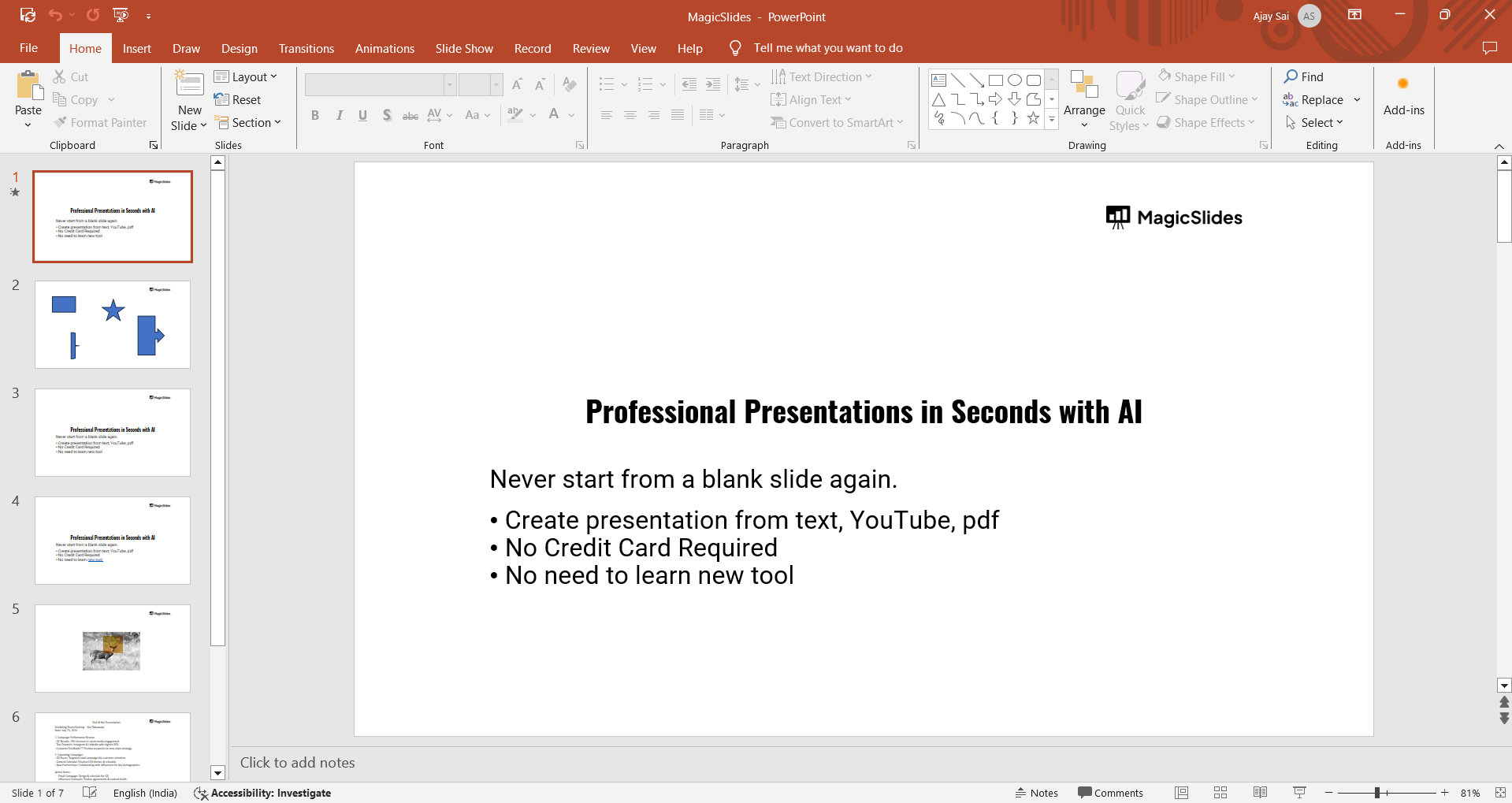
You can do this by searching for "PowerPoint" in your Start menu or by clicking on the PowerPoint icon on your desktop or taskbar.
Step 2: Create a New Blank Presentation
Once PowerPoint is open, start a new presentation by clicking on "Blank Presentation."
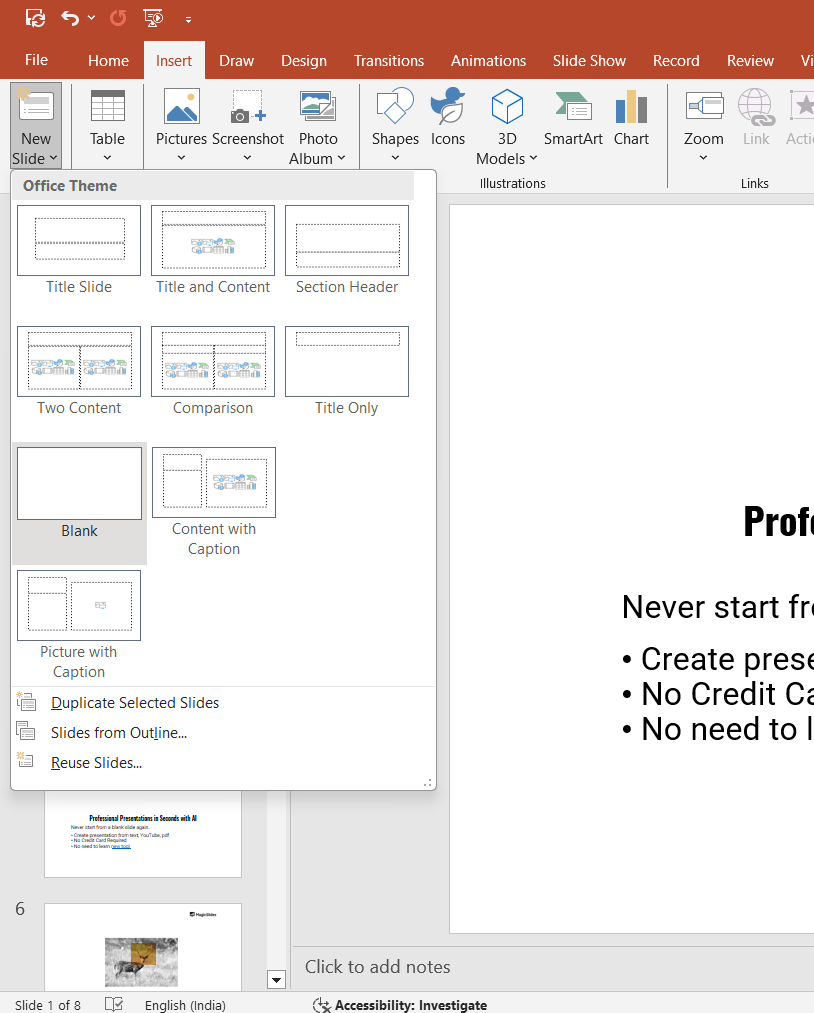
This will open a new, untitled PowerPoint file with a default name.
Step 3: Observe the Default Name
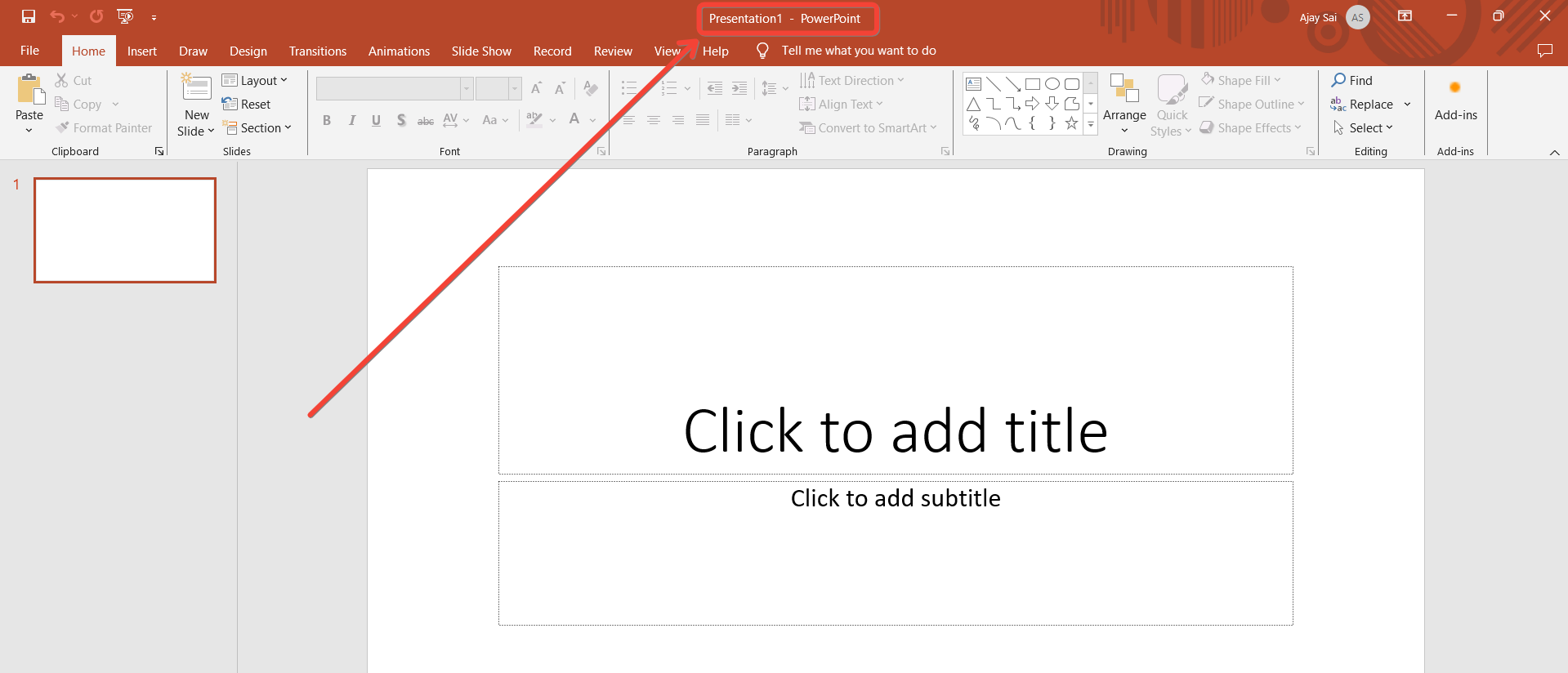
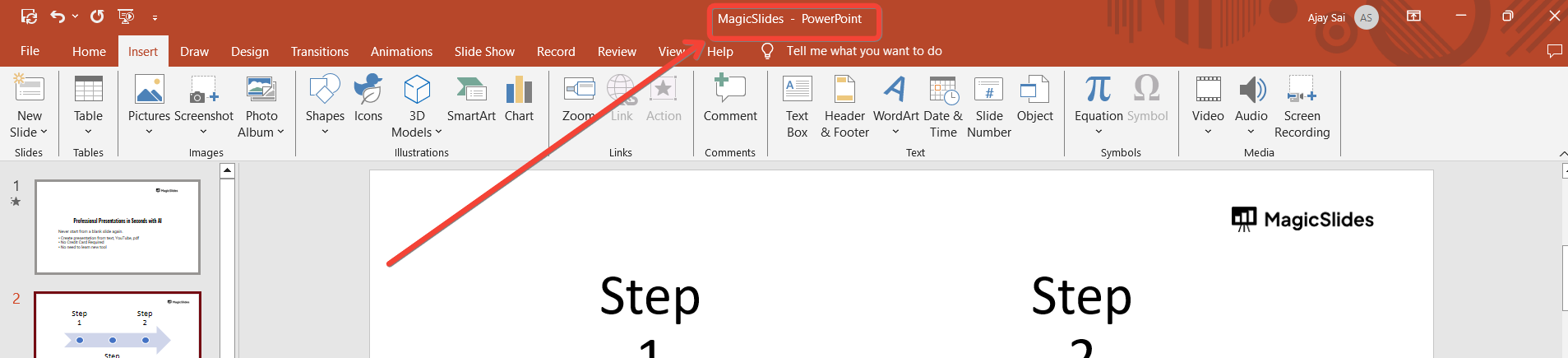
When the new blank presentation opens, take a look at the top of the PowerPoint window.
You will see the default name "Presentation1" or “No title”displayed in the title bar.
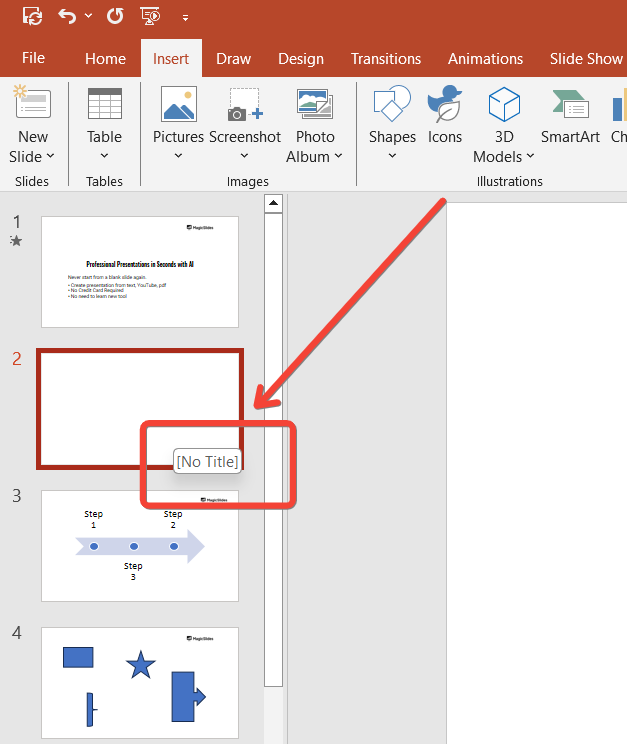
This naming convention is used by PowerPoint to name new presentations that haven’t been saved yet.
Step 4: Understand the Naming Sequence
If you create additional new presentations without saving or closing the first one, PowerPoint will continue to name them sequentially as "Presentation2," "Presentation3," and so on.
Each new file gets an incremental number to differentiate between multiple unsaved presentations.
Step 5: Save the Presentation with a New Name
To change the default name to something more descriptive, click on "File" in the top-left corner of the PowerPoint window, then select "Save As."
Choose the location where you want to save the file, and in the "File name" field, enter your desired name. Click "Save" to rename the presentation.
Explore over 150 essential AI terms and definitions, enhancing your understanding of artificial intelligence and its applications.
Step 6: Verify the New Name
After saving, the title bar at the top of the PowerPoint window will update to reflect the new name you’ve given the presentation.
This ensures your presentation is easily identifiable in your files.
Conclusion
The default name of a blank PowerPoint presentation is "Presentation1," with subsequent new presentations named sequentially.
While this default naming convention helps differentiate unsaved files, it’s important to rename your presentation to something more meaningful as soon as possible.
By following the steps outlined above, you can easily identify and rename your PowerPoint presentations for better organization and clarity.
Tired of making presentations? what if we tell you you can make a presentation with just a prompt, convert YouTube videos to PPTs, convert website content to PPTs? Yes! checkout magicslides.app that does all and enjoy the free credits to make presentations in seconds.
FAQs are here to guide you!
What is the default name of a new PowerPoint presentation?
The default name is "Presentation1" for the first new presentation.
How are additional new presentations named by default?
They are named sequentially, like "Presentation2," "Presentation3," and so on.
How can I change the default name of a PowerPoint presentation?
You can rename it by selecting "Save As" and entering a new name before saving.


