What is the Purpose of the Slide transition Feature in PowerPoint


PowerPoint’s Slide Transition feature adds visual effects between slides, enhancing presentation flow and engagement.
What is the Purpose of the Slide Transition Feature in PowerPoint?
The Slide Transition feature in PowerPoint is designed to add visual effects when moving from one slide to the next during a presentation.
These transitions help create a smoother flow between slides, making the presentation more engaging and professional.
By using transitions, you can emphasize the progression of ideas, create a visual rhythm, and maintain audience interest.
Different transition effects can be applied to match the tone and style of your presentation, whether you’re aiming for a subtle fade or a more dramatic shift.
How to Apply Slide Transitions in PowerPoint(2024 New Shortcut)
Step 1: Open Your Presentation
Start by opening the PowerPoint presentation where you want to add slide transitions.
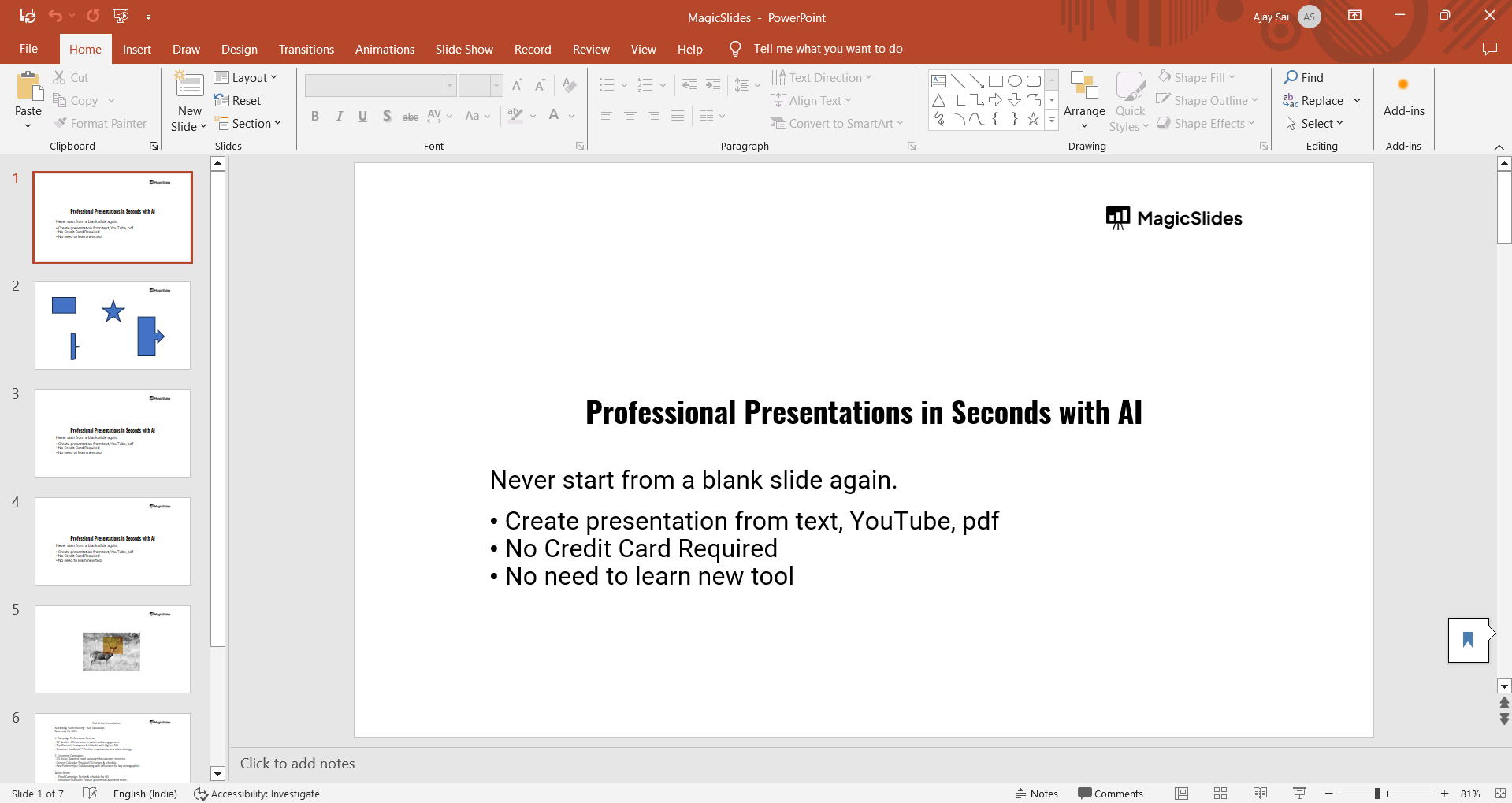
You can do this by launching PowerPoint, clicking on "File" in the top-left corner, selecting "Open," and choosing the presentation you want to edit.
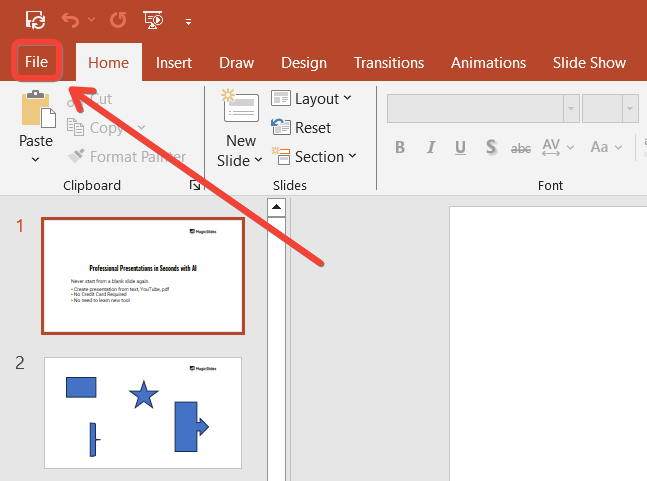
Step 2: Select the Slide
Navigate to the slide you want to apply a transition to. Click on the slide thumbnail on the left-hand side of the PowerPoint window to select it.
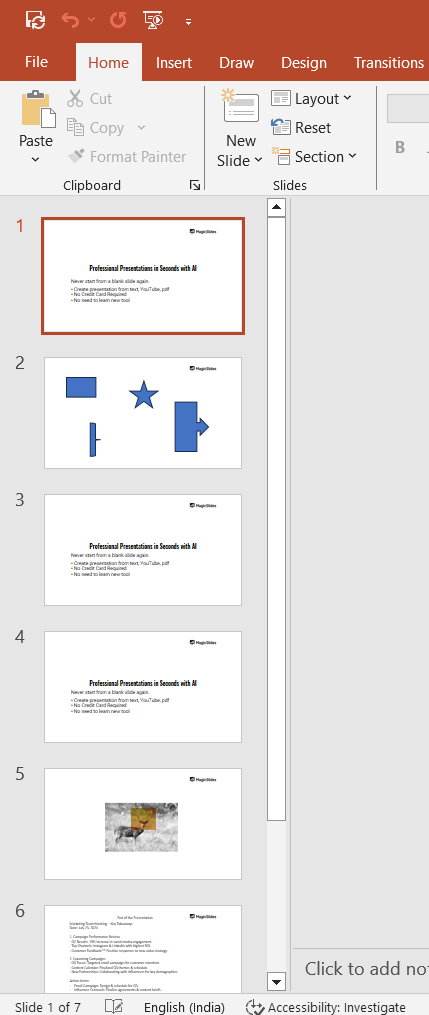
If you want to apply the same transition to multiple slides, hold down the "Ctrl" key (or "Cmd" key on Mac) and click on each slide you want to include.
Step 3: Go to the Transitions Tab
With your slide(s) selected, go to the "Transitions" tab on the PowerPoint ribbon at the top of the screen.
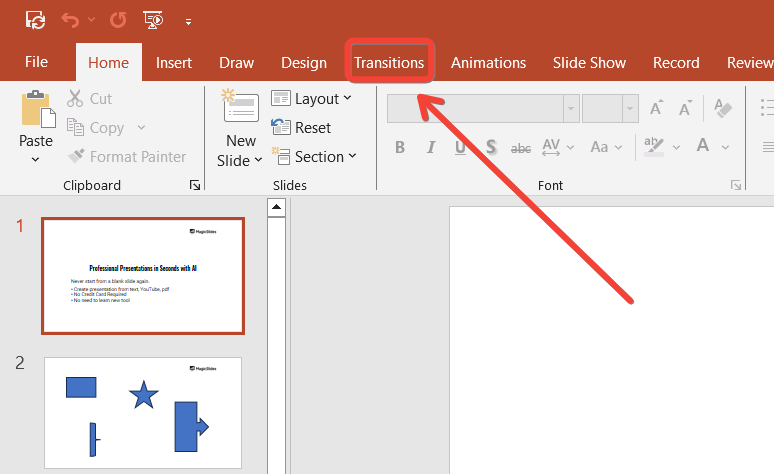
This tab contains all the transition effects you can apply to your slides.
Step 4: Choose a Transition Effect
In the "Transitions" tab, you’ll see a gallery of transition effects. Click on the effect you want to apply, and it will preview on the selected slide.
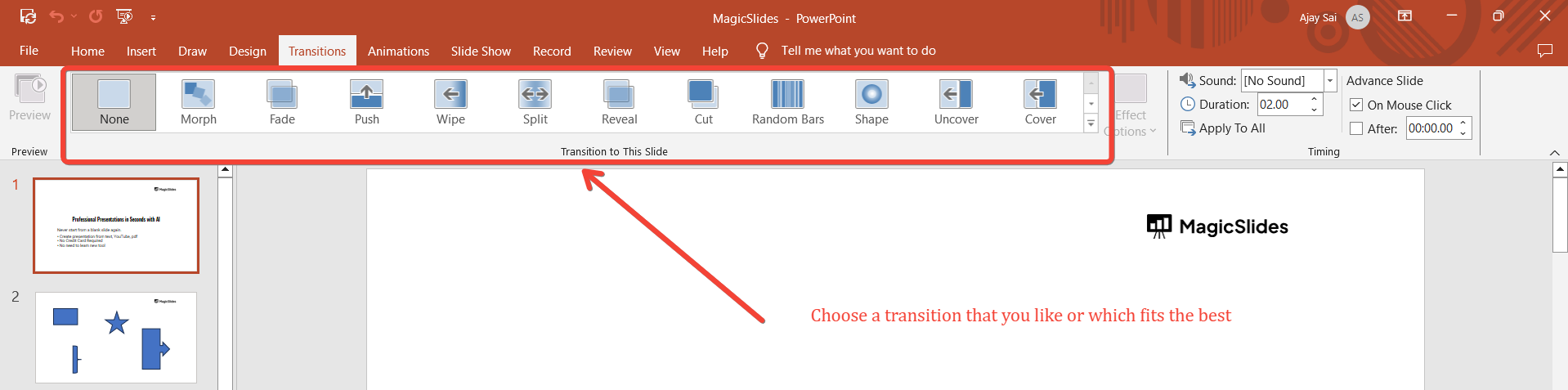
Some common transitions include "Fade," "Wipe," and "Push."
Step 5: Customize the Transition
After selecting a transition, you can customize it using the options in the "Transitions" tab.

Use the "Effect Options" dropdown to adjust the direction or style of the transition.
You can also set the duration and add sound effects to the transition using the "Timing" group.
Step 6: Apply the Transition to All Slides (Optional)
If you want to apply the same transition to all the slides in your presentation, click on the "Apply to All" button in the "Transitions" tab.
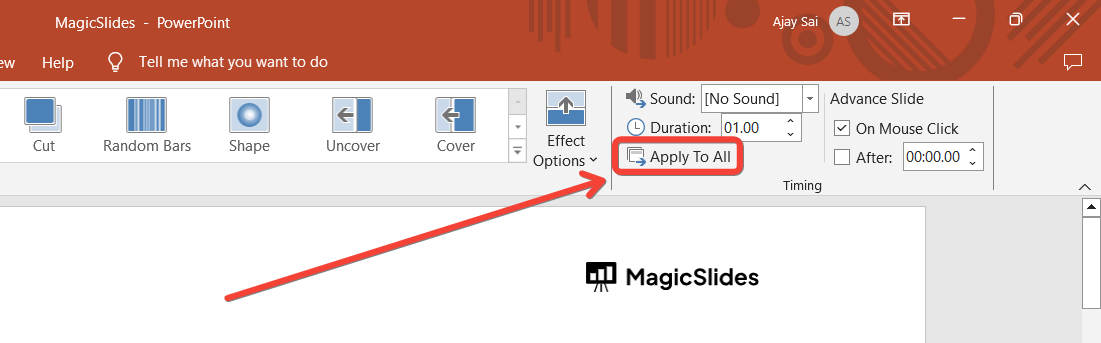
This ensures a consistent transition effect throughout your entire presentation.
Step 7: Preview and Adjust
To see how your transitions will look during the presentation, click on "Preview" in the "Transitions" tab.
As you can see a transition is applied to the slide in the below picture
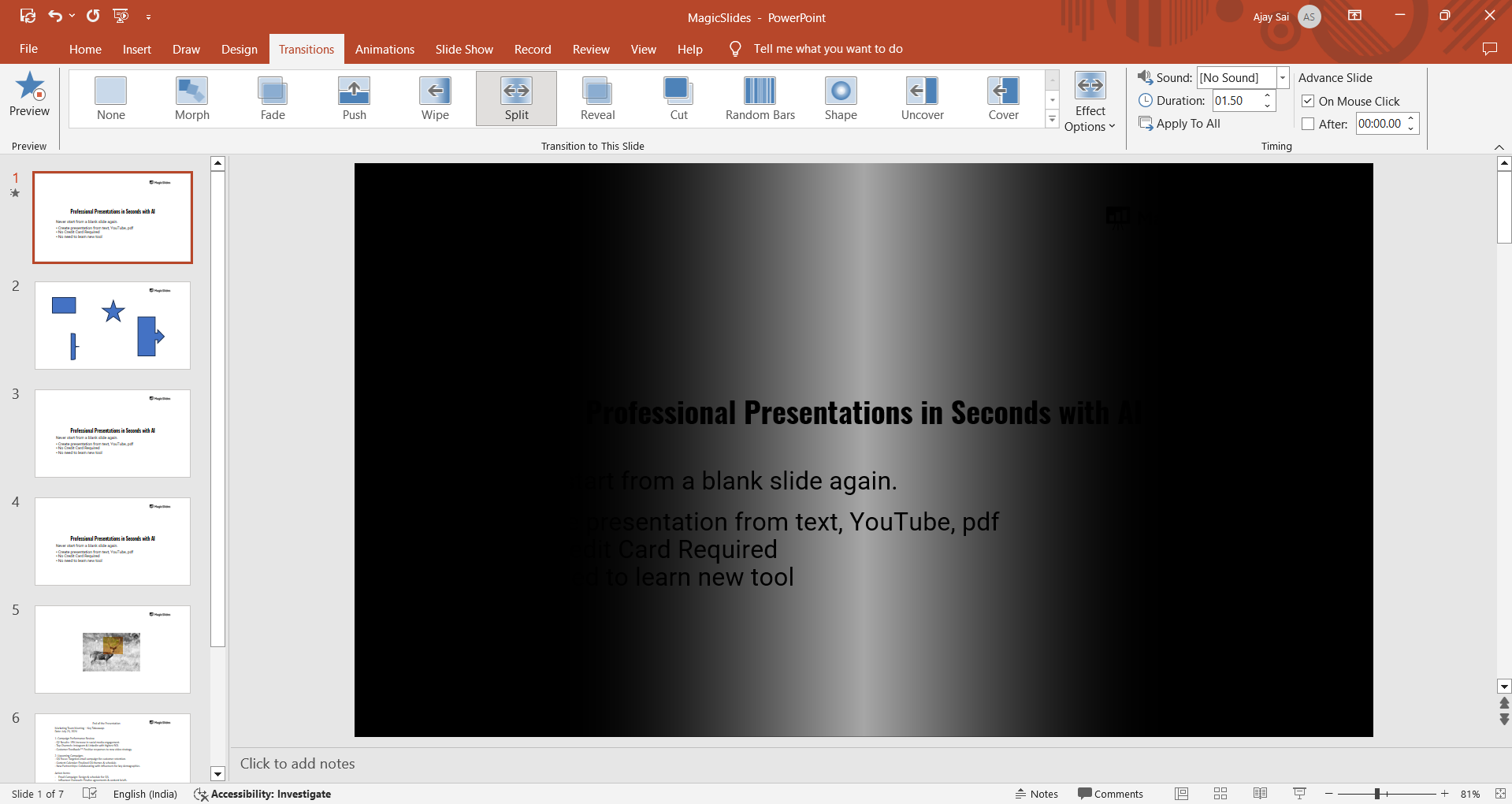
Watch the preview and make any necessary adjustments to the timing, effect options, or transition choice to ensure the flow of your presentation is smooth and engaging.
Conclusion
The Slide Transition feature in PowerPoint is a simple yet powerful tool for enhancing the flow and visual appeal of your presentations.
By following these steps, you can easily apply and customize transitions to create a more dynamic and professional experience for your audience.
Whether you’re looking for a subtle shift or a more dramatic effect, slide transitions can help you convey your message more effectively and keep your audience engaged from start to finish.
FAQs that can come handy!
Can I apply different transitions to different slides?
Yes, you can apply unique transitions to individual slides for varied visual effects.
How can I control the speed of a slide transition?
Adjust the transition duration in the "Timing" section of the Transitions tab.
Can I apply the same transition to all slides at once?
Yes, use the "Apply to All" button in the Transitions tab to apply the same transition to every slide.


