Where do you get GIFs for PowerPoint


Easily find and insert GIFs into PowerPoint to make your presentations more engaging and dynamic
Where Do You Get GIFs for PowerPoint?
GIFs are a great way to add animation and visual appeal to your PowerPoint presentations.
Whether you want to make your slides more engaging or illustrate a concept dynamically, adding a GIF can help.
This guide will show you where to find high-quality GIFs and how to insert them into your PowerPoint slides.
Step-by-Step Guide to Getting GIFs for PowerPoint
Step 1: Use Online GIF Libraries
There are many websites where you can find high-quality GIFs for free:
- GIPHY (www.giphy.com) – A vast collection of animated GIFs.
- Tenor (www.tenor.com) – Popular for short, looping GIFs.
- Imgur (www.imgur.com) – A social media platform with trending GIFs.
- Unsplash GIFs (www.unsplash.com) – High-quality stock GIFs.
To download a GIF:
Visit one of these websites. Search for a keyword related to your topic.
Click on the GIF and download it to your computer.
Step 2: Use PowerPoint’s Built-in Online Pictures
PowerPoint allows you to insert online images, including GIFs, directly into your slides:
Open PowerPoint and go to the slide where you want to insert a GIF. Click on Insert in the top menu.
Select Pictures > Online Pictures. In the search bar, type GIF + your keyword (e.g., "GIF running cat").
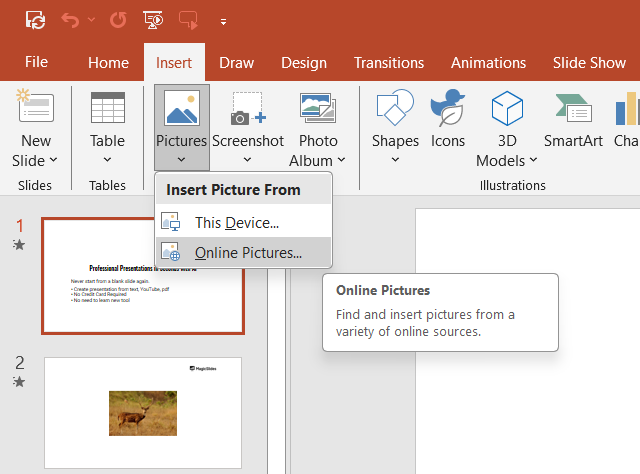
Choose a GIF and click Insert to add it to your slide.
Step 3: Create Your Own GIF
If you need a custom GIF, you can create one using:
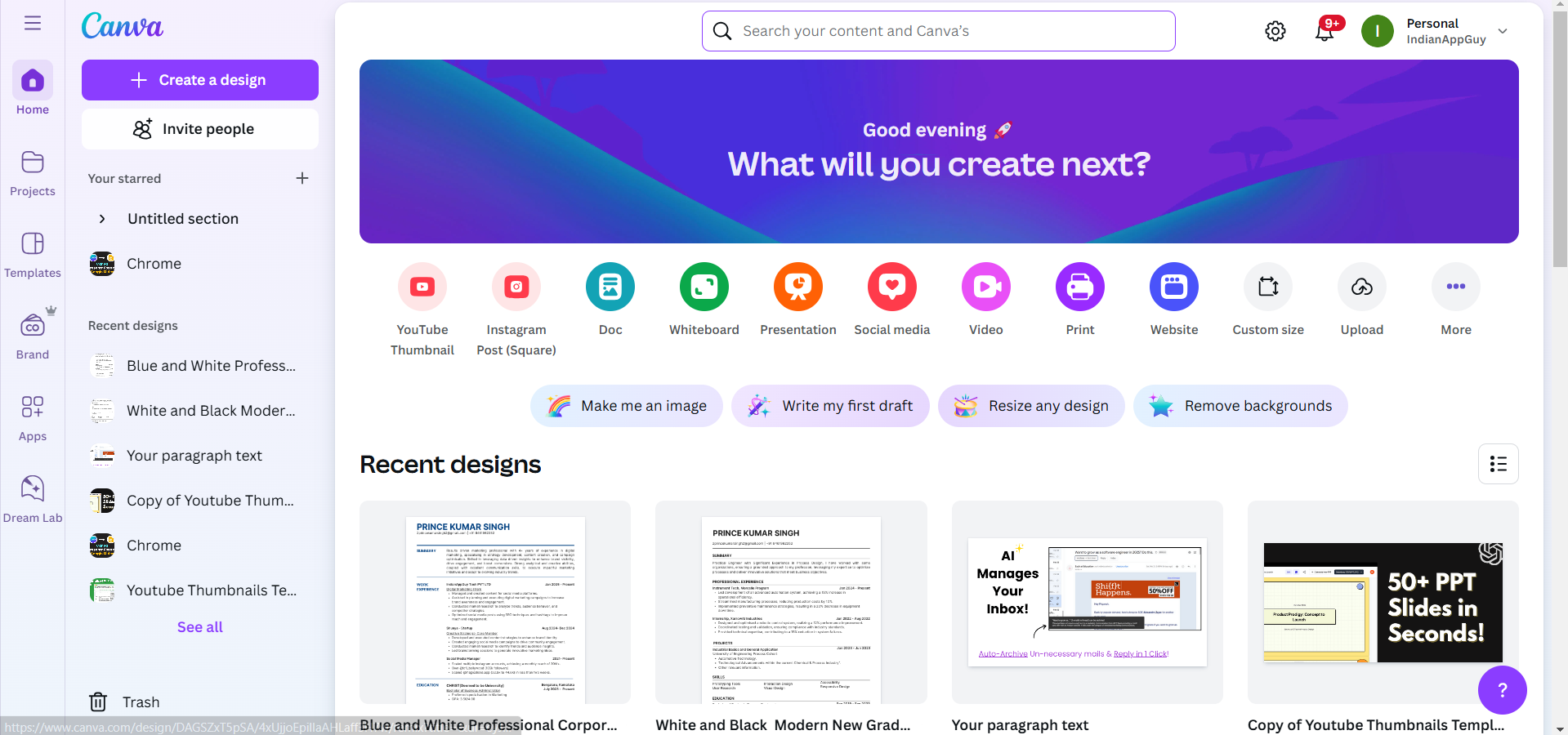
- Canva (www.canva.com) – Offers an easy way to create animated GIFs.
- EZGIF (www.ezgif.com) – Convert videos or images into GIFs.
- Adobe Photoshop – Advanced option for designing GIFs.
After creating a GIF, save it as a .GIF file and insert it into PowerPoint.
Step 4: Insert the GIF into PowerPoint
Once you've downloaded or created a GIF, follow these steps to add it to your slide:
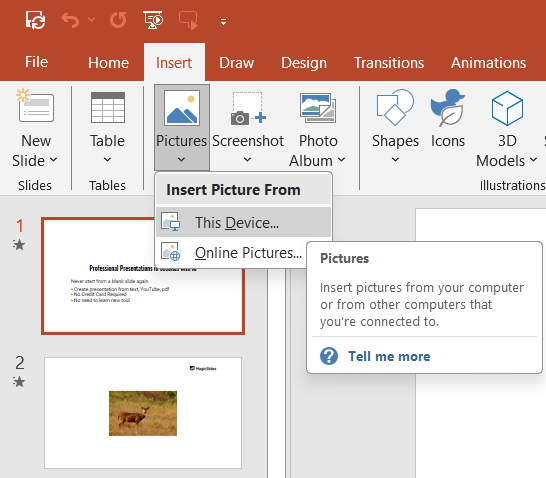
Open your PowerPoint presentation. Go to the Insert tab and click Pictures.
Select This Device and choose the GIF file from your computer.Click Insert, and the GIF will appear on your slide. Resize or move the GIF as needed.
GIFs make presentations more engaging, but did you know you can create fully designed slides with AI? With MagicSlides.app, generate dynamic presentations with images, text, and animations instantly!
Conclusion
Adding GIFs to PowerPoint can enhance your presentations and make them more engaging.
Whether you download from online sources, use PowerPoint's built-in search, or create your own, there are plenty of ways to find the perfect GIF for your slides.
FAQs About Adding GIFs to PowerPoint
Can I use GIFs in PowerPoint without downloading them?
Yes, you can use the Online Pictures feature in PowerPoint to insert GIFs directly from the web.
Why is my GIF not playing in PowerPoint?
Ensure that your PowerPoint is in Slide Show mode, as GIFs do not animate in editing mode.
Can I make a GIF loop continuously in PowerPoint?
Yes! Click on the GIF, go to Playback options, and select Loop until stopped to keep it playing.
Now you're ready to add animated GIFs to your PowerPoint presentations and make them more engaging! 🎉


