Why Can’t I Click on different lines in PowerPoint Mac


Having trouble clicking on different lines in PowerPoint on Mac? Follow these steps to fix it
Why Can't I Click on Different Lines in PowerPoint on Mac?
If you're experiencing issues clicking on different lines of text in PowerPoint on your Mac, the problem could be due to text box formatting, grouping, or software glitches.
This guide will walk you through troubleshooting steps to resolve this issue.
Step-by-Step Guide to Fix Clicking Issues in PowerPoint on Mac
Check If the Text Box Is Selected
Sometimes, the entire text box is selected instead of individual lines.
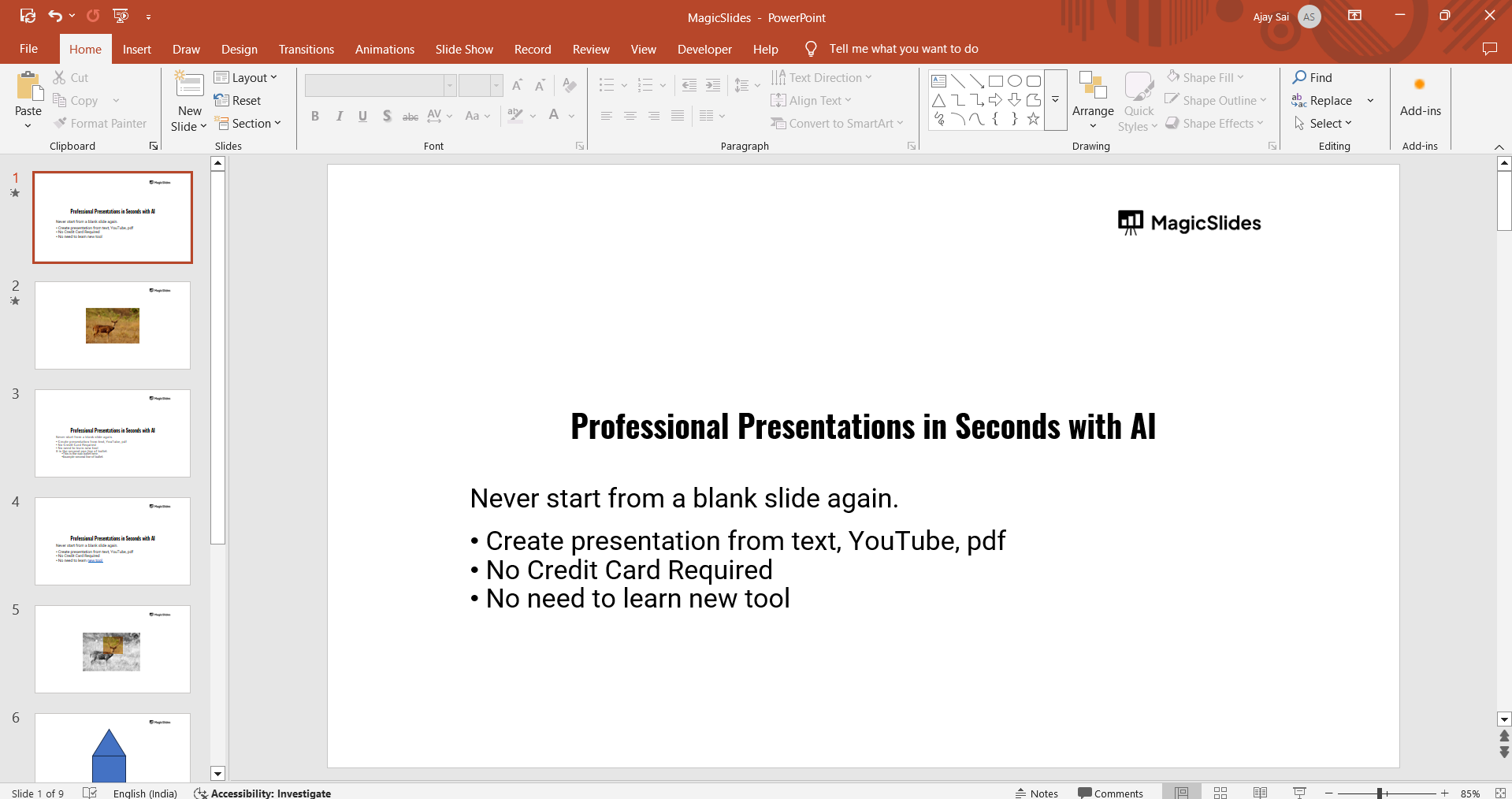
How to Fix It:
Click outside the text box to deselect everything.
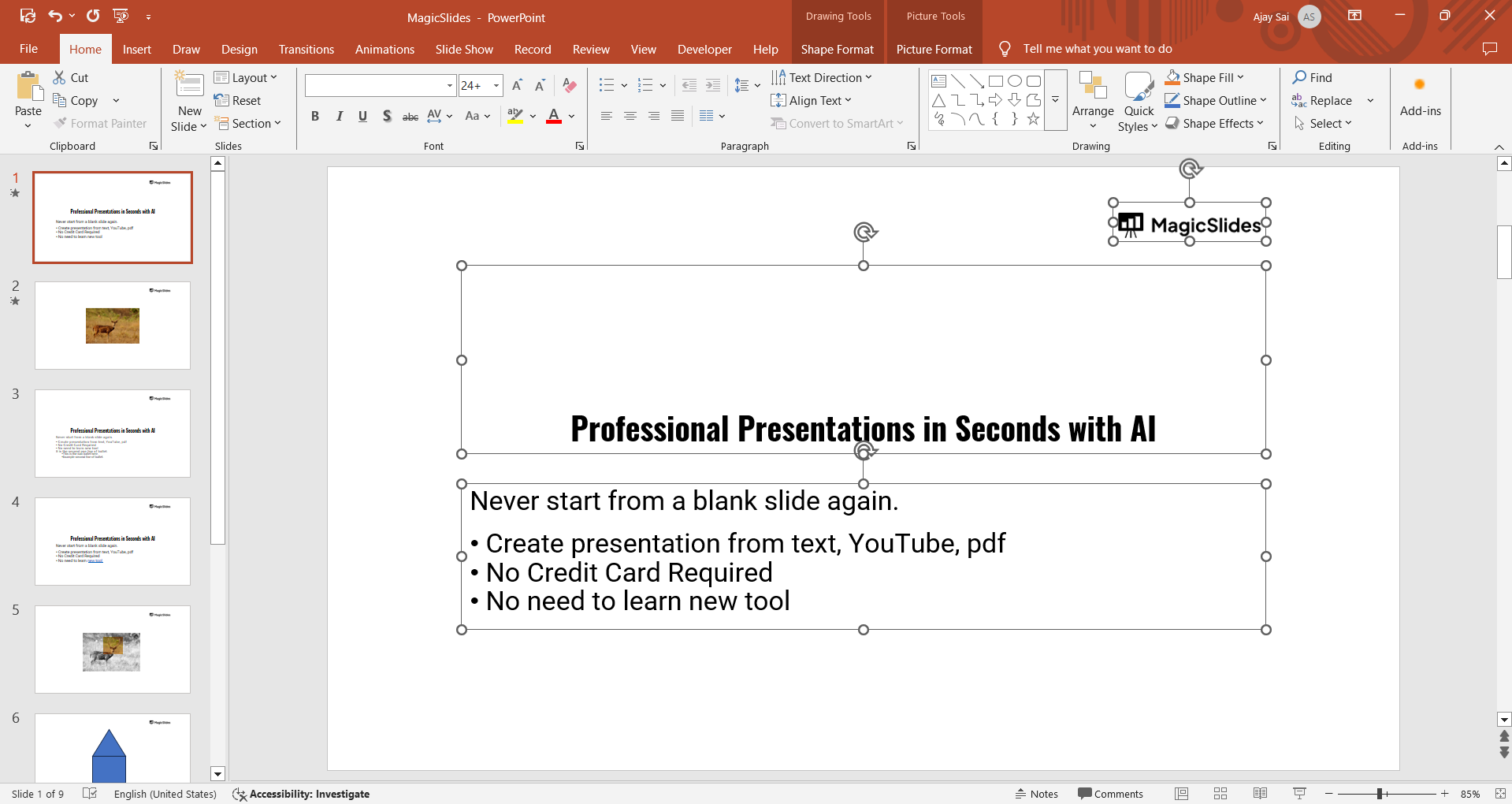
Click once inside the text box to see if you can place the cursor on different lines.
If the entire text box remains highlighted, move to the next step.
Ensure the Text Box Isn’t Grouped
If the text box is grouped with other elements, it may prevent clicking on individual lines.
How to Fix It:
Click on the text box and check if multiple objects are selected.
If grouped, go to Arrange > Ungroup in the PowerPoint toolbar.
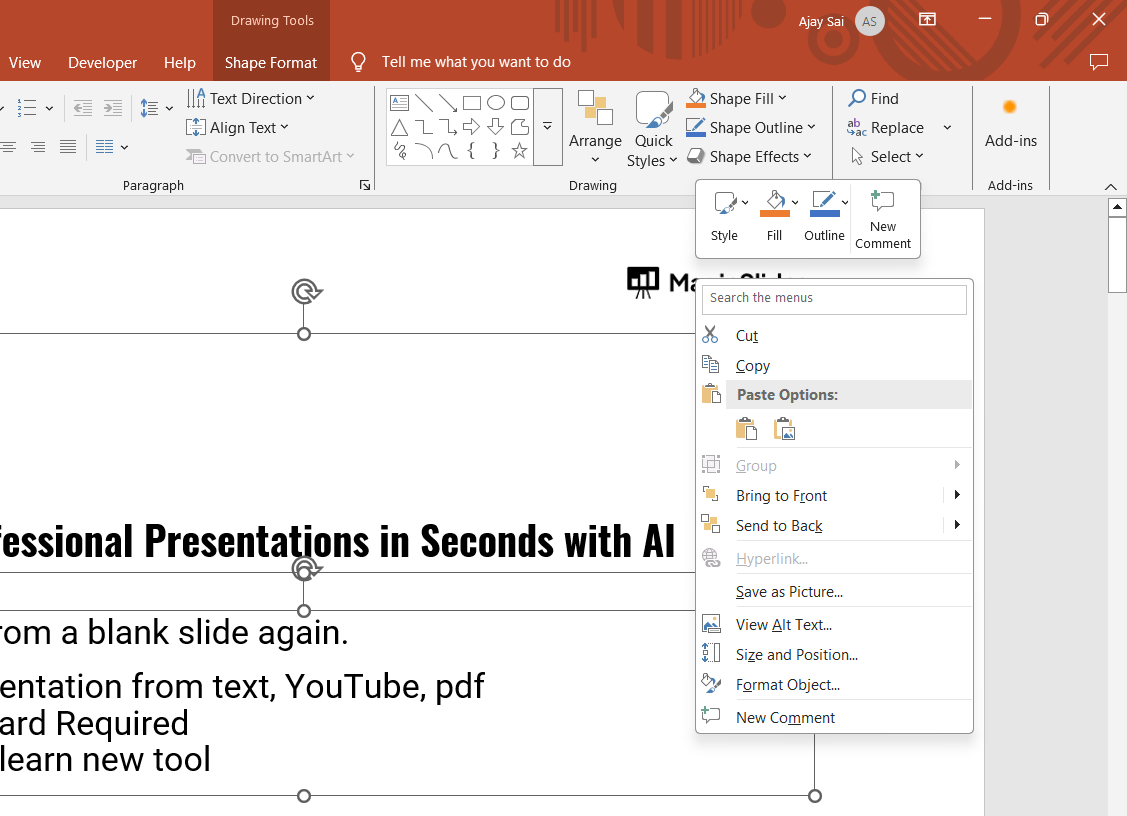
Try clicking on different lines again.
Verify the Text Box Format
Certain text formatting settings can restrict line selection.
How to Fix It:
Right-click on the text box and choose Format Shape.
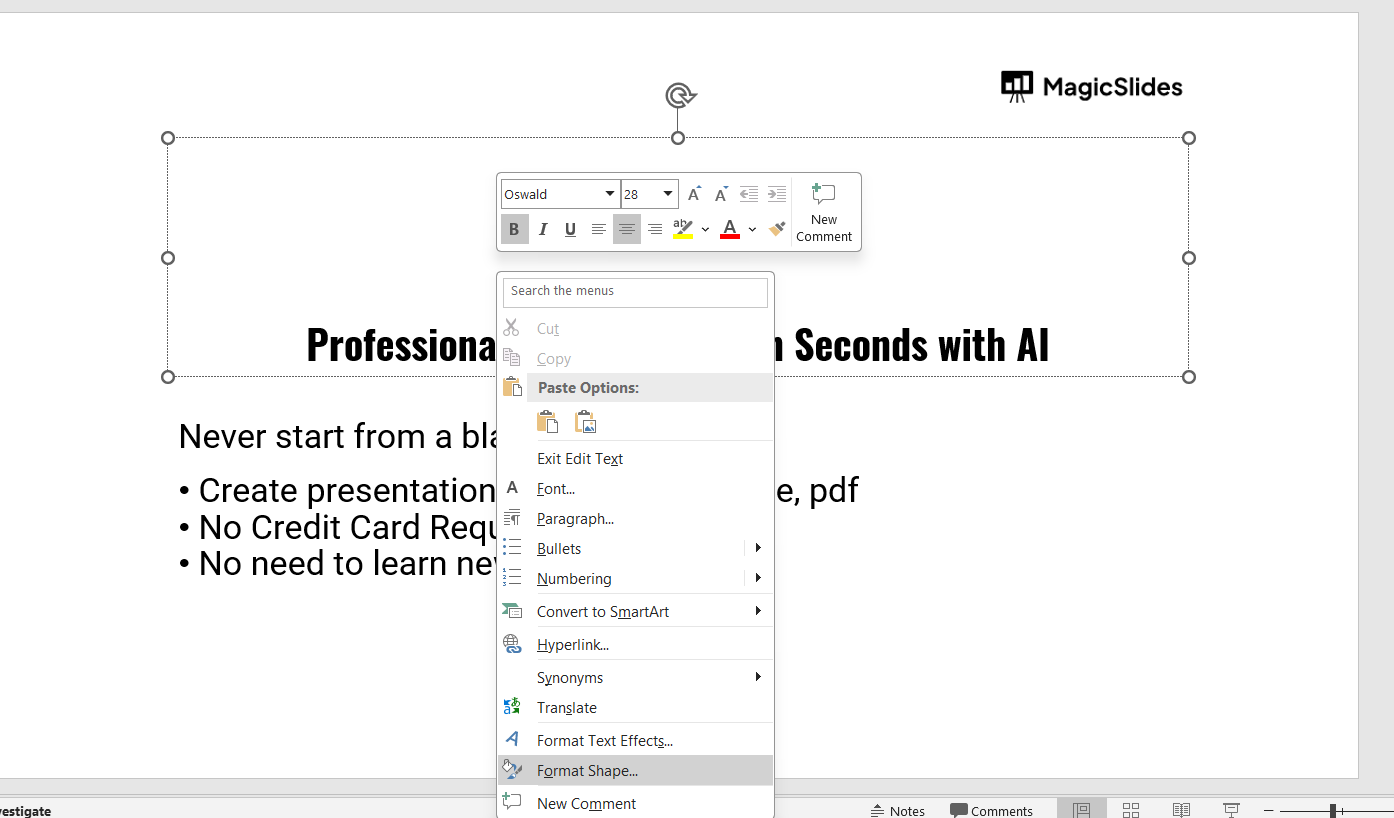
Under Text Options, ensure that "Resize shape to fit text" is selected.
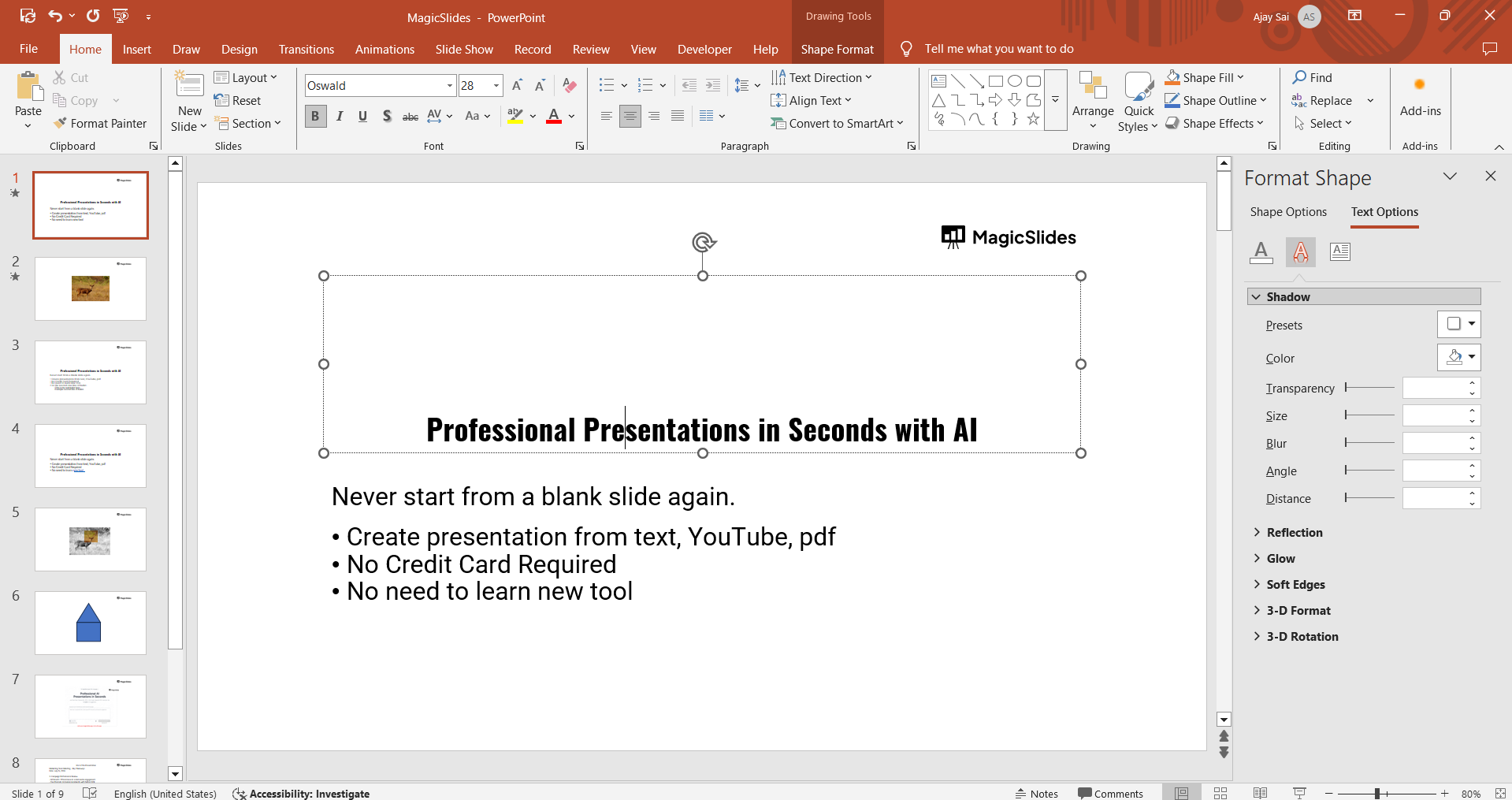
Try clicking on individual lines again.
Restart PowerPoint and Your Mac
Software glitches can cause text selection issues. A restart may help.
How to Fix It:
Save your work and close PowerPoint. Restart your Mac and reopen the file. Try selecting different lines again.
Step 6: Update PowerPoint
An outdated version of PowerPoint may have bugs affecting text selection.
Open Microsoft AutoUpdate on your Mac.
Check for PowerPoint updates and install them.
Restart the application and test if the issue is resolved.
Having trouble selecting different lines in PowerPoint on Mac? Once you’ve resolved this issue, take your presentations to the next level with MagicSlides.app, an AI-powered tool that creates stunning slides instantly with minimal effort!
Conclusion
If you can't click on different lines in PowerPoint on Mac, the issue is likely due to selection settings, grouping, layering, or software bugs.
By following these steps, you should be able to regain control and edit your text smoothly.
FAQs are here to help!
Why is my text box locked in PowerPoint?
Your text box may be grouped with other elements. Try ungrouping it via Arrange > Ungroup.
Can I edit a locked text box in PowerPoint?
If a text box is locked, check if it’s on a master slide or a protected template.
What if PowerPoint still doesn’t let me click on text?
Try updating PowerPoint or restarting your Mac. If the issue persists, create a new text box.
Now you know how to fix text selection issues in PowerPoint on Mac! 🚀


