Why is Canva So Slow? Top 6 Fixes


Why is Canva so slow? If this is your query, read this blog and learn the simple troubleshooting steps that can fix this issue and improve its performance.
Why is Canva So Slow? A Step-by-Step Guide to Troubleshooting
Canva is a powerful design tool, but sometimes users experience slow performance, which can be frustrating when trying to complete tasks.
If Canva is running slowly for you, there are a few common reasons and steps you can take to improve its speed.
This guide will walk you through several troubleshooting tips to help resolve the issue and get Canva back to working efficiently.
6 Steps to Troubleshoot “Canva Being Slow Issue”
Step 1: Check Your Internet Connection
Canva is an online tool, so it relies heavily on a stable and fast internet connection. If Canva is lagging, start by checking your internet speed.
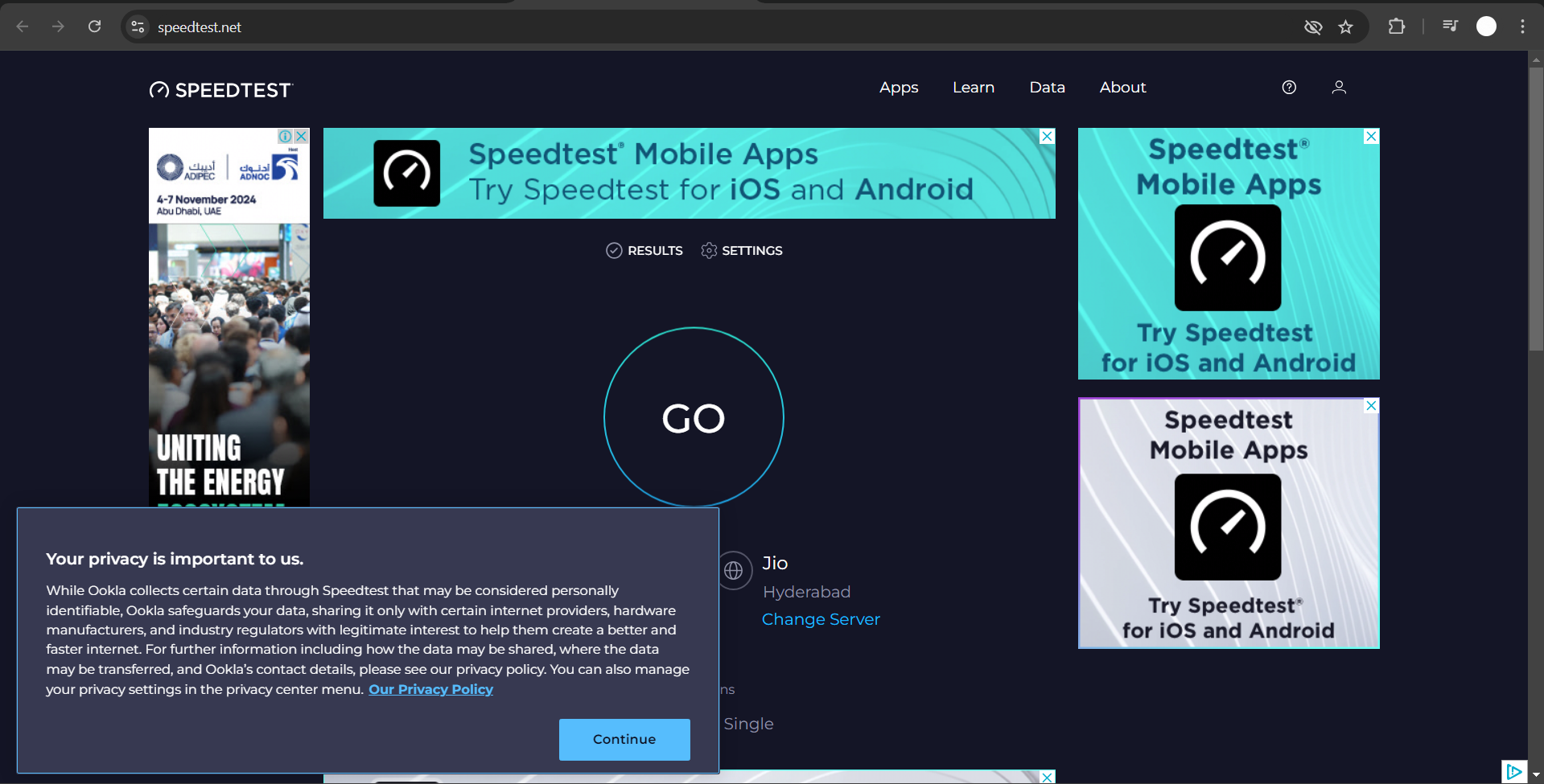
A slow or intermittent connection can cause delays in loading design elements, images, or tools.
You can use speed-testing websites like Speedtest.net to verify your connection speed and ensure it meets Canva’s requirements for smooth operation.
Step 2: Clear Your Browser Cache
A cluttered browser cache can slow down websites, including Canva. Clear your browser’s cache and cookies to improve performance.
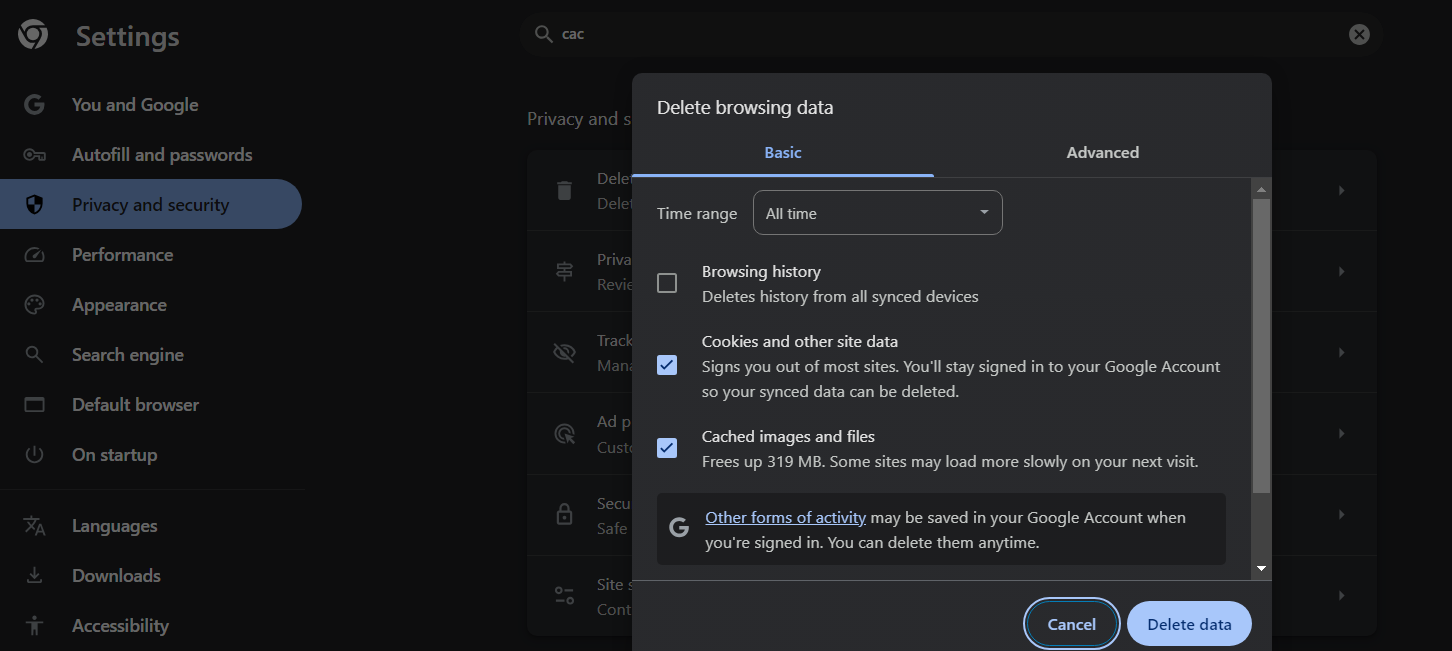
To do this, go to your browser settings, find the option to clear browsing data, and select "Cache" and "Cookies."
After doing this, restart your browser and try loading Canva again to see if performance improves.
Step 3: Update or Change Your Browser
An outdated or unsupported browser can lead to performance issues on Canva.
Make sure you are using a browser that Canva fully supports, such as Google Chrome, Firefox, or Safari, and that it is updated to the latest version.
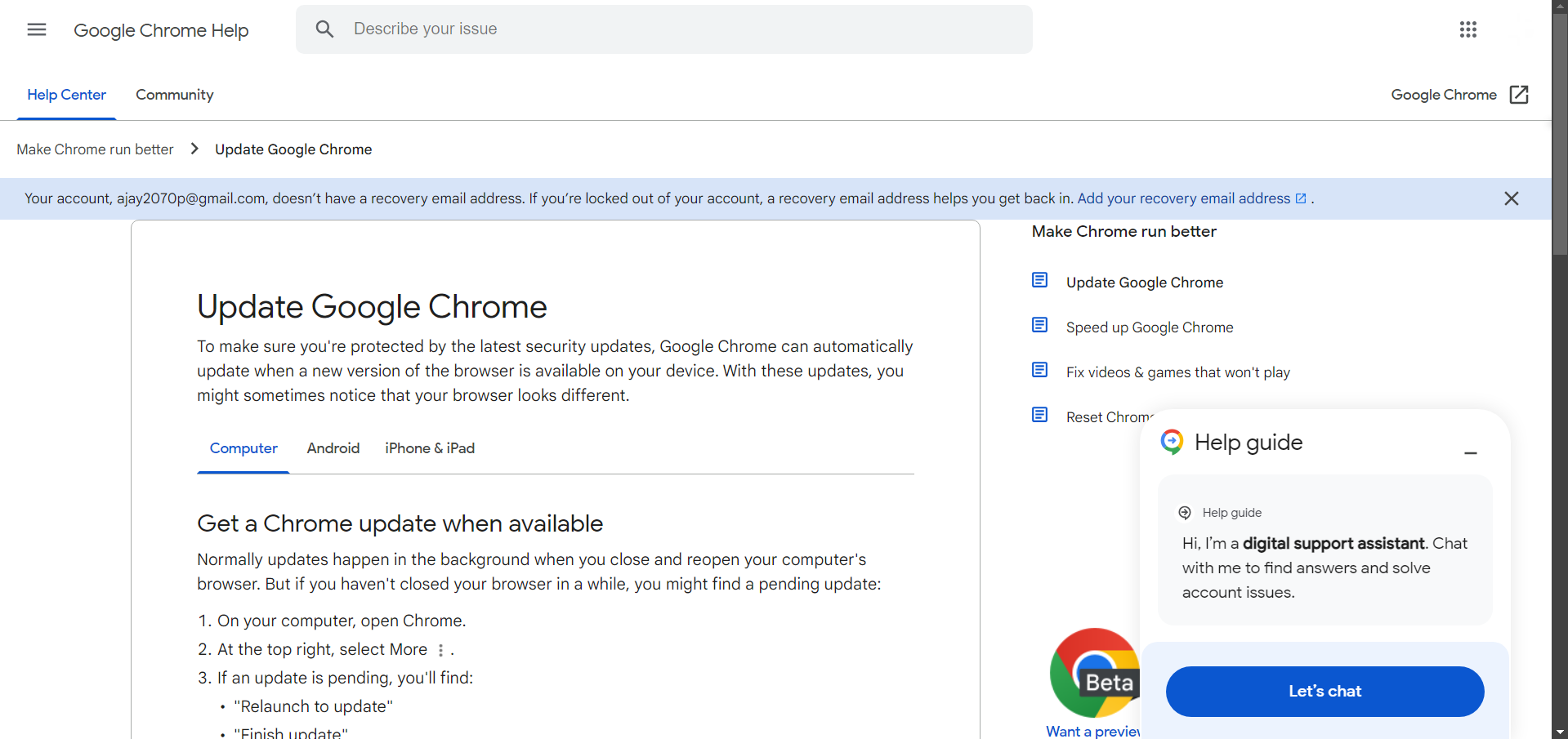
If Canva is still running slowly, try switching to another browser to see if performance improves.
Step 4: Close Unnecessary Tabs and Applications
Having multiple tabs and programs open can slow down your device’s performance, which may affect Canva’s speed.
Close any tabs or applications that you don’t need to free up your computer’s resources.
This will allow Canva to run more smoothly, especially if you are working with large files or complex designs.
Step 5: Reduce File Size or Complexity
Large, high-resolution images, videos, or too many elements in a design can cause Canva to lag.
If your design has too many objects, try reducing the file size or removing unnecessary elements.
Compressing images or optimizing design elements will help Canva process the file more quickly, leading to faster performance.
Step 6: Check Canva’s Server Status
Sometimes, Canva may be slow due to issues on their end, such as server downtime or maintenance.
You can check Canva’s server status by visiting their social media pages or using tools like DownDetector.
If Canva is experiencing technical difficulties, you may have to wait until the issue is resolved.
If you're experiencing slow performance on Canva, take the time to learn how to make a GIF in Canva to create engaging animations while waiting for your tools to respond.
Why MagicSlides Is the Faster Alternative to Canva?
When Canva feels too slow, laggy, or turns frustrating when creating presentations, switching to MagicSlides.app, an AI-Powered PPT Maker, can immediately solve most of the performance issues. The heavy graphics, templates, etc. of Canva can often slow down your workflow, especially on devices having slower internet connections.
How MagicSlides Works Faster and Better Than Canva?→
MagicSlides.app, on the other hand, doesn’t rely on heavy drag-and-drop editing or large file rendering. Instead, it uses lightweight AI automation to generate entire presentations in the span of a few seconds.
Here is why it is faster:
- No lag-heavy elements – MagicSlides.app doesn’t load huge graphics or complex editor components.
- Instant slide creation – Type your topic or paste your content, and the AI generates the full PPT instantly.
- Minimal browser load – The tool is optimized to run smoothly even on slower internet or low-spec devices.
- No large templates that take time to process – Everything is AI-generated, meaning there will be no delays from oversized designs.
- Faster exporting – Presentations download quickly without freezing the browser.
Conclusion→
While Canva is an excellent tool for creating beautiful designs, its performance can sometimes slow down due to a variety of factors.
By following these steps, checking your internet connection, clearing your cache, updating your browser, and managing file sizes, you can troubleshoot most issues and enjoy a smoother design experience.
If all else fails, it might be an issue on Canva's side, and using MagicSlides would be the best solution.
FAQs are Here to Guide!→
Q1. Does Canva work better on certain browsers?
Yes, Canva tends to work best on Google Chrome, Firefox, or Safari. Make sure your browser is updated.
Q2. Can large files slow down Canva?
Yes, designs with large or complex files, such as high-resolution images or numerous elements, can cause Canva to lag.
Q3. Will clearing my browser cache affect saved designs in Canva?
No, clearing your cache won’t delete your saved designs, as they are stored in your Canva account.


