Addon google slides iconPPT with AISlide TemplatesPPT TemplatesPricingBlog
    PPT with AISlide TemplatesPPT TemplatesPricingBlog
    Google Slides
    1. Home
    2. Blog
    3. What are Google Slides Add Ons


    What are Google Slides Add Ons

    Ajay Sai

    Published By

    Ajay Sai

    Approved By

    Admin

    Published On

    June 4th, 2025

    Reading Time

    3 min read

    Enhance your presentations with Google Slides add-ons powerful tools to expand functionality and boost productivity

    Google Slides add-ons are third-party tools that integrate seamlessly with Google Slides to enhance its functionality.
    They help users streamline workflows, add unique features, and improve productivity, making presentations more dynamic and visually appealing.
    In this blog post, we’ll explore how to access, use, and maximize Google Slides add-ons for better presentations.

    What Are Google Slides Add-ons?

    Step 1: Access the Google Slides Add-ons Menu

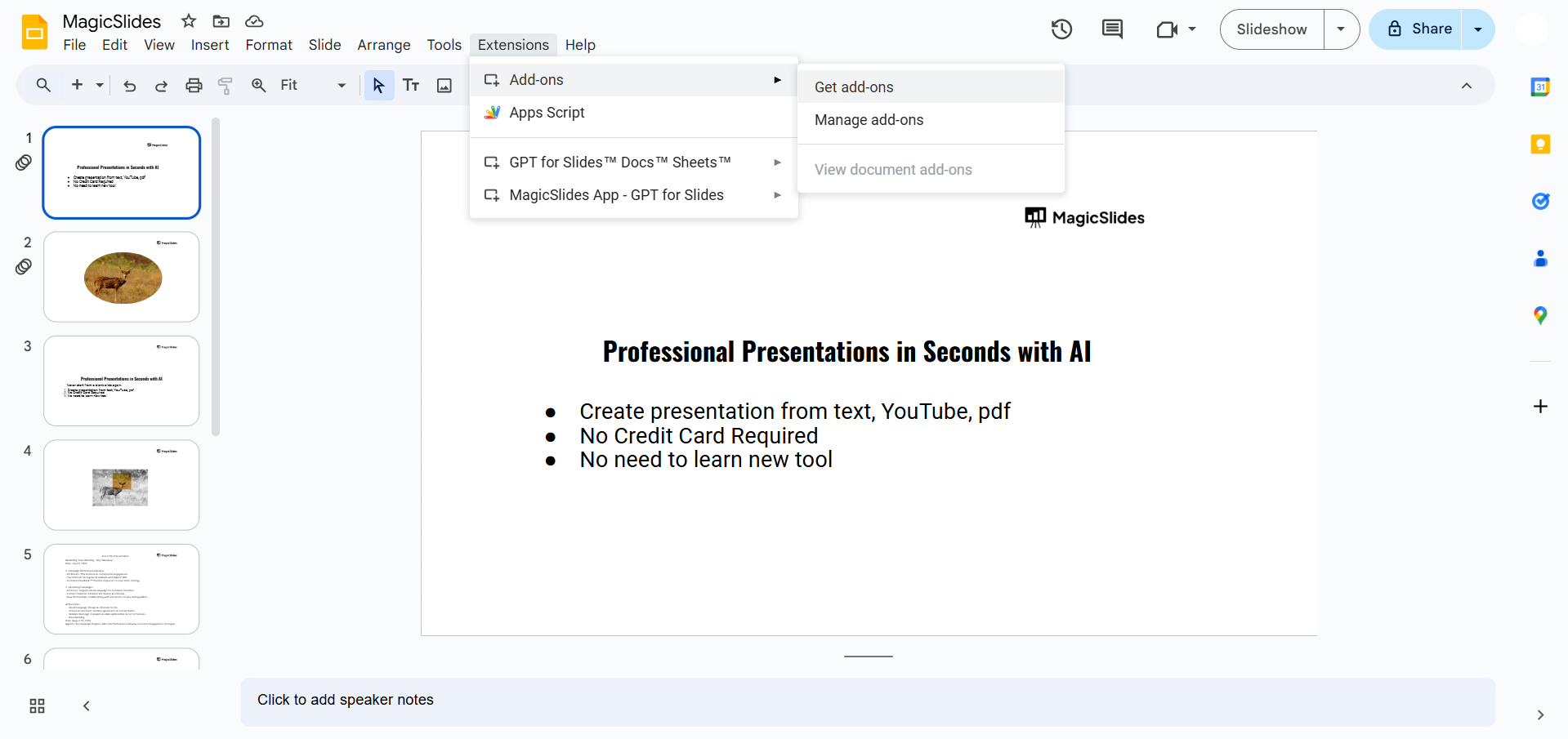
    Open Google Slides in your browser. Click on the “Extensions” tab in the top menu bar.
    notion image
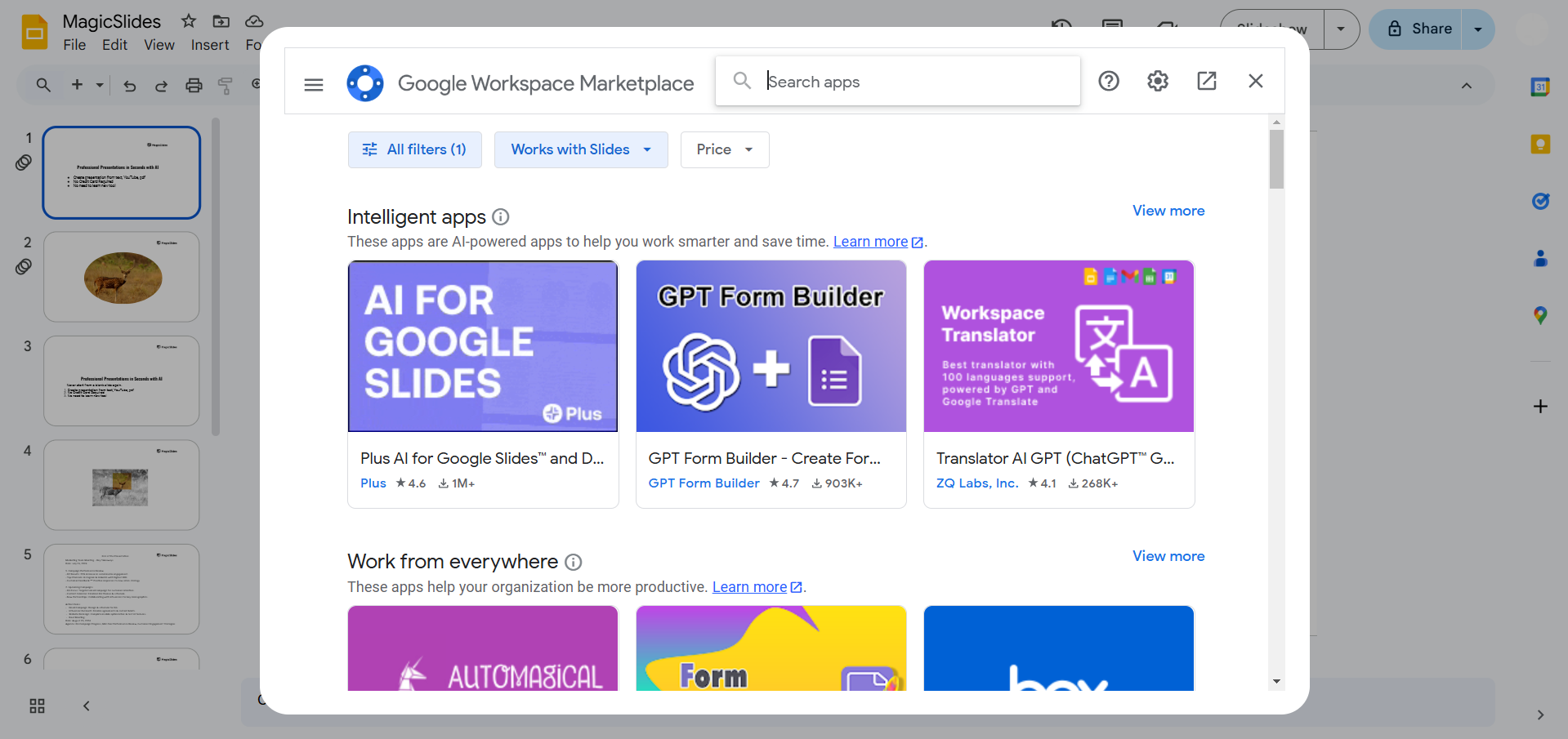
    From the dropdown menu, select “Add-ons > Get add-ons.” This will open the Google Workspace Marketplace, where you can browse a variety of add-ons.
    notion image

    Step 2: Browse and Install Add-ons

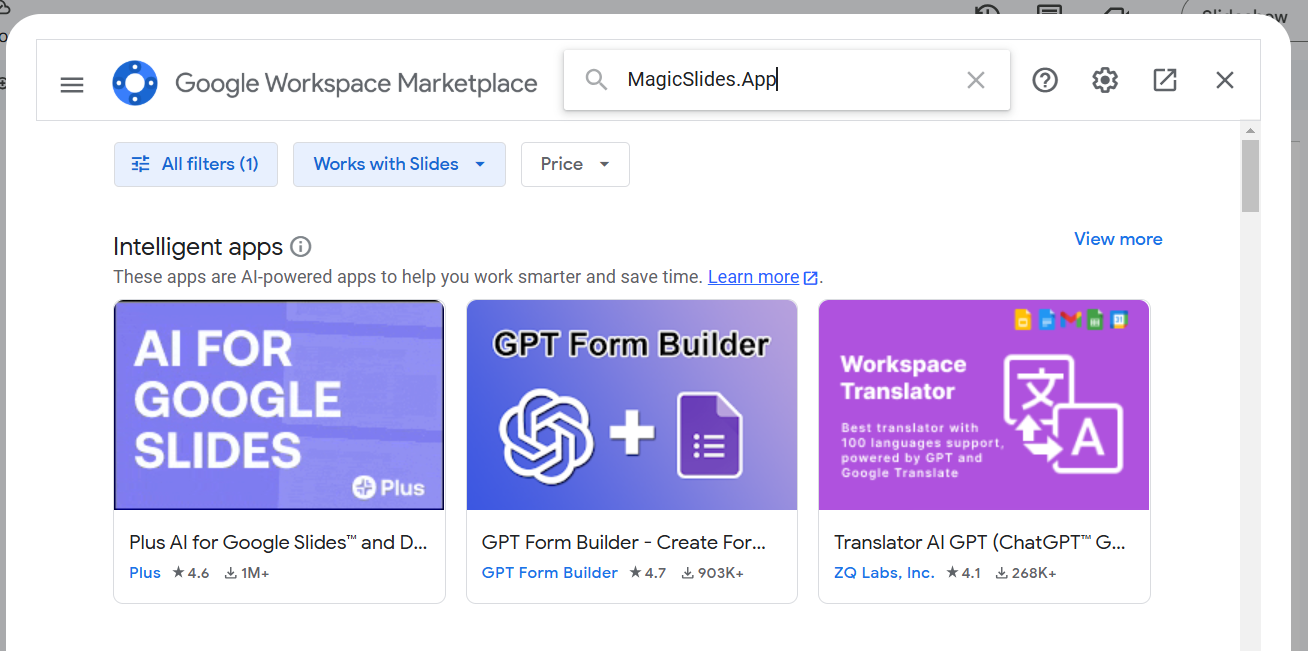
    Use the search bar to find specific add-ons based on your needs, such as diagram tools, stock images, or productivity boosters.
    notion image
    Review user ratings and descriptions to choose the most suitable option.
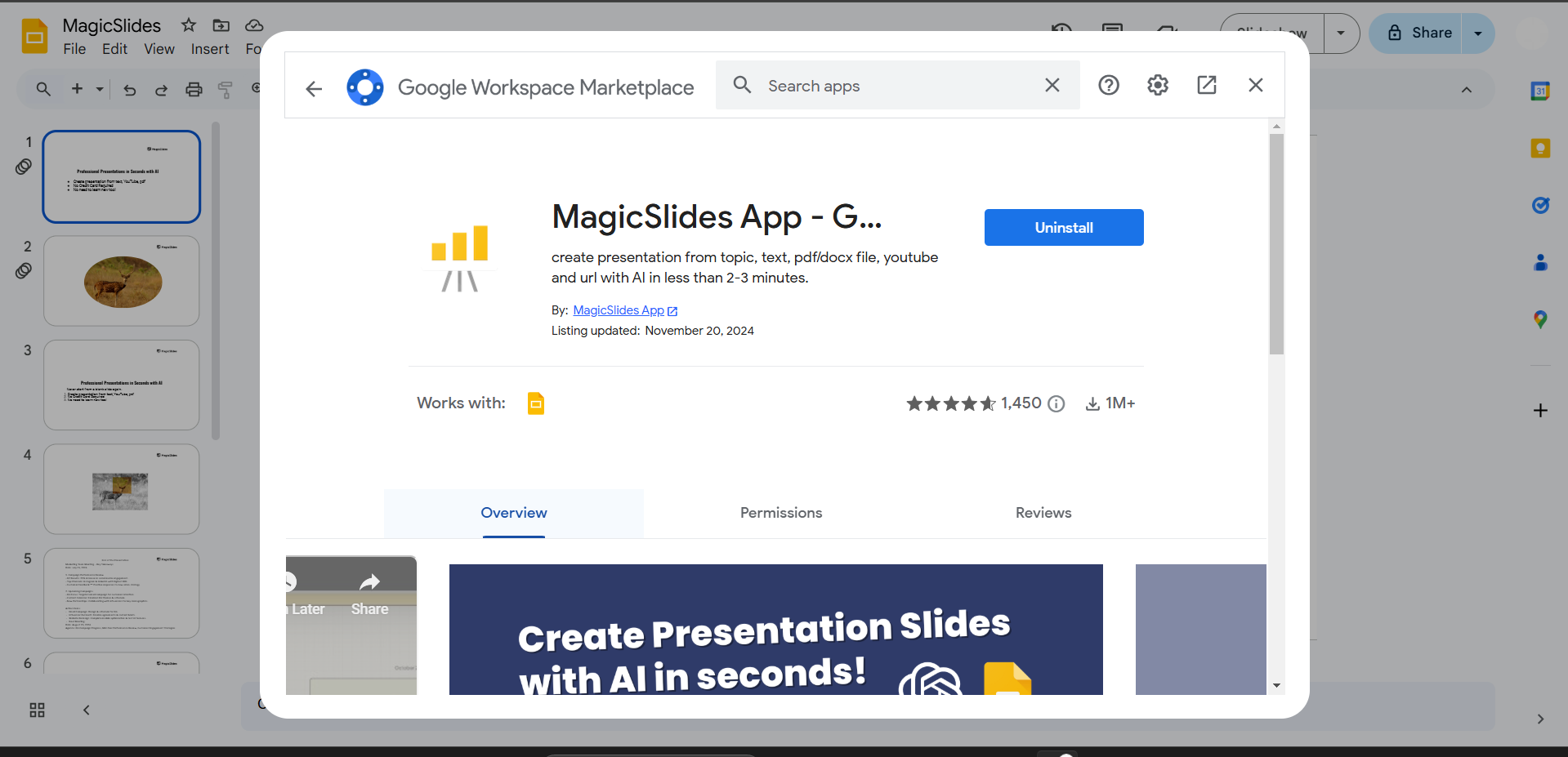
    Click on the desired add-on and then hit “Install.” Grant the necessary permissions to integrate the add-on with Google Slides.
    notion image

    Step 3: Use Installed Add-ons

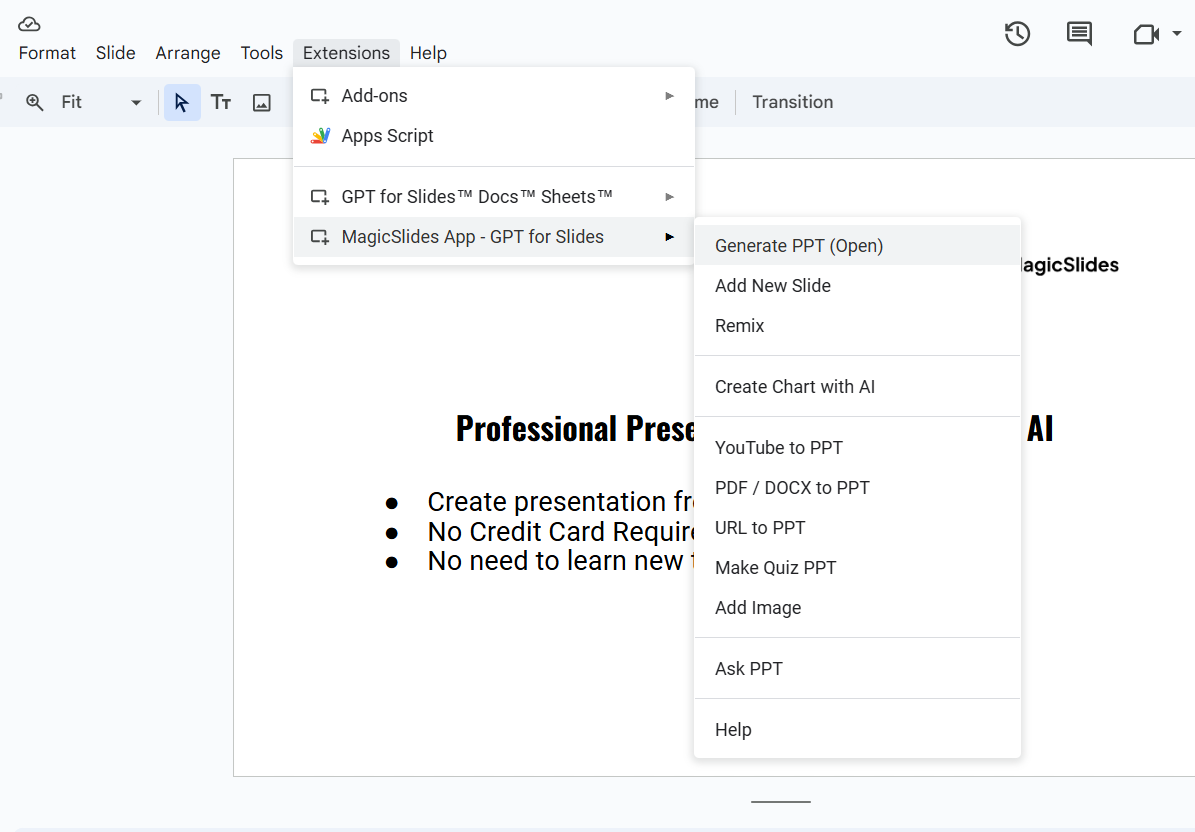
    After installation, go back to the “Extensions” tab. Select the installed add-on from the “Add-ons” menu. For Example here we are using MagicSlides.App Add on
    notion image
    With MagicSlides.App Add on we can create presentations, with justa prompt, link of YT video, or a blog.
    Follow the prompts or instructions provided by the add-on to use its features within your presentation.

    Step 4: Manage Your Add-ons

    To view or uninstall add-ons, click on “Extensions > Add-ons > Manage add-ons.”
    Here, you can deactivate or remove any add-ons you no longer use.

    Step 5: Explore Popular Add-ons for Google Slides

    Icons for Slides & Docs: Access free icons to enrich your presentations.
    Pear Deck: Make interactive presentations with audience participation features.
    Slides Toolbox: Automate tasks like formatting, resizing, and exporting slides.
    Lucidchart Diagrams: Add professional charts and diagrams to your slides easily.

    Conclusion

    Google Slides add-ons provide valuable enhancements that simplify the presentation creation process and add exciting features not available in the default setup.
    By exploring and using the right add-ons, you can elevate your presentations to the next level, whether for business, education, or personal use.
    Start integrating these tools today to make the most out of Google Slides!

    FAQs on Google Slides Add-ons

    Are Google Slides add-ons free?

    Many add-ons are free to use, but some offer premium features that require a subscription or purchase.

    Can I use add-ons offline in Google Slides?

    No, add-ons require an active internet connection to function since they are cloud-based tools.

    Are Google Slides add-ons safe to use?

    Yes, add-ons from the Google Workspace Marketplace are vetted for safety, but always review permissions before installing.
    By understanding and leveraging add-ons, you can unlock the full potential of Google Slides and enhance your productivity!

    Share on socials

    About the author

    Ajay Sai profile photo
    Ajay Sai— writer at MagicSlides.app

    Ajay have been a techincal writer for more than 2+ years. from coding tutorials to using day to day apps he have helped 100k+ visitors with their various queries

    More from Ajay

    More from the blog

      250+ Good Morning Messages for Her (Romantic, Deep, Cute & Sweet)

      28 January 2026

      50+ History Presentation Topics For 2026

      28 January 2026

      How to Add Music to Your Canva Presentation: A Step-by-Step Guide

      27 January 2026

      15 Quick Tips To Use ChatGpt At Work

      22 January 2026

      11 Best AI Tools for Business in 2025

      22 January 2026

      How to Create an Infographic That Clearly Communicates Your Message

      20 January 2026

      How to Create a Sales Presentation Template in Google Sheets

      20 January 2026

      How to Make a Pie Chart on Google Slides in Simple Steps

      19 January 2026

      How to Change Slide Size in PowerPoint in 5 Steps

      15 January 2026

    Table of Contents

    Create Presentations in Seconds

    Transform your ideas into professional presentations with AI. No design skills needed.

    Try MagicSlides Free

    Create Stunning Presentations with AI in Seconds ✨

    Transform any topic, text, YouTube video, PDF or URL into beautiful presentations instantly with MagicSlides AI.

    Try MagicSlides AI Presentation Maker
    MagicSlides AI Presentation

    Footer

    Solutions

    • MagicSlides App
    • Google Slides Add-on
    • MagicSlides in Chrome
    • MagicSlides in Figma
    • MagicSlides in ChatGPT
    • MagicSlides in Telegram
    • MagicSlides in Zapier
    • MagicSlides in Figma Slides

    Tools

    • AI PPT Tools
    • QR Code Generator
    • Design Tools
    • PPT Templates
    • Slide Templates
    • PDF Tools

    Examples

    • AI Presentations
    • PPT by MagicSlides
    • Quizzes
    • Charts
    • Coloring Pages

    Resources

    • Changelog
    • Documentation
    • API Docs

    Top Blogs

    • How to Create Presentation Using ChatGPT
    • 100+ Best Seminar Topics for Students in 2025

    Company

    • Help
    • MCP
    • Blog
    • Pricing
    • Affiliate Program
    • Manage Subscription
    • Privacy Policy
    • Contact Us
    • Terms & Conditions
    • Refund & Cancellation Policy

    We also built

    • SheetAI - GPT For Sheets
    • MagicForm - GPT For Google Forms
    • SecondBrain.fyi
    • BlogBee - Free Blogging Platform

    © 2026 IndianAppGuy Tech Pvt Ltd. All rights reserved.