Why won’t Google Slides turn into Notes


Easily troubleshoot why Google Slides won’t switch to Notes view with these simple step-by-step solutions
Why Won’t Google Slides Turn into Notes?
Google Slides allows users to view and print presentations with speaker notes. However, sometimes, users face issues where Google Slides won’t switch to Notes view or print correctly. This guide will walk you through the possible reasons and solutions to help you fix this problem.
Step-by-Step Guide to Fix Google Slides Not Turning into Notes
Step 1: Check the Notes View Option
Open your Google Slides presentation at Google Slides. Click on View in the top menu.
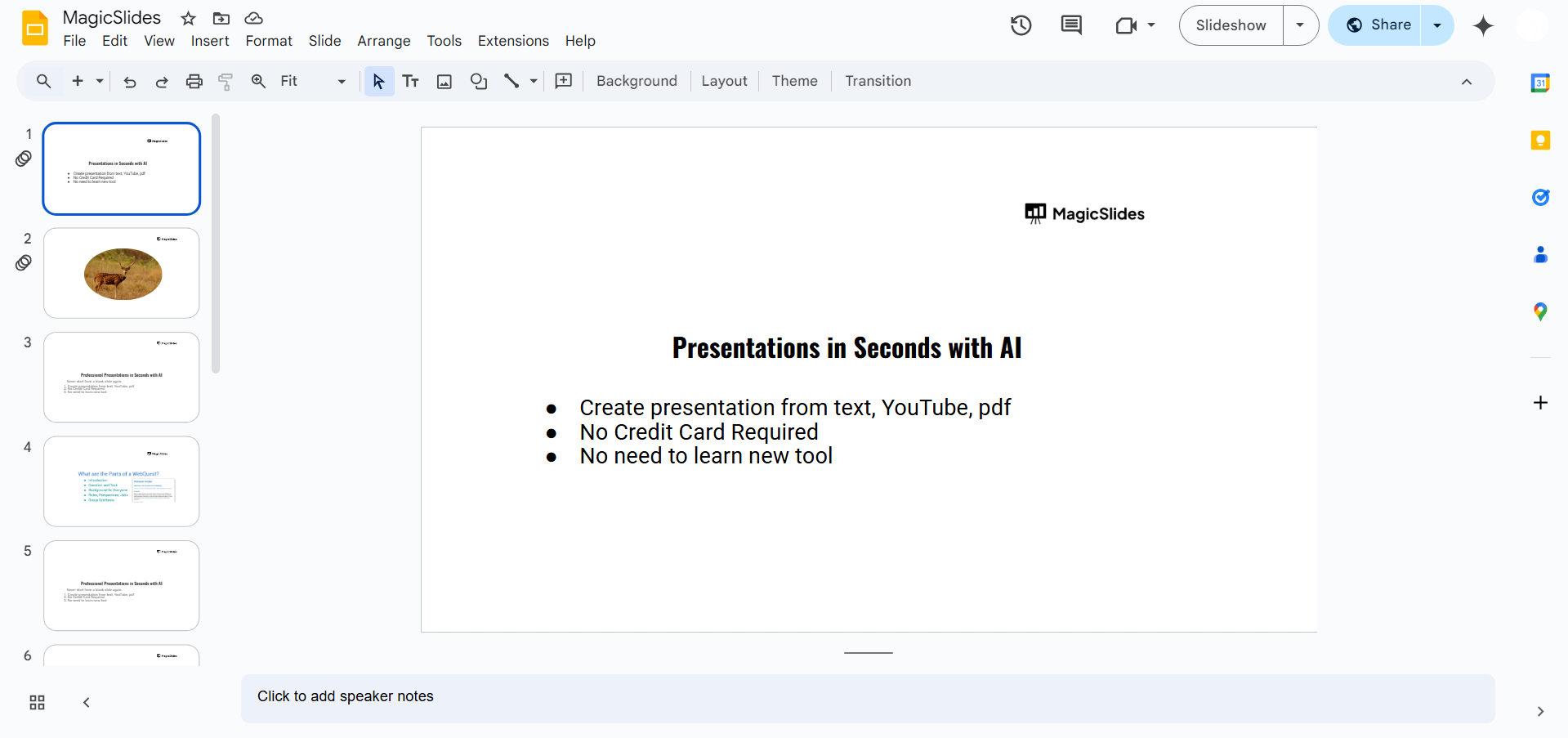
Select Speaker Notes to enable the Notes section.
If the Notes panel is not appearing, try resizing the window or dragging the bottom edge of the slide area to reveal the Notes section.
Step 2: Ensure You Are in the Correct Print Layout
If you're trying to print your slides with notes:
Click File > Print settings and preview. Click on 1 slide with notes from the dropdown menu.
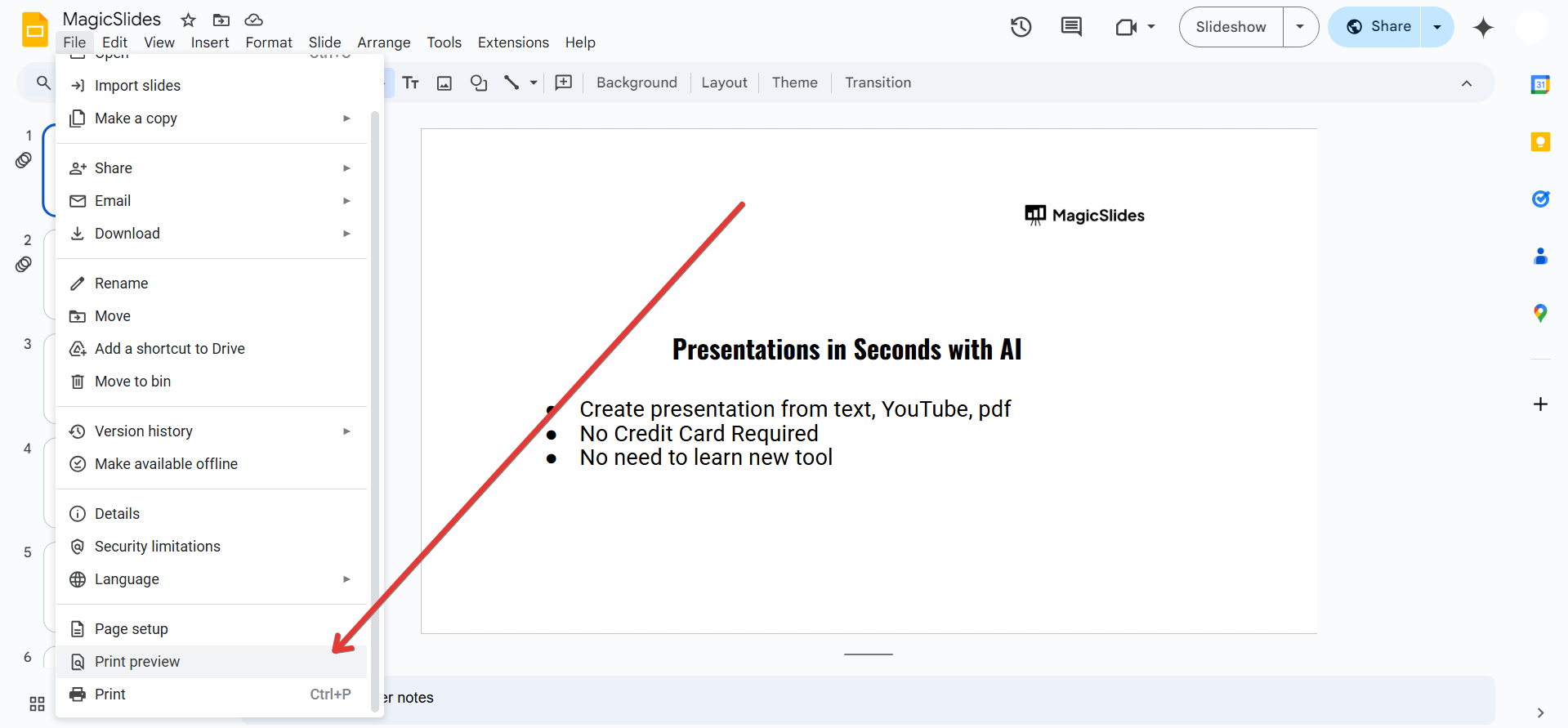
If the notes are not visible, close and reopen the preview.
Step 3: Refresh the Page or Restart Your Browser
Sometimes, browser glitches cause display issues. Try refreshing the page by pressing F5 or Ctrl + R (Windows) / Command + R (Mac).
If that doesn’t work, close and reopen your browser.
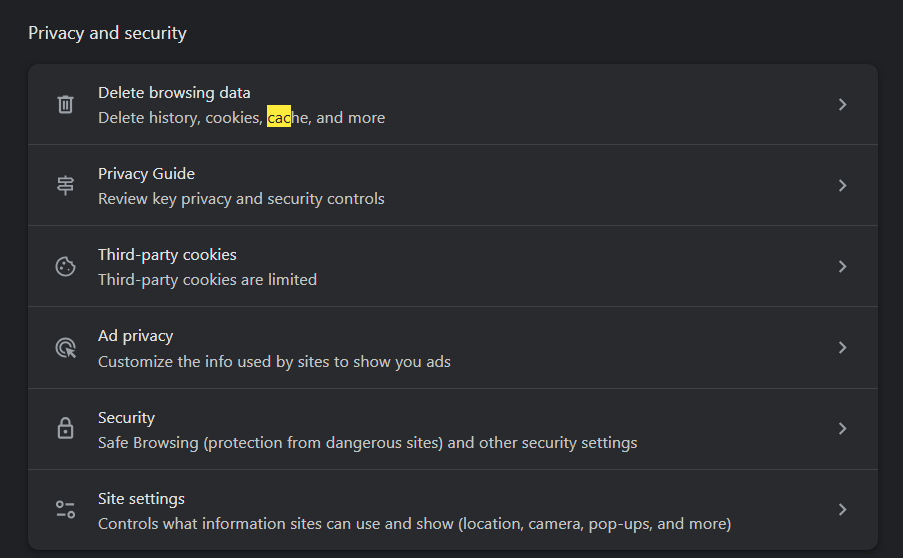
If the issue persists, clear your browser cache:
- Go to browser settings.
- Find Clear browsing data and select Cached images and files.
- Restart the browser and open Google Slides again.
Step 4: Check for Extensions or Ad Blockers
Browser extensions might interfere with Google Slides. Disable extensions temporarily and check if the issue is resolved.
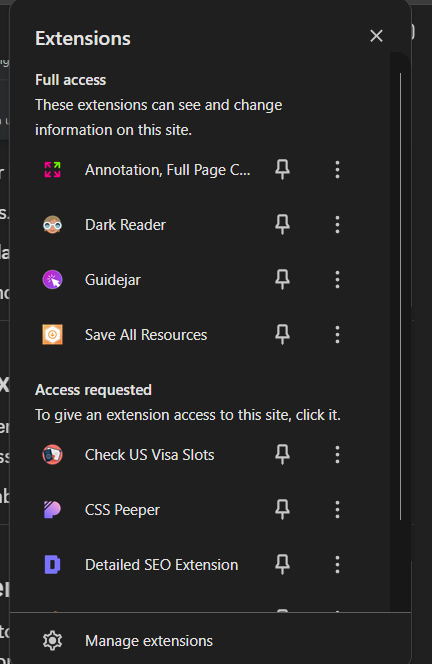
If you have an ad blocker, disable it for Google Slides and refresh the page.
Step 5: Try a Different Browser or Device
If Google Slides won’t switch to Notes on your current browser, try opening it in another browser like Chrome, Firefox, or Edge.
If possible, check the presentation on another device to see if the issue is specific to one system.
Google Slides may have limitations when converting to notes, but if you need an AI-powered way to generate structured, professional slides, try MagicSlides.app it streamlines your presentation creation in seconds!
Conclusion
If Google Slides is not turning into Notes view, the issue could be due to incorrect settings, browser problems, or extensions.
By following these troubleshooting steps, you can easily resolve the issue and access your speaker notes for presentations or printing.
FAQs About Google Slides Not Turning into Notes
Why are my speaker notes not showing in Google Slides?
Ensure you have enabled Speaker Notes under the View menu and try resizing the Notes panel.
Why can’t I print my slides with notes?
Check the Print settings and preview section and select 1 slide with notes before printing.
Does Google Slides support exporting notes to another format?
Yes, you can download your presentation as a PDF with notes by going to File > Download > PDF Document (.pdf) and selecting the notes option in print settings.
Now you know how to troubleshoot Google Slides when it won’t switch to Notes mode! 🚀


