Can an Image stay Animated on Canva Slideshow


Keep your audience captivated by ensuring images remain animated throughout your Canva slideshow with ease
Can an Image Stay Animated on Canva Slideshow?
Animations in Canva slideshows bring presentations to life, but ensuring an image remains animated across slides requires careful setup.
This guide will walk you through step-by-step instructions to keep your images animated throughout a Canva slideshow, helping you deliver impactful presentations effortlessly.
Steps to Keep an Image Animated in Canva Slideshow
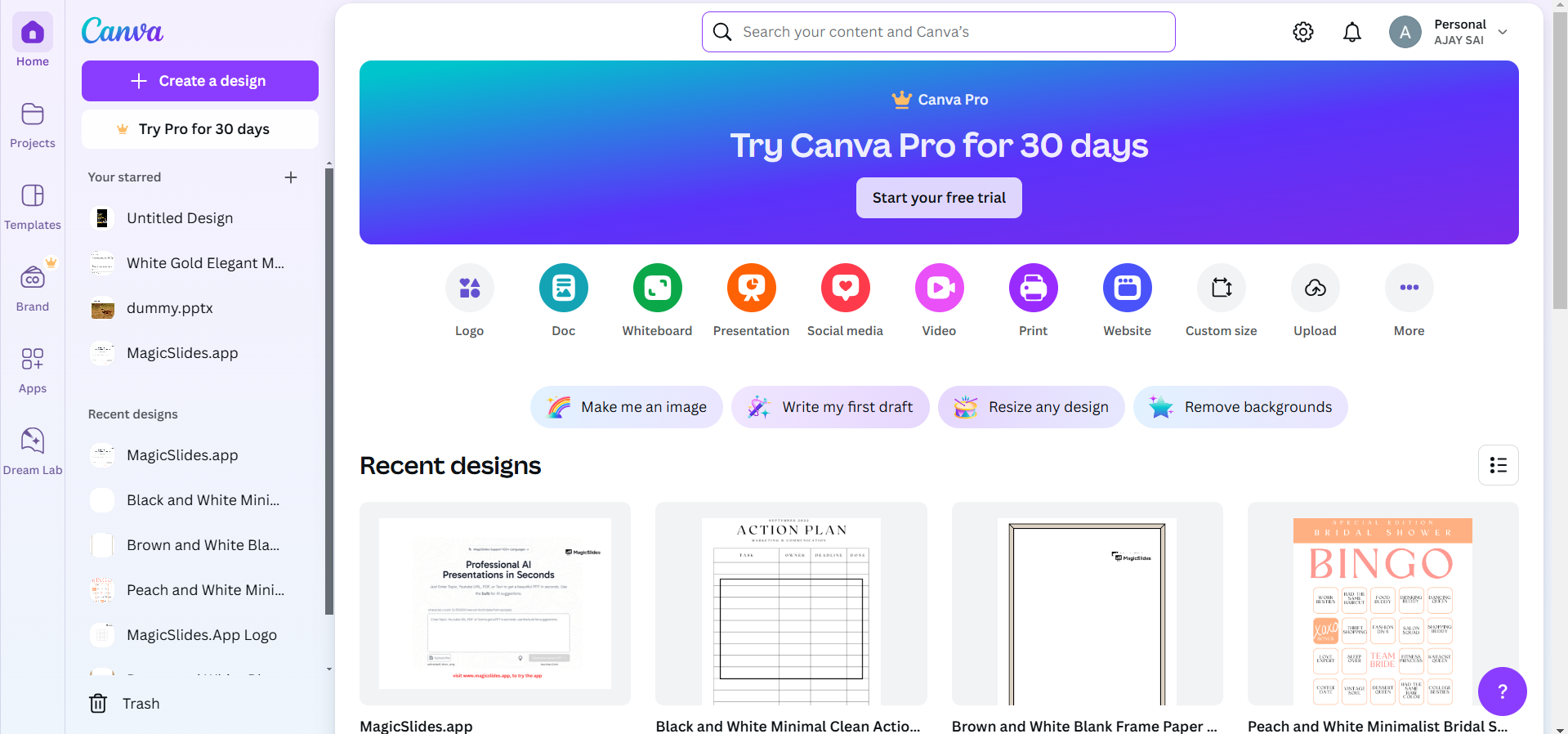
Step 1: Create Your Canva Presentation
Open Canva and select Presentation from the templates menu. Pick a pre-designed template or start with a blank presentation.
Step 2: Add Your Image to the Slide
Upload your image by clicking on Uploads > Upload Files, or choose an image from Canva’s library.
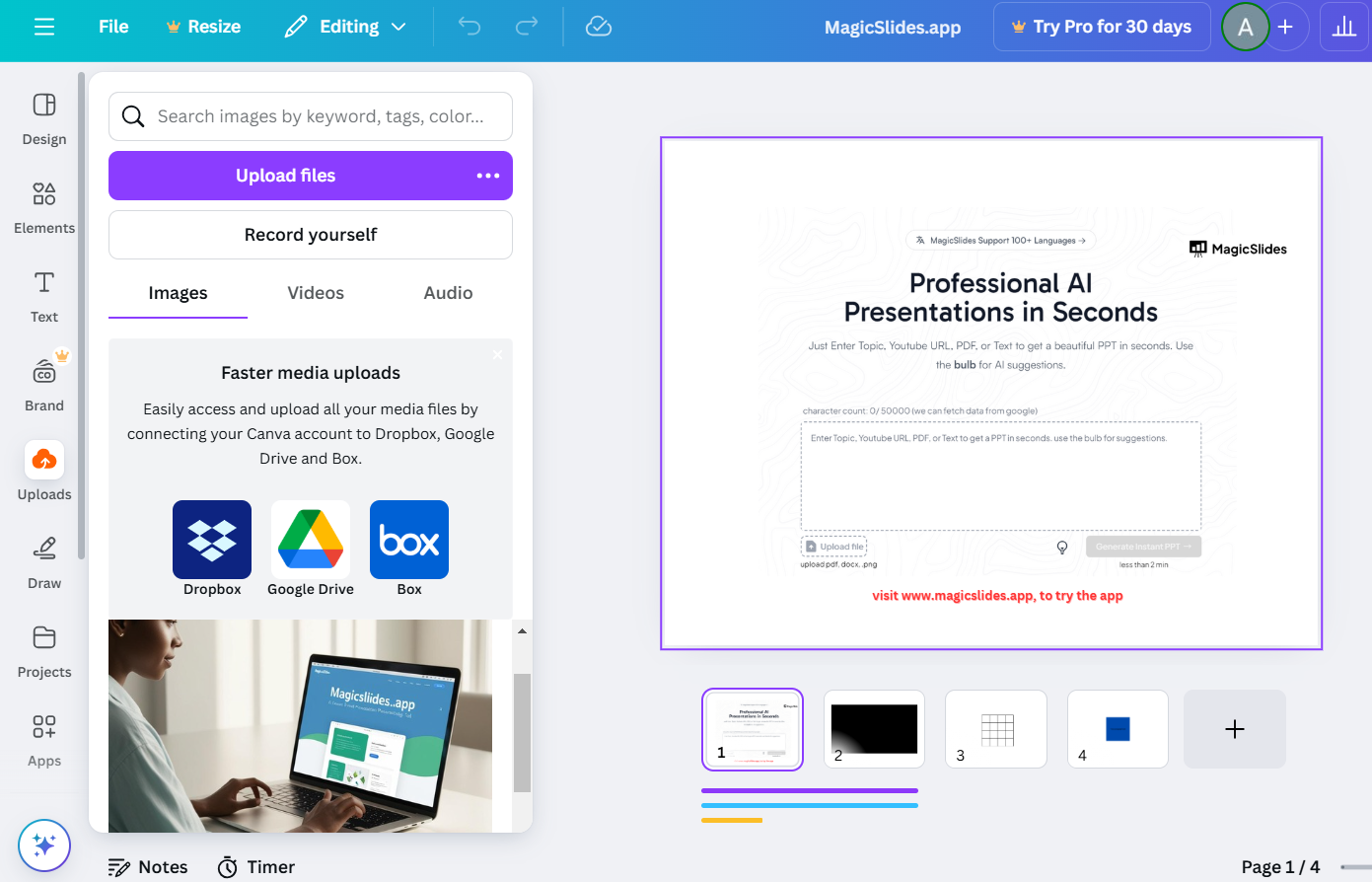
Place the image in the desired position on the slide.
Step 3: Apply an Animation Effect
Select the image by clicking on it. In the top toolbar, click Animate to open the animation options.
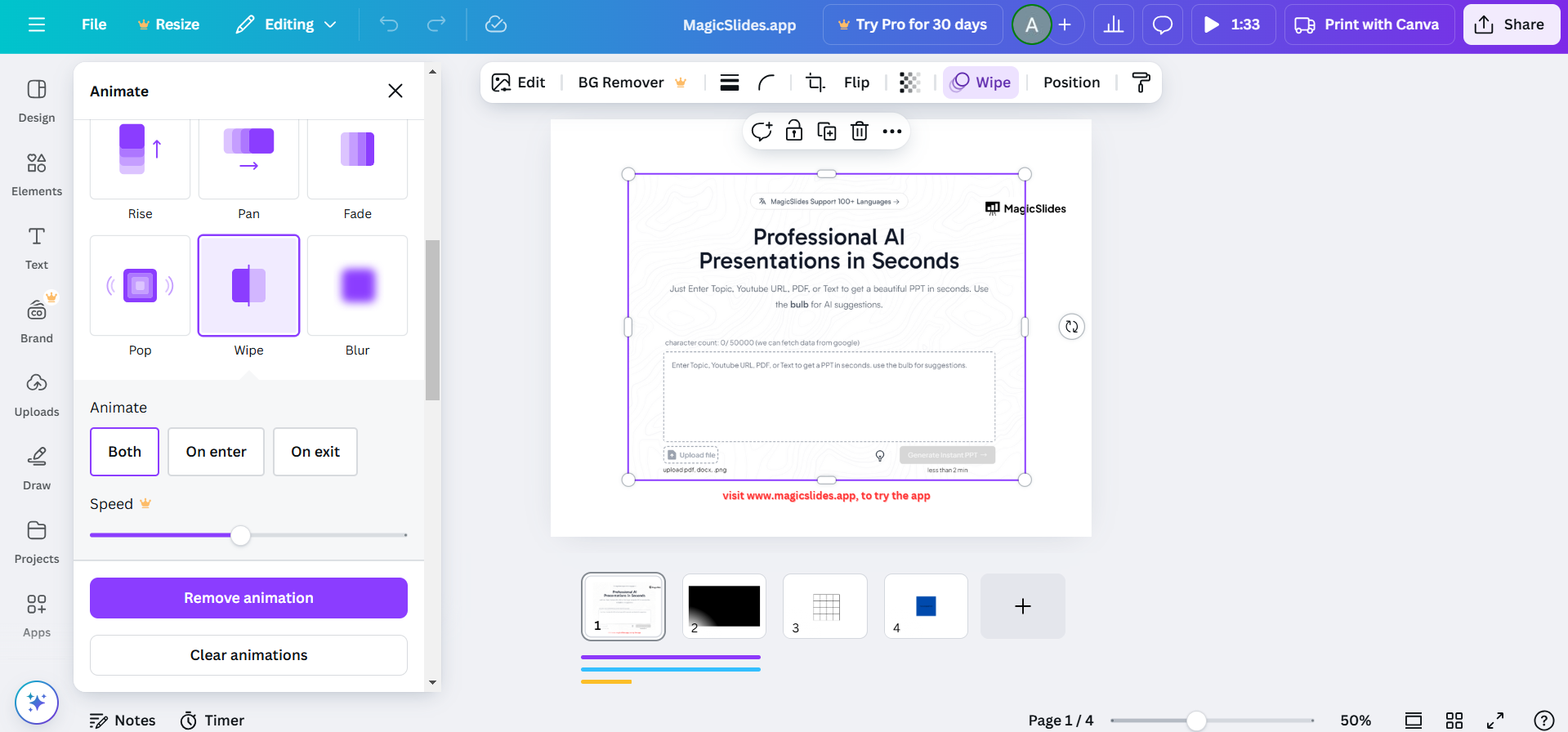
Choose an animation effect (e.g., Pan, Fade, or Bounce). Adjust the duration and direction of the animation if needed.
Step 4: Duplicate the Slide with Animation
To keep the image animated across slides, right-click on the slide and select Duplicate Slide.
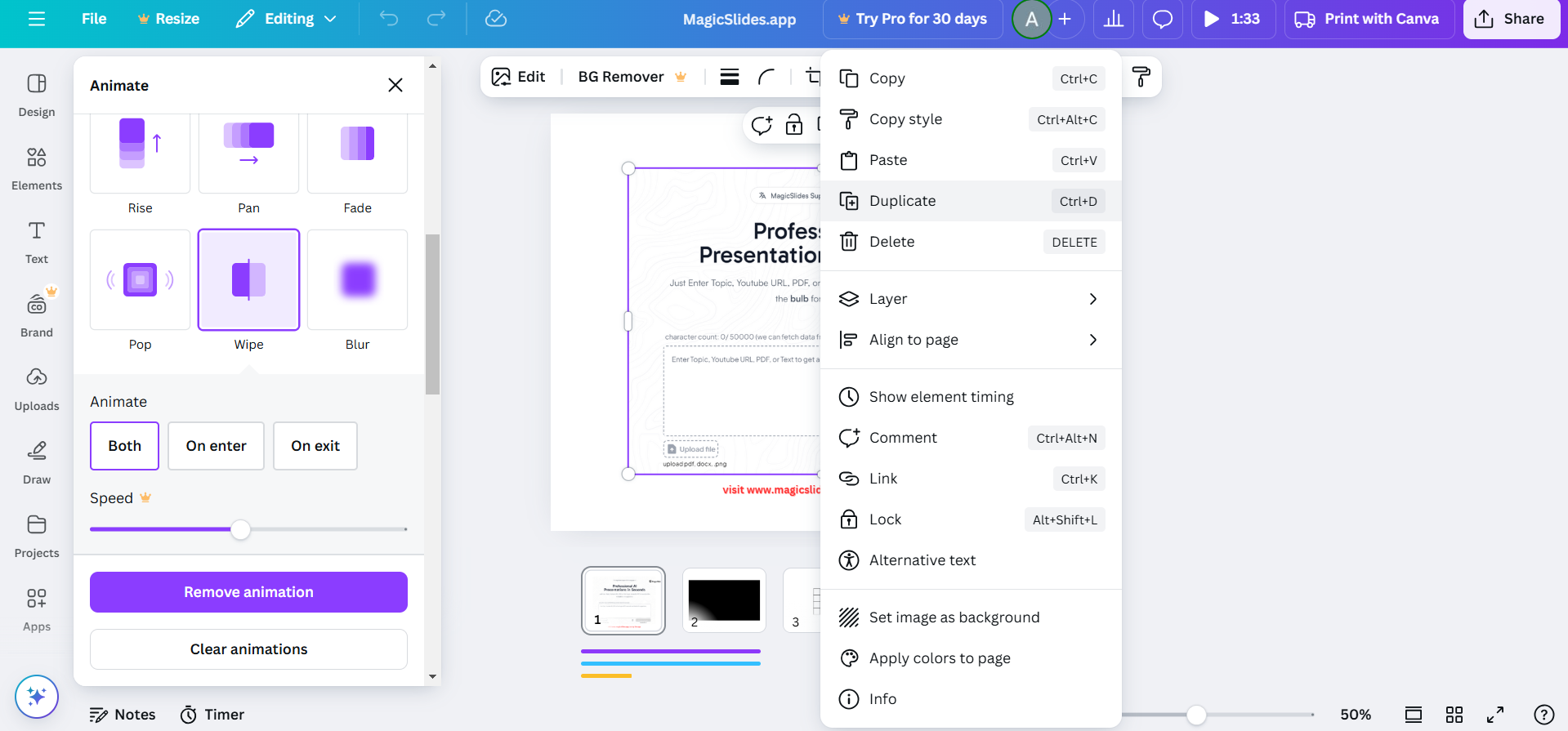
Ensure the image remains in the same position on all duplicated slides to create a seamless animated effect.
Step 5: Preview Your Slideshow
Click the Play button in the top-right corner to preview your slideshow.

Watch the transitions to ensure the animation effect is smooth and consistent.
Step 6: Use Transition Effects for Continuity
To enhance the animated flow, click on the Transitions tab between slides.
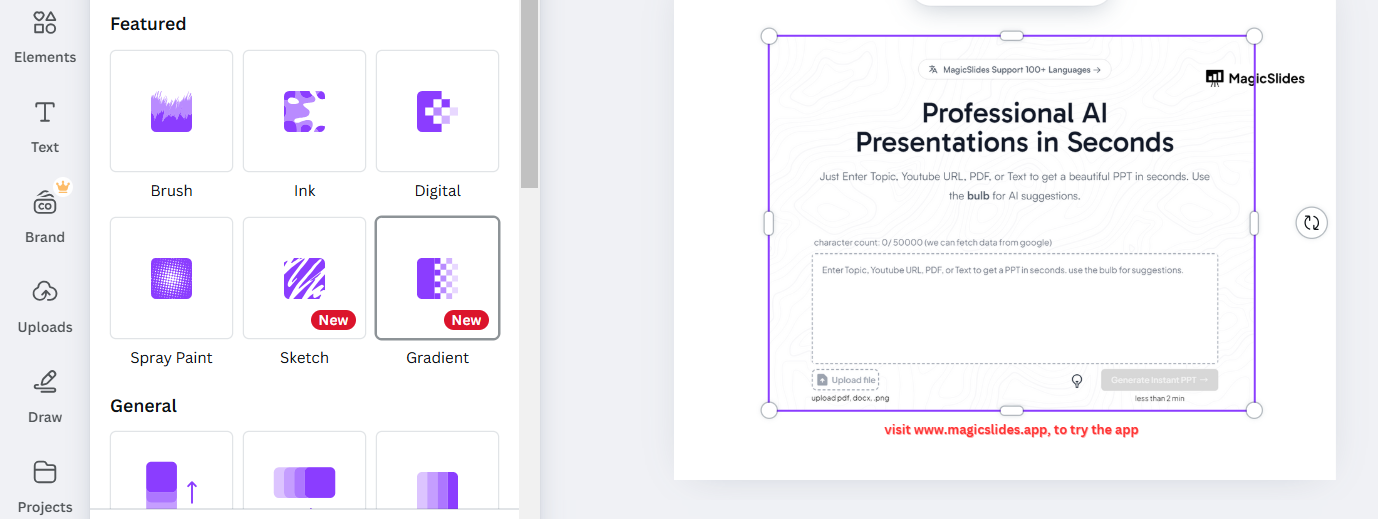
Choose a transition effect like Fade or Dissolve to maintain visual consistency.
Step 7: Save and Present
Once satisfied, click Share > Present to start your slideshow.
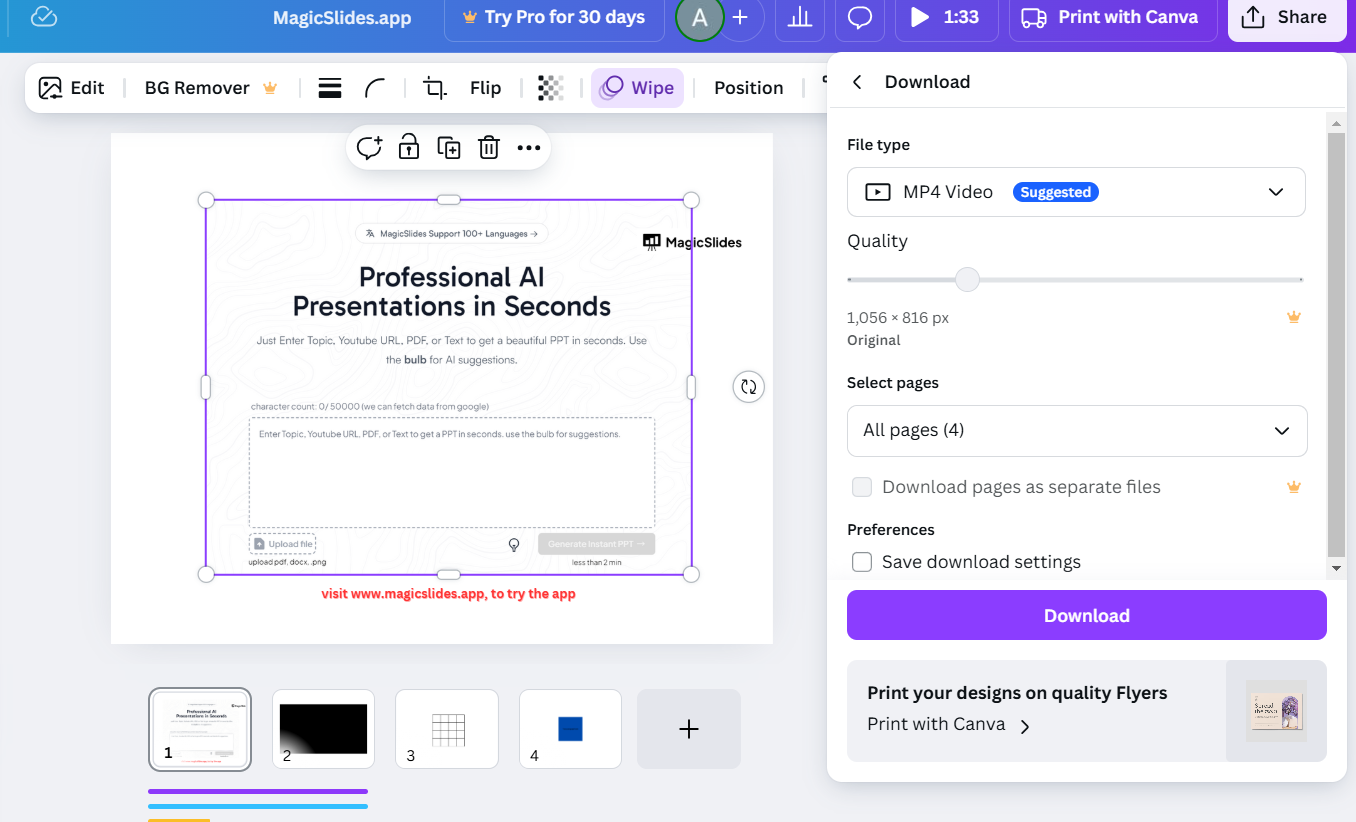
The animated image will now appear throughout your presentation as designed. Now that you know how animations work in Canva slideshows, check out how to make PowerPoint slides advance automatically for seamless transitions.
Yes, images can stay animated throughout a Canva slideshow, but for even more seamless presentations, MagicSlides.app offers an AI-driven solution to instantly create slides with images, animations, and other dynamic elements, all tailored to your needs. Try MagicSlides.app today!
Conclusion
Animating an image across a Canva slideshow is a creative way to engage your audience.
By applying consistent animations and using transitions, you can ensure your image stays animated throughout your presentation, creating a professional and dynamic effect.
FAQs on Animating Images in Canva Slideshow
Can I keep different animations for the same image on different slides?
Yes, you can customize animations for the same image on each slide to suit your storytelling.
Will animations work in exported PDF files?
No, animations in Canva are only functional during presentations or in exported video formats, not PDFs.
Can I apply animations to multiple images simultaneously?
Currently, Canva requires applying animations to each image individually, but grouped elements can be animated together.
By following these steps, you’ll master the art of animating images in Canva slideshows effortlessly!


