Can I make a video continue across every Google Slide


Learn how to make a video appear continuous across all slides in Google Slides effectively
Embedding a video that plays continuously across all slides in Google Slides isn’t natively supported.
However, you can achieve this effect by embedding the video on each slide and making it appear seamless through specific settings.
Here’s a step-by-step guide to help you make a video continue across every slide.
Steps to Make a Video Continue Across Every Google Slide
Step 1: Insert the Video on the First Slide
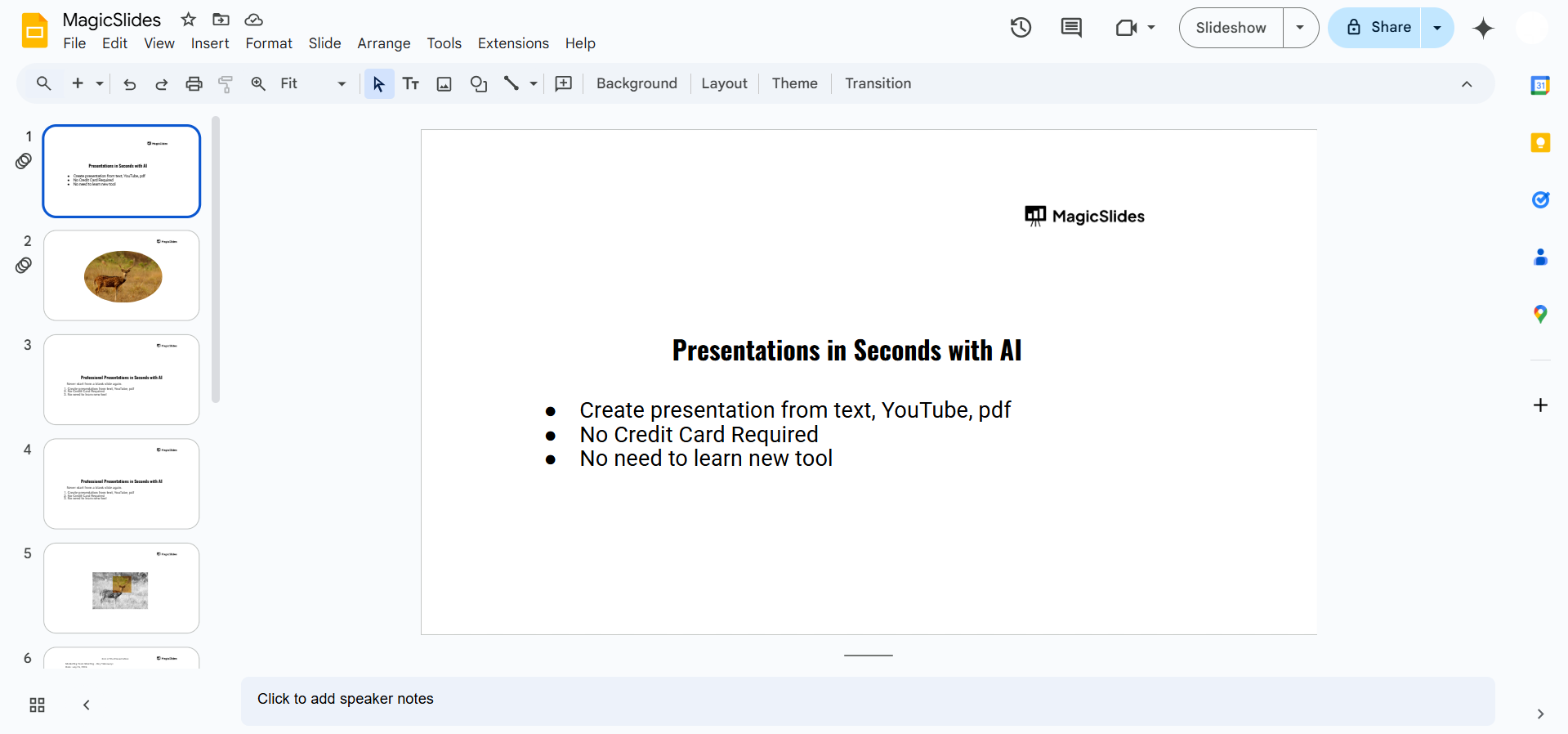
Open your Google Slides presentation. Navigate to the first slide where you want the video to appear.
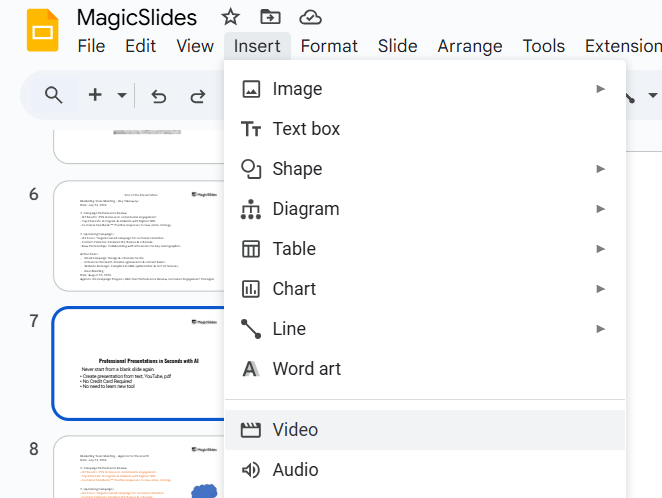
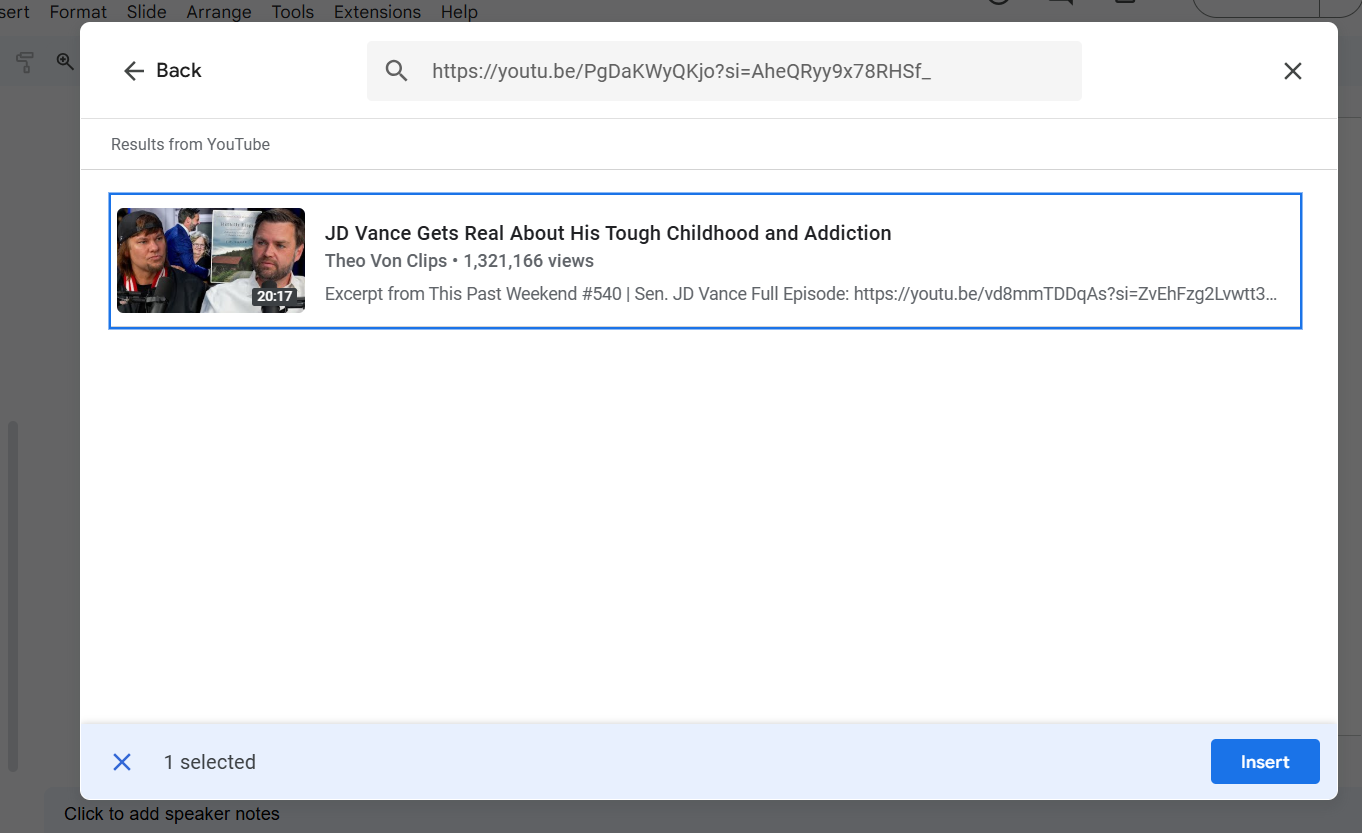
Click on Insert from the top menu, then select Video from the dropdown Choose the video from YouTube, Google Drive, or paste the video URL.
Step 2: Resize and Position the Video
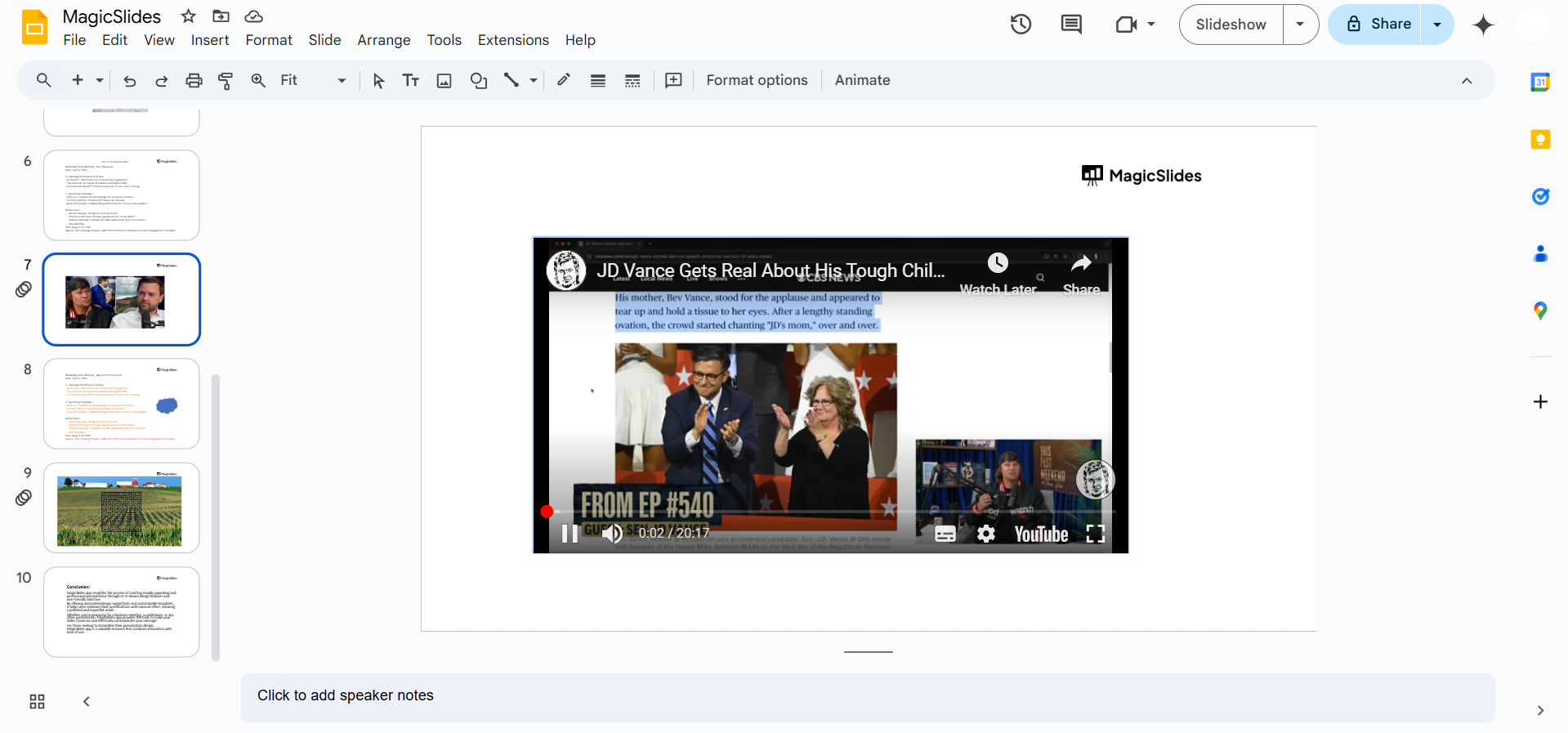
Once the video appears on the slide, resize it by dragging the corners.
Position it where you want it to appear on all slides, ensuring uniformity across the presentation.
Step 3: Copy the Video
Right-click on the video and select Copy, or use the keyboard shortcut Ctrl+C (Windows) or Command+C (Mac).
Step 4: Paste the Video on Other Slides
Navigate to the next slide and paste the video using Ctrl+V (Windows) or Command+V (Mac).

Repeat this process for all the slides where you want the video to appear.
Step 5: Set the Video to Play Automatically
Select the video on a slide. Click on the Format Options button in the toolbar or right-click and choose Format Options.
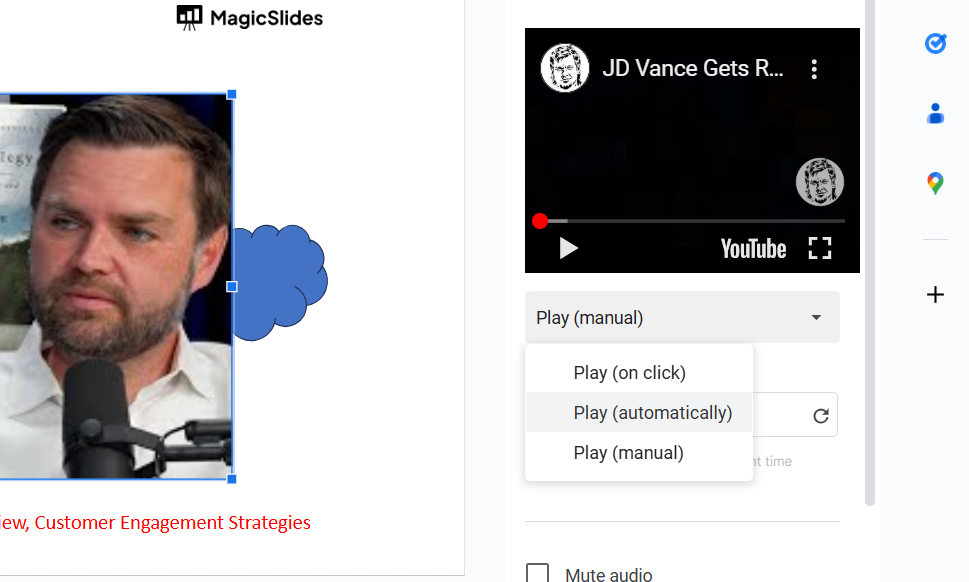
Under the Video Playback settings, select Autoplay when presenting. Apply this setting to all instances of the video on each slide.
Step 6: Adjust Timing for Seamlessness
Note the video's start and end times for the first slide. Manually set the same start and end times for the video on all slides to ensure a seamless playback experience.
You can make a video continue across every Google Slide, but if you're looking to create an entire presentation with such features quickly and effortlessly, MagicSlides.app can help. Simply input your video or any other content, and MagicSlides.app will generate a polished, professional presentation in seconds. Try it out today!
Conclusion
Although Google Slides doesn’t allow a single video to play continuously across all slides, following these steps will help you create the illusion of continuous playback.
By copying the video onto each slide and adjusting playback settings, you can achieve a smooth and professional presentation experience.
FAQs on Making a Video Continue Across Every Slide
Can I loop a video across slides in Google Slides?
Google Slides doesn’t natively support video looping across slides. You must manually copy and adjust the video.
Will the video play automatically on all slides?
Yes, by enabling the Autoplay when presenting option, the video will play automatically when you navigate to each slide.
Is there a way to embed a continuous video without manual copying?
Currently, no. You need to copy and adjust the video settings on each slide for continuity.
By following this guide, you can ensure a seamless video experience across your Google Slides presentation.


