Can Office 365 PowerPoint set Transparent Background


Easily set a transparent background in Office 365 PowerPoint for images, shapes, and slide elements
Can Office 365 PowerPoint Set a Transparent Background?
Yes! Office 365 PowerPoint allows you to set a transparent background for images, shapes, and even slides.
This feature is useful for creating professional-looking designs, removing unwanted backgrounds, and enhancing visual presentations.
Follow this step-by-step guide to set a transparent background in PowerPoint.
How to Set a Transparent Background in Office 365 PowerPoint
Step 1: Open PowerPoint and Insert an Image
Open Microsoft PowerPoint on your computer. Create a new slide or open an existing presentation.
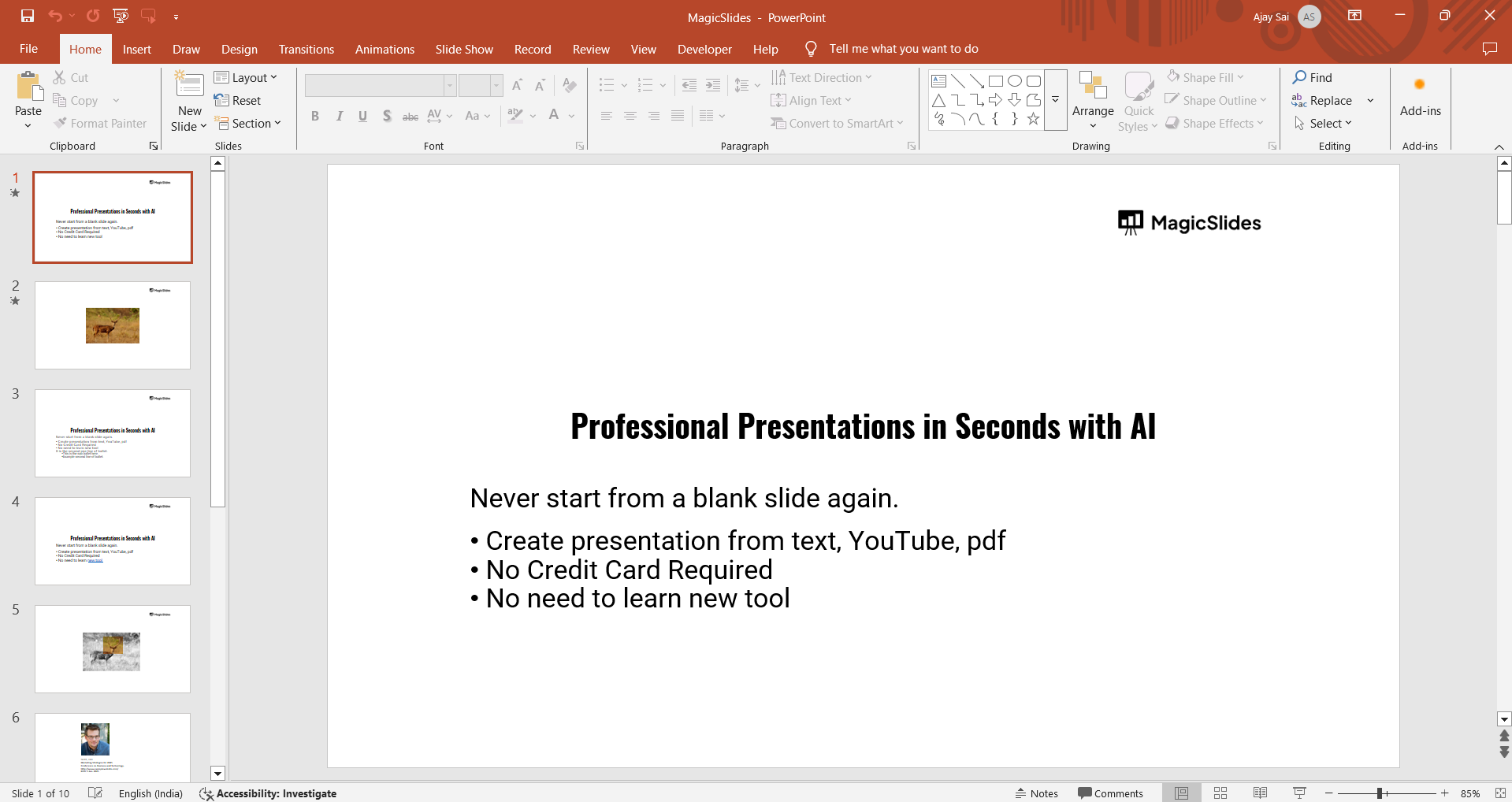
Click on the Insert tab and select Pictures. Choose an image from your computer and insert it into the slide.
Step 2: Select the Image and Open the 'Remove Background' Tool
Click on the image to select it. Navigate to the Picture Format tab in the top menu.
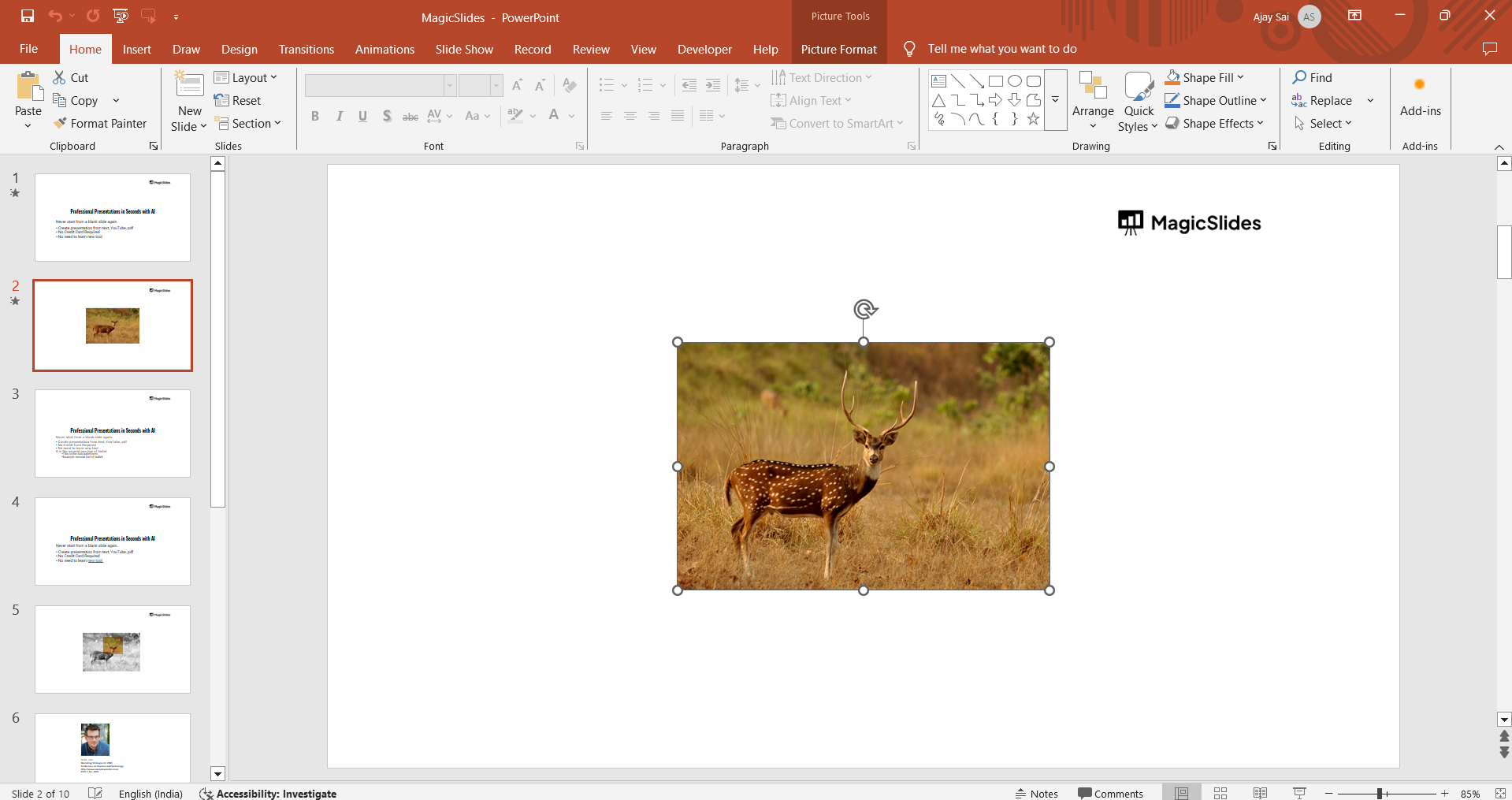
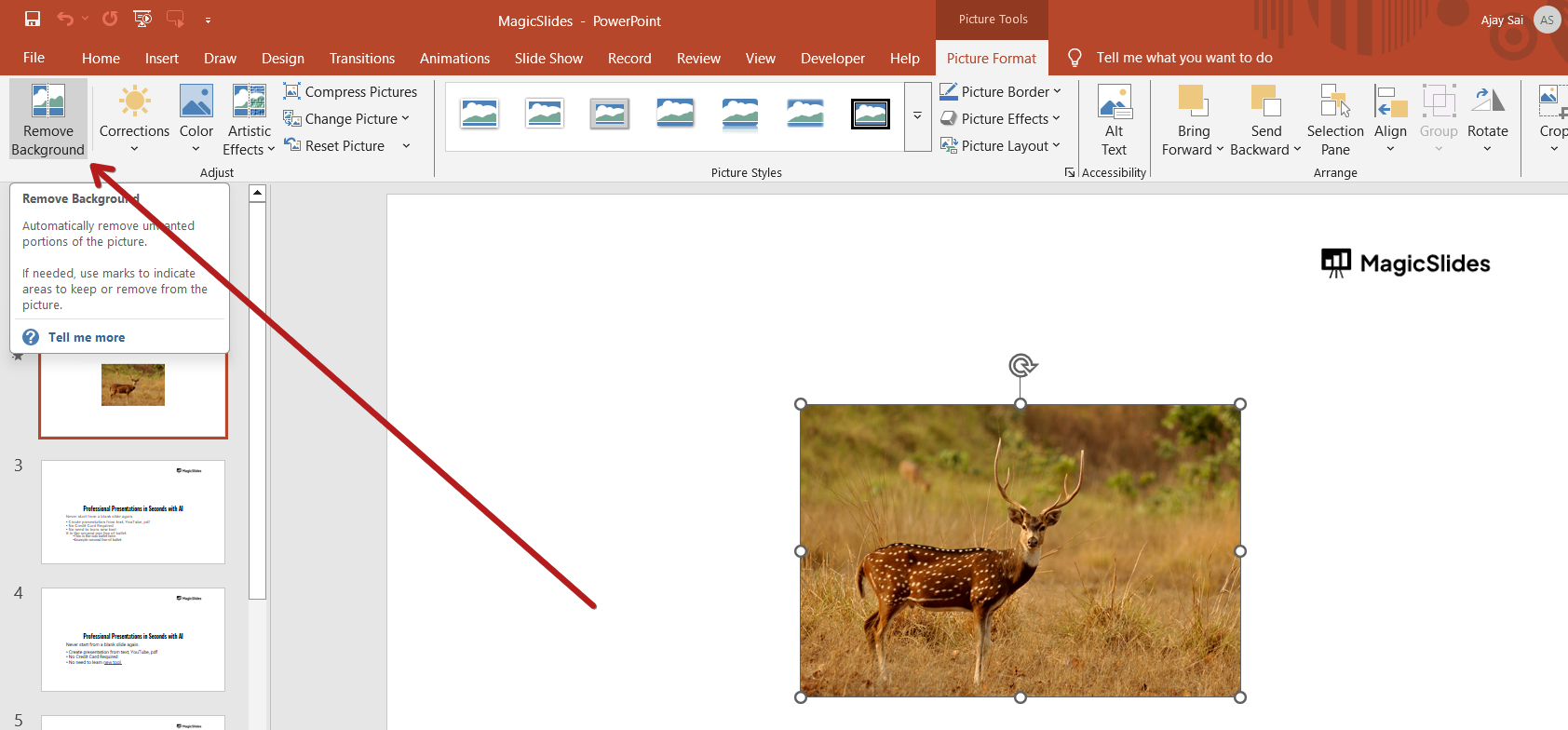
Click Remove Background (found in the Adjust group).
Step 3: Adjust the Background Removal Selection
PowerPoint will automatically detect the background and highlight it in purple. Use the Mark Areas to Keep and Mark Areas to Remove tools to refine the selection.
Once you're satisfied, click Keep Changes to make the background transparent.
Step 4: Set Transparency for Shapes or Text Boxes (Optional)
Click on a shape or text box in your slide. Navigate to the Shape Format tab.
Click Shape Fill > More Fill Colors. Adjust the Transparency slider to make the shape partially or fully transparent.
Step 5: Save or Export as a Transparent PNG (Optional)
If you want to save the image with a transparent background, right-click on it. Select Save as Picture.
Choose PNG format (supports transparency). Click Save to store it on your computer.
Yes, Office 365 allows you to set a transparent background, but if you're looking for a smarter way to create stunning presentations effortlessly, try MagicSlides.app AI-powered slides generated in seconds!
Conclusion
Setting a transparent background in Office 365 PowerPoint is a great way to enhance your presentations and designs.
Whether you're removing an image background, adjusting shape transparency, or saving a transparent PNG, these steps will help you achieve a professional look.
FAQs are here to guide!
Can I make the entire slide background transparent in PowerPoint?
No, PowerPoint does not support fully transparent slides, but you can adjust slide background transparency by using shapes or images.
Can I undo the background removal in PowerPoint?
Yes! If you're not satisfied with the background removal, click Undo (Ctrl + Z) or reinsert the image to start over.
Does PowerPoint support transparent backgrounds for exported images?
Yes, but only if you save the image as a PNG file. JPEG format does not support transparency.


