How to copy and paste a PowerPoint slide into another presentation


Learn how to seamlessly copy and paste PowerPoint slides between presentations with this easy step-by-step guide
PowerPoint is a powerful tool that enables users to create engaging and informative presentations.
One of the useful features of PowerPoint is the ability to copy and paste slides from one presentation into another. This can save time and ensure consistency across multiple presentations.
Whether you’re preparing for a meeting, a lecture, or a project presentation, knowing how to efficiently transfer slides between presentations is essential. This guide will walk you through the process step-by-step, ensuring a smooth transition of content.
Copy-pasting PowerPoint slides seamlessly from one another:
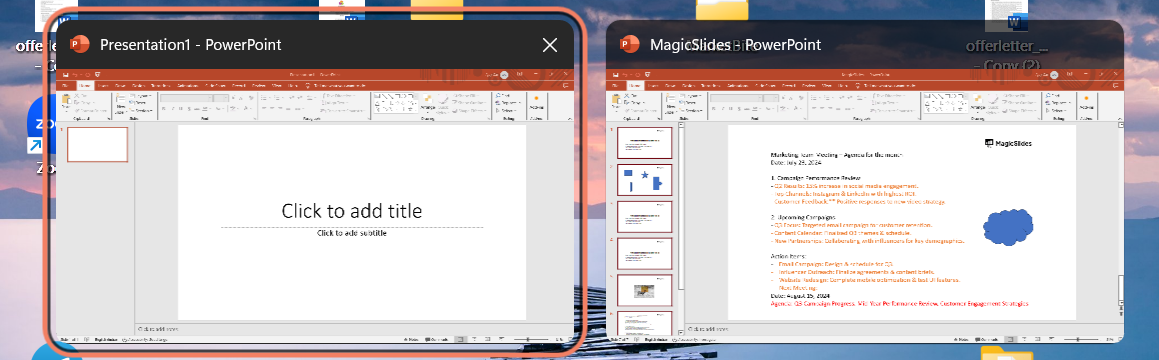
Step 1: Open Both Presentations
First, you need to have both the source and destination presentations open in PowerPoint:
Launch PowerPoint: Open the PowerPoint application on your computer.
Open Source Presentation: Go to "File" > "Open" and select the presentation from which you want to copy slides.

Open Destination Presentation: Similarly, open the presentation where you want to paste the slides.
Step 2: Select the Slide(s) to Copy
Next, choose the slide(s) you want to copy from the source presentation:
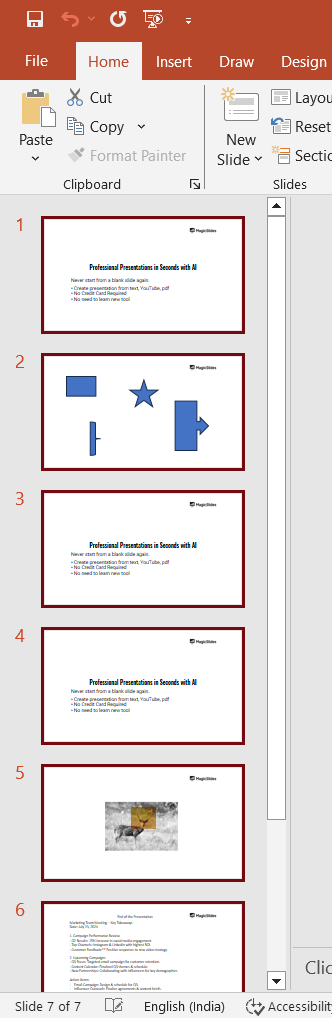
Single Slide: Click on the slide thumbnail in the left-hand pane to select it.
Multiple Slides: Hold down the "Ctrl" key (or "Command" key on Mac) and click on each slide you want to copy.
Step 3: Copy the Selected Slide(s)
With the desired slides selected, copy them to the clipboard:
Right-Click Method: Right-click on one of the selected slides and choose "Copy" from the context menu.
Keyboard Shortcut: Alternatively, press "Ctrl+C" (or "Command+C" on Mac) to copy the slides.
Step 4: Paste the Slide(s) into the Destination Presentation
Now, switch to the destination presentation to paste the copied slides:
Navigate to the Destination: Click on the destination presentation window to bring it to the forefront.
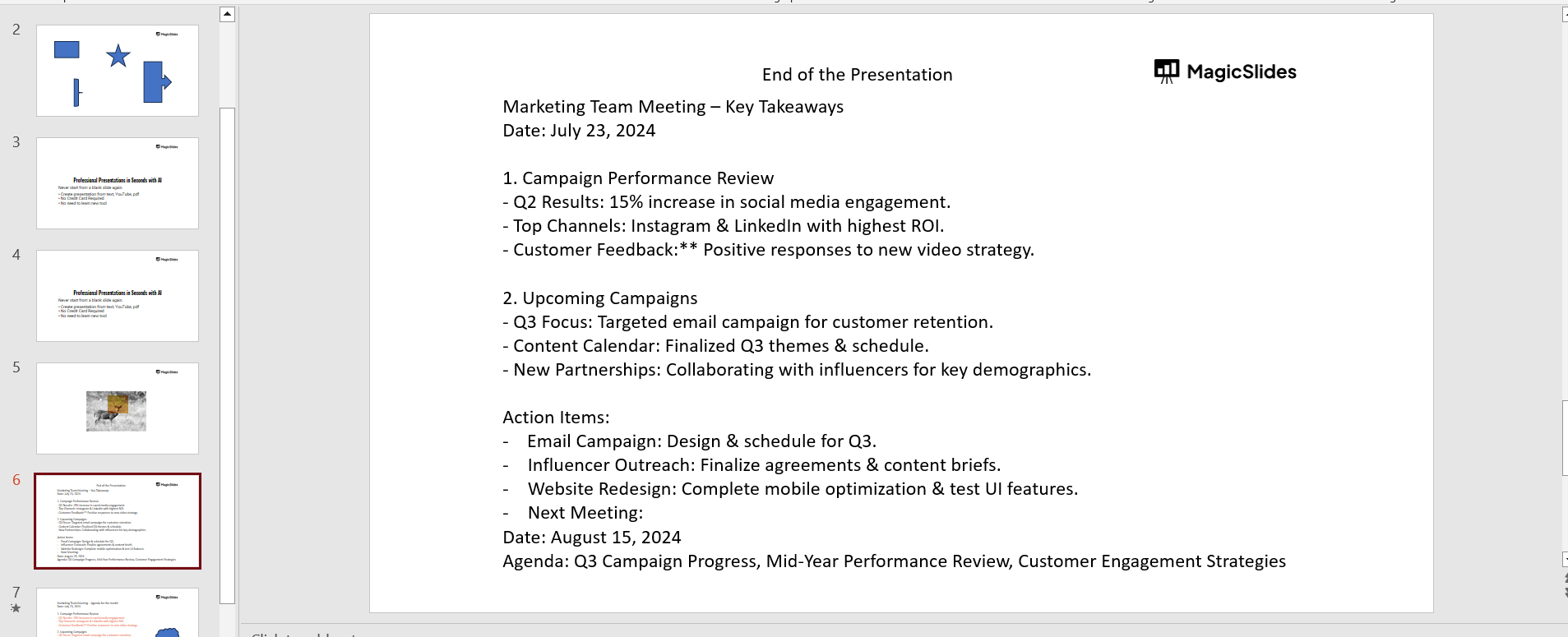
Select Insertion Point: Click on the slide thumbnail in the left-hand pane where you want to insert the copied slides. This can be before or after a specific slide.
Paste the Slides: Right-click in the left-hand pane and choose "Paste" from the context menu, or use the keyboard shortcut "Ctrl+V" (or "Command+V" on Mac).

Step 5: Choose the Paste Options
PowerPoint provides several paste options to control the formatting of the pasted slides:
Use Destination Theme: Adapts the copied slides to match the formatting of the destination presentation.
Keep Source Formatting: Retains the original formatting of the copied slides.
Picture: Pastes the slide as a static image.
Select Option: Choose the option that best fits your needs by clicking on the small clipboard icon that appears after pasting.
Step 6: Adjust and Review the Pasted Slides
Finally, make any necessary adjustments to the pasted slides to ensure they fit seamlessly into the destination presentation:
Check Formatting: Verify that the slides are formatted correctly and make any needed adjustments.
Review Content: Ensure that all text, images, and animations are intact and function as expected.
Rearrange Slides: If necessary, drag the slide thumbnails to rearrange their order in the presentation.
Conclusion
Copying and pasting slides between PowerPoint presentations is a straightforward yet powerful way to create cohesive and comprehensive presentations.
By following these steps opening both presentations, selecting and copying the desired slides, pasting them into the destination presentation, choosing appropriate paste options, and reviewing the final result you can efficiently manage and repurpose your content.
This skill not only saves time but also helps maintain consistency across your presentations, making your workflow more productive and effective. Happy presenting!
FAQs that might be helpful!
Can I copy multiple slides at once?
Yes, you can copy multiple slides by holding down the "Ctrl" key (or "Command" key on Mac) and selecting each slide you want to copy.
Will animations and transitions be copied along with the slides?
Yes, animations and transitions will be copied along with the slides.
However, you may need to review and adjust them in the destination presentation to ensure they work as intended.
What happens to the formatting when I paste slides into another presentation?
You can choose to keep the source formatting or adapt the slides to match the destination theme.
PowerPoint provides these options after you paste the slides.
Can I paste slides as images instead of editable content?
Yes, PowerPoint allows you to paste slides as static images. This can be useful if you want to prevent further editing of the slides.
Select the "Picture" option from the paste options.


