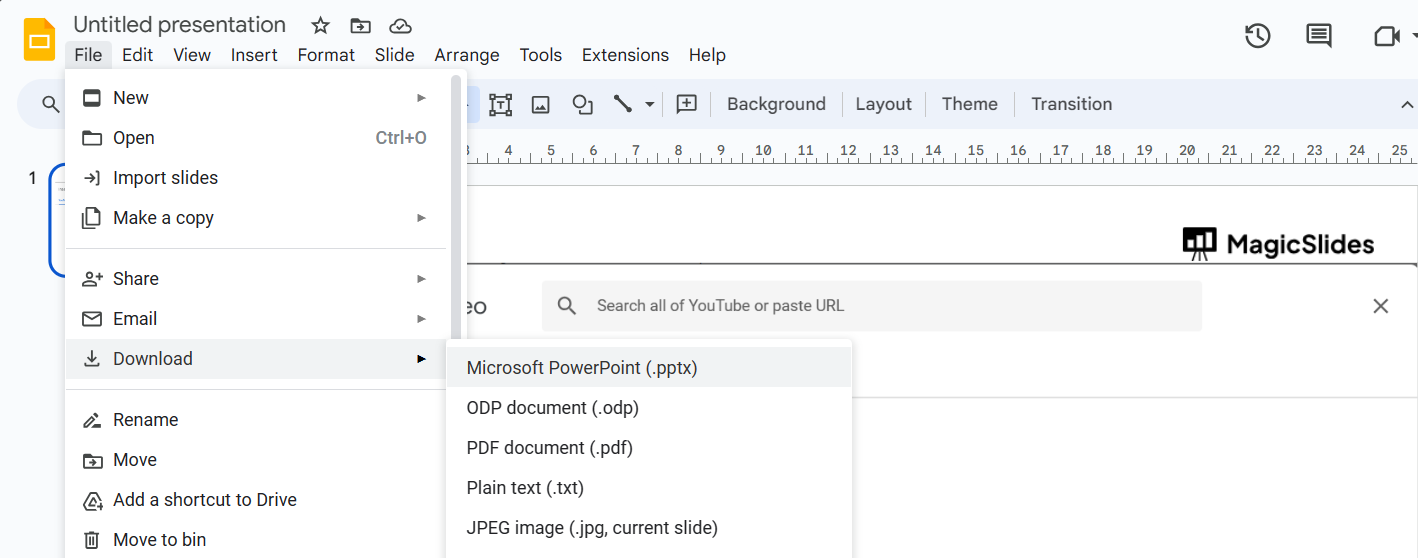
How to embed in Google Slides in few simple clicks


Embedding either video images or pdfs plays a huge role to create an engaging presentation for audience here is a simple guide to achieve them.
Step 1: Access Google Slides:
- Visit slides.google.com to either open an existing presentation or create a new one.
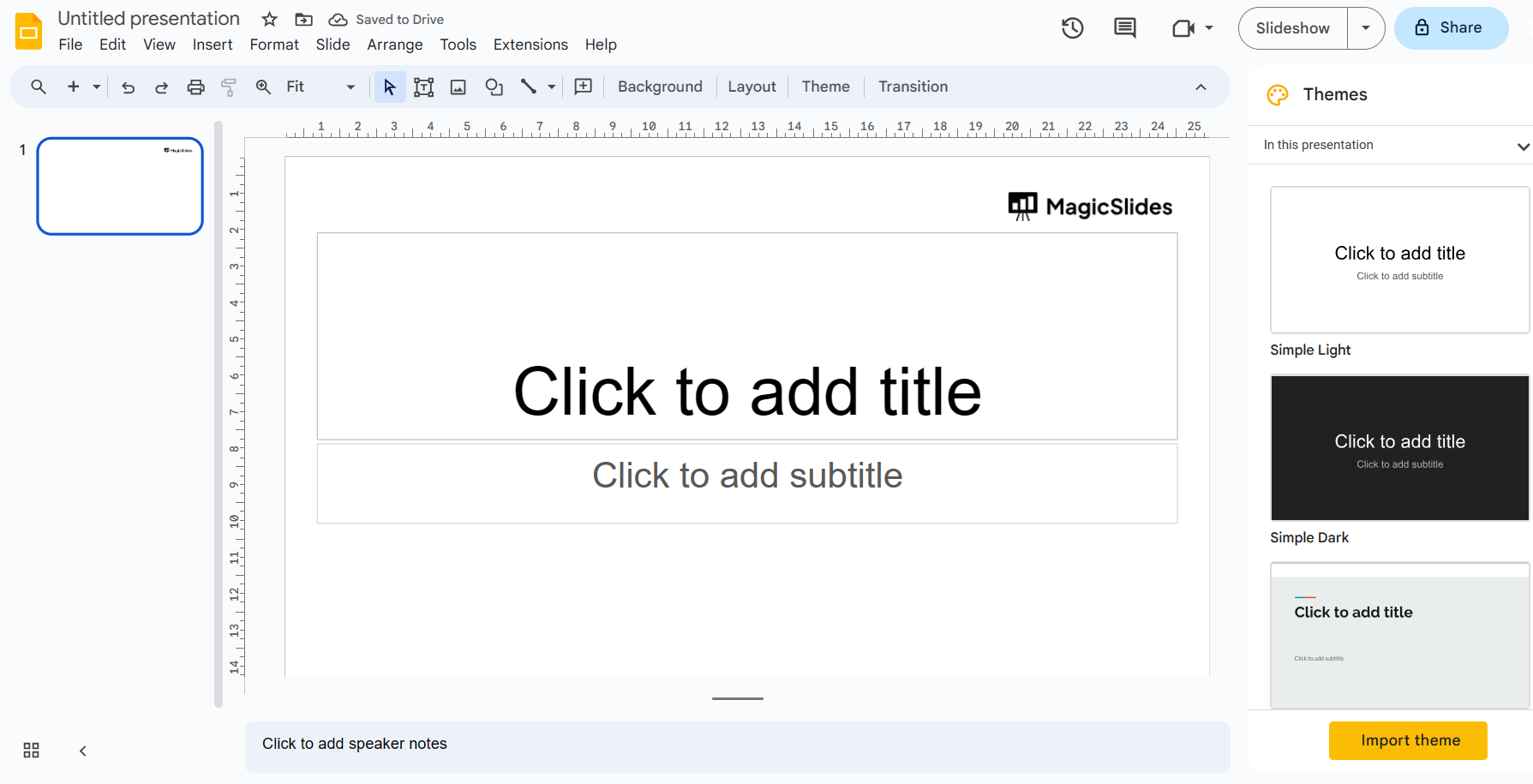
Step 2: Select the Desired Slide:
- Navigate to the specific slide where you intend to add embedded content.
Step 3: Insert Video or Image:
- Click on the "Insert" option located in the top toolbar.
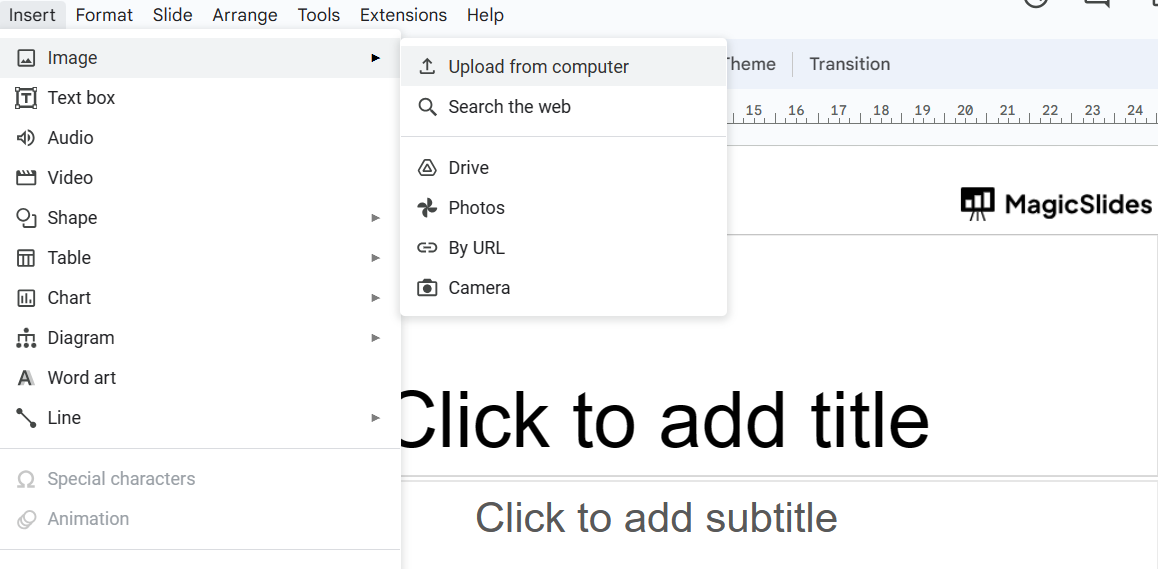
Step 4: Specify Content Type:
- Choose between "Video" for embedding videos or "Image" for images.
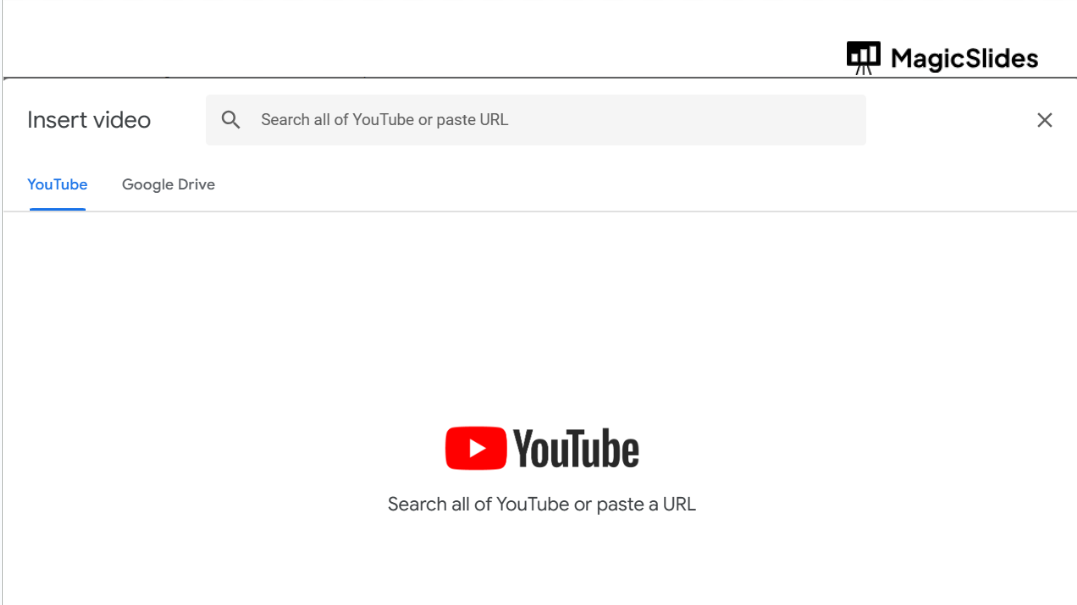
Embed YouTube Video:
- For YouTube videos, simply paste the video's URL into the provided dialog box.
- Confirm by clicking "Select" to add it to the slide.
Embed Images:
- When embedding images, you have the option to upload image files or select them from your Google Drive.
- Adjust the image's size and position to suit your slide layout.
Customize and Position:
- Modify, reposition, or include additional elements around the embedded content as necessary to align with your slide's design.
Preview and Validate:
- Click on the "Present" button to review your slide, ensuring that the embedded content functions correctly.
Save and Share:
- Once you've added all your content, remember to save your presentation.
- Share it with others, knowing that the embedded content will be visible when recipients view the presentation.