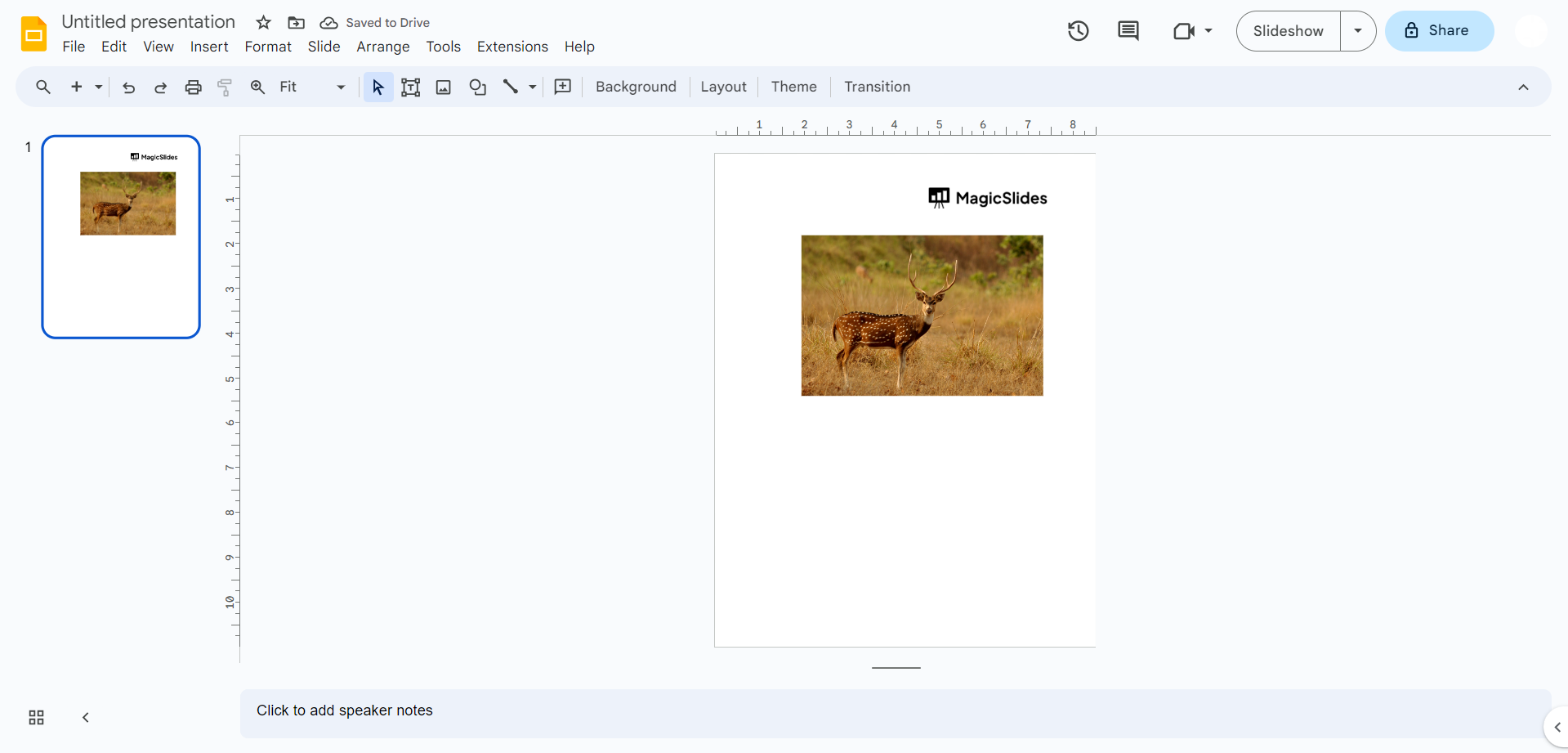
How to make Google Slides portrait in few easy clicks


We might often encounter a need to shift from portrait to landscape or vice versa here is a guide to help you achieve that.
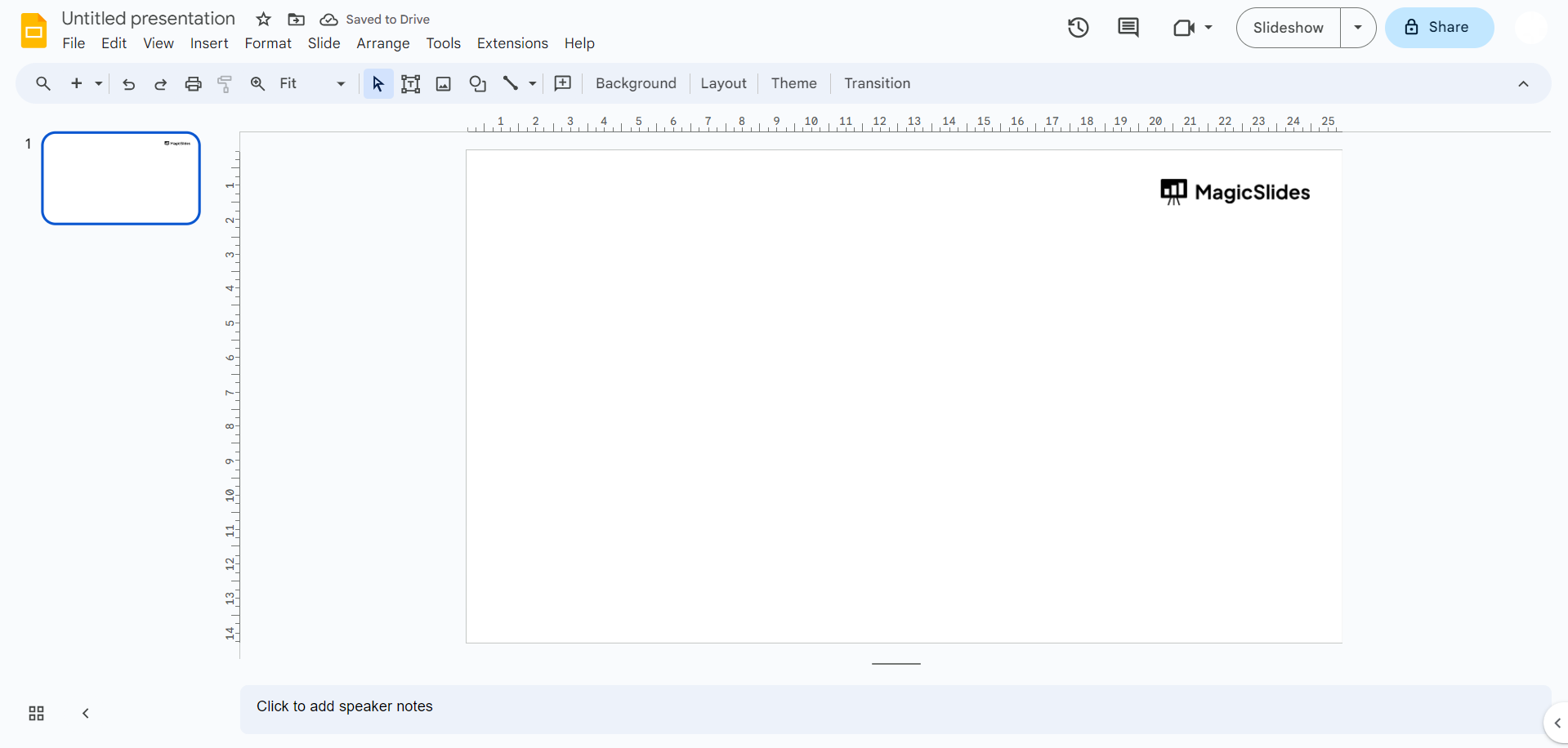
Step 1: Start a New Presentation:
- Open Google Slides.
- Click the "+ New" button or directly open a blank slide.
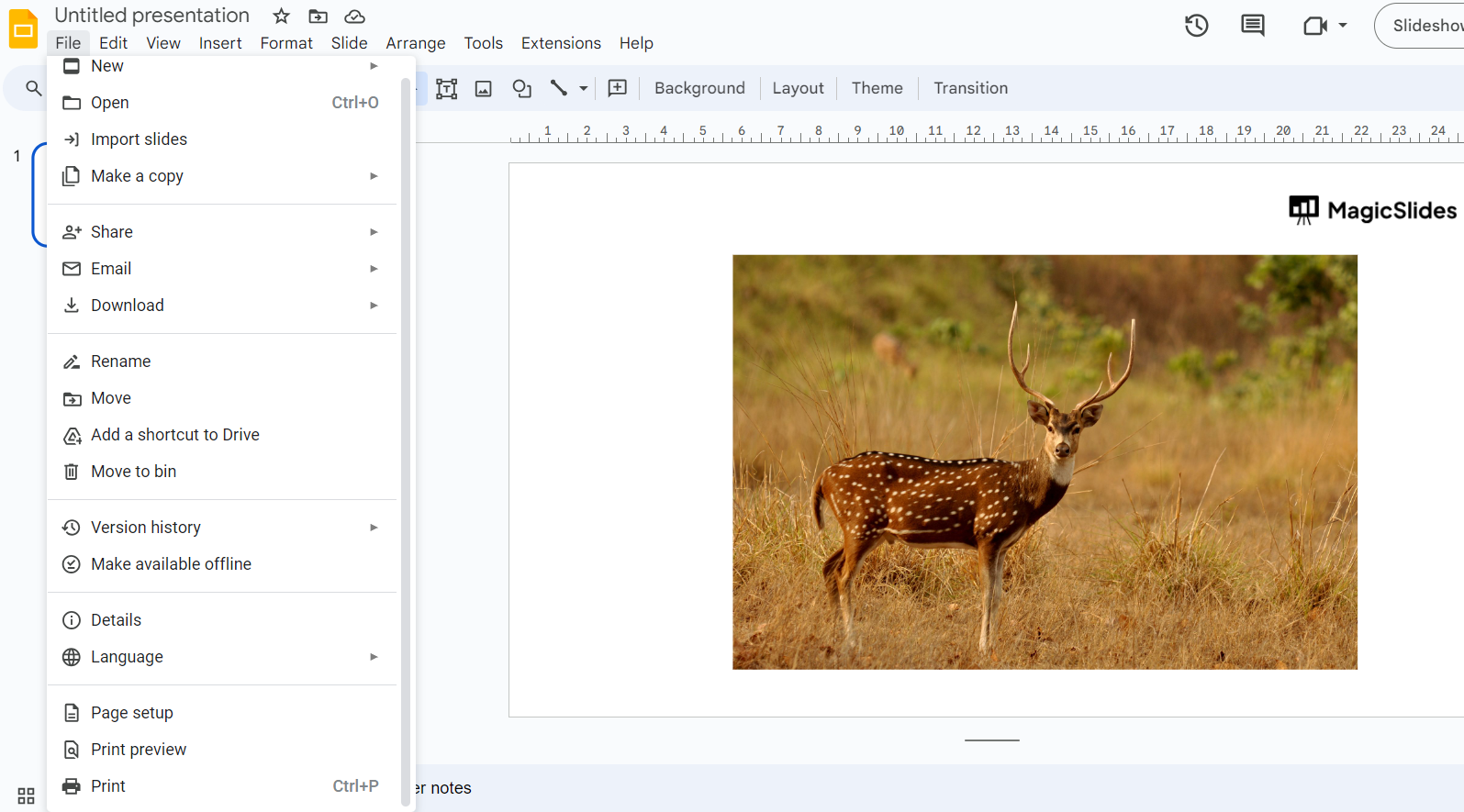
Step 2: Adjust Slide Dimensions:
- After opening a new presentation, locate the "File" option in the top left corner.
- From the drop-down menu, choose "Page setup."
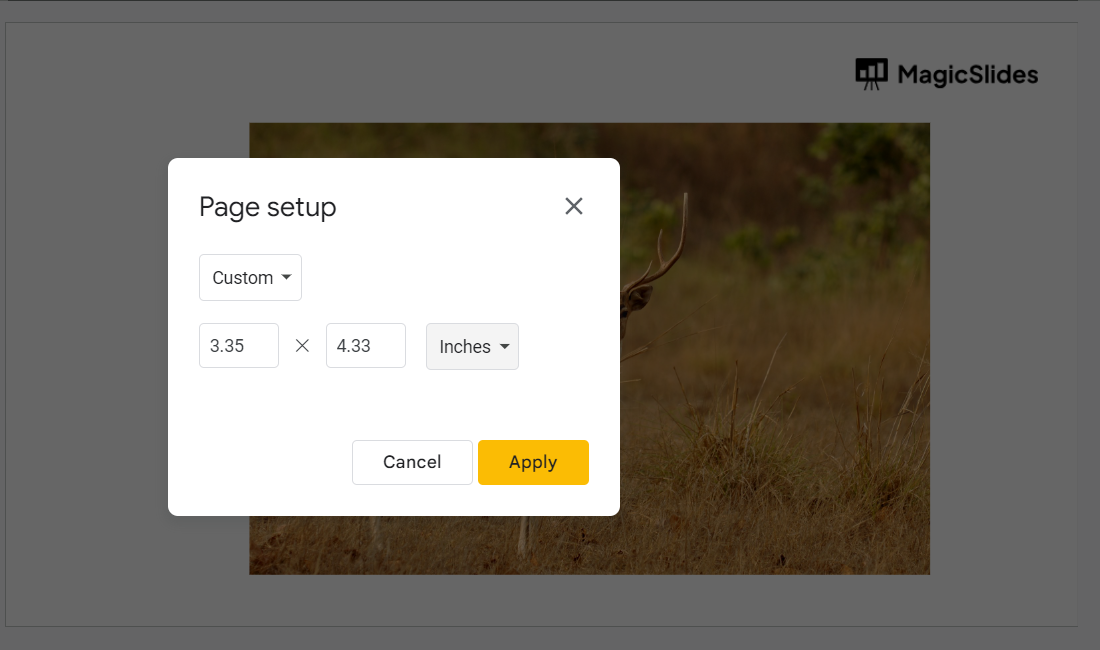
Step 3: Customize Page Size:
- In the "Page setup" window, find the "Slides" section.
- Select "Custom" beside "Size" for slides with non-standard dimensions.
- Enter your preferred width and height for portrait slides. For instance, you can input 8.5 inches for width and 11 inches for height to achieve the US Letter portrait size.
Step 4: Apply Changes:
- Once you've entered the dimensions, click "Apply."
- A confirmation message will appear, stating that the change is specific to this presentation. Confirm by clicking "OK."