How can you Apply a Theme to your Google Slides Presentation


Learn how to effortlessly apply and customize themes in Google Slides for a polished presentation
A well-designed theme enhances the look of your Google Slides presentation, ensuring a cohesive and professional appearance.
Themes help you maintain consistent formatting, such as fonts, colors, and layouts, throughout your slides.
This guide will walk you through the process of applying and customizing themes in Google Slides for a polished and visually appealing presentation.
How to Apply a Theme to Your Google Slides Presentation
Step 1: Open Your Google Slides Presentation
Log in to your Google account and open the presentation you want to edit.
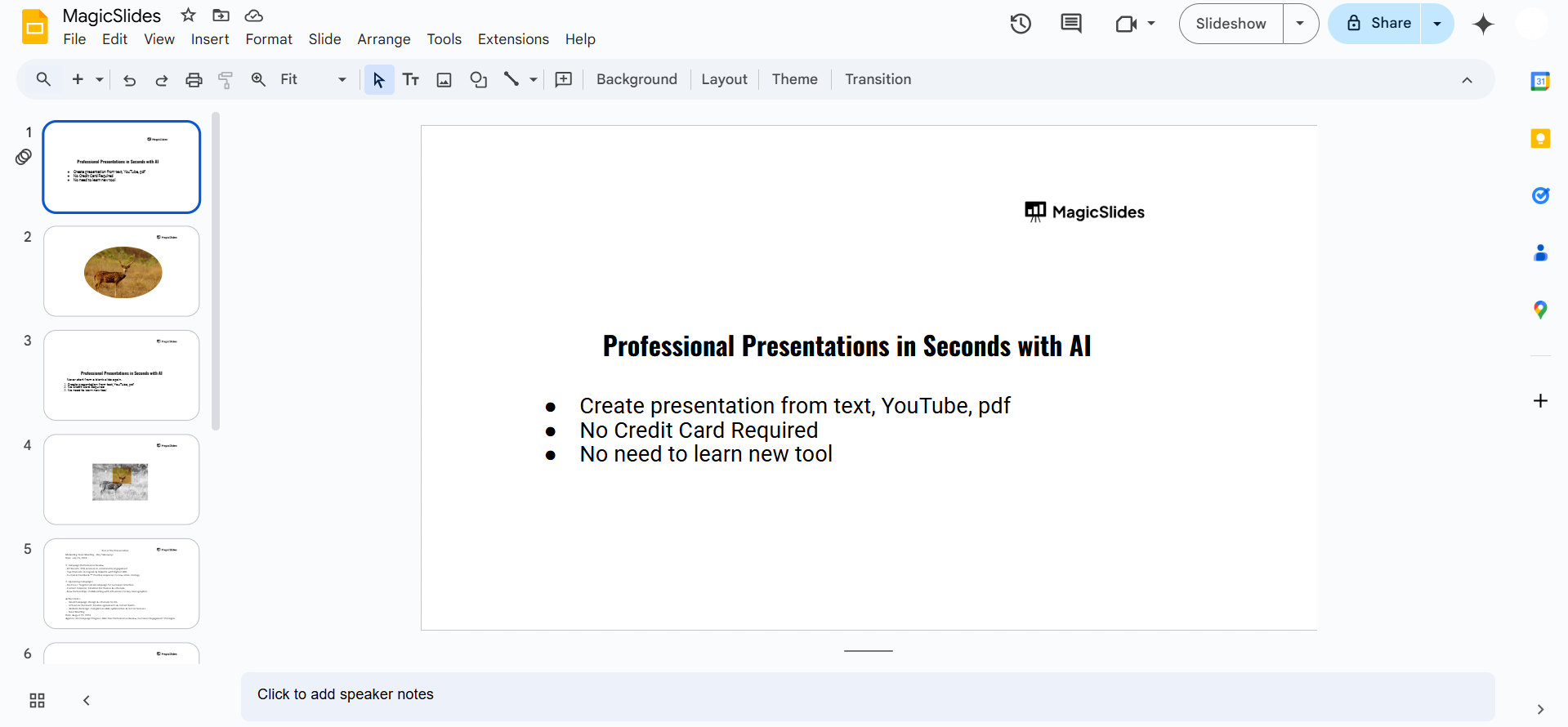
If you are starting from scratch, create a new presentation by clicking the “Blank” template on the Google Slides homepage.
Step 2: Access the Theme Panel
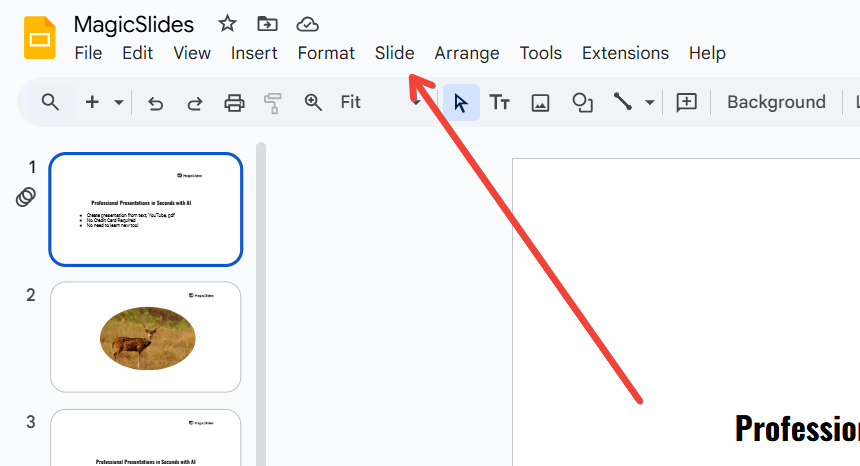
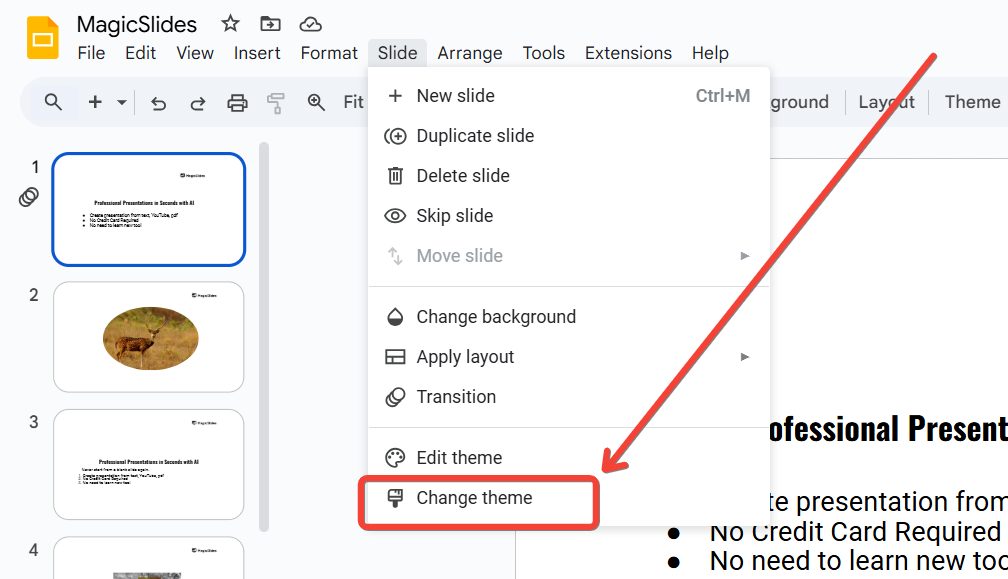
From the menu bar at the top, click "Slide" > "Change theme."
Alternatively, click the “Themes” button in the toolbar (usually located on the right).
The Themes sidebar will appear on the right side of your screen.
Step 3: Browse Available Themes
Scroll through the list of pre-designed themes in the sidebar.
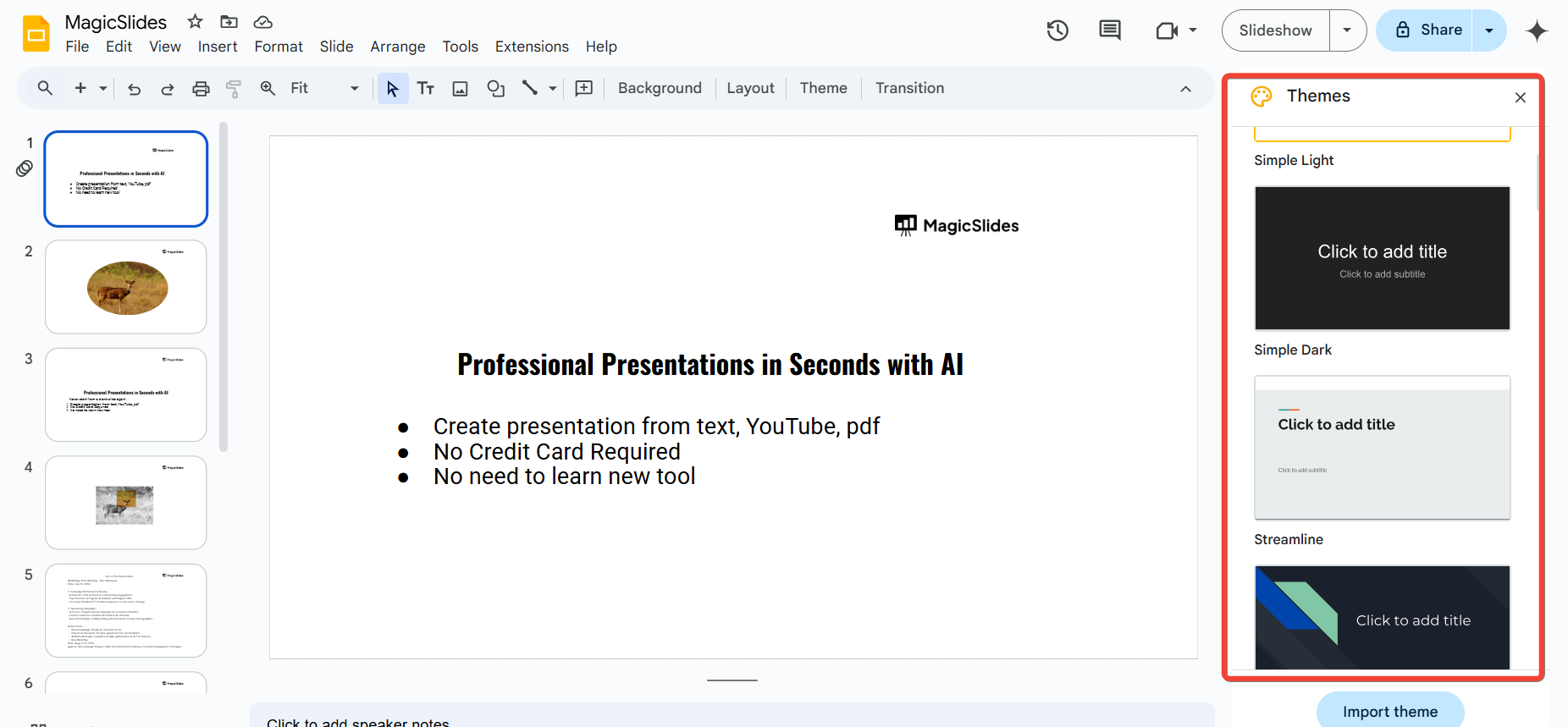
Click on any theme to preview how it will look on your slides.
Step 4: Apply a Theme
Once you find a theme you like, click on it to apply it to all slides in your presentation.
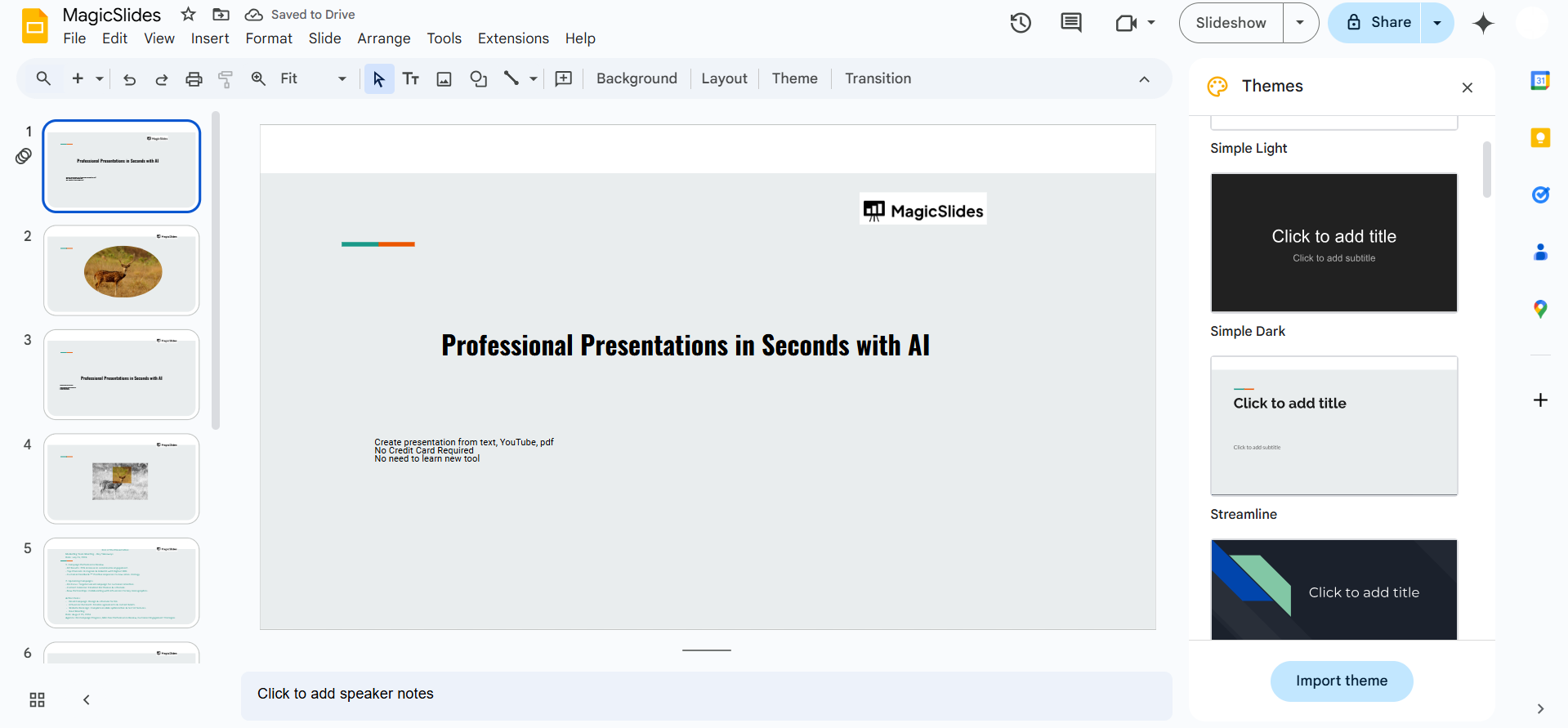
If you want to apply the theme to specific slides only, you will need to duplicate the slide deck and apply the theme separately.
Step 5: Customize the Theme (Optional)
To further personalize the theme, click on "Slide" > "Edit theme."
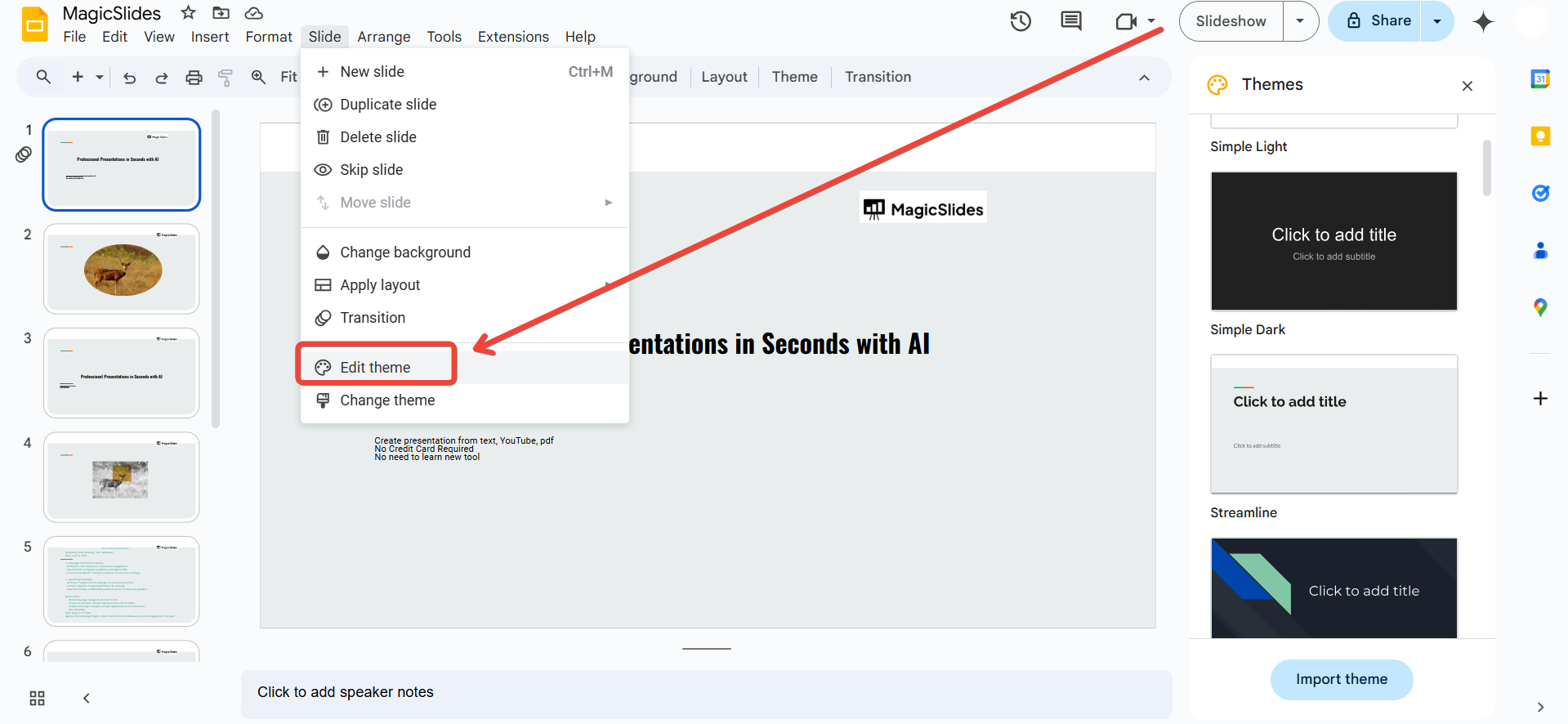
In the Theme Builder, you can edit elements like fonts, colors, and layouts.
Save your changes, and the updated theme will apply across all slides.
Step 6: Import a Custom Theme
If you have a custom theme from another presentation, click “Import theme” at the bottom of the Themes sidebar.
Select a Google Slides or PowerPoint file from which to import the theme.
Choose the theme you want from the imported presentation and apply it to your current slides.
Step 7: Save and Review
After applying your chosen theme, review the slides to ensure all elements align with the design.
Make adjustments as needed to maintain readability and visual consistency.
Conclusion
Applying a theme to your Google Slides presentation simplifies the design process and enhances the overall look.
By following these steps, you can choose a pre-designed theme, customize it, or even import a unique theme to make your presentation stand out.
A cohesive design not only impresses your audience but also ensures that your message is effectively conveyed.
FAQs on Applying Themes in Google Slides
Can I change the theme after creating the presentation?
Yes, you can change the theme anytime by accessing the “Change theme” option in the menu.
Are custom themes created in Google Slides compatible with PowerPoint?
Custom themes can be exported with the presentation as a .pptx file, but certain design elements may vary in PowerPoint.
How can I restore the original theme if I make a mistake?
Simply reapply the original theme from the Themes sidebar, or undo recent changes using Ctrl+Z (Windows) or Cmd+Z (Mac).
With these tips, you’re ready to apply and tailor themes in Google Slides like a pro!


