How do I draw an irregular shape in Google Slides


Learn how to draw custom irregular shapes in Google Slides using the Scribble and Polyline tools
How to Draw an Irregular Shape in Google Slides
Google Slides offers a variety of built-in shapes, but sometimes, you need to create a custom or irregular shape.
While Google Slides doesn’t have a freehand drawing tool like some advanced design software, you can still create irregular shapes using the Scribble or Polyline tools.
This guide will show you how to draw an irregular shape step by step.
Step-by-Step Guide to Drawing an Irregular Shape in Google Slides
Step 1: Open Google Slides
Go to Google Slides by visiting slides.google.com.
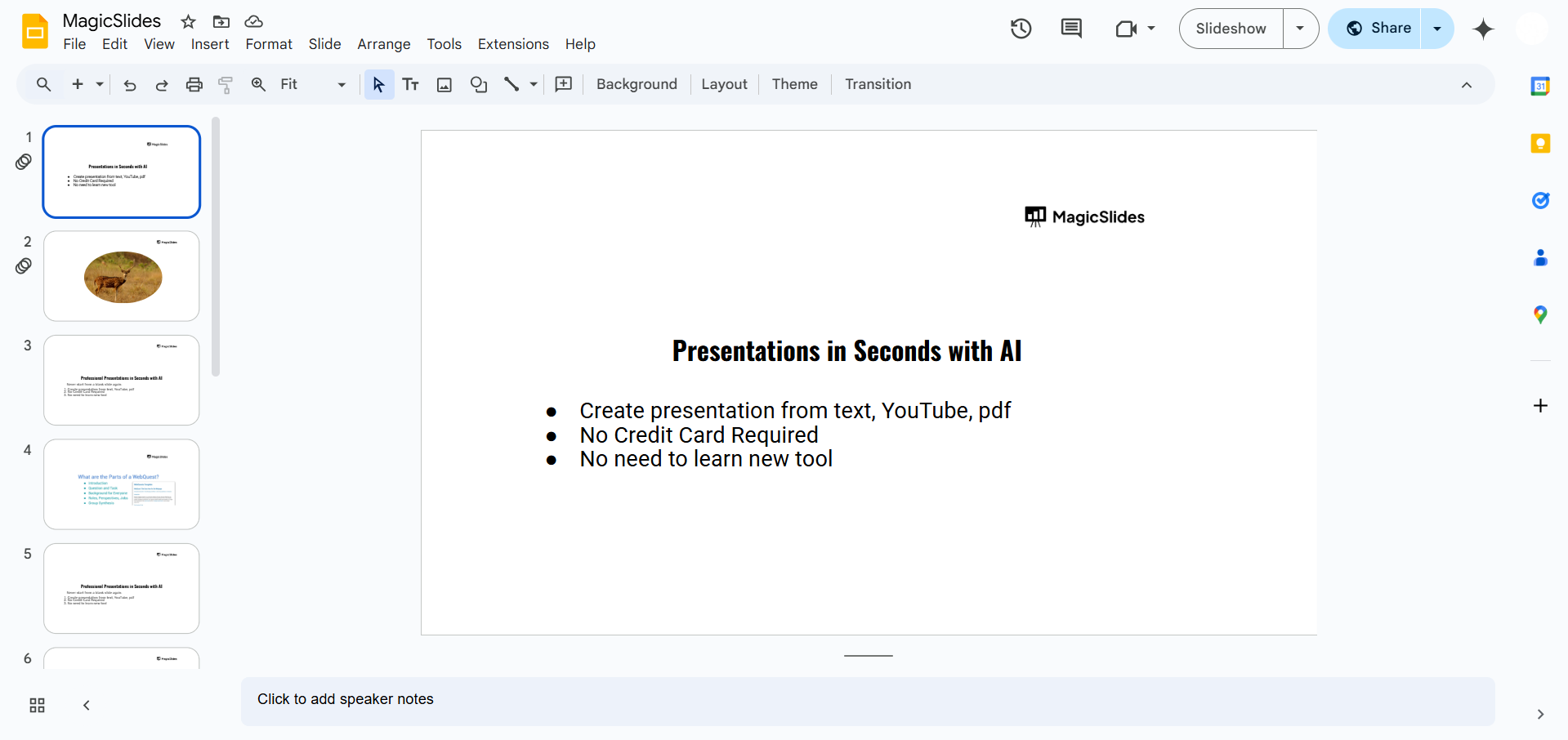
Open an existing presentation or create a new one by clicking Blank Presentation.
Step 2: Insert a Drawing Tool
Click on Insert in the top menu.
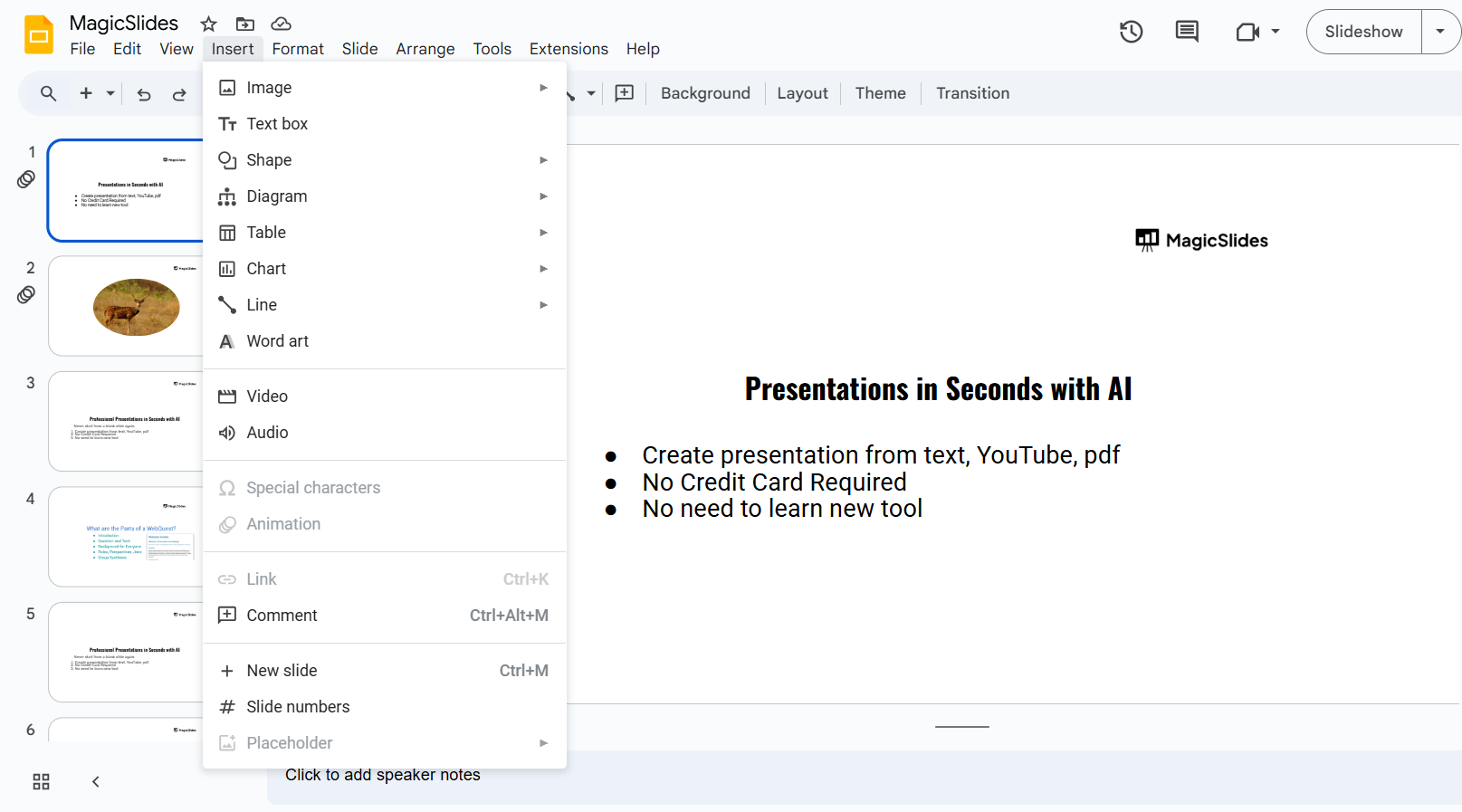
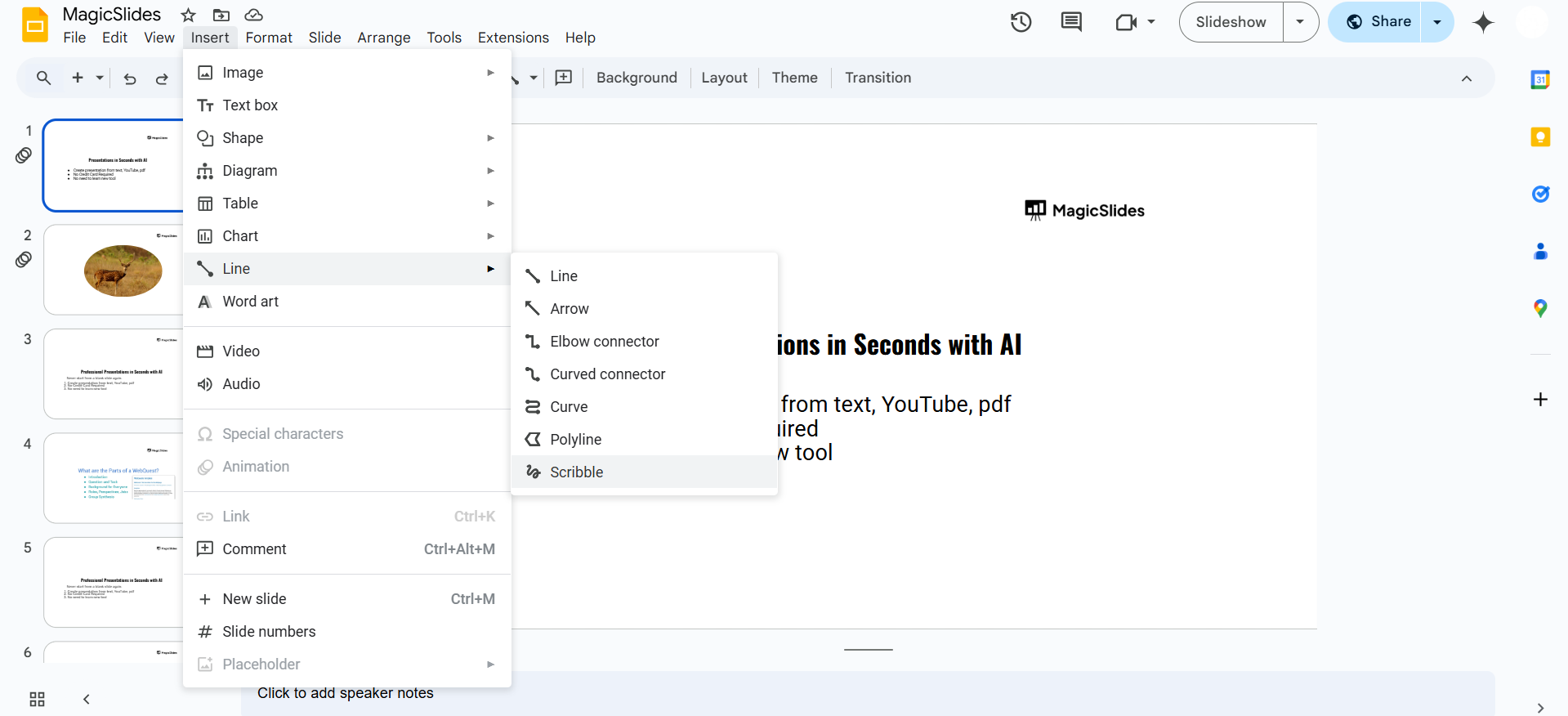
Hover over Line, and a dropdown menu will appear.
Choose either:
- Scribble (for freehand drawing)
- Polyline (for creating connected straight lines that form a custom shape)
Step 3: Draw Your Irregular Shape
- Using Scribble:
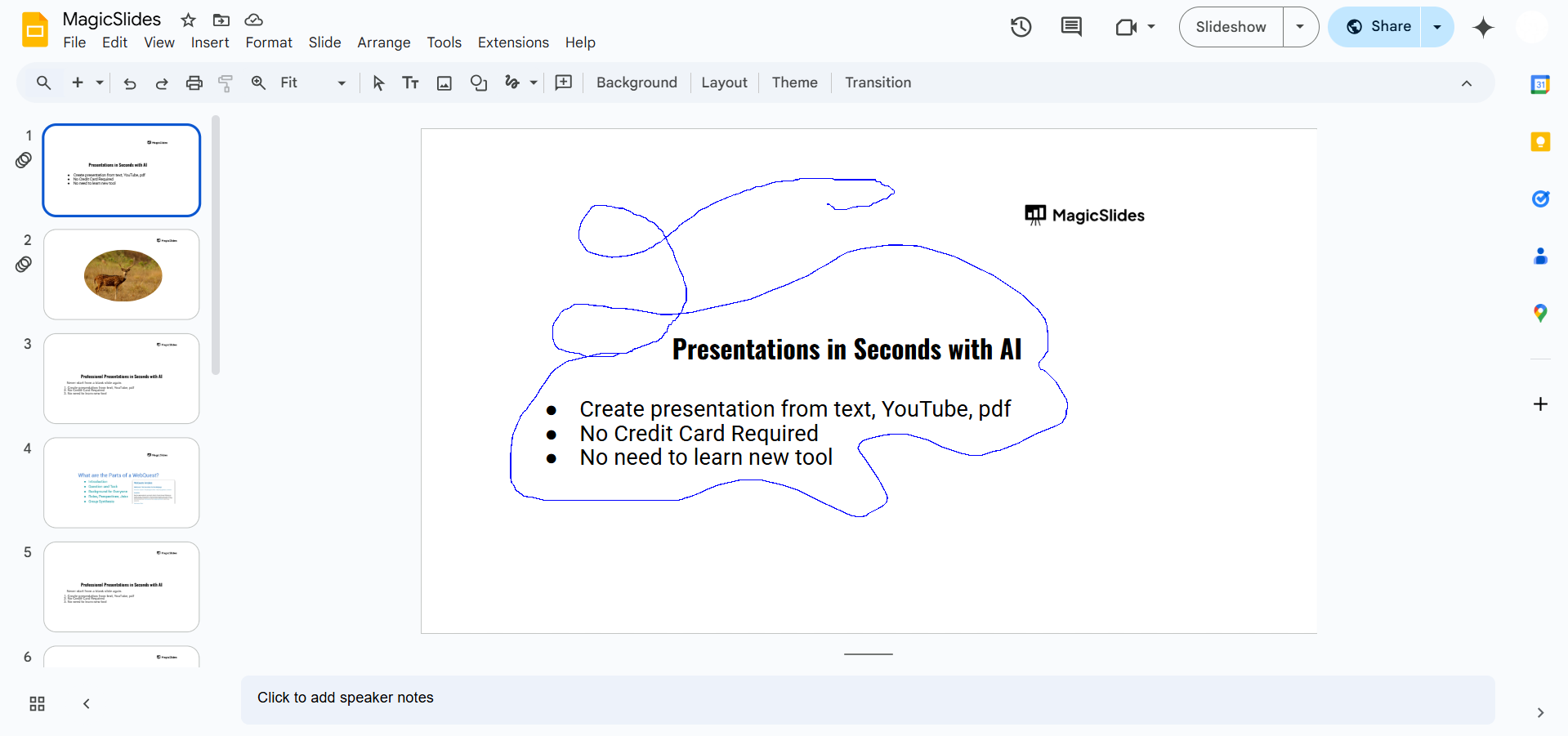
- Click and hold your mouse to start drawing.
- Move your cursor freely to create an irregular shape.
- Release the mouse button when done.
- Using Polyline:
- Click to place the first point.
- Keep clicking to create connected lines forming your shape.
- To finish the shape, click on the starting point to close it.
Step 4: Customize Your Shape
Once you’ve drawn the shape, you can modify it:
- Click on the shape to resize it using the corner handles.
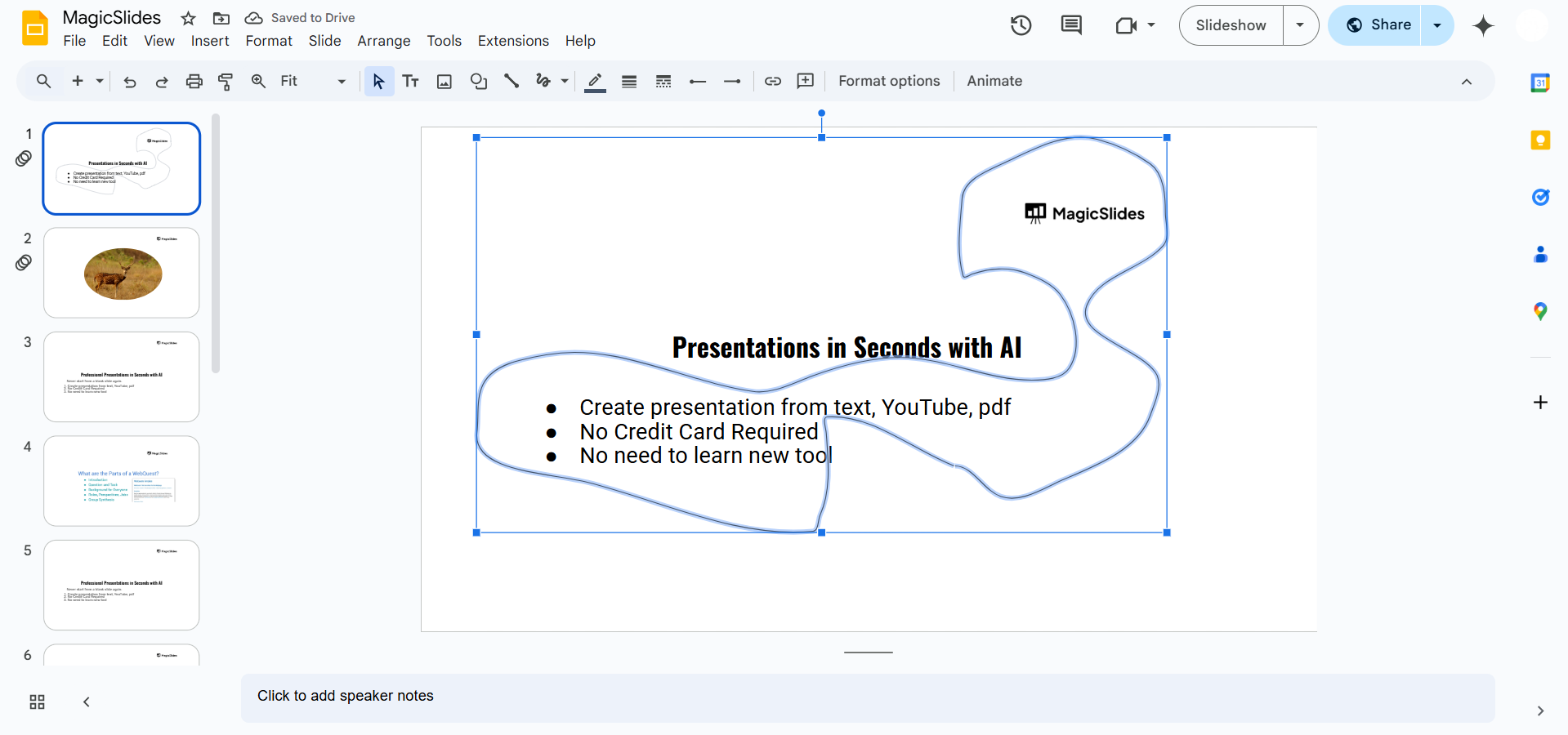
- Change the color by clicking on the Fill color tool in the toolbar.
- Adjust the border color and thickness for better visibility.
Step 5: Save or Use the Shape
Move the shape anywhere on the slide. Copy and paste it if needed for duplication.
If you want to reuse the shape later, you can group it with other elements by selecting it and clicking Arrange > Group.
Drawing irregular shapes in Google Slides can be a bit tricky, but MagicSlides.app makes it easier! Whether you need custom shapes or a fully-designed presentation, MagicSlides.app will generate professional slides tailored to your needs in just a few clicks.
Conclusion
Creating an irregular shape in Google Slides is easy using the Scribble or Polyline tool.
Whether you’re designing a custom graphic, highlighting a section, or adding creative elements, these tools allow you to personalize your slides efficiently.
FAQs About Drawing Irregular Shapes in Google Slides
Can I draw a freehand shape in Google Slides?
Yes! Use the Scribble tool under the Insert > Line menu to draw freehand shapes.
How do I edit an irregular shape after drawing it?
Click on the shape to select it, then use the blue handles to resize or modify its position.
Can I fill an irregular shape with color?
Yes! After drawing the shape, click on the Fill color option in the toolbar to add color.
Now you can create custom shapes in Google Slides to enhance your presentations! 🎨🚀


