How do I insert a Video Clip into PowerPoint


Easily insert video clips into PowerPoint to create engaging, dynamic, and visually appealing presentations effortlessly
How to Insert a Video Clip into PowerPoint
Adding a video clip to PowerPoint can make your presentation more engaging and visually appealing.
Whether it’s a tutorial, an animation, or a recorded message, inserting a video can help explain concepts better.
PowerPoint allows you to insert videos from your computer or online sources easily. Follow this step-by-step guide to add a video to your presentation.
Step-by-Step Guide to Insert a Video Clip into PowerPoint
Step 1: Open PowerPoint and Select a Slide
Open Microsoft PowerPoint on your computer. Navigate to the slide where you want to insert the video.
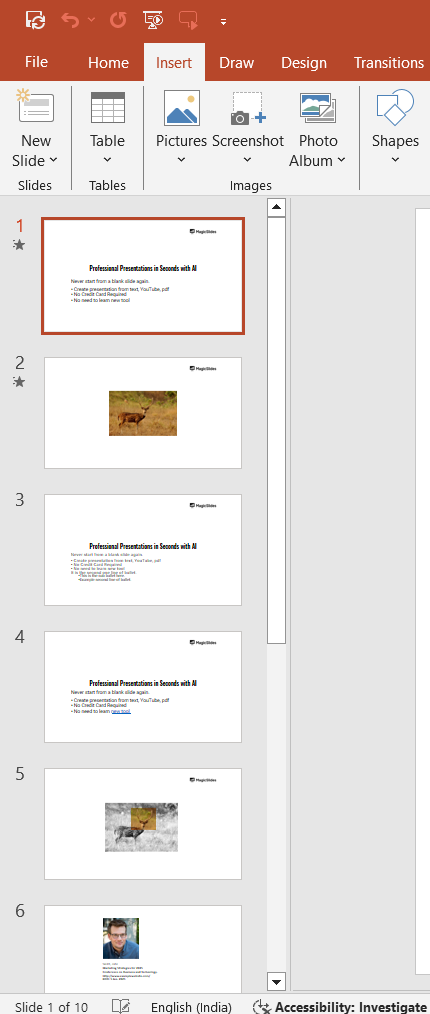
Step 2: Click on the "Insert" Tab
In the PowerPoint ribbon (top menu), click on the "Insert" tab. This tab contains various media options, including video insertion.
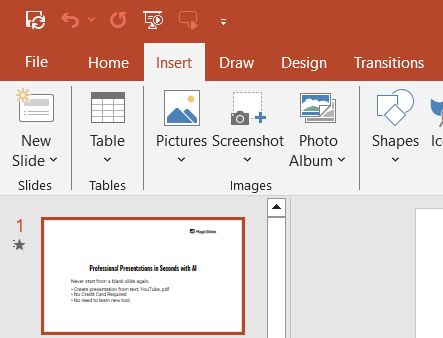
Step 3: Choose "Video" Option
Click on the "Video" drop-down menu in the "Media" section.
You will see two options:
- "This Device" – Insert a video from your computer.
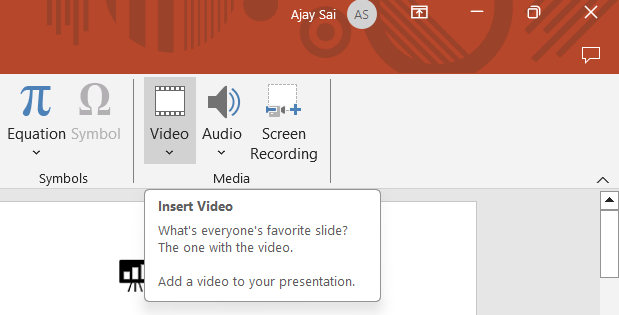
- "Online Video" – Add a video from YouTube or another online source.
Step 4: Insert a Video from Your Computer (Offline Method)
Select "This Device" from the Video menu. Locate the video file on your computer and click "Insert."
The video will appear on your slide, ready to be resized and moved.
Step 5: Insert a Video from an Online Source (YouTube or Other)
Select "Online Video." Copy the URL of the video (e.g., from YouTube).

Paste the link into the "Insert Video" box and click "Insert." The video will be embedded in your slide.
Step 6: Adjust Video Playback Settings
Click on the video to reveal the "Playback" tab in the ribbon.
Choose how the video will play:
- Automatically – The video starts playing when the slide appears.
- When Clicked – The video plays when you click on it.
- Loop Until Stopped – The video keeps playing until you stop it.
You can also trim the video or adjust its volume.
Step 7: Save and Preview the Presentation
Click "File" > "Save" to save your PowerPoint with the video inserted.
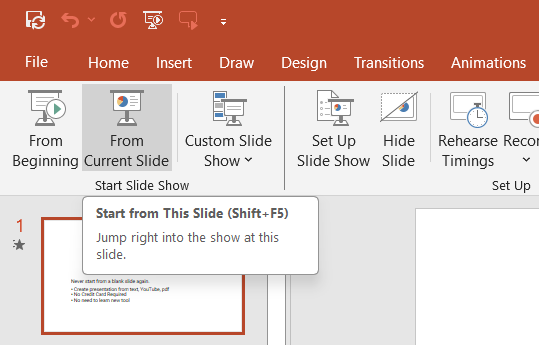
Click "Slide Show" > "From Current Slide" to preview how the video plays during the presentation.
Inserting videos into PowerPoint can make your presentations more engaging. But if you want to create an entire AI-powered presentation effortlessly, try MagicSlides.app it generates professional slides in seconds!
Conclusion
Inserting a video clip in PowerPoint is an excellent way to make your presentations more dynamic and engaging.
Whether using a local file or an online video, following these simple steps will ensure a smooth integration.
FAQs About Inserting a Video Clip in PowerPoint
Can I insert any video format into PowerPoint?
PowerPoint supports formats like MP4, AVI, WMV, and MOV. If a video doesn’t work, try converting it to MP4.
Why won’t my video play in PowerPoint?
Ensure the video format is supported, and check the playback settings in the "Playback" tab.
Can I add captions or subtitles to a video in PowerPoint?
Yes, in the "Playback" tab, you can add subtitles using the "Insert Captions" option.
Now you can effortlessly insert videos into your PowerPoint presentations for a more engaging experience! 🚀


