How Do You Delete Presentation Slides On Google Slides


Optimize your Google Slides experience by mastering the quick and simple process of deleting slides.
Managing slides is an essential skill when crafting a presentation in Google Slides. Whether you're refining your content or restructuring your narrative, the ability to delete slides efficiently is key. In this guide, we'll walk you through the step-by-step process of removing slides from your Google Slides presentation, ensuring a smooth and polished result.
Steps to Delete Slides in Google Slides:
Step 1: Open Your Presentation
Begin by opening the Google Slides presentation from which you want to delete slides.
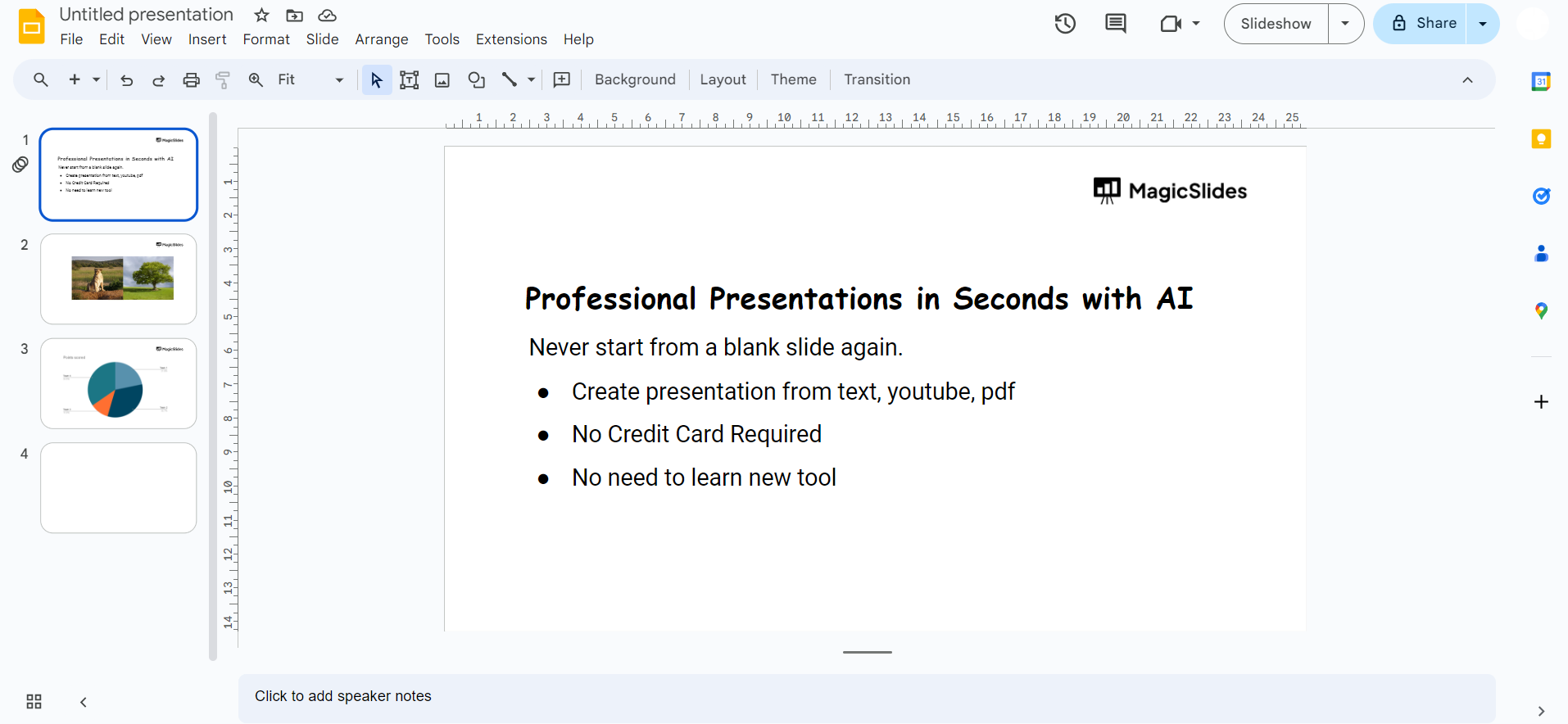
Step 2: Navigate to the Slide Sorter View
In the left-hand corner, click on the 'Slide' icon or go to 'View' and select 'Slide Sorter.' This view displays all your slides in a grid.
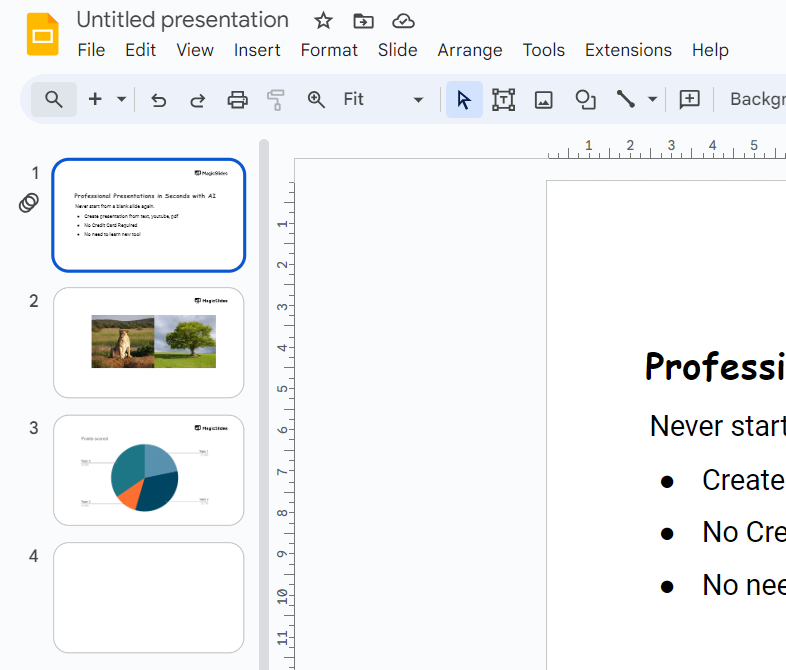
Step 3: Select Slides to Delete
Click on the slide or slides you want to remove. You can select multiple slides at once by holding down the 'Ctrl' key (Windows) or 'Command' key (Mac).
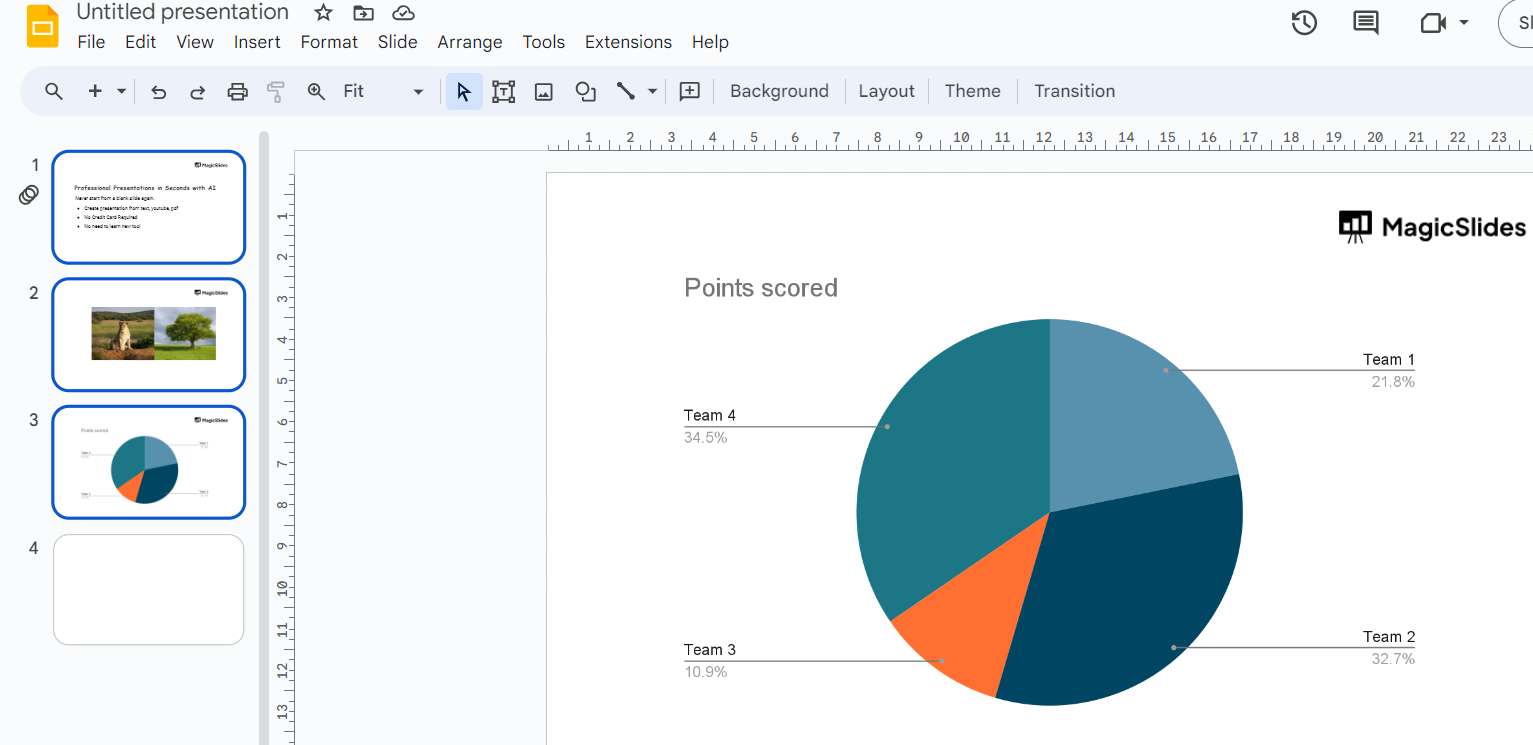
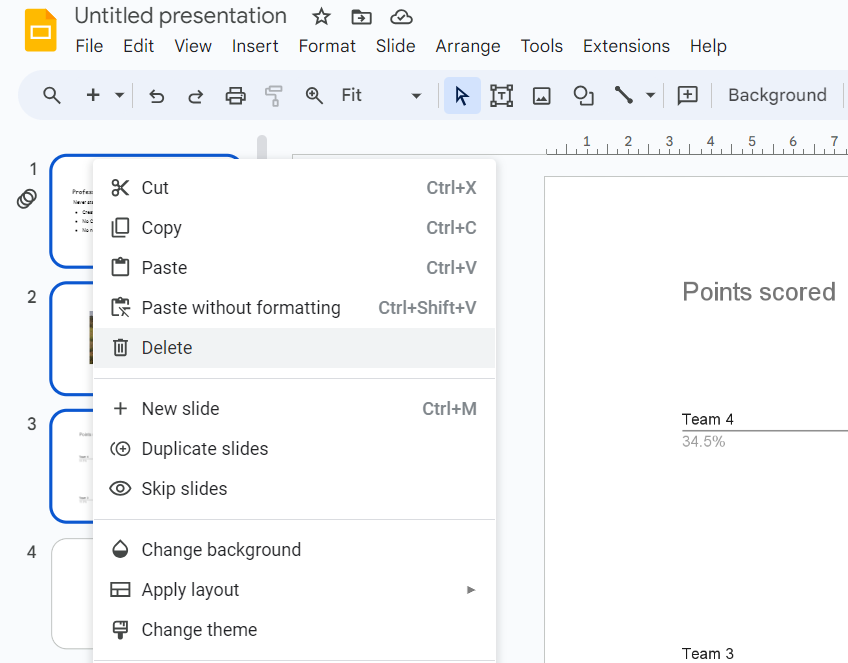
Step 4: Right-Click or Use the Menu
Right-click on the selected slides, and from the context menu, choose 'Delete.' Alternatively, you can use the 'Edit' menu and select 'Delete.'
Step 5: Confirm Deletion
A confirmation prompt will appear. Click 'Delete' to confirm the removal of the selected slides.
Step 6: Return to Normal View
After deleting the slides, return to the normal view by clicking on the 'Normal' icon or going to 'View' and selecting 'Normal.'
Conclusion:
Deleting slides in Google Slides is a straightforward process that allows you to refine and perfect your presentation with ease. Whether you're eliminating unnecessary content, reordering your slides, or making last-minute adjustments, mastering this skill enhances your efficiency in creating impactful presentations. Remember, Google Slides is designed to be user-friendly, providing you with the tools to streamline your workflow and deliver polished presentations effortlessly.
Frequently Asked Questions:
Can I recover deleted slides in Google Slides?
No, once deleted, slides cannot be recovered, so double-check before confirming the deletion.
Is there a shortcut for deleting slides in Google Slides?
Yes, after selecting the slides, press the 'Backspace' or 'Delete' key on your keyboard.
Can I delete multiple slides at once in Google Slides?
Absolutely, in Slide Sorter View, hold 'Ctrl' (Windows) or 'Command' (Mac) while selecting slides.
Does deleting a slide affect the slide numbers in Google Slides?
Yes, deleting a slide adjusts the numbering automatically, maintaining the presentation's sequence.


