How do you make the Bullet Spacing Smaller in PowerPoint


Reduce bullet spacing in PowerPoint for a cleaner, more professional slide layout with these easy steps
How to Make the Bullet Spacing Smaller in PowerPoint
Bullet points are essential for organizing content in PowerPoint, but sometimes the default spacing is too wide, making slides look cluttered.
Adjusting the bullet spacing can improve readability and make your slides more visually appealing.
This guide will walk you through different ways to reduce bullet spacing in PowerPoint.
Steps to Make Bullet Spacing Smaller in PowerPoint
Method #1: Adjust Line Spacing
Step 1: Select the Bulleted Text
Open your PowerPoint presentation. Click on the text box that contains the bulleted list.
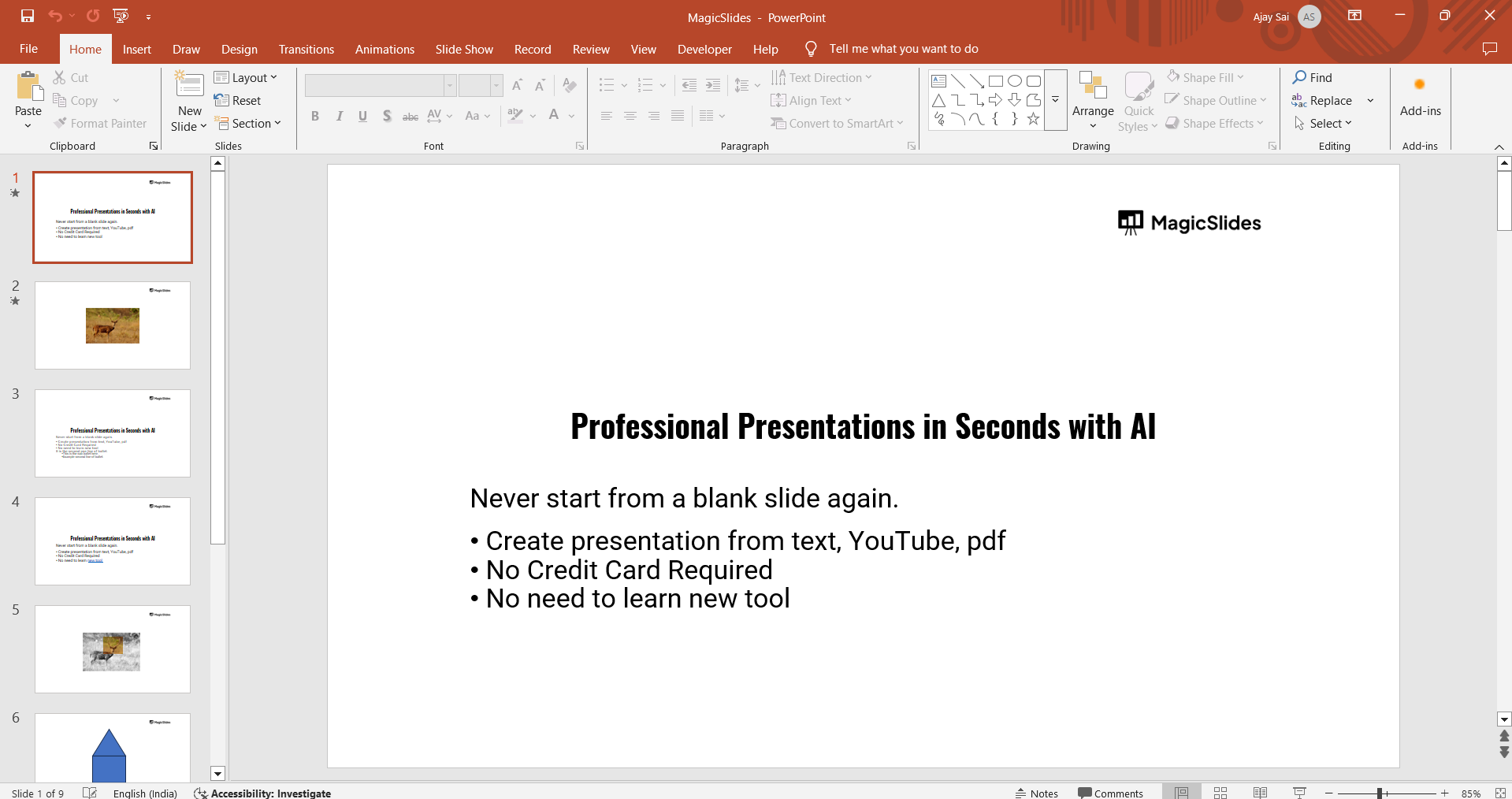
Highlight the text where you want to adjust the spacing.
Step 2: Open the Paragraph Settings
Go to the Home tab in the PowerPoint ribbon.
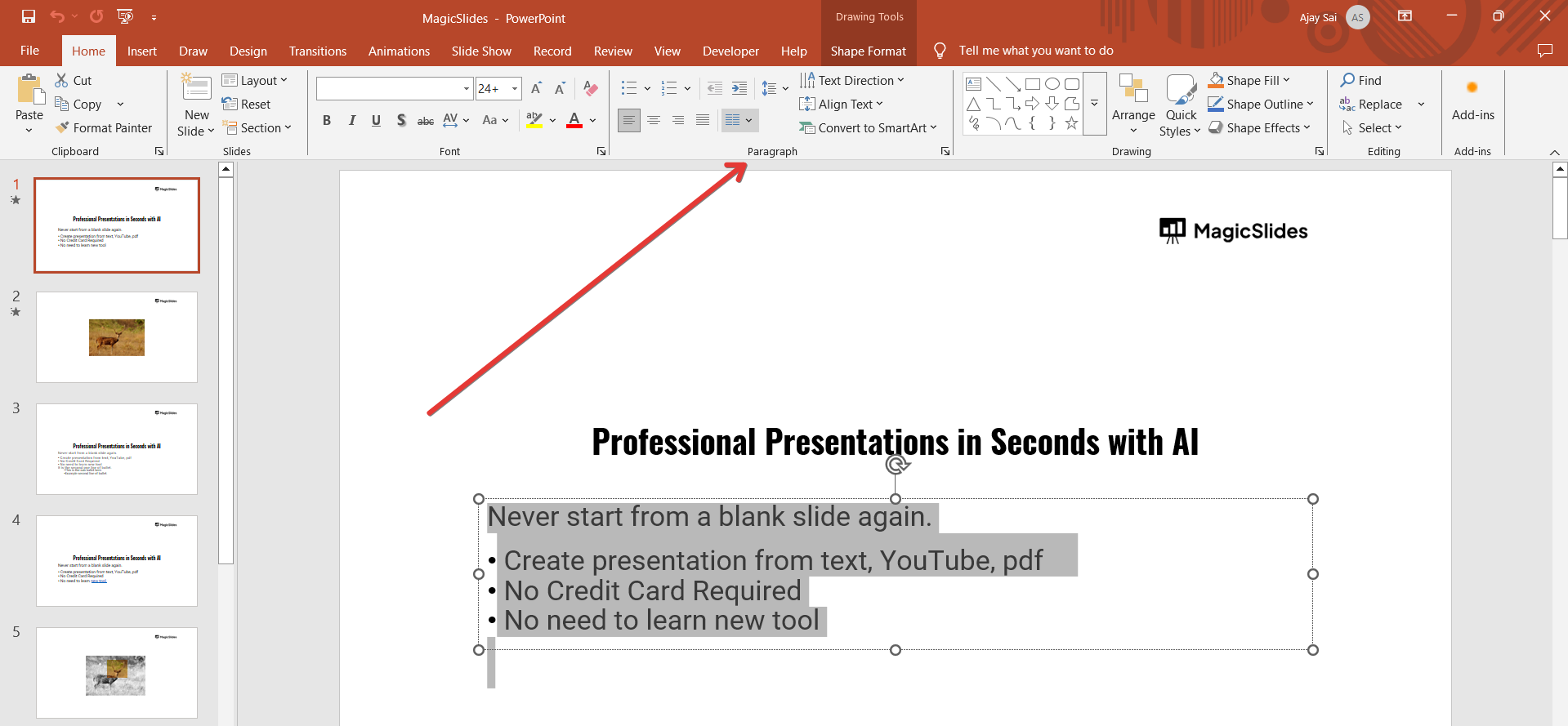
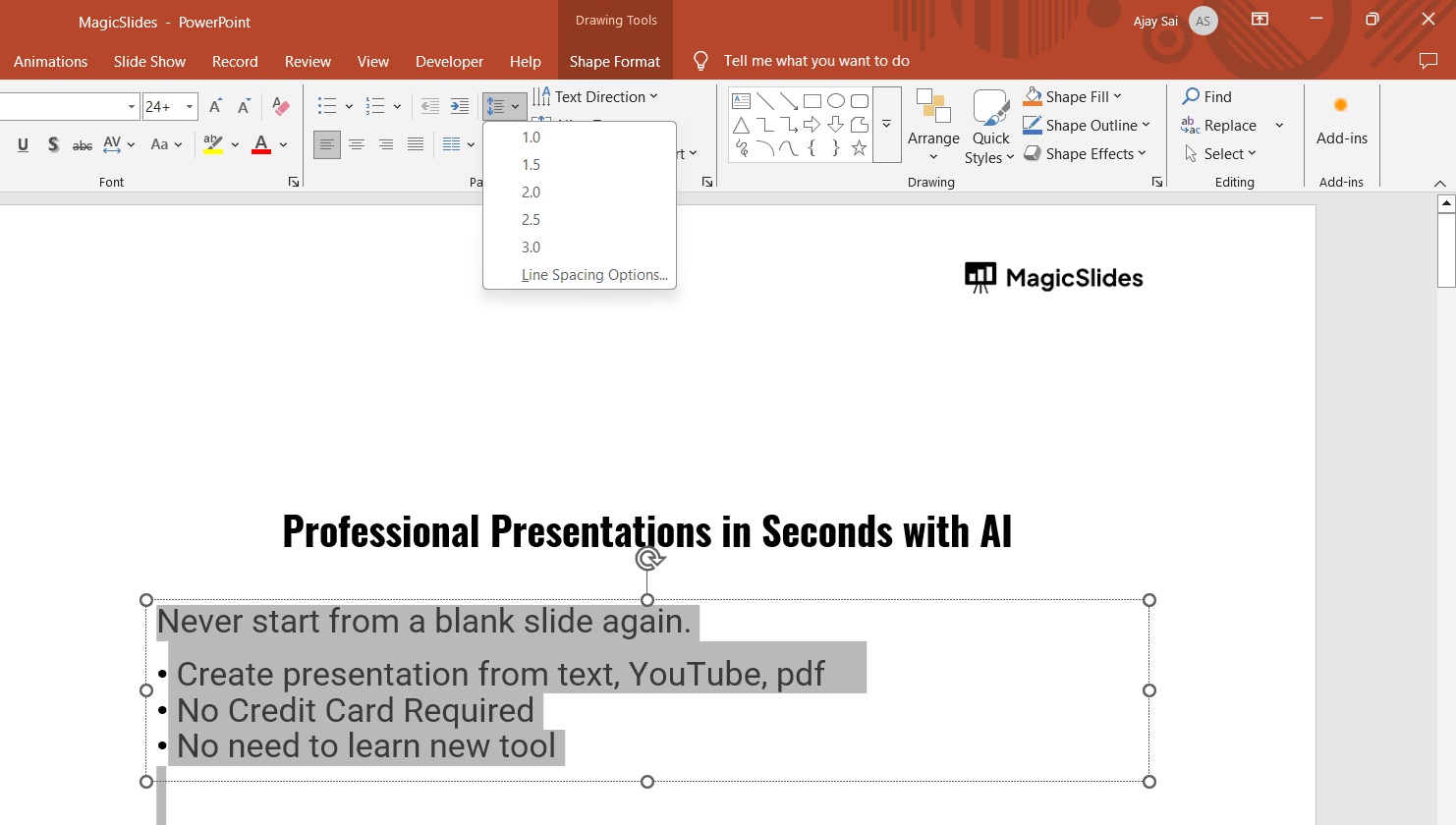
Click on the small arrow next to the Line Spacing button in the Paragraph section.
Select Line Spacing Options from the dropdown menu.
Step 3: Adjust Spacing Settings
In the Paragraph dialog box, look for the Line spacing section. Change the Before and After spacing values to a smaller number (e.g., 0 pt or 2 pt).
Adjust the line spacing from Multiple to Exactly and set a lower value (e.g., 0.8).
Step 4: Apply and Save
Click OK to apply the changes. Your bullet points should now have smaller spacing.
Method 2: Adjust Indentation of Bullet Points
Step 1: Select the Bulleted List
Click on the text box containing the bullets.
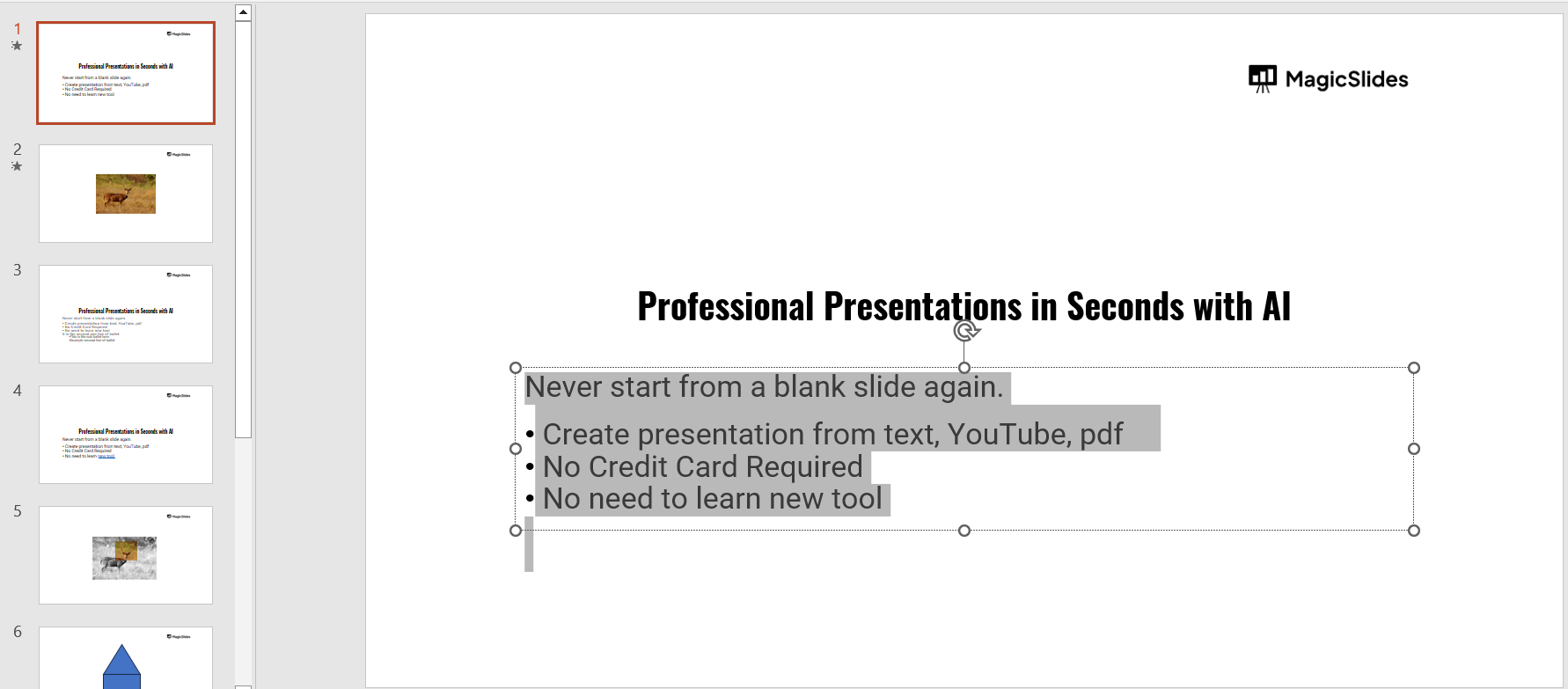
Step 2: Open the Ruler
Go to the View tab and check the Ruler box if it’s not visible.
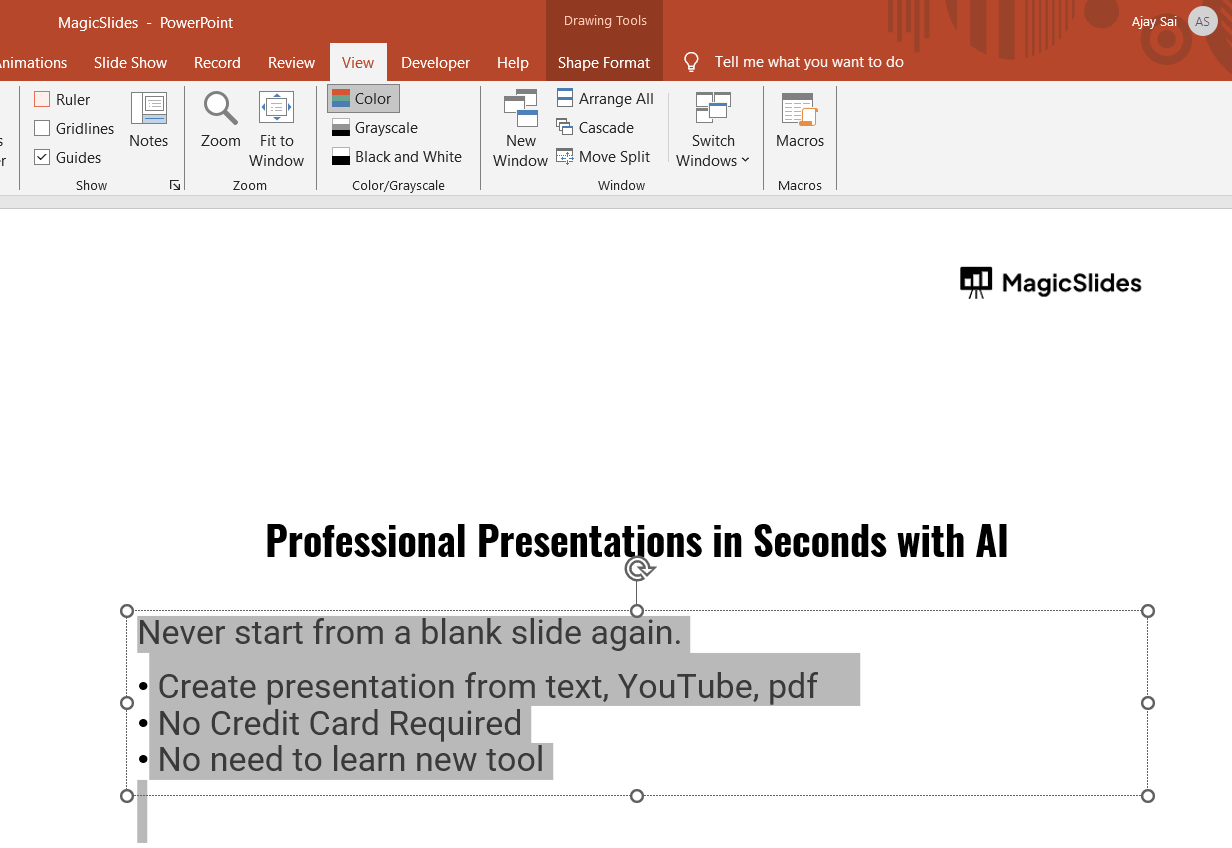
Step 3: Adjust the Indents
Move the first-line indent marker (top triangle) closer to the left to reduce space.
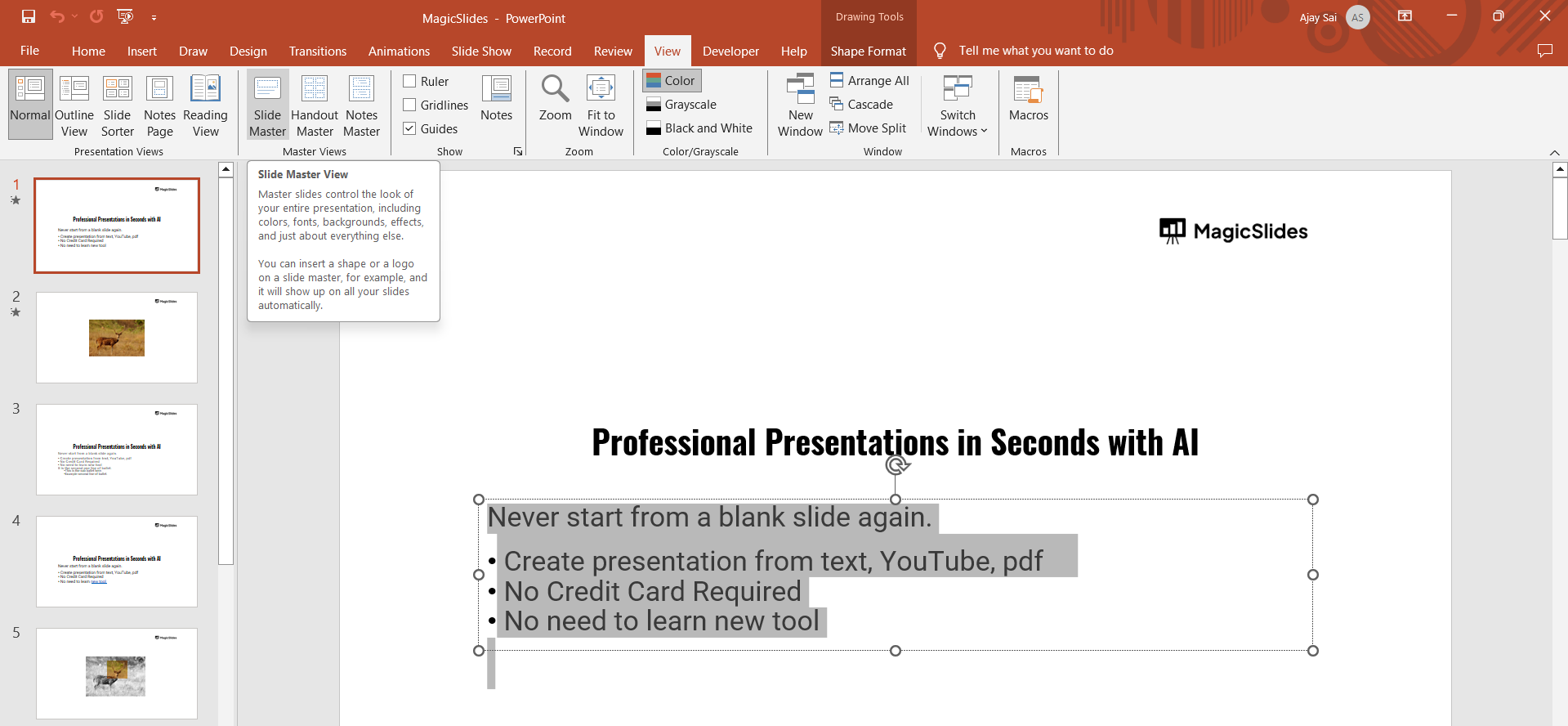
Adjust the hanging indent marker (bottom triangle) to reduce bullet point indentation.
Step 4: Save the Changes
Click anywhere outside the text box to see the adjustments.
Adjusting bullet spacing can improve readability, but if you’re looking for an effortless way to create structured, professional slides, check out MagicSlides.app. It automatically generates slides with perfectly formatted bullet points in seconds!
Conclusion
Reducing bullet spacing in PowerPoint helps create a cleaner, more professional slide layout.
You can adjust the line spacing, change indentation using the ruler, or modify the Slide Master to ensure consistent formatting throughout your presentation.
FAQs on Bullet Spacing in PowerPoint
Can I change bullet spacing for all slides at once?
Yes, you can adjust bullet spacing for all slides by modifying the Slide Master under the View tab.
Why is there too much space between my bullets in PowerPoint?
This is usually due to default line spacing or extra before/after paragraph spacing. Adjust these settings in the Paragraph menu.
What is the best spacing for bullet points in PowerPoint?
For readability, use "Exactly" 0.8 – 1.0 pt line spacing with 0 pt before and after spacing.
Now, you can easily adjust bullet spacing in PowerPoint to create visually appealing and well-structured slides! 🚀


