How to add a video to google slides on iphone


Elevate your Google Slides on iPhone by effortlessly incorporating videos. Follow these steps for perfection.
Enhance your Google Slides presentations with dynamic content by seamlessly integrating videos. Follow this comprehensive guide on adding videos directly from your iPhone to captivate your audience.
How to add a video to google slides on iphone
Step 1: Upload the Video to Google Drive
Begin by uploading the video to your Google Drive. Ensure it's accessible and shareable.
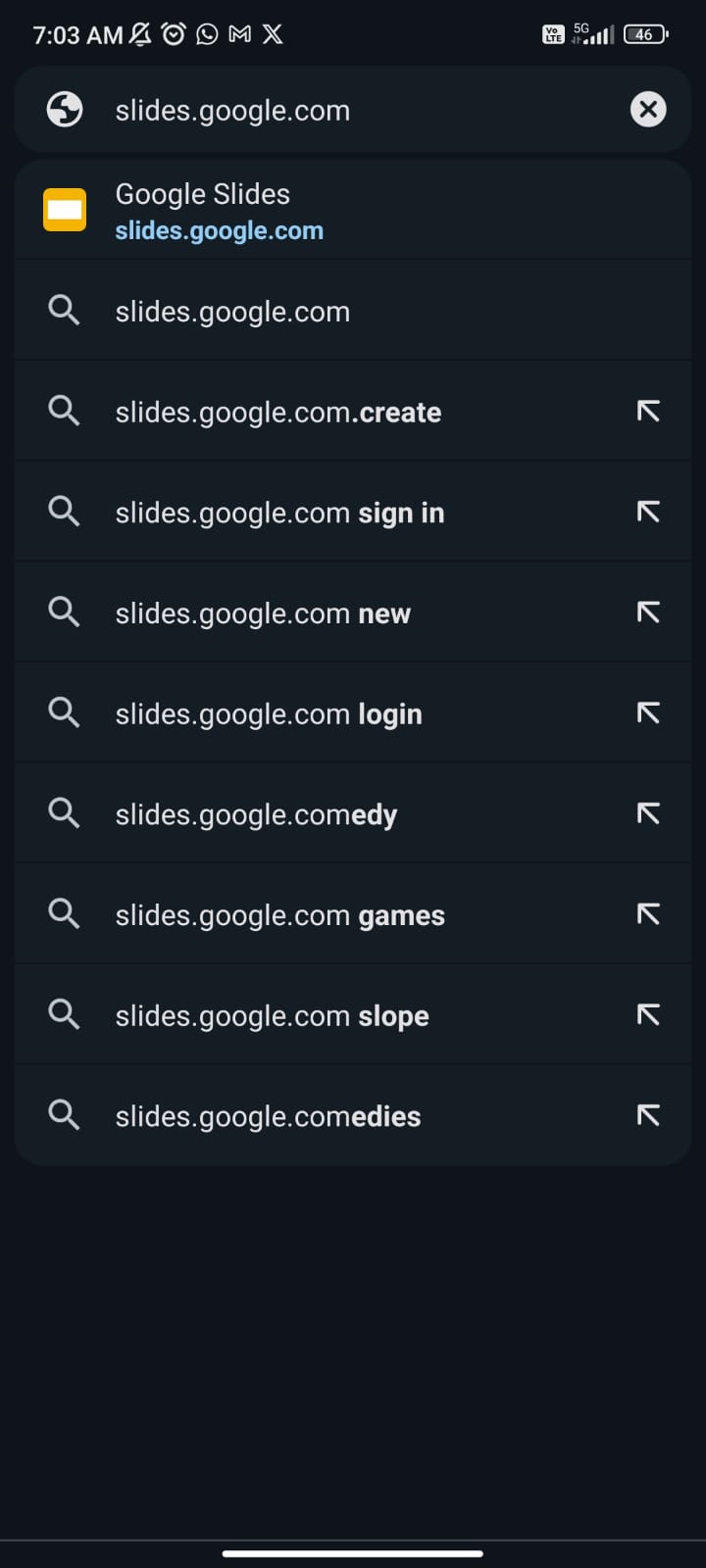
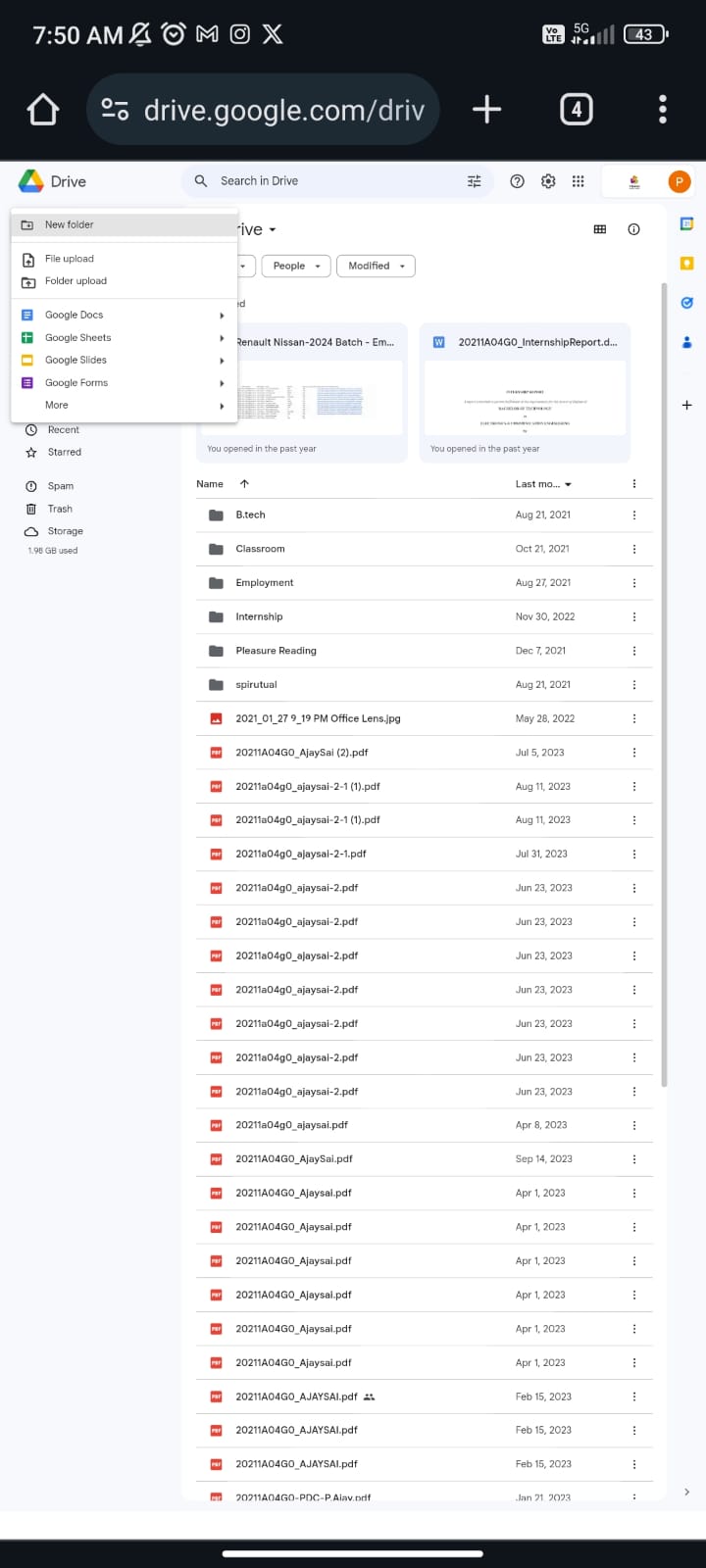
Step 2: Copy the Google Drive Link or YouTube URL
Copy either the Google Drive link or the YouTube URL of the video you wish to add to your presentation.

Step 3: Capture an Engaging Moment and Take a Screenshot
Watch the video and capture a compelling moment. Take a screenshot to create an engaging video thumbnail.(if uploaded video is hosted on YouTube.)
Step 4: Crop the Screenshot to the Right Size
Using your iPhone's editing tools, crop the screenshot to the appropriate size. This will serve as the video thumbnail in your Google Slides.
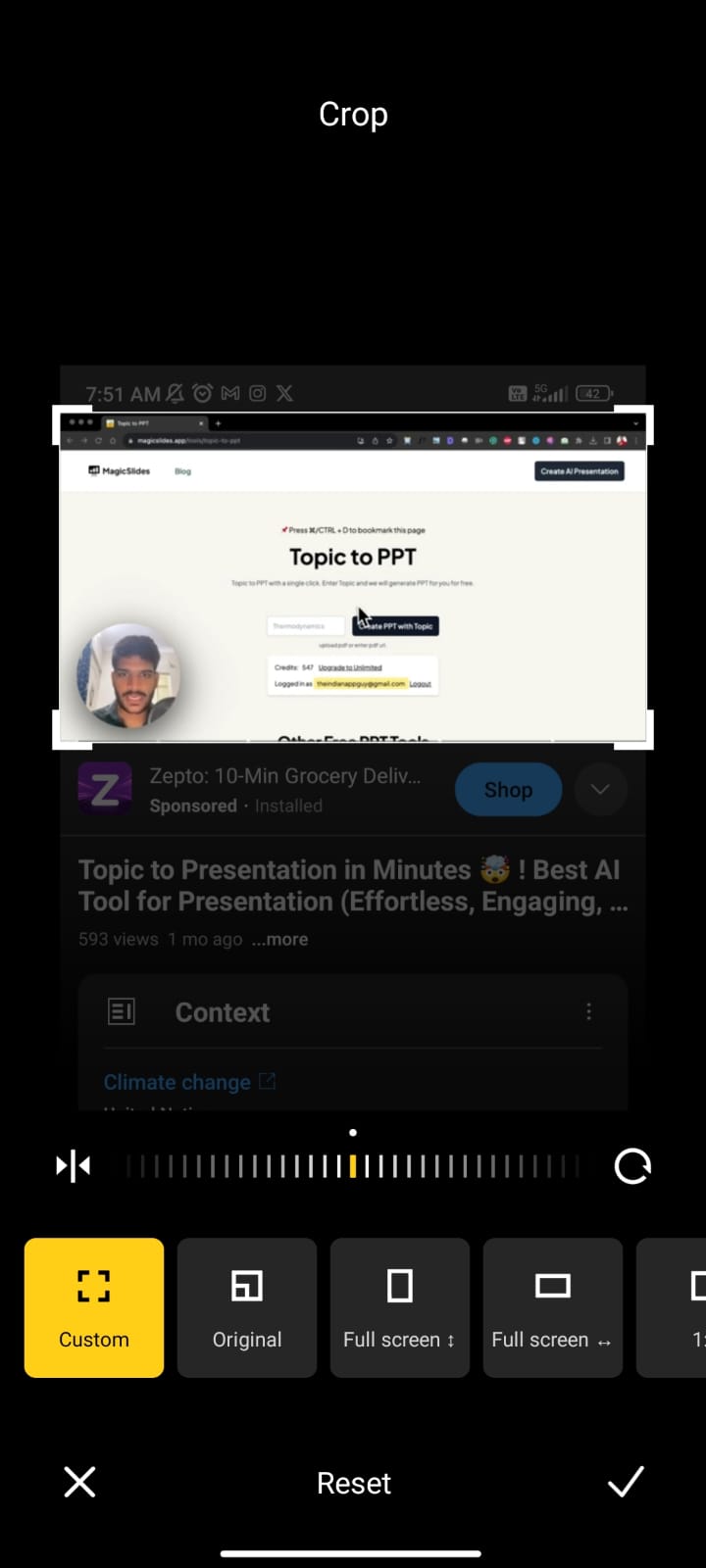
Step 5: Open the Google Slides App and Navigate to the Desired Slide
Launch the Google Slides app on your iPhone and open the slide where you want to embed the video.
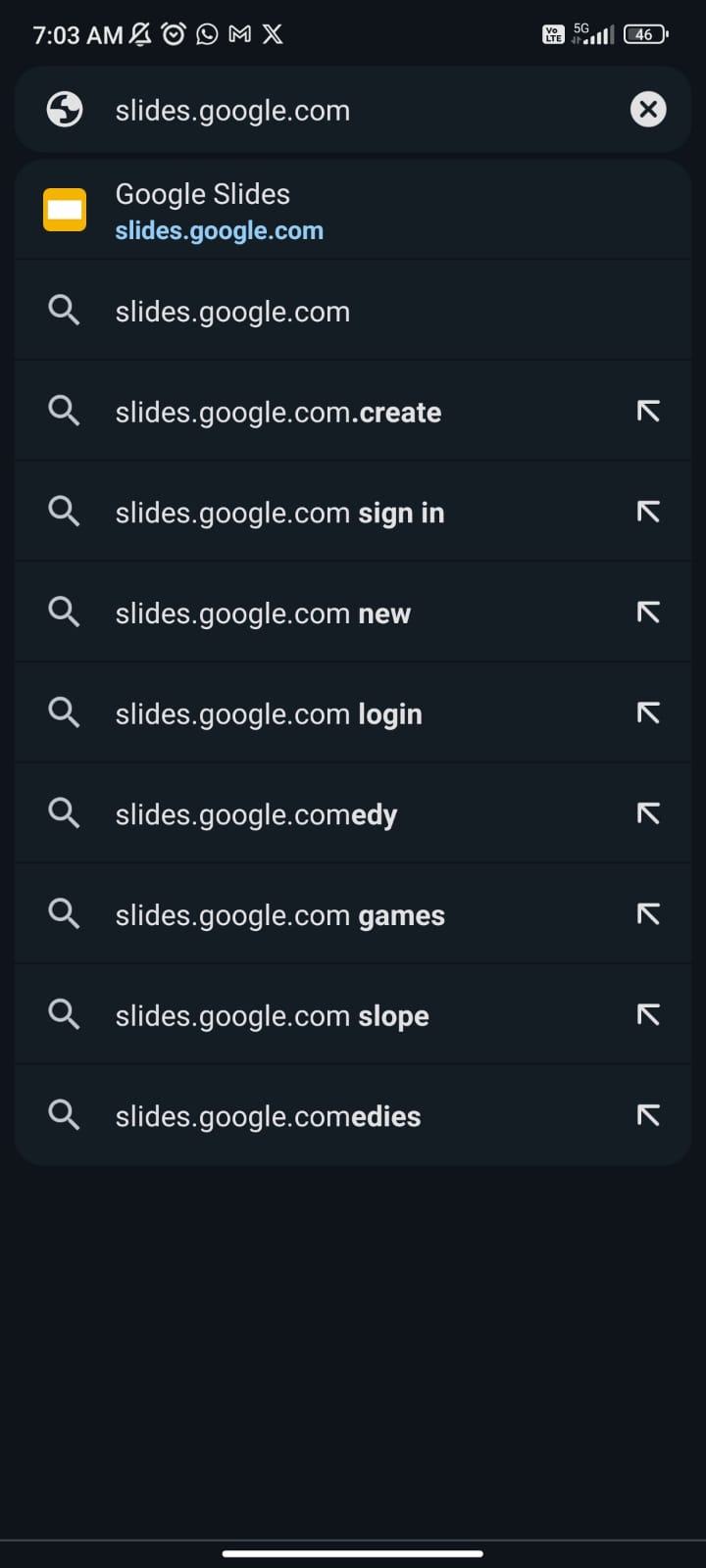
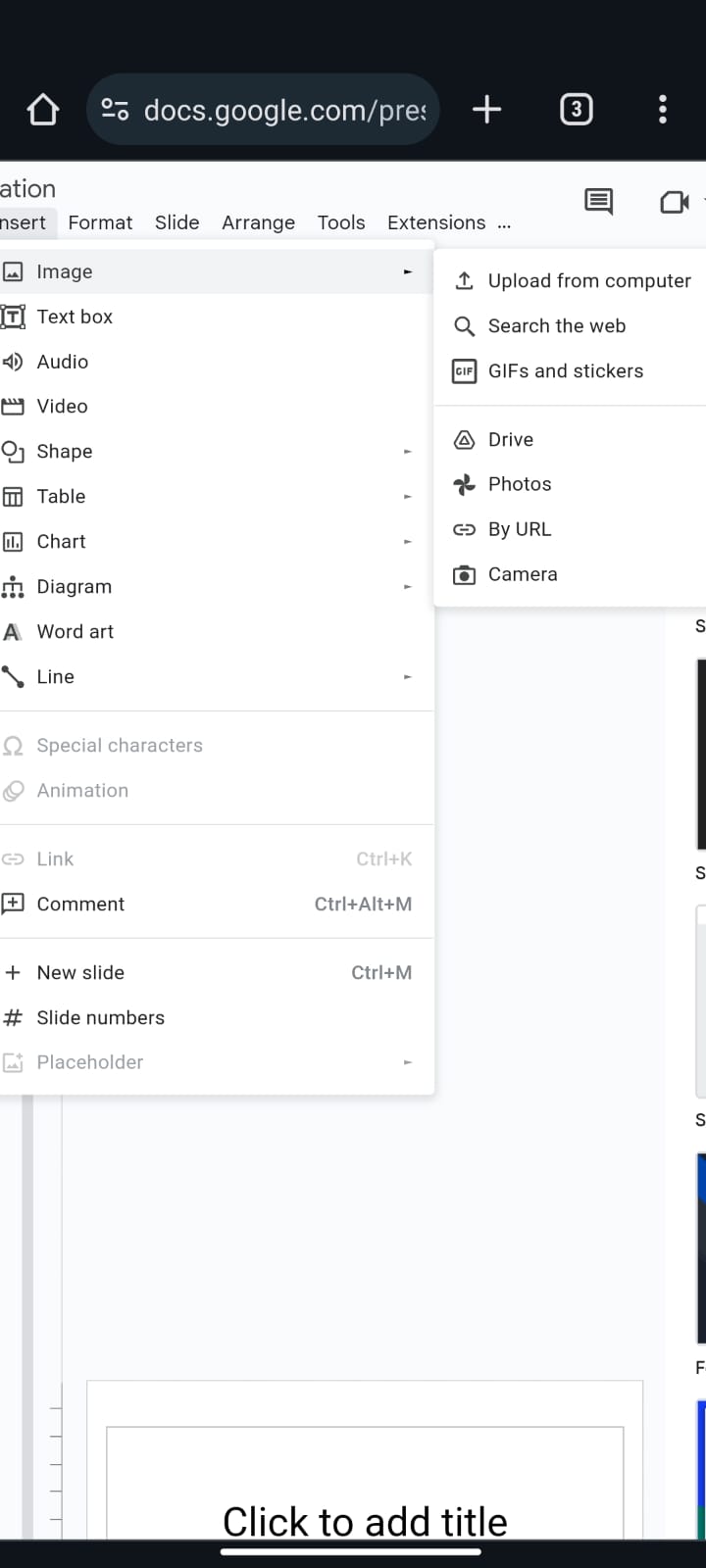
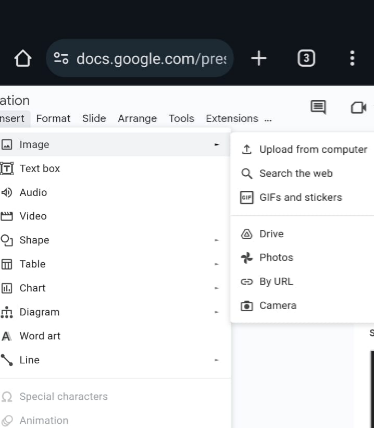
Step 6: Tap the "+" Icon and Choose "Image > From Photos"
Tap the "+" icon located in the top right corner of the screen. Select "Image" and then choose "From Photos."
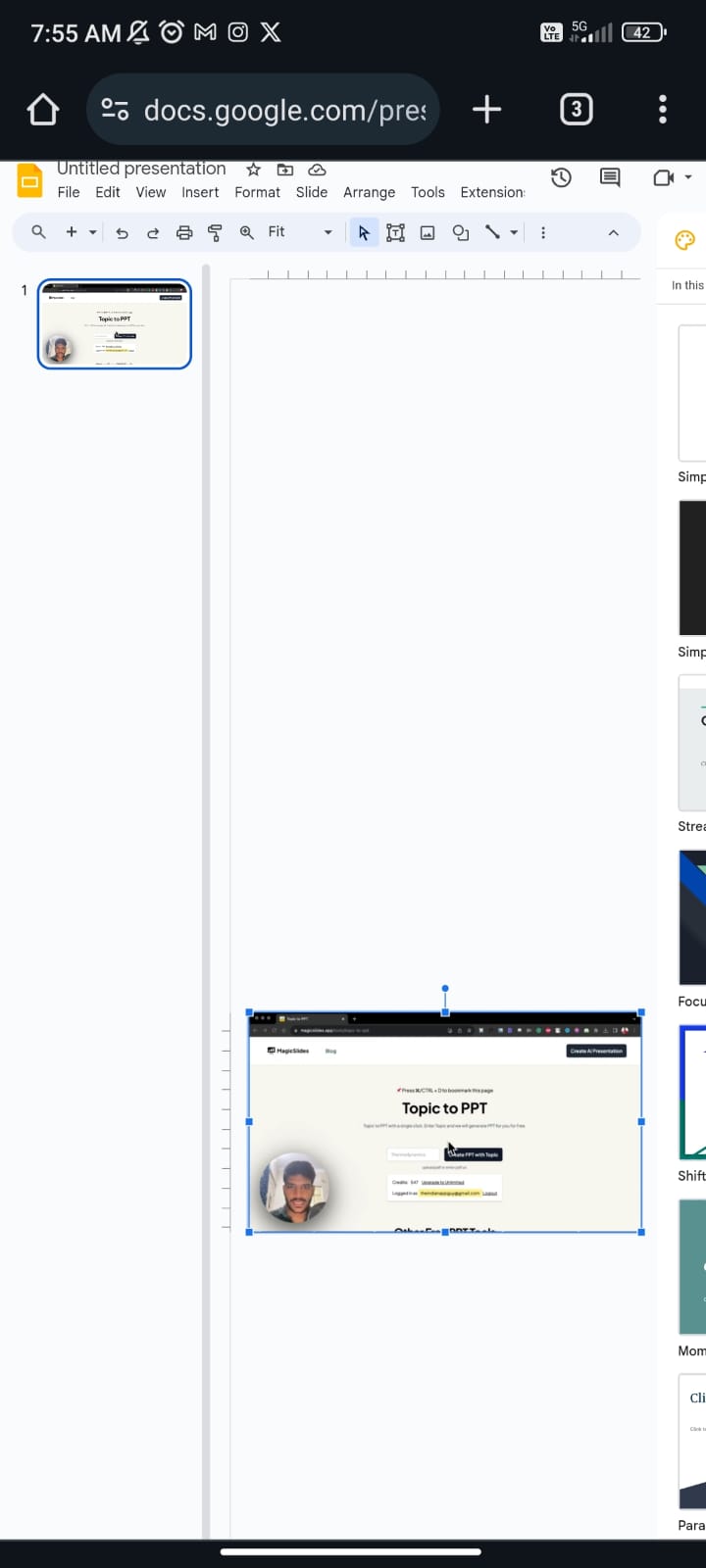
Step 7: Add the Screenshot to the Slide
Insert the cropped screenshot onto the slide to create an appealing video thumbnail.
Step 8: Tap the "+" Again and Choose "Link"
Once the thumbnail is in place, tap the "+" icon again. This time, choose "Link" from the options provided.
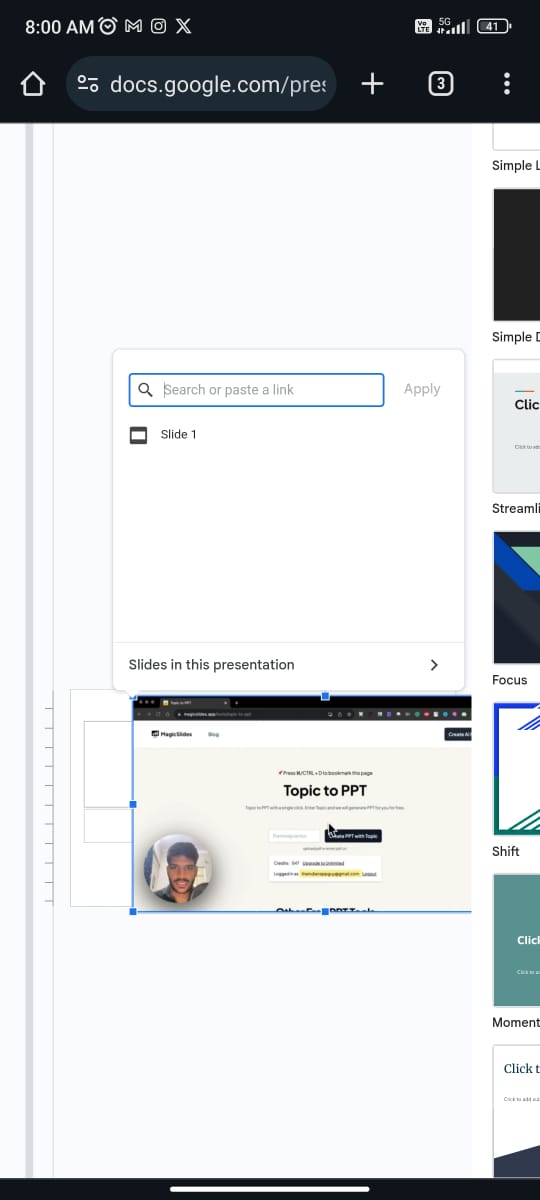
Step 9: Paste the Copied Link in the URL Bar and Tap "✓"
Paste the previously copied Google Drive link or YouTube URL into the URL bar. Confirm by tapping "✓."


Conclusion:
By following these meticulous steps, you've successfully added a video to your Google Slides presentation using your iPhone. This dynamic addition will undoubtedly elevate your presentation and leave a lasting impression on your audience. Captivate, communicate, and create memorable presentations effortlessly with Google Slides on your iPhone.
Frequently Asked Questions:
Q1: Can I directly embed a video into Google Slides on my iPhone?
A: Unfortunately, Google Slides on iPhone doesn't provide a direct embedding feature. The workaround involves adding a video thumbnail linked to Google Drive or YouTube.
Q2: Are there limitations on video formats for Google Slides on iPhone?
A: Google Slides supports common video formats, but it's advisable to use widely compatible formats like MP4 for seamless integration on iPhone presentations.
Q3: Can I add multiple videos to a single slide in Google Slides?
A: While you can add multiple images to a slide, Google Slides allows one video per slide. Consider creating sequential slides for multiple videos.
Q4: Will the audience see the video thumbnail during the presentation?
A: No, the video thumbnail serves as a visual cue for the presenter. During the presentation, only the linked video will play for a seamless audience experience.
Have a look @these info blogs:
- How To Mirror Images In Powerpoint: https://www.magicslides.app/blog/How-to-mirror-images-in-powerpoint
- How To Add Gif In Google Slides: https://www.magicslides.app/blog/How-to-add-gif-in-google-slides
- How To Turn A Powerpoint Into Google Slides: https://www.magicslides.app/blog/How-to-turn-a-powerpoint-into-google-slides
- How To Group Objects In Powerpoint: https://www.magicslides.app/blog/How-to-group-objects-in-powerpoint


