How to Add BG Slides in Google Slides


Learn how to add backgrounds in Google Slides using colors, gradients, or custom images easily
How to Add Background Slides in Google Slides
A well-designed background can enhance your presentation’s visual appeal and make your content stand out.
Google Slides allows you to customize slide backgrounds using colors, images, and gradients.
In this step-by-step guide, you'll learn how to add a background to your slides to improve the overall look of your presentation.
Steps to Add Background Slides in Google Slides
Step 1: Open Your Google Slides Presentation
Open Google Slides in your browser. Select the slide where you want to add a background.
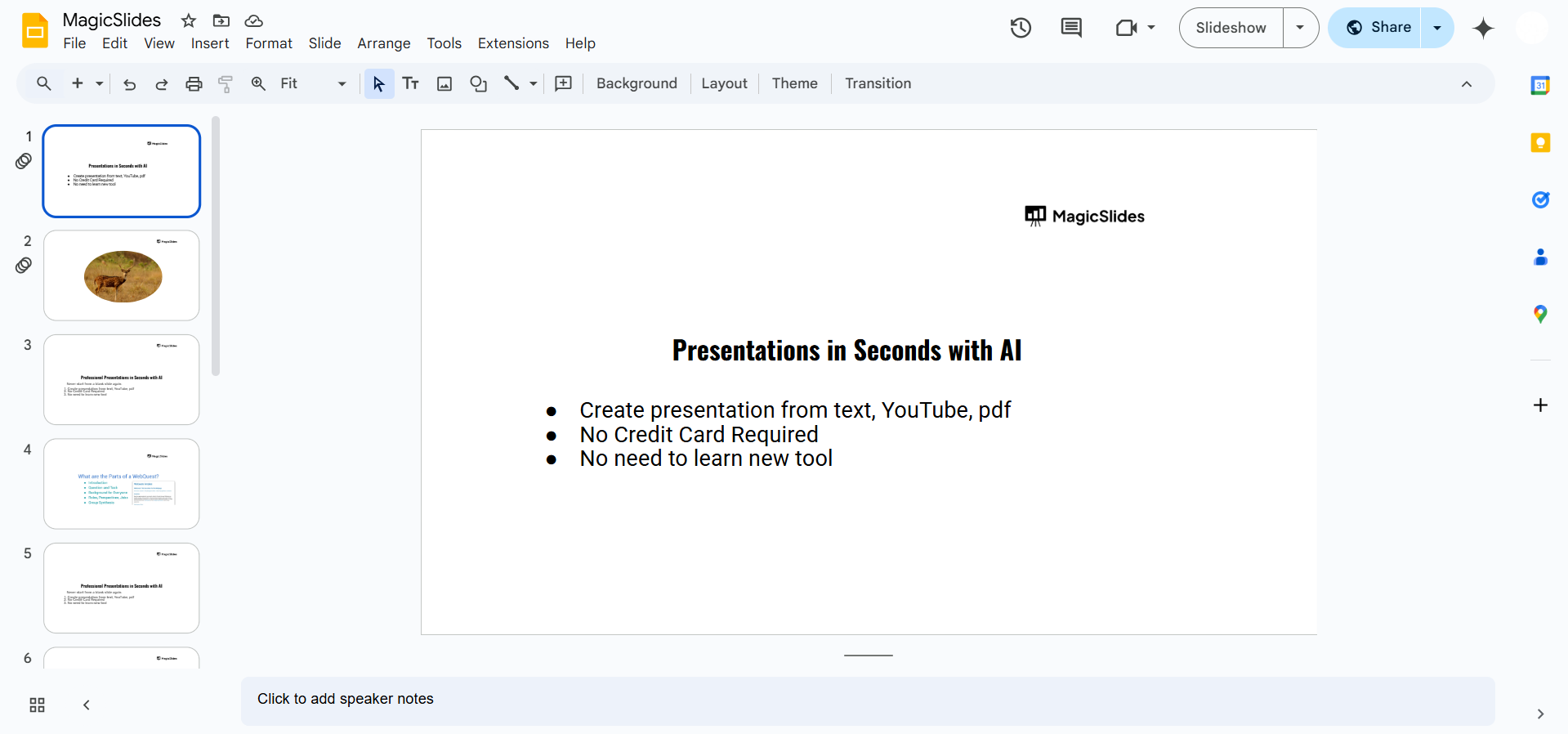
Step 2: Open the Background Settings
Click on the Slide menu in the top toolbar. Select Change background from the dropdown menu.
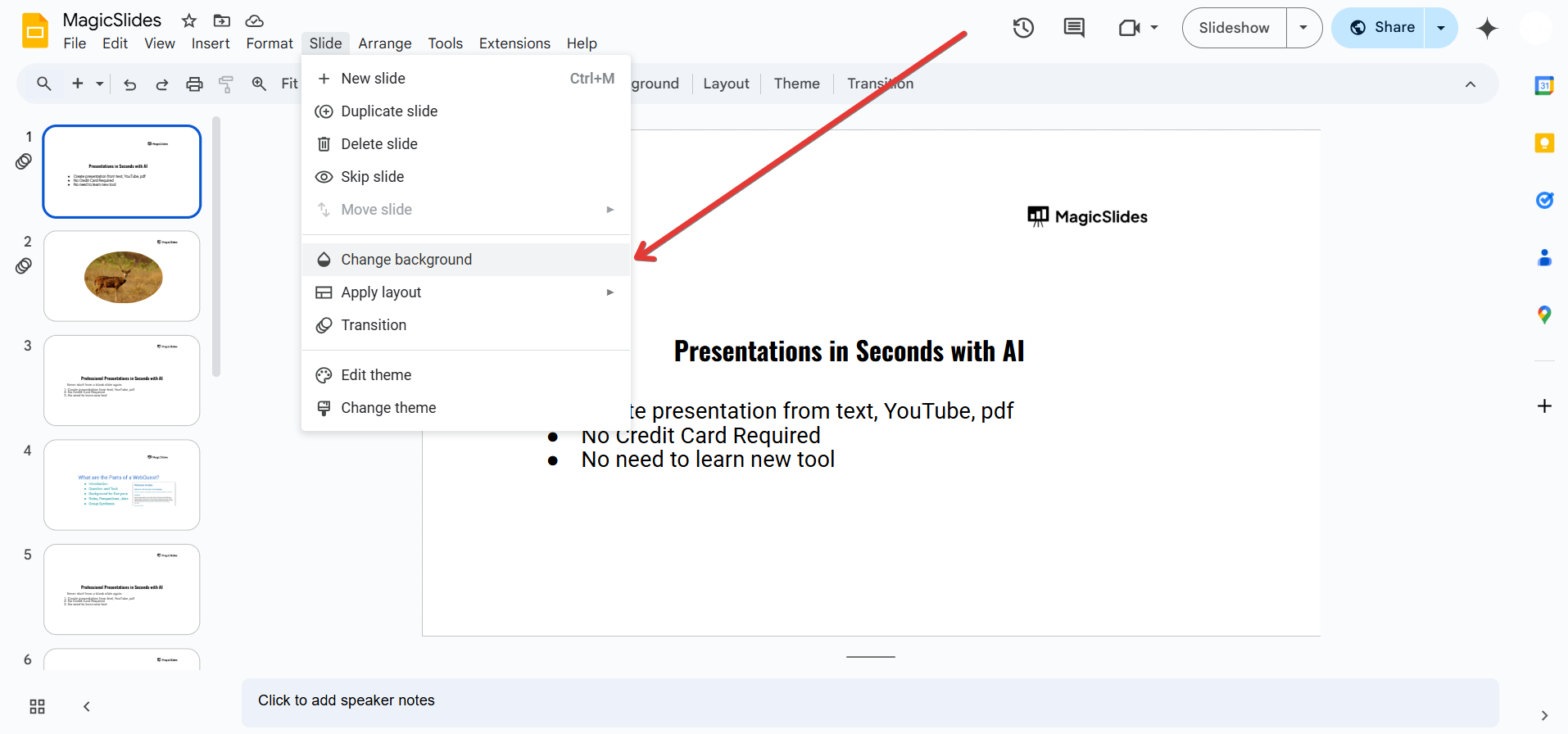
A pop-up window will appear with background customization options.
Step 3: Choose a Background Type
You can add a background using solid colors, gradients, or images:
- For a solid color or gradient:
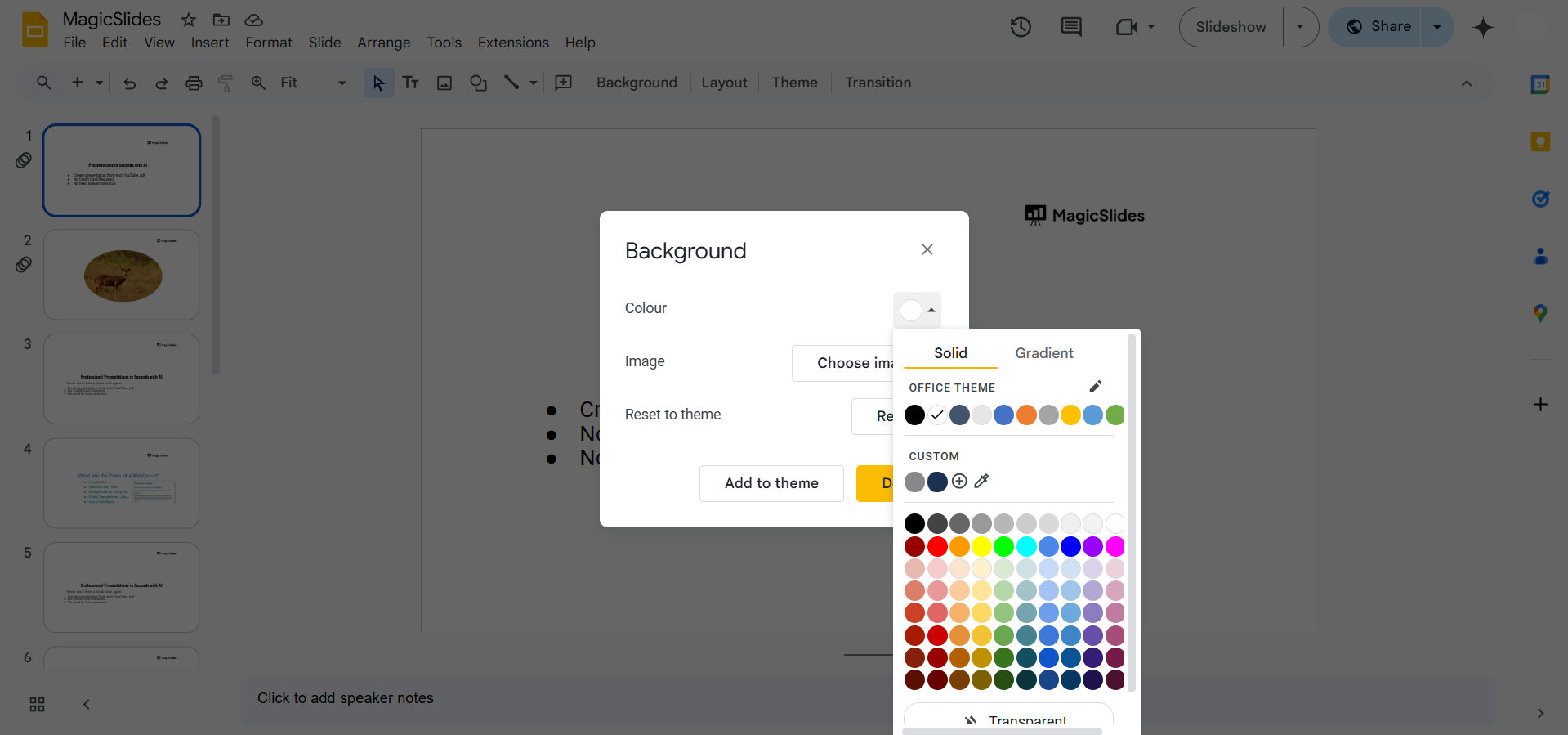
- Click the Color dropdown.
- Choose a solid color or gradient from the available options.
- Click Done to apply it.
- For an image background:
- Click the Choose Image button.
- Upload an image from your computer, Google Drive, or the web.
- Click Done to apply it.
Step 4: Apply the Background to All Slides (Optional)
If you want to use the same background across all slides:
After selecting a background, click Add to theme or Apply to all in the background settings.
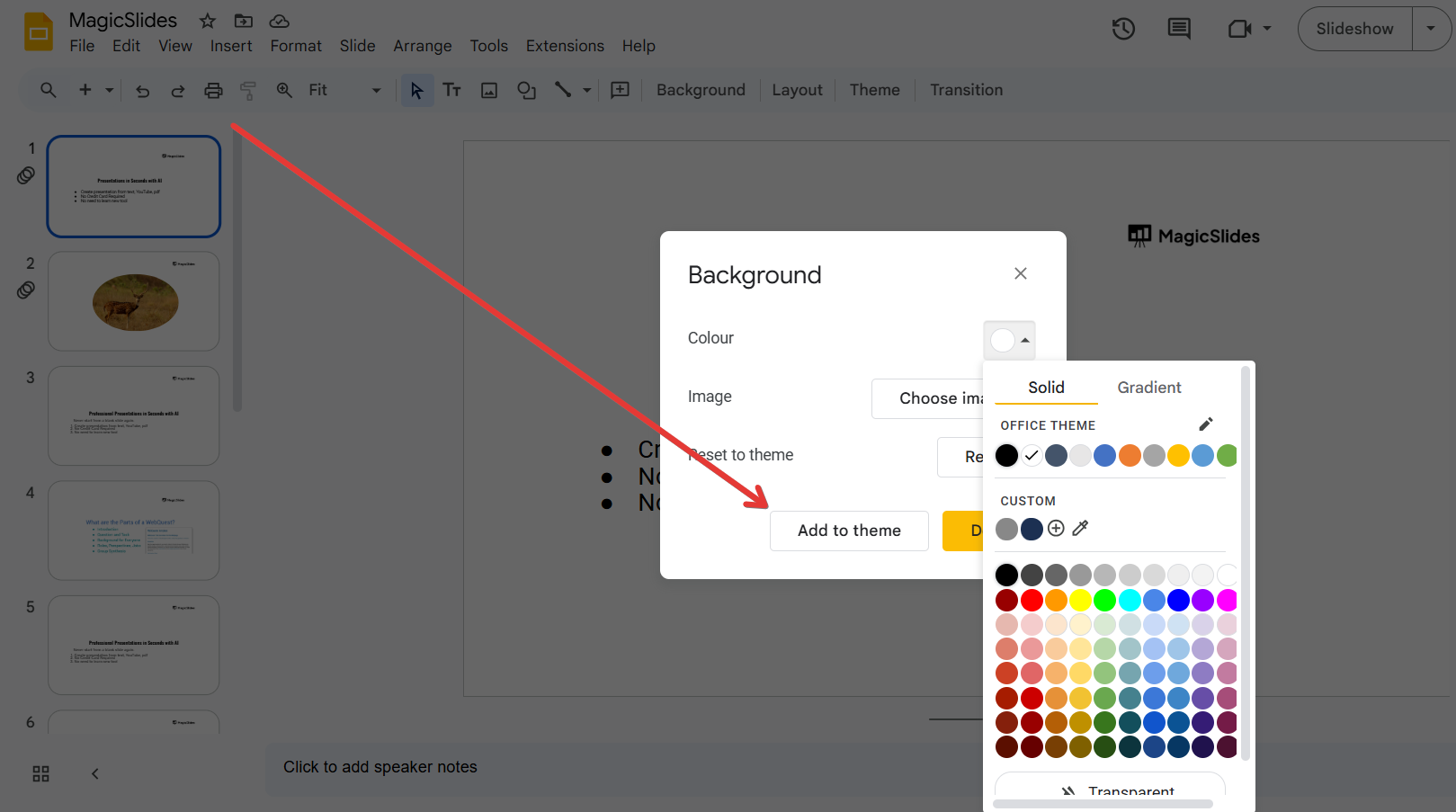
This will ensure all slides have a consistent background design.
Step 5: Adjust Transparency and Position (Optional)
For image backgrounds, you might want to adjust transparency:
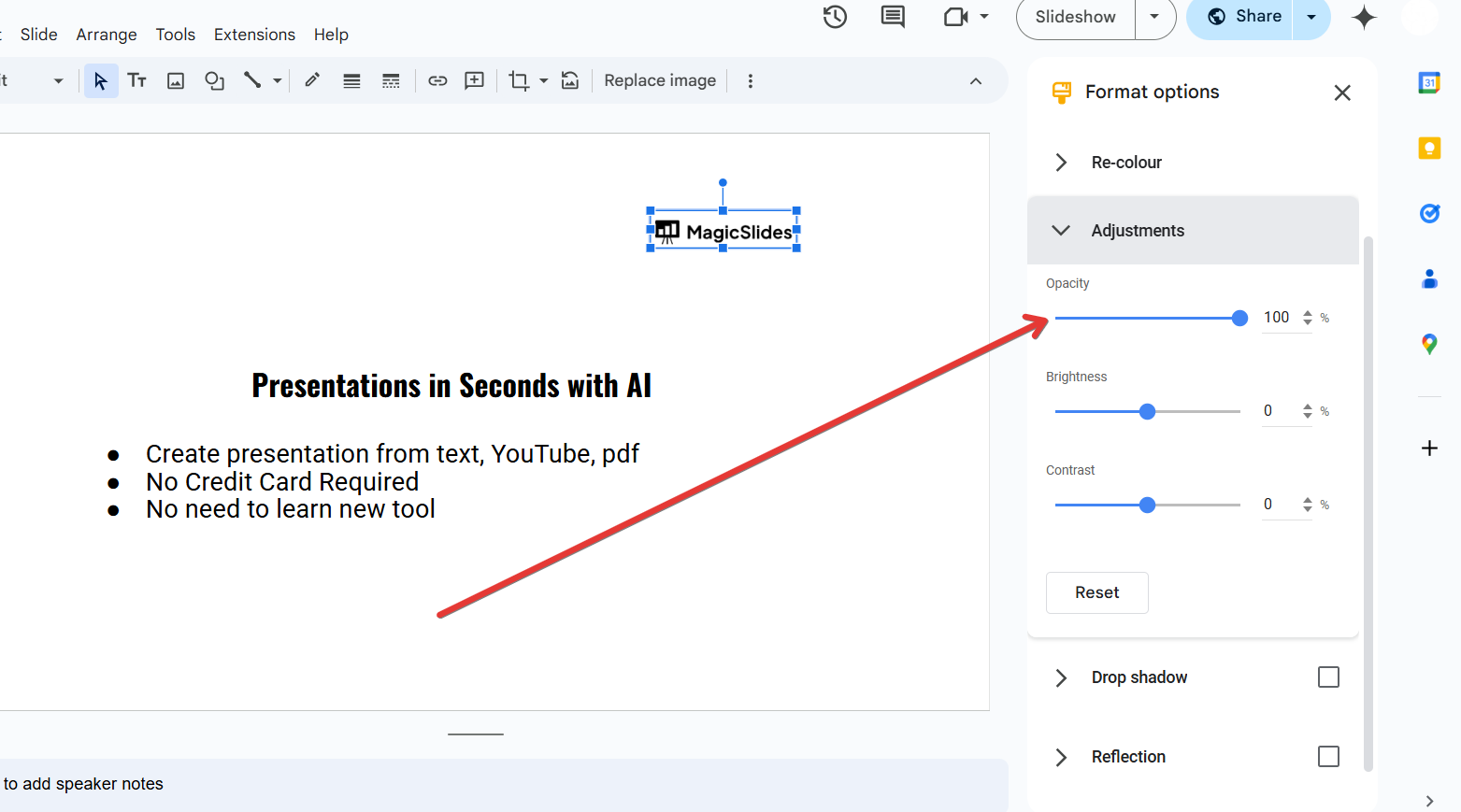
Click on the image in the slide. Select Format Options from the toolbar.
Adjust the transparency, brightness, or contrast under the Image settings.
Customizing background slides can enhance your presentation, but if you're looking for a faster way to create professional slides, check out MagicSlides.app AI-driven presentations with seamless designs in just a few clicks!
Conclusion
Adding background slides in Google Slides is an easy way to enhance your presentation’s visual impact.
Whether you choose a solid color, gradient, or image, customizing your slide backgrounds helps create a professional and engaging design.
FAQs About Adding Background Slides in Google Slides
Can I remove a background after applying it?
Yes, click Slide > Change Background, then select Reset to remove the background.
How do I make the background transparent?
Use the Format Options menu to adjust the transparency of an image background.
Can I use a custom image as my slide background?
Yes, you can upload an image from your device, Google Drive, or the web to use as a background.
Now, you're ready to enhance your Google Slides presentation with stunning backgrounds! 🎨🚀


