How to Add Captions to Canva


Enhance your Canva designs by adding captions with this easy, step-by-step guide for customization
Captions enhance the impact of your Canva designs by adding context, clarity, or emphasis to images and videos.
Whether you’re designing for social media, presentations, or marketing materials, captions can make your content more engaging and accessible.
This guide walks you through the simple steps to add captions to Canva designs effortlessly.
Steps to Add Captions in Canva
Step 1: Open Your Canva Design
Log in to your Canva account and open the design where you want to add captions.
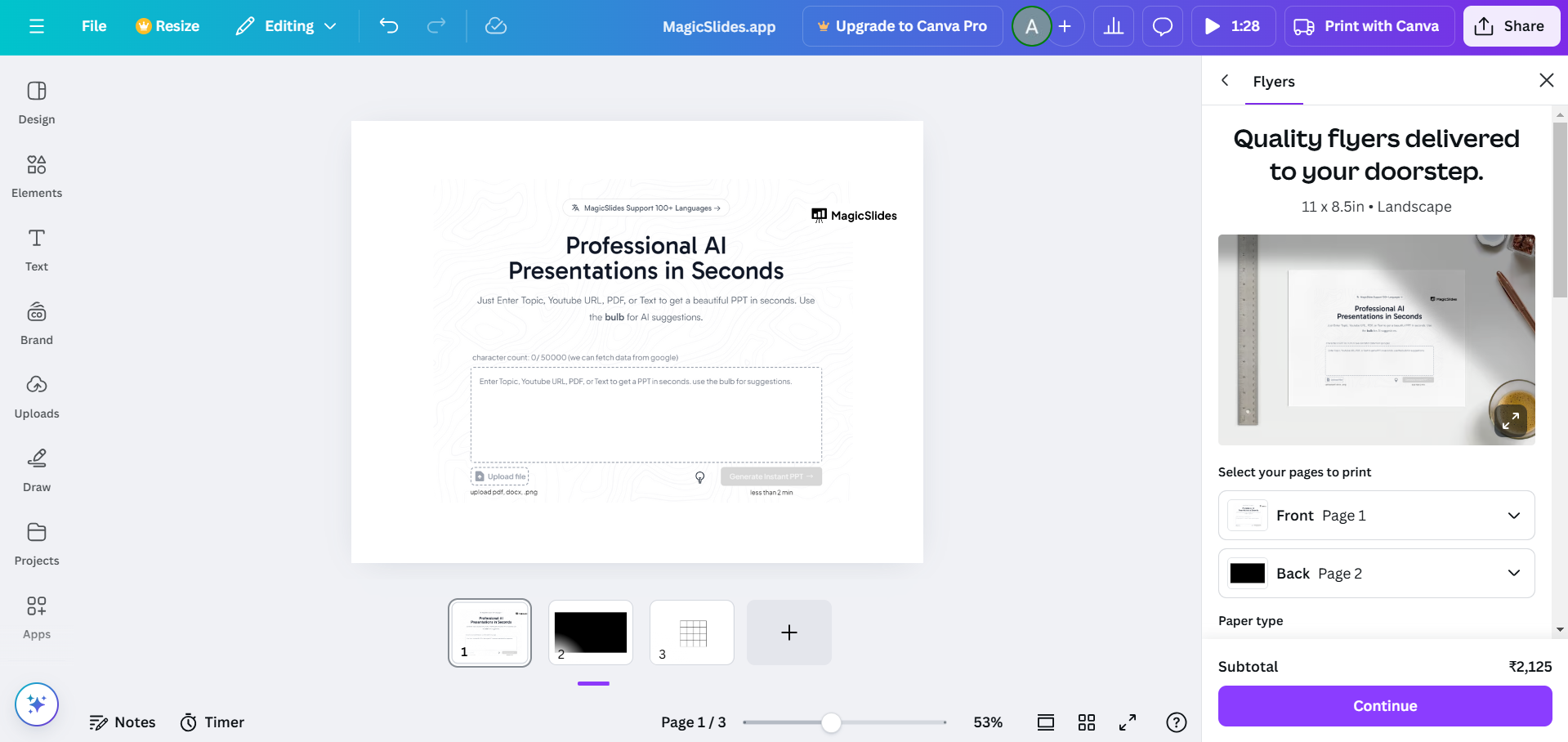
If you’re starting from scratch, select a template or create a blank design.
Step 2: Insert a Text Box
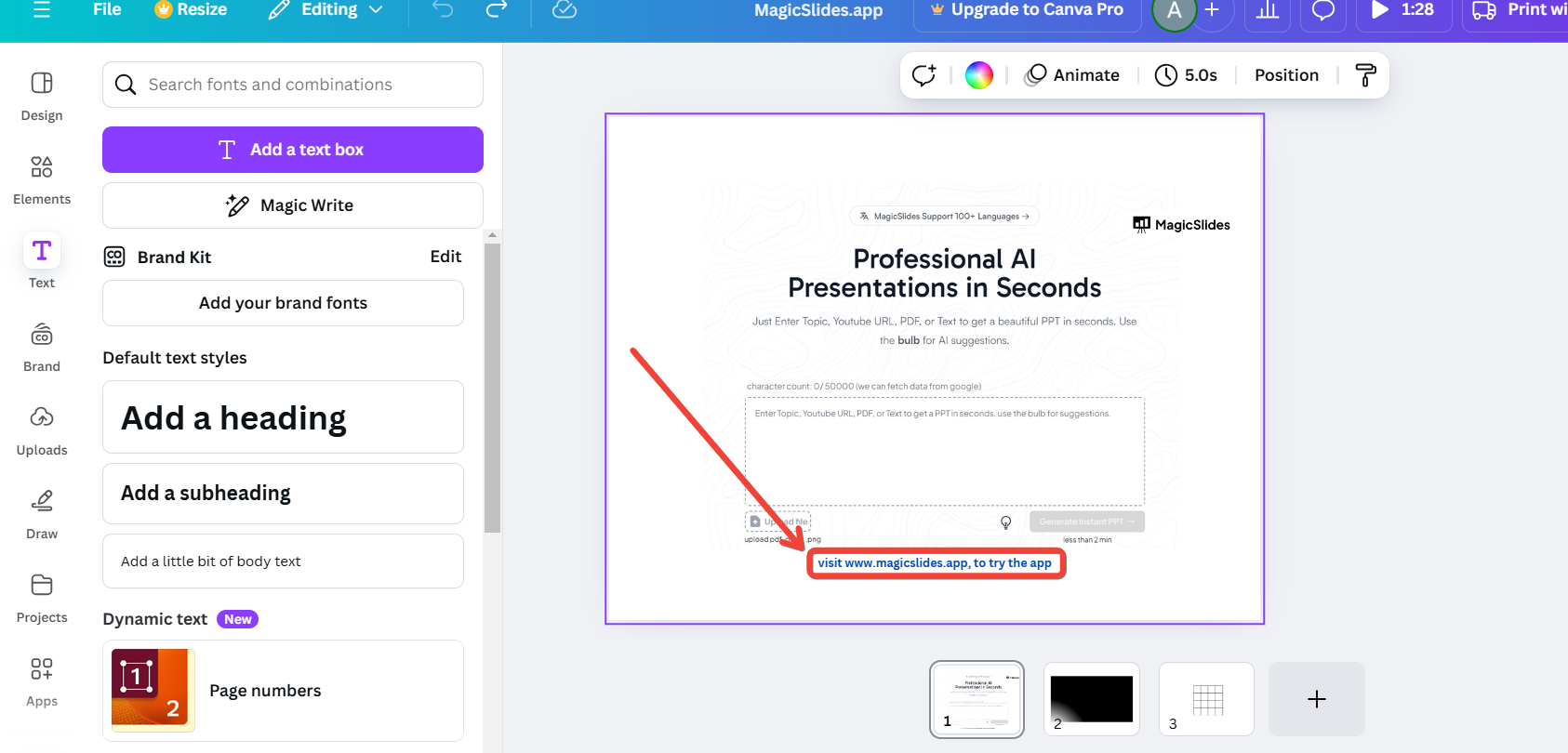
On the left toolbar, click Text to open the text menu.
Select Add a text box or choose one of Canva’s preformatted text options for stylish captions.
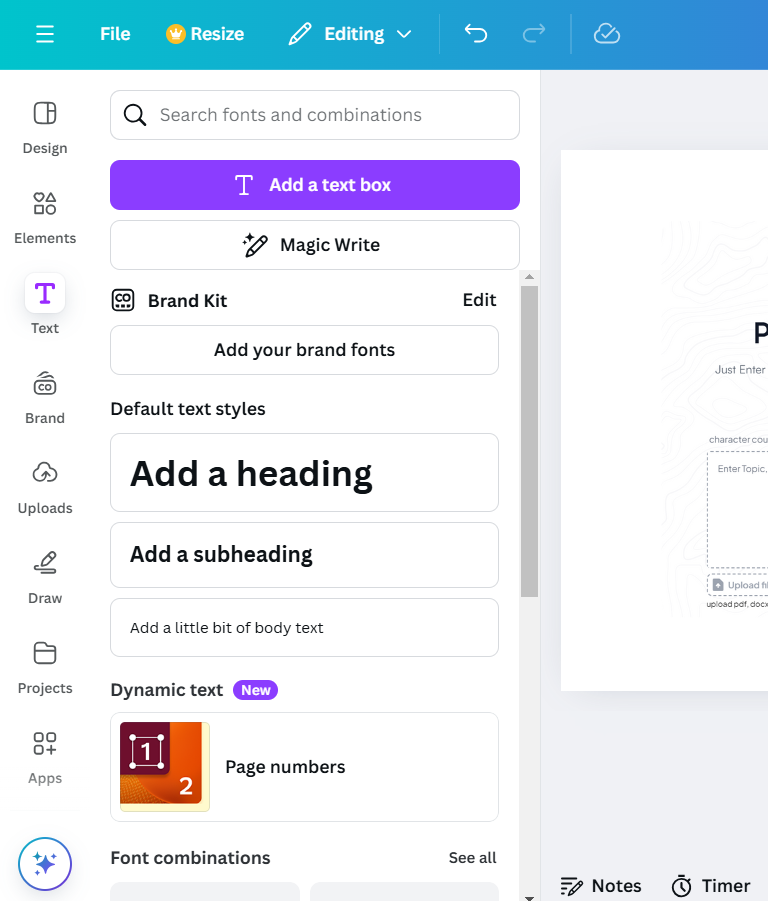
Drag the text box to the desired position on your design, typically below or near your image or video.
Step 3: Type and Format Your Caption
Click inside the text box and type your caption.
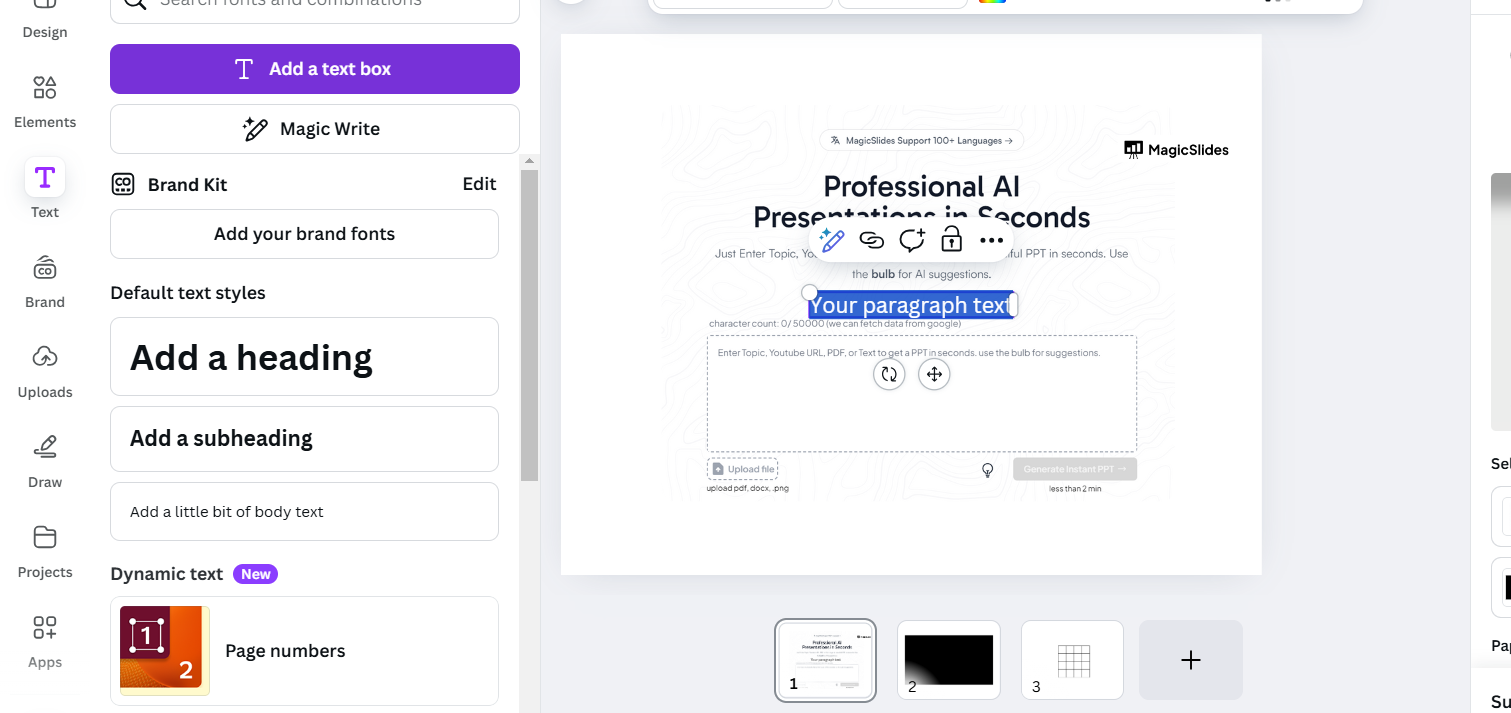
Use the formatting options in the top menu to adjust:
- Font Style: Choose a font that suits your design’s tone.
- Font Size: Ensure the caption is legible without overpowering the design.
- Color: Pick a color that contrasts with the background for readability.
- Alignment: Align the text to the left, center, or right as needed.
Step 4: Add Effects (Optional)
Highlight your text and click on the Effects option in the toolbar.
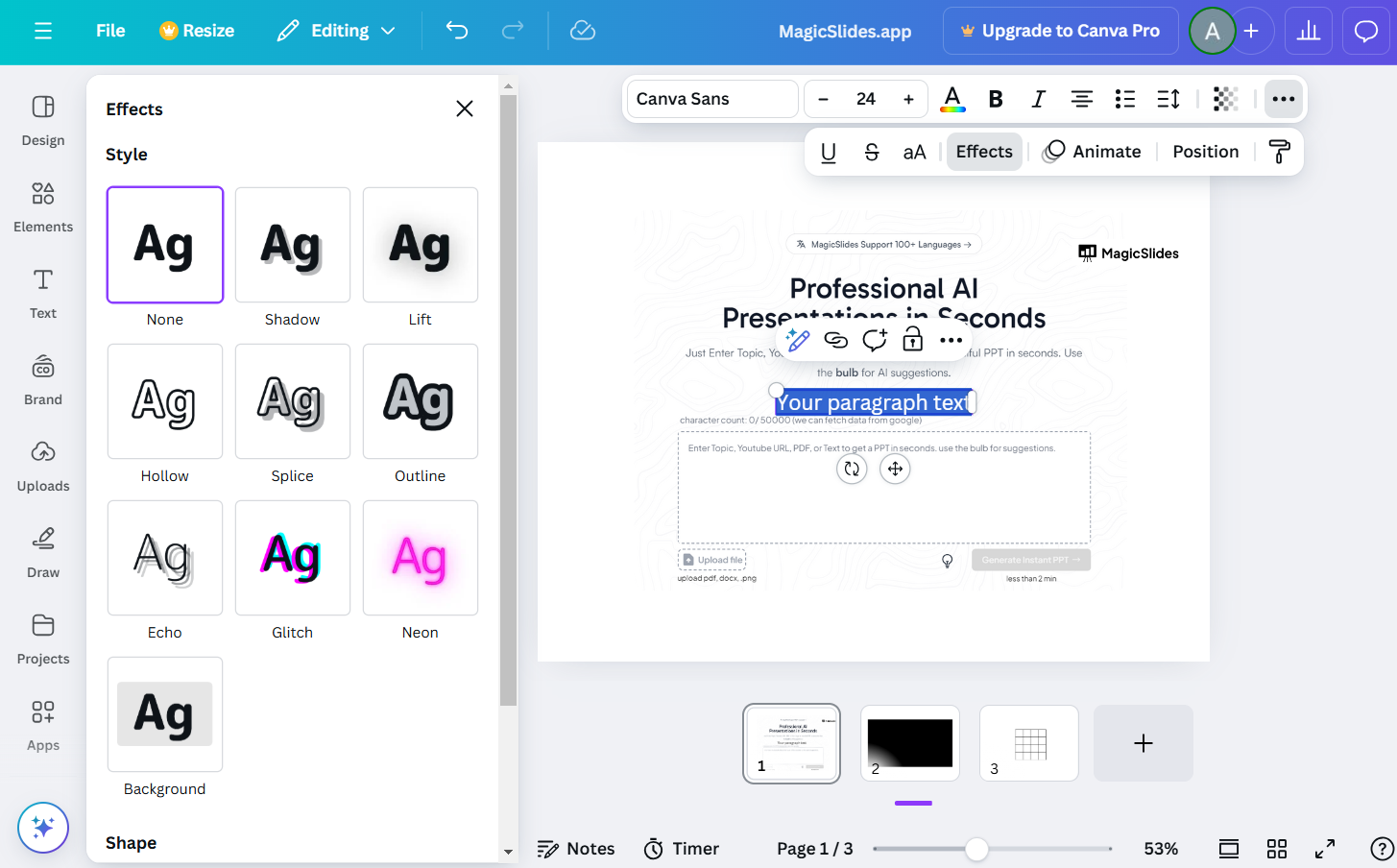
Choose effects like Shadow, Outline, or Lift to make your caption pop.
Adjust the intensity, color, and direction of the effects as per your design’s needs.
Step 5: Position and Adjust the Caption
Drag and drop the text box to place the caption where it best fits your design.
Use Canva’s Align tools (visible when dragging text) to ensure your caption is positioned neatly.
Step 6: Add Captions to Videos (Optional)
If you’re working on a video, upload it to your Canva design.
Add a text box, type your caption, and adjust its position and style.
To time the caption, click on the timeline below and adjust the text duration to match the video’s scenes.
Step 7: Save and Share
Once satisfied with your caption placement and style, click Share or Download in the top-right corner.
Choose the desired file format (e.g., PNG, JPEG, or MP4 for videos) and save your design.
Conclusion
Adding captions to Canva designs is a quick and effective way to enhance your visuals, making them more informative and visually appealing.
With Canva’s user-friendly tools, you can customize captions to align with your design goals, ensuring your message stands out clearly.
FAQs on Adding Captions in Canva
Can I animate captions in Canva?
Yes! Select your text box, click Animate, and choose from Canva’s animation effects to make your captions dynamic.
How do I ensure captions are readable on complex backgrounds?
Use a semi-transparent background behind your text or apply a shadow effect to improve contrast and readability.
Can I add captions to Canva videos with different timings?
Yes, you can adjust the timing of captions for each scene using the timeline feature at the bottom of the editor.
By following these steps, you can effortlessly add captions to your Canva designs, enhancing their clarity and professionalism!


