Addon google slides iconPPT with AISlide TemplatesPPT TemplatesPricingBlog
    PPT with AISlide TemplatesPPT TemplatesPricingBlog
    1. Home
    2. Blog
    3. How to add pictures to Google slides


    How to add pictures to Google slides

    magicslides app

    Published By

    magicslides app
    Sanskar Tiwari

    Approved By

    Sanskar Tiwari

    Published On

    January 13th, 2025

    Reading Time

    2 min read

    Elevate your Google Slides presentation with captivating visuals using our step-by-step guide to adding pictures.

    Visual elements, such as images, play a crucial role in creating engaging and impactful presentations. Google Slides makes it easy to incorporate pictures seamlessly into your slides, enhancing your content and leaving a lasting impression. In this step-by-step guide, we'll explore the simple process of adding pictures to Google Slides, empowering you to create visually stunning presentations.

    How to add pictures to Google slides

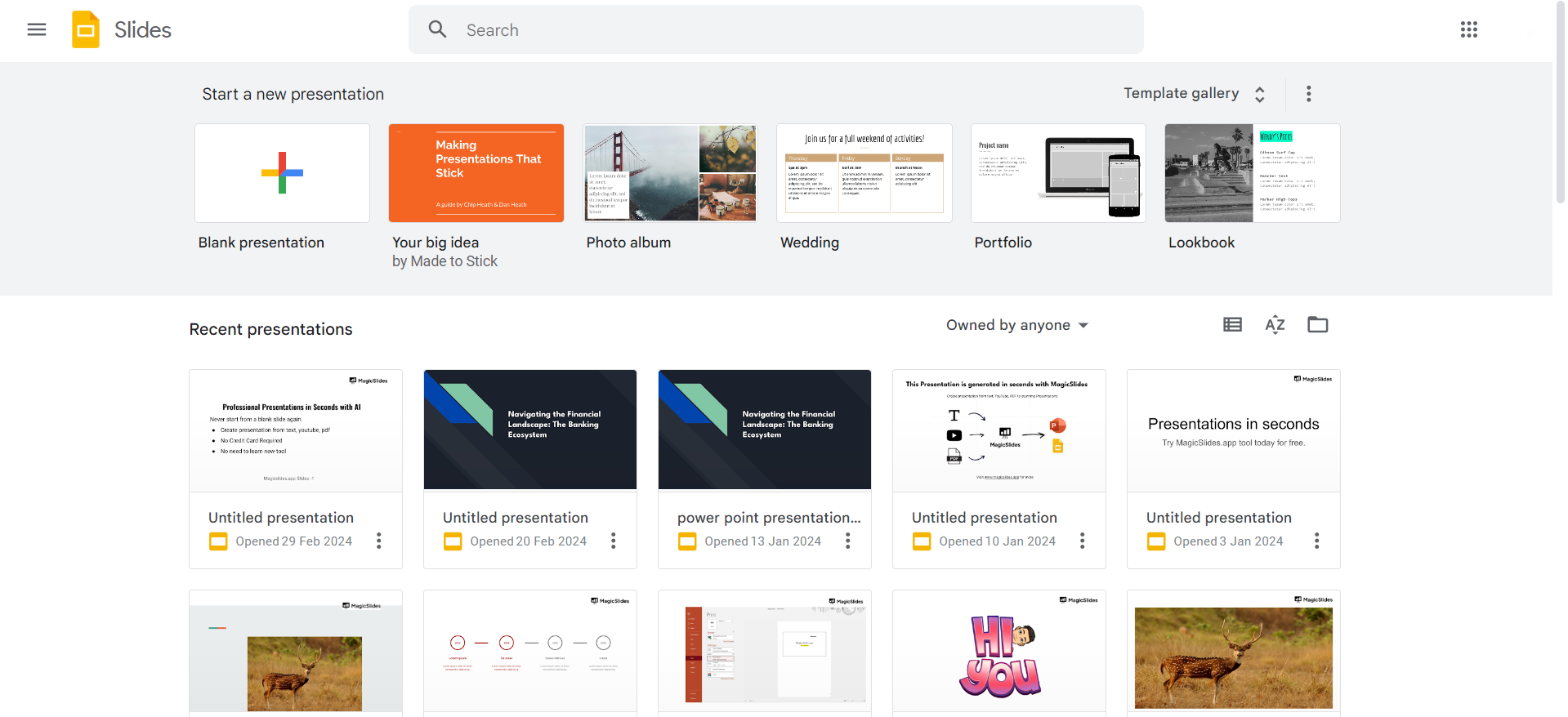
    Step 1: Open Your Google Slides Presentation

    Begin by opening the Google Slides presentation where you want to add pictures. If you're starting a new presentation, create one and structure your slides.
    notion image

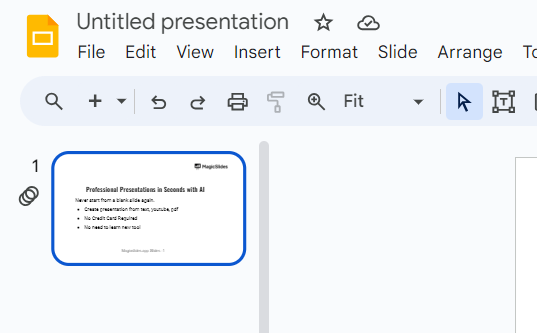
    Step 2: Navigate to the Slide

    Select the slide where you want to insert an image. Click on the slide thumbnail on the left or scroll through your presentation to find the desired slide.
    notion image

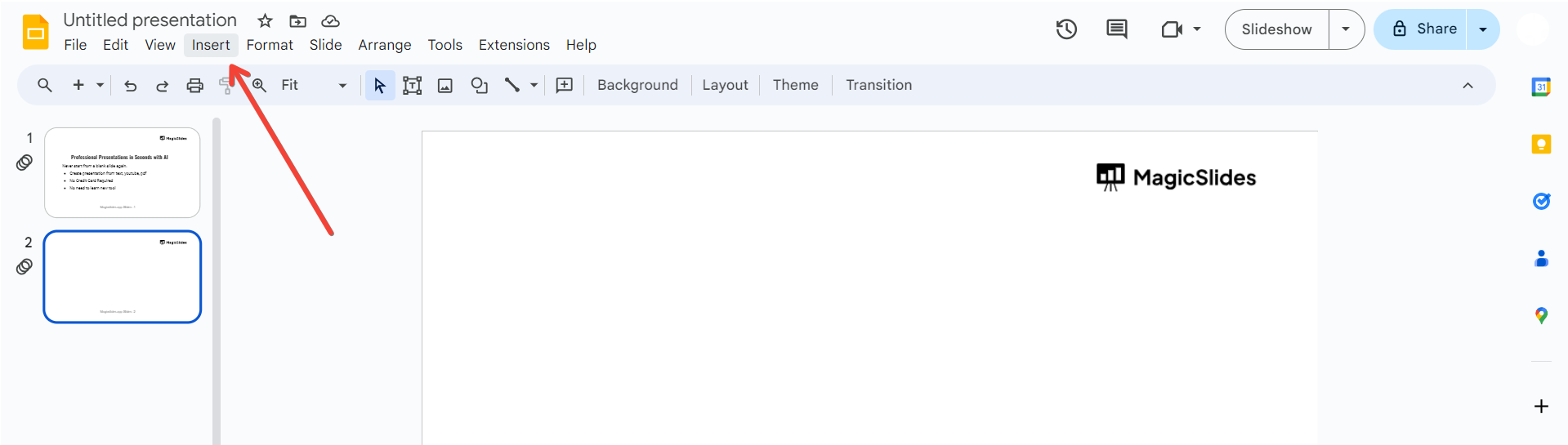
    Step 3: Click on "Insert" in the Menu

    At the top of the screen, click on the "Insert" option in the menu bar. A drop-down menu will appear.
    notion image

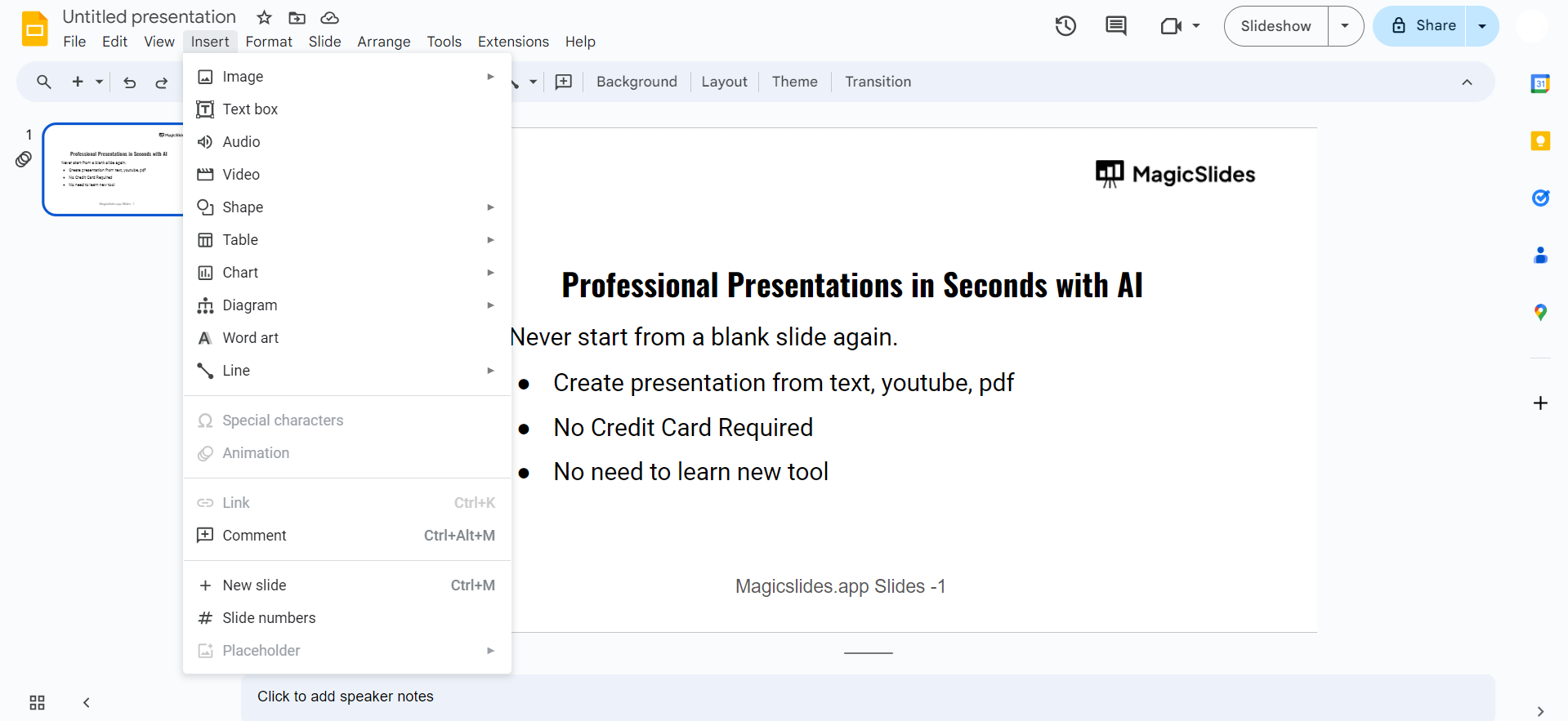
    Step 4: Choose "Image"

    From the drop-down menu, select "Image." This will open a sub-menu with various options.
    notion image

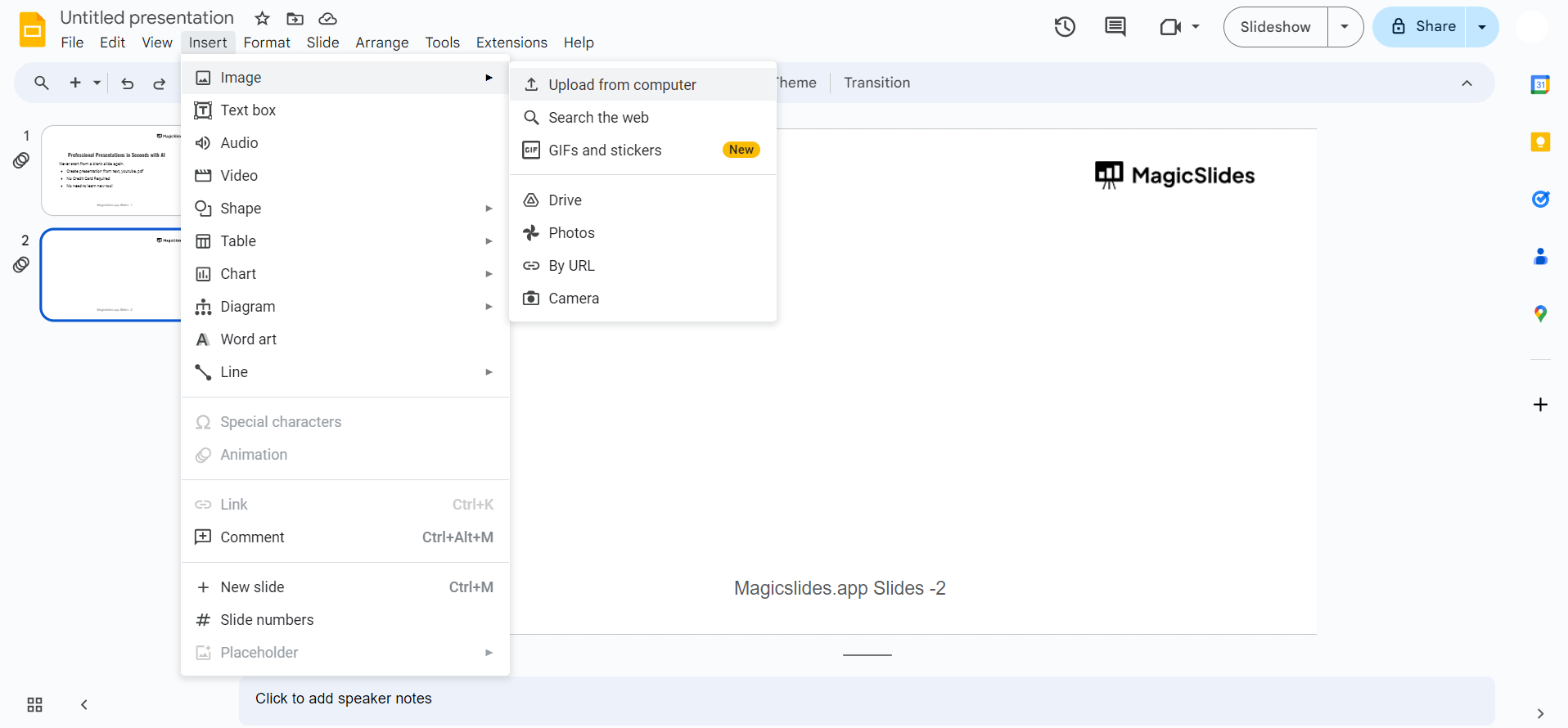
    Step 5: Select "Upload from Computer" or "Search the Web"

    Choose "Upload from Computer" if you have an image saved on your device. Alternatively, select "Search the Web" to find an image directly within Google Slides.
    notion image

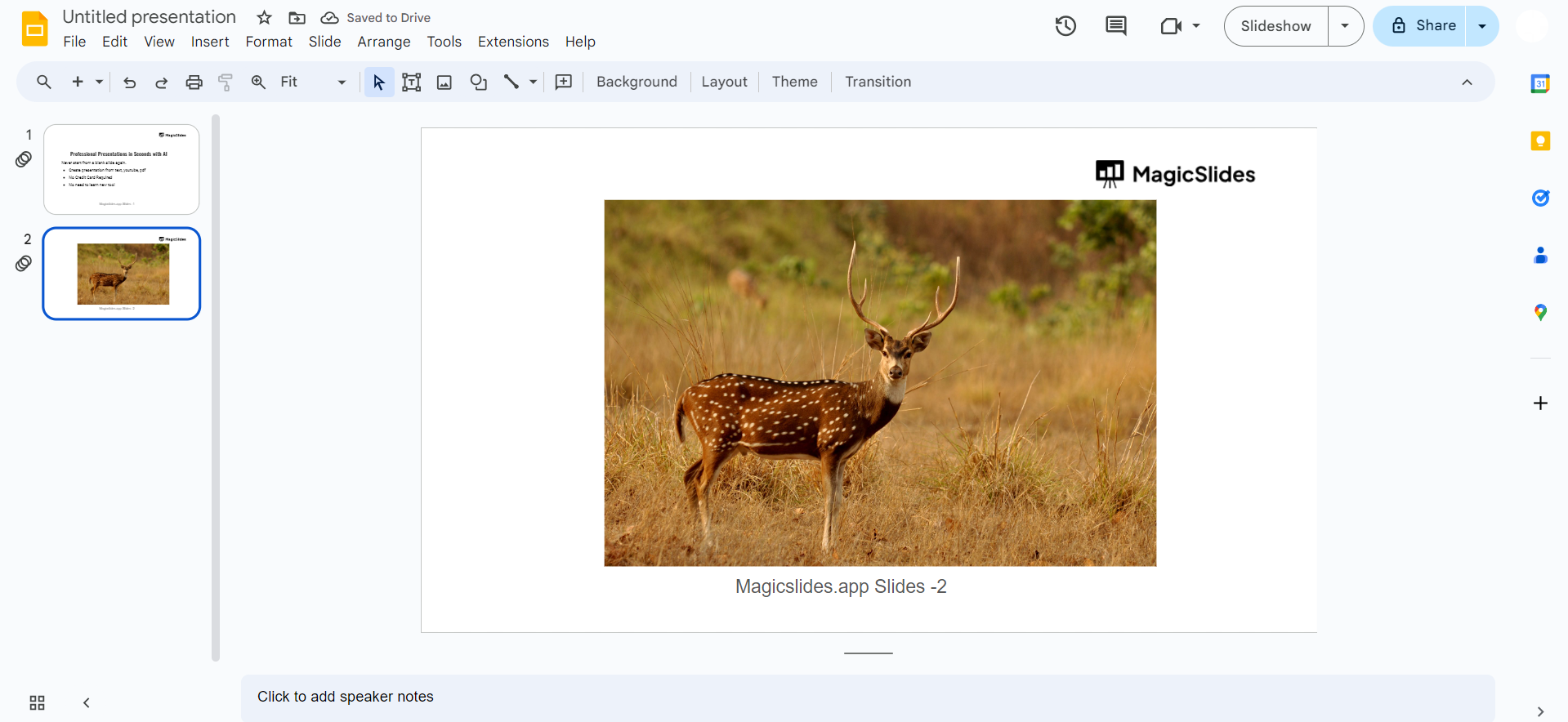
    Step 6: Adjust and Position the Image

    Once the image is added, you can resize, crop, or adjust it as needed. Drag and position the image on your slide for the optimal visual impact.
    notion image

    Conclusion:

    Incorporating images into your Google Slides presentation can elevate your storytelling and make your content more engaging. By following these simple steps, you can seamlessly integrate visuals, whether they are charts, diagrams, or photos, to enhance the overall impact of your presentation.

    Frequently Asked Questions:

    Can I add pictures to every type of slide in Google Slides?

    Yes, images can be added to any slide, including title slides, content slides, and more.

    Is there a limit to the number of pictures I can add to a single slide?

    While there isn't a strict limit, it's advisable to maintain a visually balanced presentation with reasonable use of images.

    Can I crop or edit images directly within Google Slides?

    Absolutely, Google Slides provides basic image editing tools, including cropping, resizing, and adjusting brightness and contrast.

    What is the recommended image file format for Google Slides?

    Google Slides supports various image formats, but for optimal quality, use JPEG, PNG, or SVG files.

    Share on socials

    About the author

    Mehjabi Khan profile photo
    Mehjabi Khan— Writer

    Mehjabi Khan is one of our talented writers with a background in creating content for major companies like Mahindra and Suzuki. She has a knack for explaining complex ideas in a way that’s easy to understand and enjoyable to read. When she's not writing, Mehjabi loves to cook, bringing the same creativity to her recipes as she does to her articles.

    More from Mehjabi

    More from the blog

      250+ Good Morning Messages for Her (Romantic, Deep, Cute & Sweet)

      30 January 2026

      200+ Heart Touching Birthday Wishes for Sister (Short, Funny and More)

      29 January 2026

      50+ History Presentation Topics For 2026

      28 January 2026

      How to Add Music to Your Canva Presentation: A Step-by-Step Guide

      27 January 2026

      15 Quick Tips To Use ChatGpt At Work

      22 January 2026

      11 Best AI Tools for Business in 2025

      22 January 2026

      How to Create an Infographic That Clearly Communicates Your Message

      20 January 2026

      How to Create a Sales Presentation Template in Google Sheets

      20 January 2026

      How to Make a Pie Chart on Google Slides in Simple Steps

      19 January 2026

    Table of Contents

    Create Presentations in Seconds

    Transform your ideas into professional presentations with AI. No design skills needed.

    Try MagicSlides Free

    Create Stunning Presentations with AI in Seconds ✨

    Transform any topic, text, YouTube video, PDF or URL into beautiful presentations instantly with MagicSlides AI.

    Try MagicSlides AI Presentation Maker
    MagicSlides AI Presentation

    Footer

    Solutions

    • MagicSlides App
    • Google Slides Add-on
    • MagicSlides in Chrome
    • MagicSlides in Figma
    • MagicSlides in ChatGPT
    • MagicSlides in Telegram
    • MagicSlides in Zapier
    • MagicSlides in Figma Slides

    Tools

    • AI PPT Tools
    • QR Code Generator
    • Design Tools
    • PPT Templates
    • Slide Templates
    • PDF Tools

    Examples

    • AI Presentations
    • PPT by MagicSlides
    • Quizzes
    • Charts
    • Coloring Pages

    Resources

    • Changelog
    • Documentation
    • API Docs

    Top Blogs

    • How to Create Presentation Using ChatGPT
    • 100+ Best Seminar Topics for Students in 2025

    Company

    • Help
    • MCP
    • Blog
    • Pricing
    • Affiliate Program
    • Manage Subscription
    • Privacy Policy
    • Contact Us
    • Terms & Conditions
    • Refund & Cancellation Policy

    We also built

    • SheetAI - GPT For Sheets
    • MagicForm - GPT For Google Forms
    • SecondBrain.fyi
    • BlogBee - Free Blogging Platform

    © 2026 IndianAppGuy Tech Pvt Ltd. All rights reserved.