How to Add Sound Effect to Slide Canva


Enhance your Canva slides by adding sound effects for an engaging and dynamic presentation experience
Adding sound effects to your slides in Canva is a fantastic way to make your presentation or design more engaging and memorable.
Whether you’re creating a presentation, video, or animation, Canva makes it easy to incorporate audio elements.
This guide walks you through the step-by-step process of adding sound effects to your slides in Canva, ensuring your designs leave a lasting impact.
How to Add Sound Effects to a Slide in Canva | Steps to Add Sound Effects to a Slide in Canva
Step 1: Open Your Canva Design
Log in to your Canva account and open the design where you want to add sound effects.
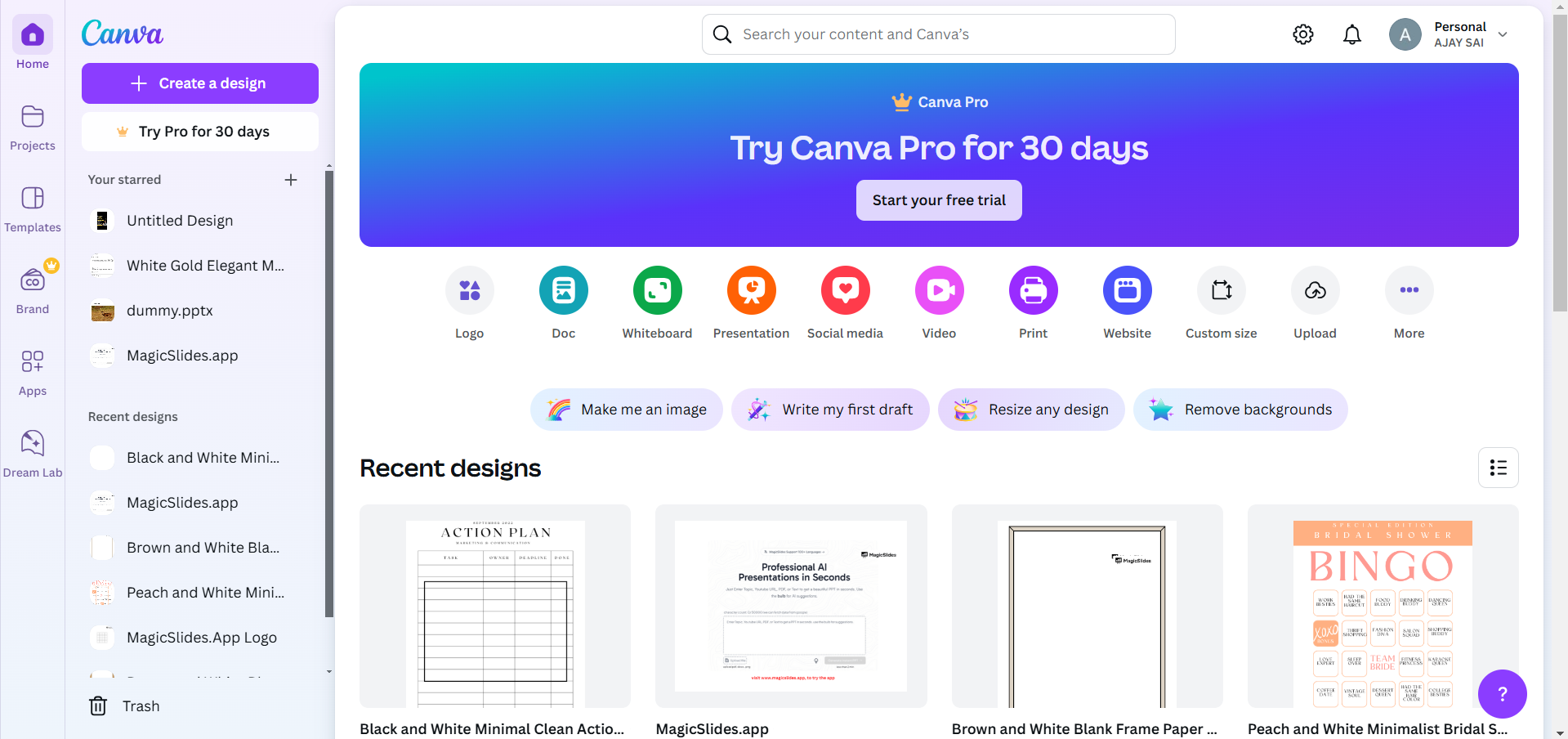
If you don’t have an existing design, click on “Create a Design” and choose a template.
Step 2: Access the Audio Library
Click on the “Elements” tab in the left-hand menu.
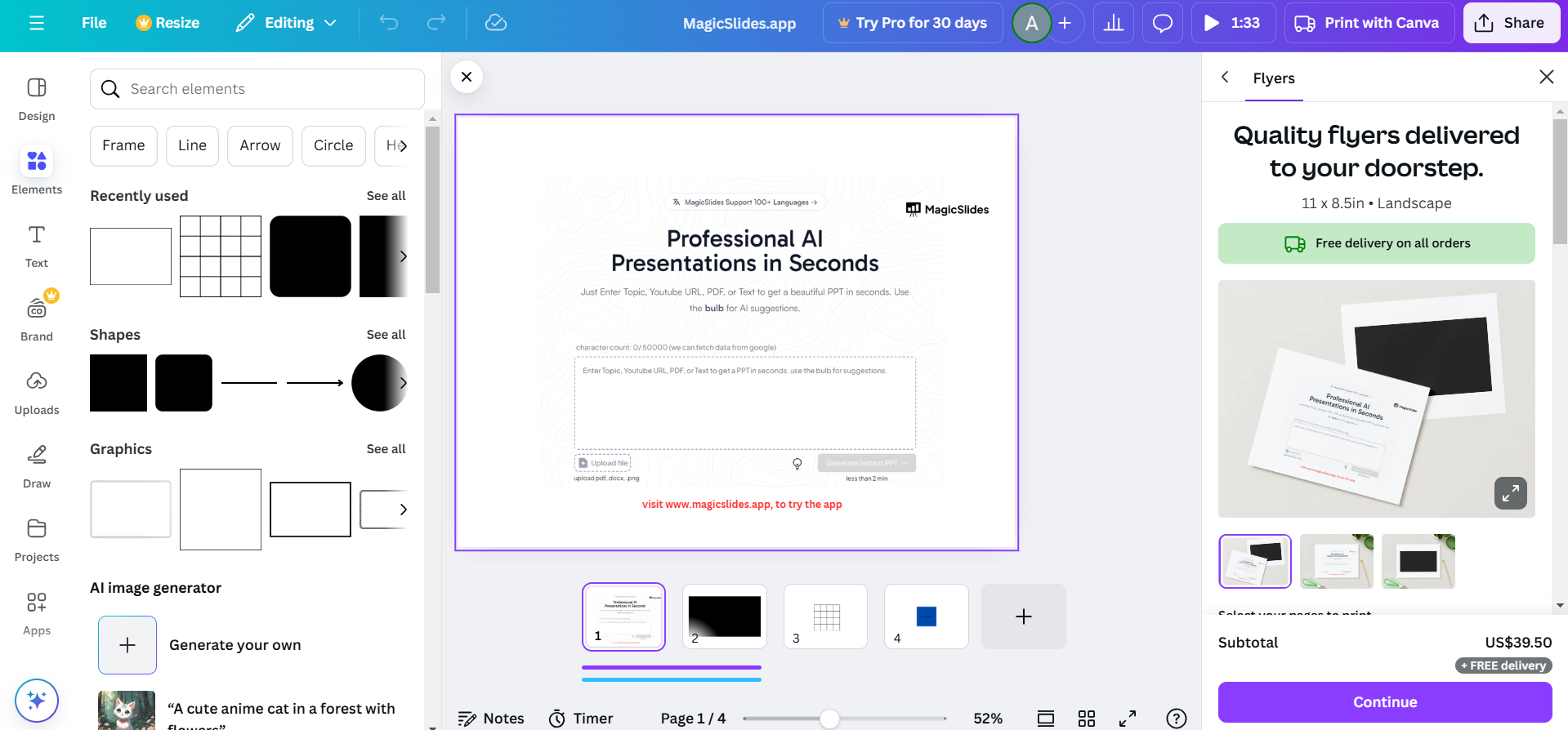
Scroll down and select “Audio” or type “sound effects” in the search bar.
Browse through Canva’s extensive audio library to find the perfect sound effect for your slide.
Step 3: Add the Sound Effect to Your Slide
Click on the sound effect you want, and it will automatically be added to your design.
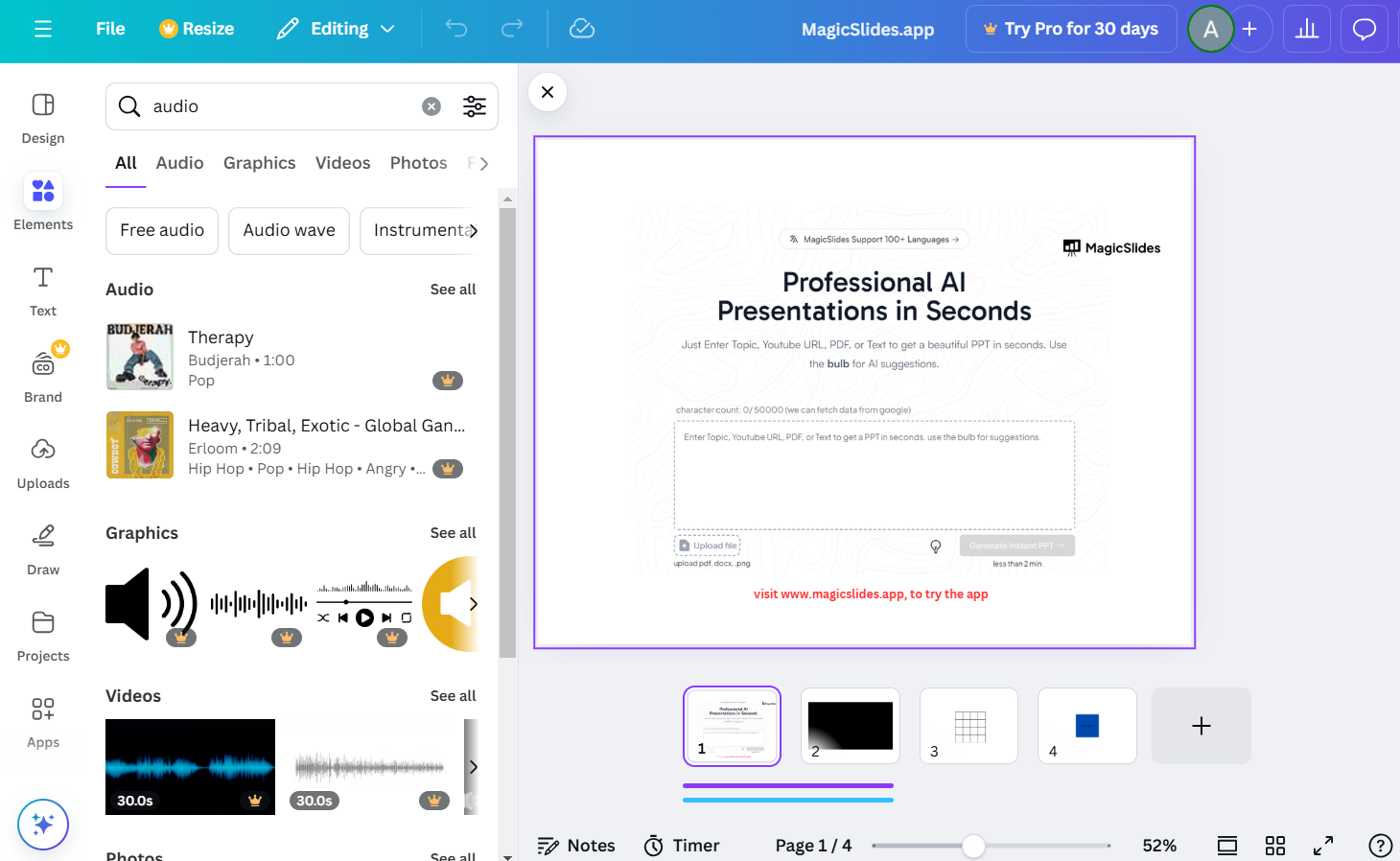
You’ll see the audio file appear as a small icon or timeline bar on your design workspace.
Step 4: Adjust the Timing of the Sound Effect
Click on the audio timeline below the canvas to adjust when the sound effect plays.
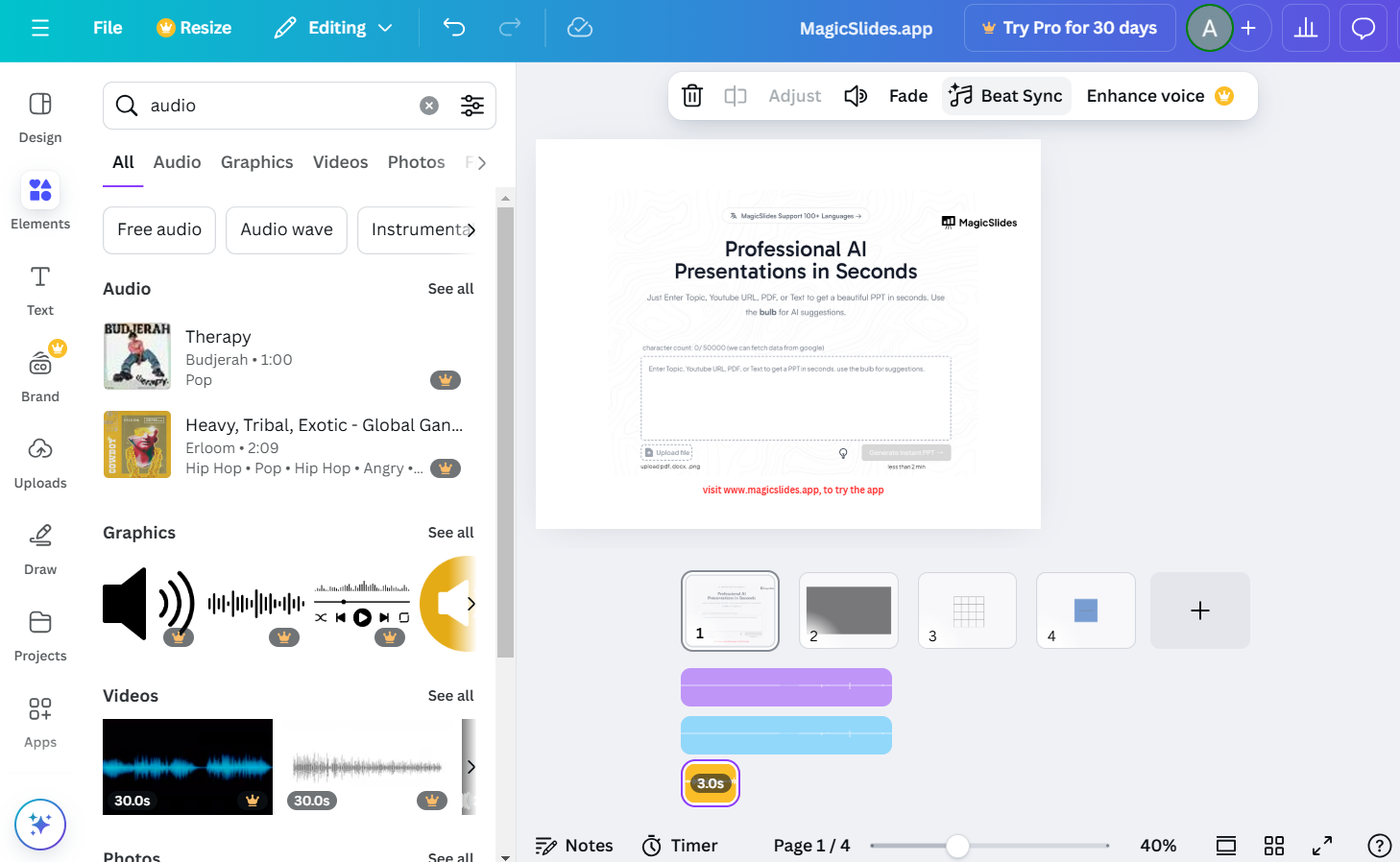
Drag the start and end points of the audio to align it with specific moments on your slide.
Step 5: Customize the Sound Effect Volume
Select the audio file and click on the “Volume” icon in the toolbar.
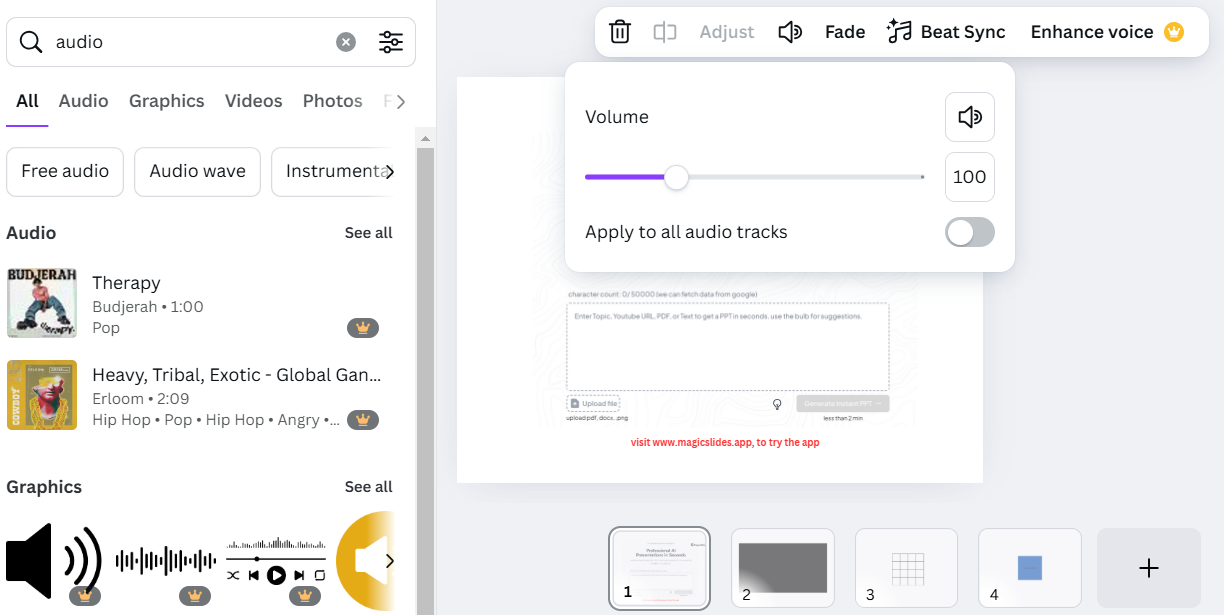
Adjust the volume slider to set the desired sound level for your presentation.
Step 6: Preview Your Design with Sound
Click the “Play” button at the top-right corner of the screen to preview your slide with the sound effect.
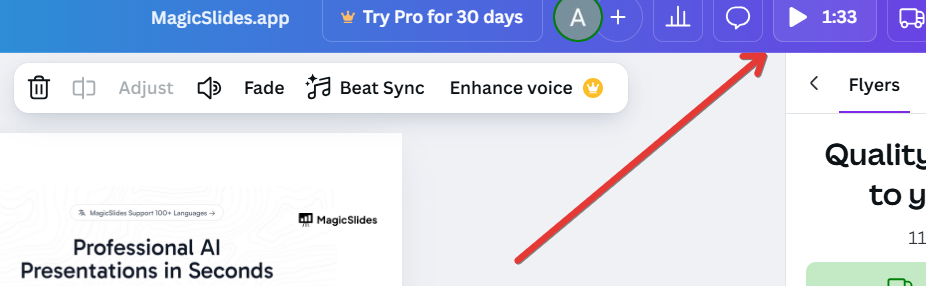
Ensure the audio syncs well with your design elements and makes the intended impact.
Step 7: Download Your Design with Sound Effects
Once satisfied, click “Share” > “Download.”

Choose a format that supports audio, such as MP4 (video), to retain the sound effects.
Conclusion
Adding sound effects to your slides in Canva is a simple yet effective way to captivate your audience.
Whether you want to emphasize a key point or enhance the overall mood, Canva’s user-friendly audio tools allow you to do it effortlessly.
Follow these steps to elevate your designs with sound effects that leave a lasting impression.
FAQs on Adding Sound Effects to Canva Slides
Can I upload my own sound effects to Canva?
Yes! Canva allows you to upload custom audio files by clicking on “Uploads” > “Audio.”
Are sound effects available in Canva’s free version?
Some sound effects are available for free, but premium options require a Canva Pro subscription.
How can I remove a sound effect from my slide?
Click on the audio icon or timeline and press the Delete key to remove it from your slide.
With these steps, you can seamlessly add sound effects to your Canva designs and create a more dynamic presentation!


