How to change background colour of slides in Google Slides


Elevate your Google Slides game with personalized backgrounds. Learn how to infuse vibrancy into presentations effortlessly.
Captivate your audience by infusing vibrancy and professionalism into your presentations. Learn how to effortlessly customize the background color of your slides in Google Slides. This guide empowers you to create visually stunning and cohesive presentations that leave a lasting impression. Changing the background color of slides in Google Slides is a simple process. Here's a step-by-step guide:
How to change background colour of slides in Google Slides
Open Your Presentation:
Begin by logging into Google Slides and opening the presentation you wish to enhance.

Select the Slide:
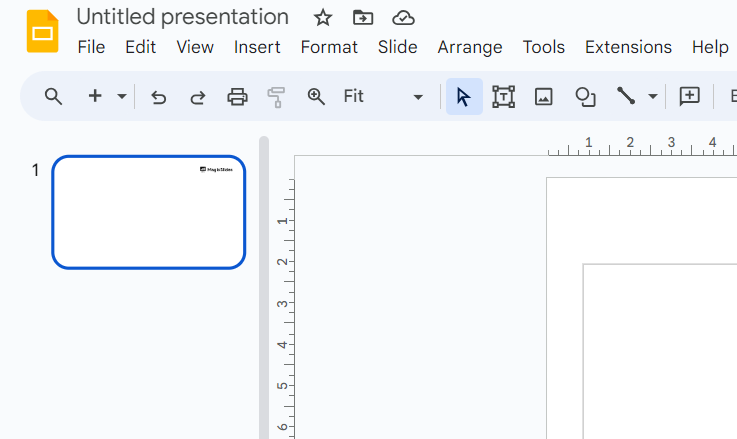
Choose the specific slide you want to modify by clicking on it in the left sidebar. For uniformity, skip to the next step.
Access the Background Options:
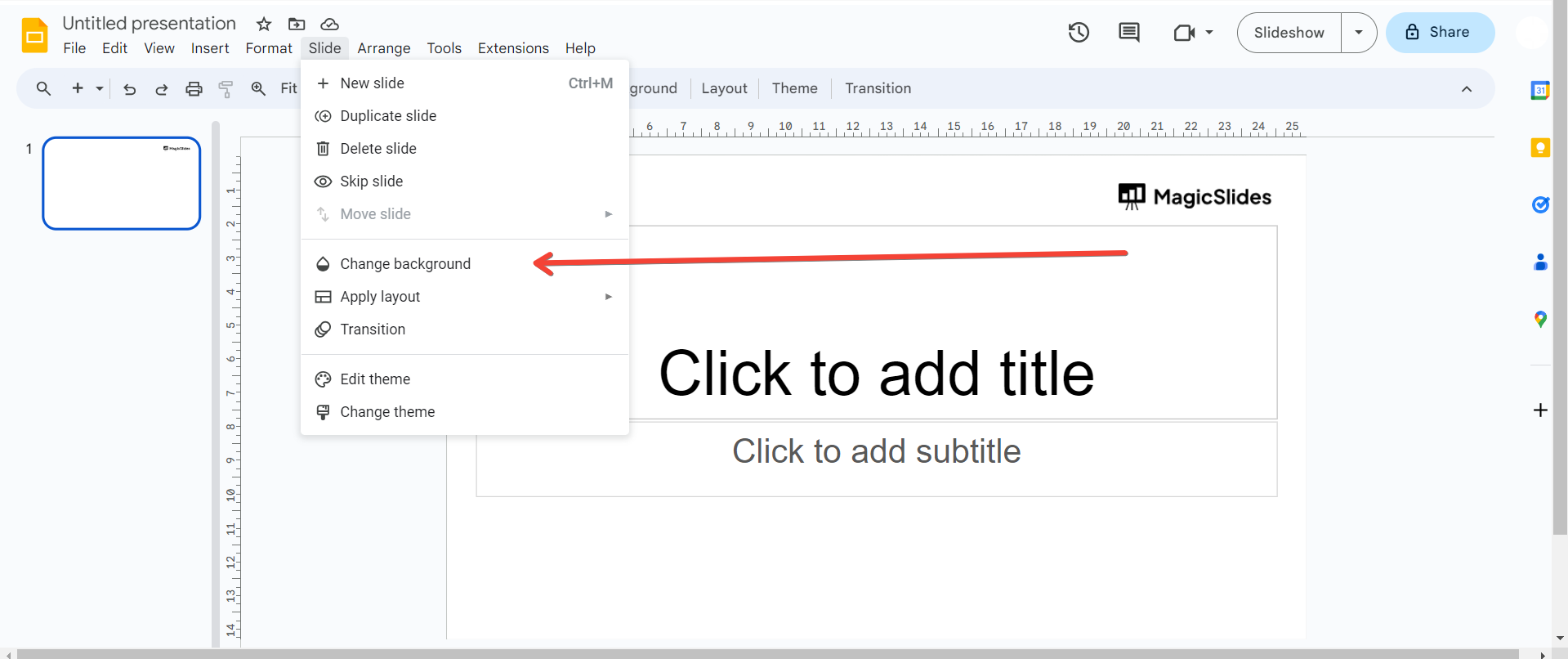
Navigate to the top menu, click on "Slide," and unveil a dropdown menu. Select "Background" to open customization options.
Choose a Background Color:
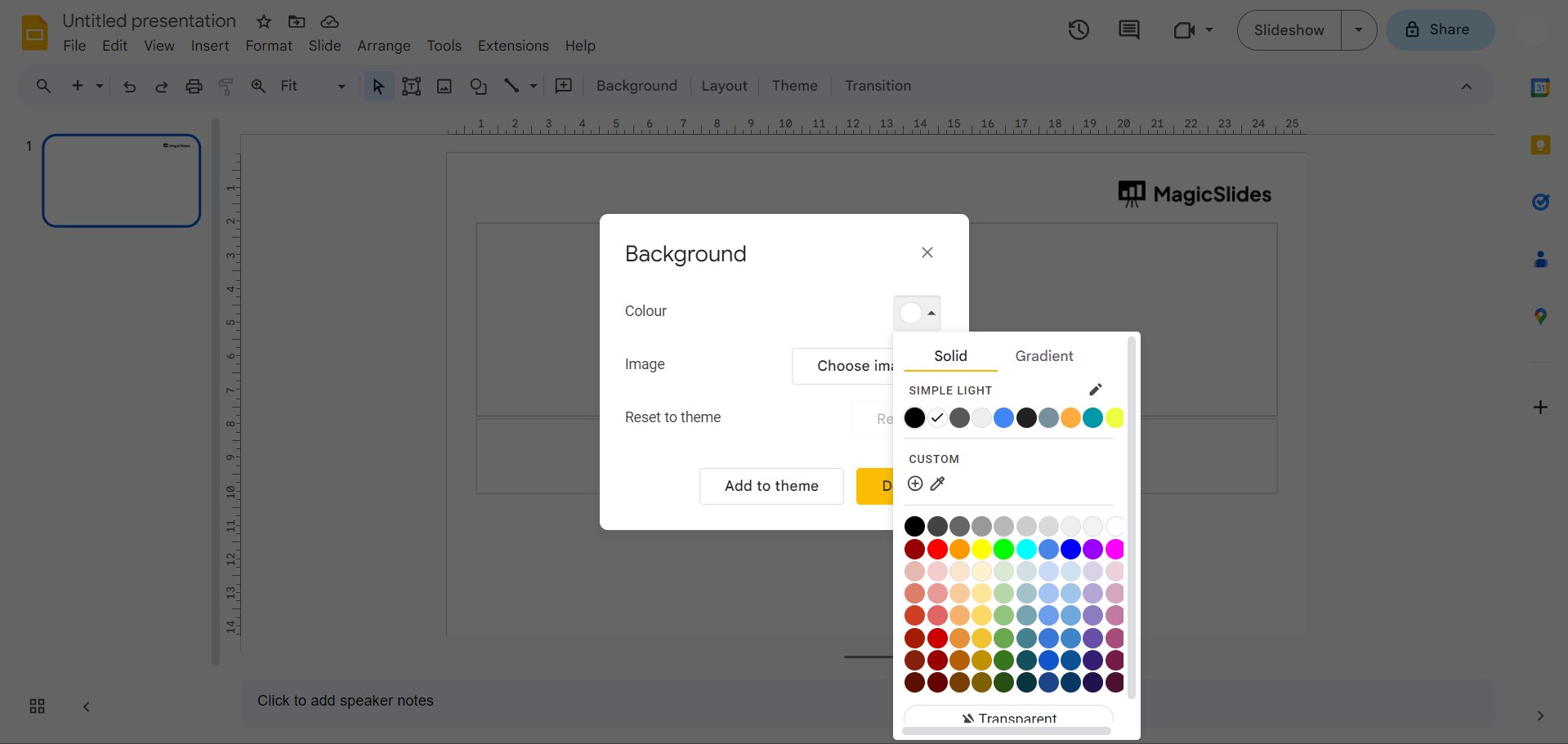
In the right-side panel, click on the color box to reveal a spectrum of choices. Opt for a color that complements your content.
Apply the Background Color:
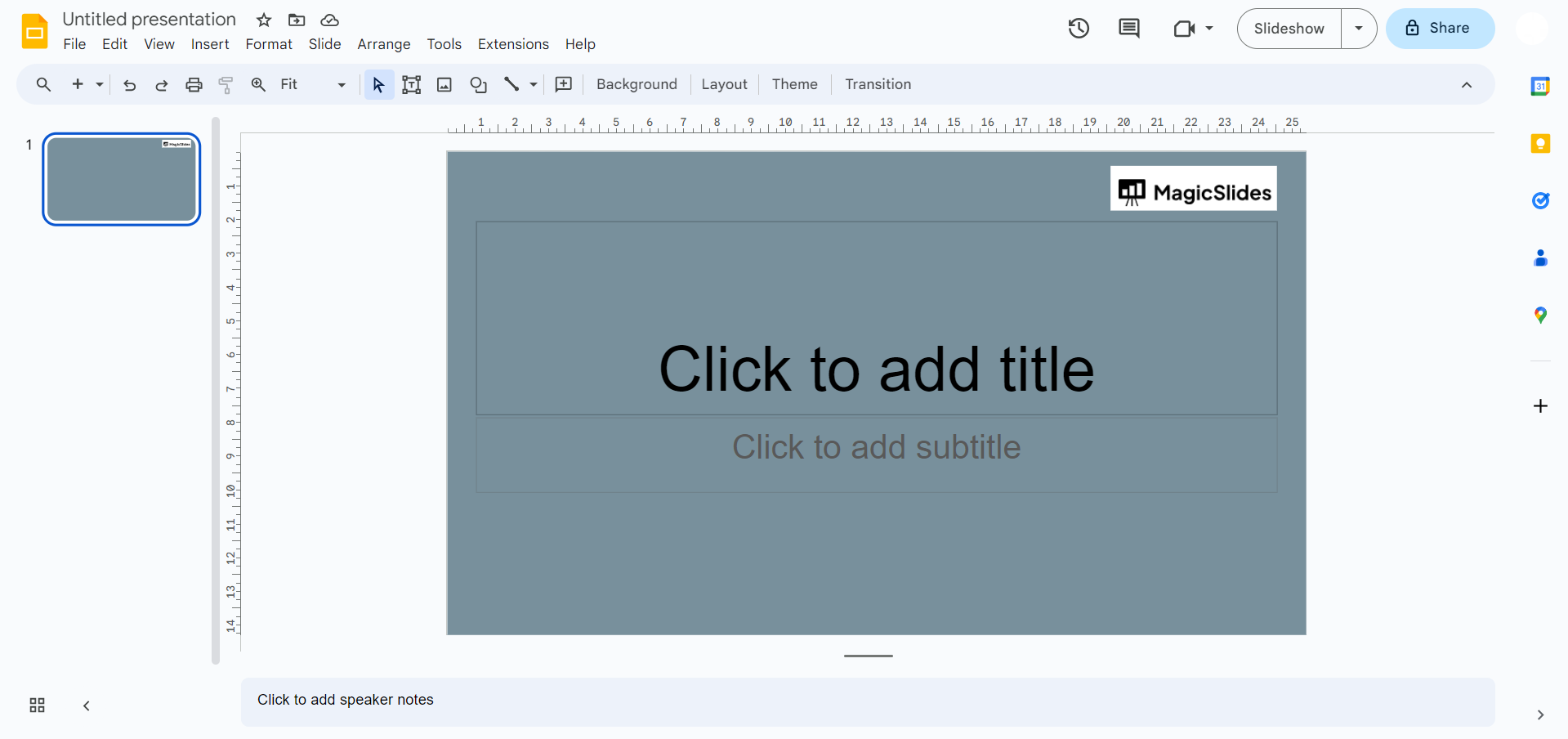
Finalize your selection by clicking "Done." Witness an instant transformation as the background color of your chosen slide changes dynamically.
Apply to All Slides (Optional):
Streamline your design by applying the same background color to all slides. Click "Apply to all" in the background options panel.
Adjust Transparency (Optional):
Fine-tune your background by adjusting transparency. Slide the transparency slider to achieve the desired visual effect.
Save Your Changes:
Ensure your modifications are saved by clicking on the "Save" button. Your presentation is now infused with a personalized touch.
Conclusion:
By following these steps, you can easily customize the background color of your slides in Google Slides, adding a personal touch to your presentation. The ability to change background colors effortlessly allows you to tailor each slide to the tone and message you want to convey. Whether it's a professional pitch or an educational seminar, a visually appealing backdrop enhances engagement and retention. Apply these straightforward steps to unleash the full potential of your presentations and leave a lasting impact on your audience. Create Language Learning Materials By Converting YouTube Videos To PowerPoint Slides
Frequently Asked Conclusion:
Can I Use Images as Slide Backgrounds in Google Slides?
Ans: Yes, you can insert images as slide backgrounds. Select "Image" in the background options and upload your desired image.
Will Changing Background Colors Affect Text Visibility?
Ans: Ensure contrast for readability. Dark text on a light background or vice versa is ideal.
Can I Customize the Background of Individual Slides?
Ans: Absolutely! This guide empowers you to personalize each slide's background to suit your presentation needs.


