How to change from portrait to landscape in Canva


Learn how to effortlessly switch from portrait to landscape in Canva for perfectly aligned designs
When designing in Canva, choosing the right orientation for your project can make a significant difference in its presentation.
Whether you’re working on a flyer, poster, or presentation, you may find the need to switch between portrait and landscape modes to better suit your content.
This guide will walk you through the step-by-step process of changing the orientation in Canva, ensuring your designs align perfectly with your vision.
How to Change from Portrait to Landscape in Canva
Step 1: Open Your Design in Canva
Log in to your Canva account and navigate to your existing design or create a new one. Click on the design thumbnail to open it in the editor.
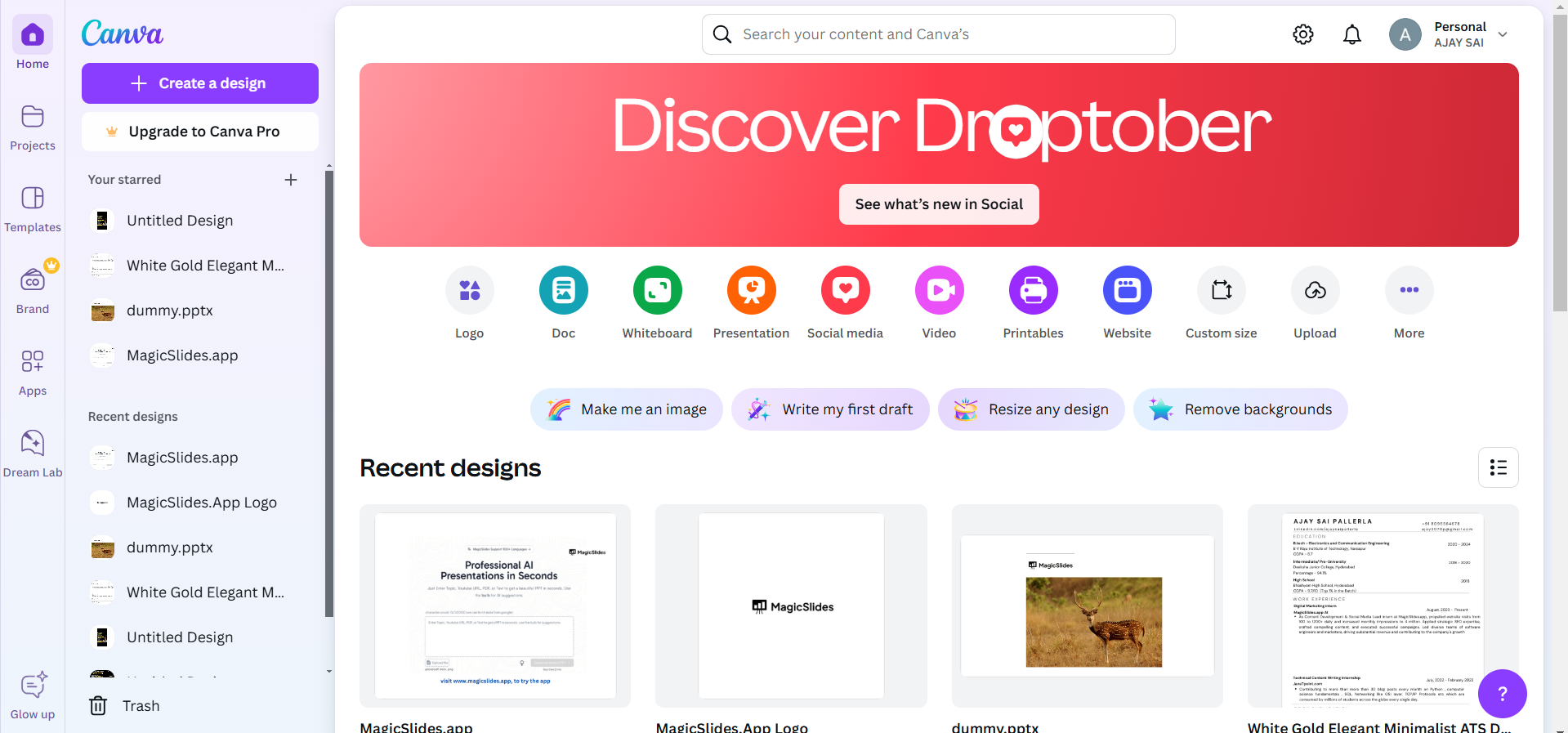
Ensure the content within your design is flexible for resizing, as changing orientation might affect the layout.
Step 2: Access the Resize Tool
Look for the “Resize” button at the top of the editor toolbar.
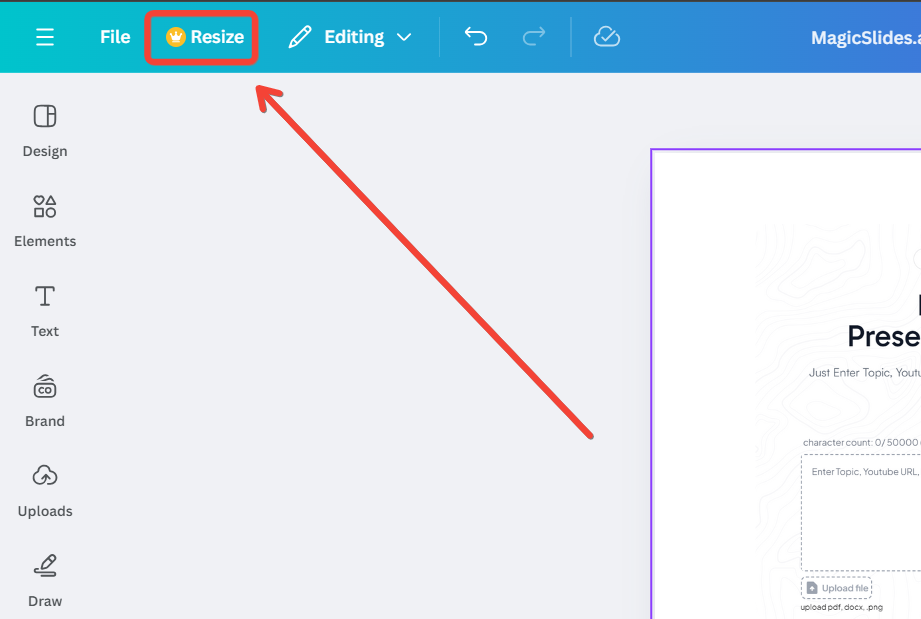
This option is available only to Canva Pro users. If you are a free user, you can create a new custom-sized design and manually adjust your content.
Step 3: Adjust the Dimensions for Landscape Orientation
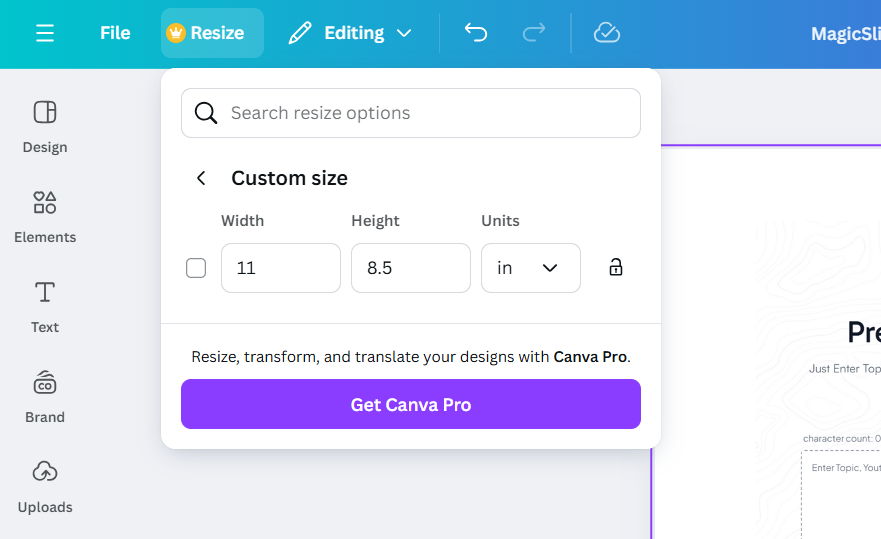
In the resize window, swap the values for width and height.
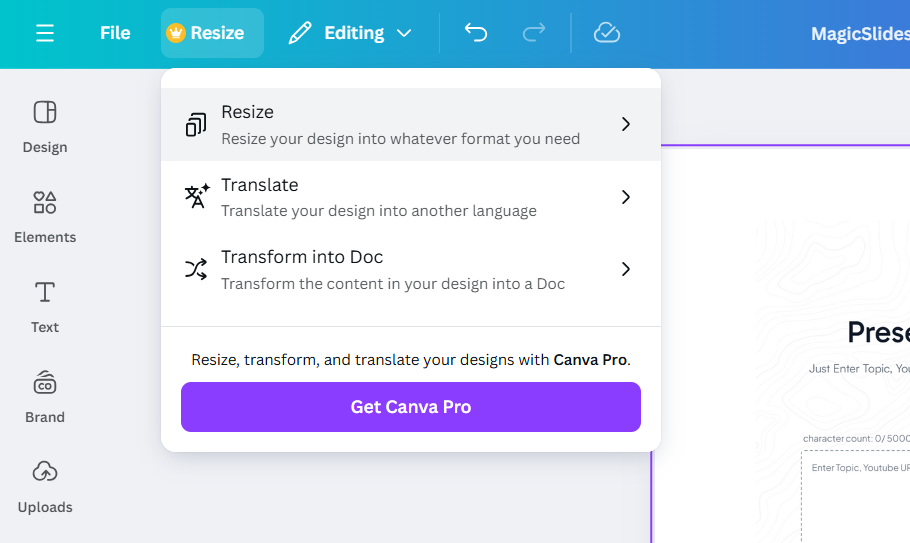
For example, if your current design dimensions are 800 x 1200 (portrait), change them to 1200 x 800 for landscape.
Click the “Copy & Resize” button if you want to create a duplicate design in the new orientation or “Resize” to change the current one directly.
Step 4: Rearrange Your Content
Review your design and adjust the elements as needed to fit the new layout.
Drag, resize, or realign text, images, and other components to ensure they look visually appealing in landscape mode.
Step 5: Save and Download Your Design
Once you’re satisfied with the changes, click the “Share” button on the top right corner of the editor.
Select “Download” and choose your preferred file format (PNG, JPG, or PDF). Save the file to your device and use it for your intended purpose.
Conclusion
Switching between portrait and landscape orientations in Canva is a simple yet powerful feature that can elevate your designs.
By following these steps, you can ensure that your design suits its intended purpose without compromising on aesthetics.
Whether you’re creating professional presentations or eye-catching posters, Canva’s flexibility makes it easy to adapt to your needs.
FAQs on Changing Orientation in Canva
Can I change orientation for free in Canva?
Unfortunately, the resize feature is available only to Canva Pro users. Free users can create a new custom-sized design and manually adjust their content to fit the desired orientation.
Will changing the orientation affect my design elements?
Yes, changing the orientation might misalign or resize some design elements. You’ll need to rearrange and adjust them manually to ensure they fit the new layout.
Can I switch back to portrait after changing to landscape?
Absolutely! You can repeat the steps and swap the dimensions again to return to portrait mode. Always make sure to save a copy before resizing to avoid losing your original layout.
This guide ensures that you can confidently switch between orientations and make the most out of Canva’s design capabilities!


