How to Change Heading and Body Font in PowerPoint


Easily change heading and body fonts in PowerPoint to enhance readability and maintain a professional look
How to Change Heading and Body Font in PowerPoint
Fonts play a crucial role in making your PowerPoint presentation visually appealing and easy to read.
By changing the heading and body fonts, you can create a professional and consistent design.
Follow these simple steps to update the fonts in your PowerPoint slides.
Steps to Change Heading and Body Font in PowerPoint
Step 1: Open Your PowerPoint Presentation
Launch Microsoft PowerPoint and open the presentation where you want to change the fonts.
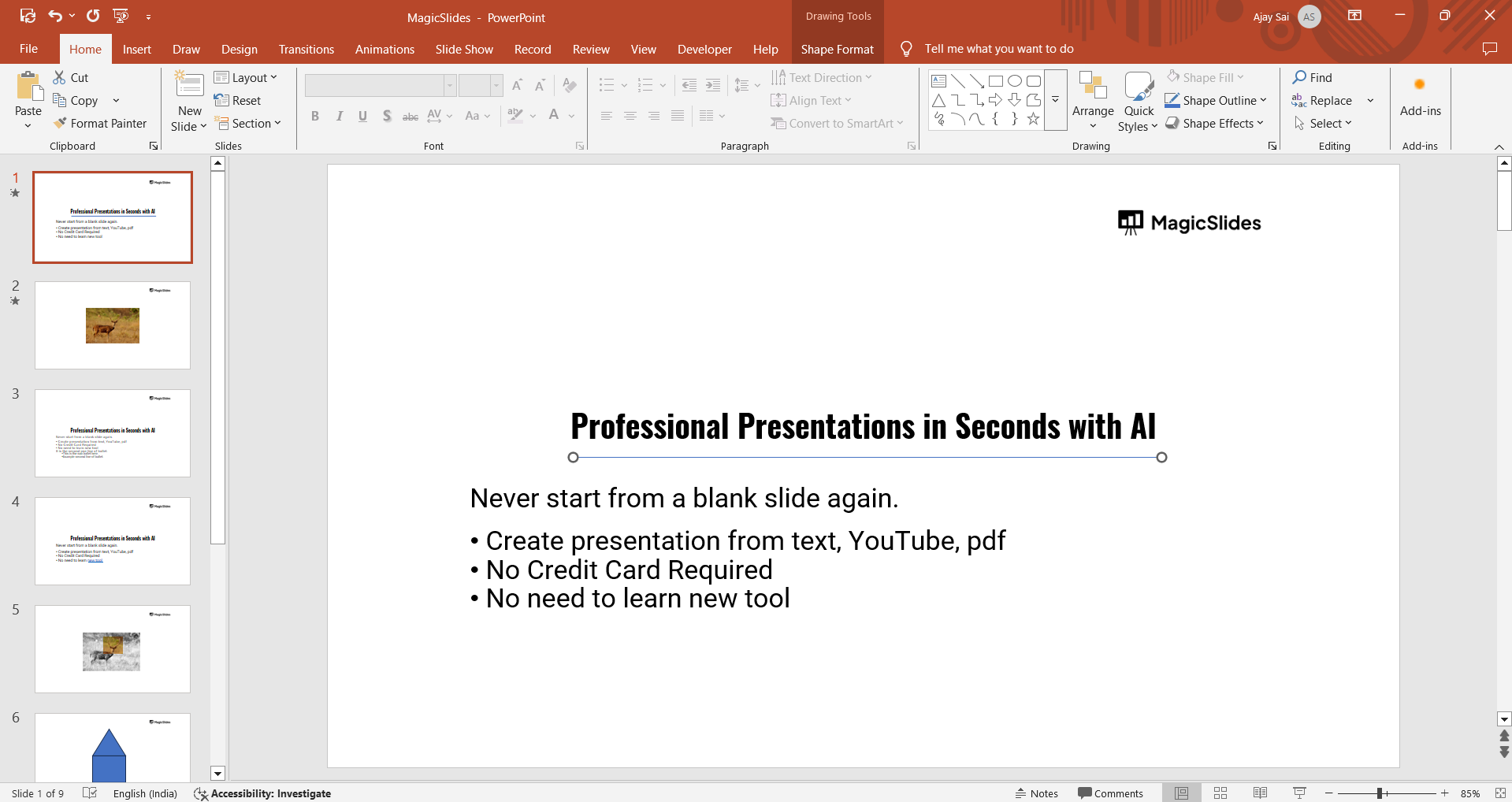
Ensure you're on the Home tab for easy access to font settings.
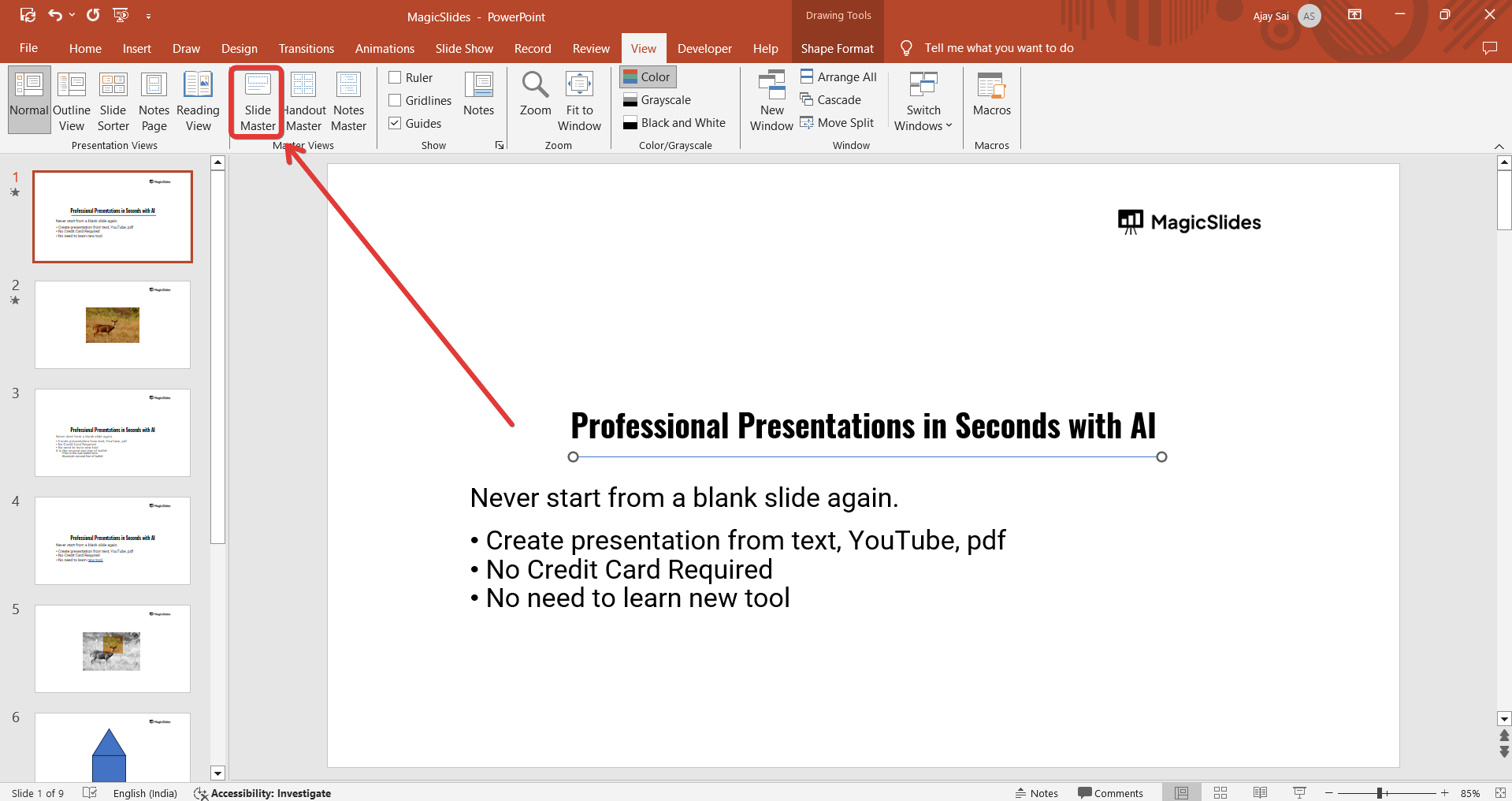
Step 2: Select the Slide Master View
Click on the View tab in the top menu. Choose Slide Master from the options. This view allows you to change the font for all slides at once.
Step 3: Choose a Slide Layout to Modify
In the Slide Master view, select the Master Slide (the first, larger slide) if you want to change fonts for the entire presentation.
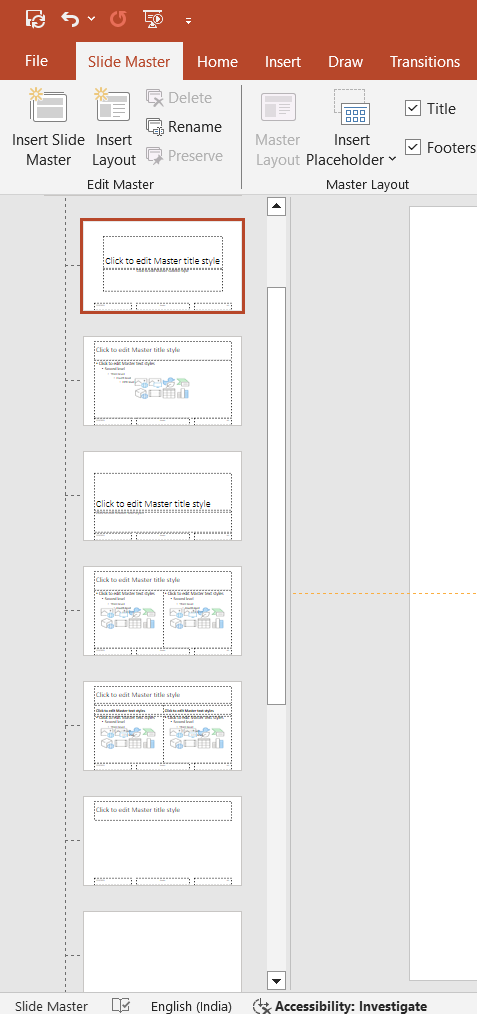
If you only want to modify specific slide layouts, select the corresponding layout below the Master Slide.
Step 4: Change the Heading Font
Click on the title text box of the Master Slide. Go to the Home tab and click on the Font dropdown menu.
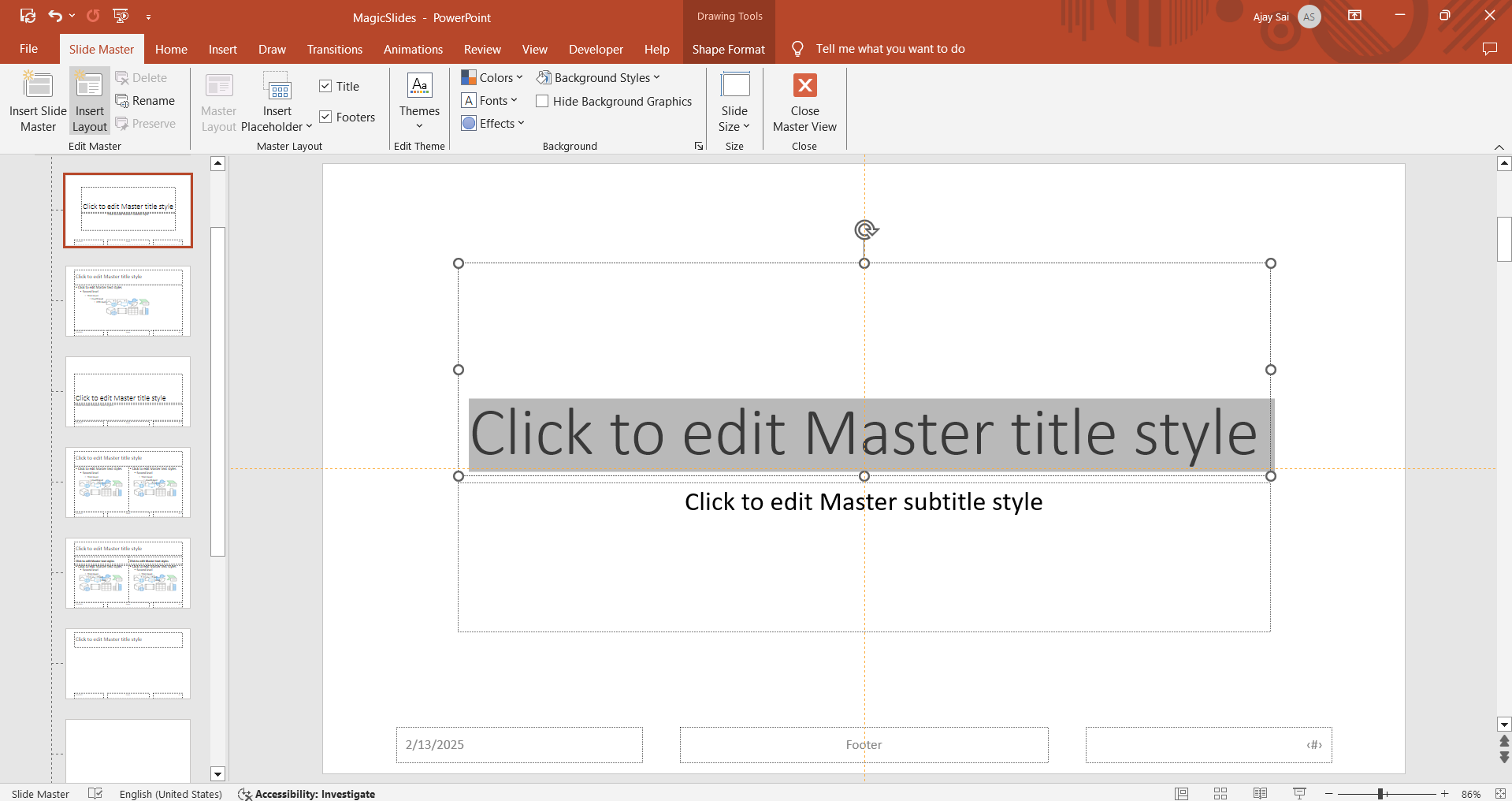
Choose your preferred heading font style.
Step 5: Change the Body Font
Click inside the body text box on the Master Slide. Again, go to the Font dropdown menu under the Home tab.
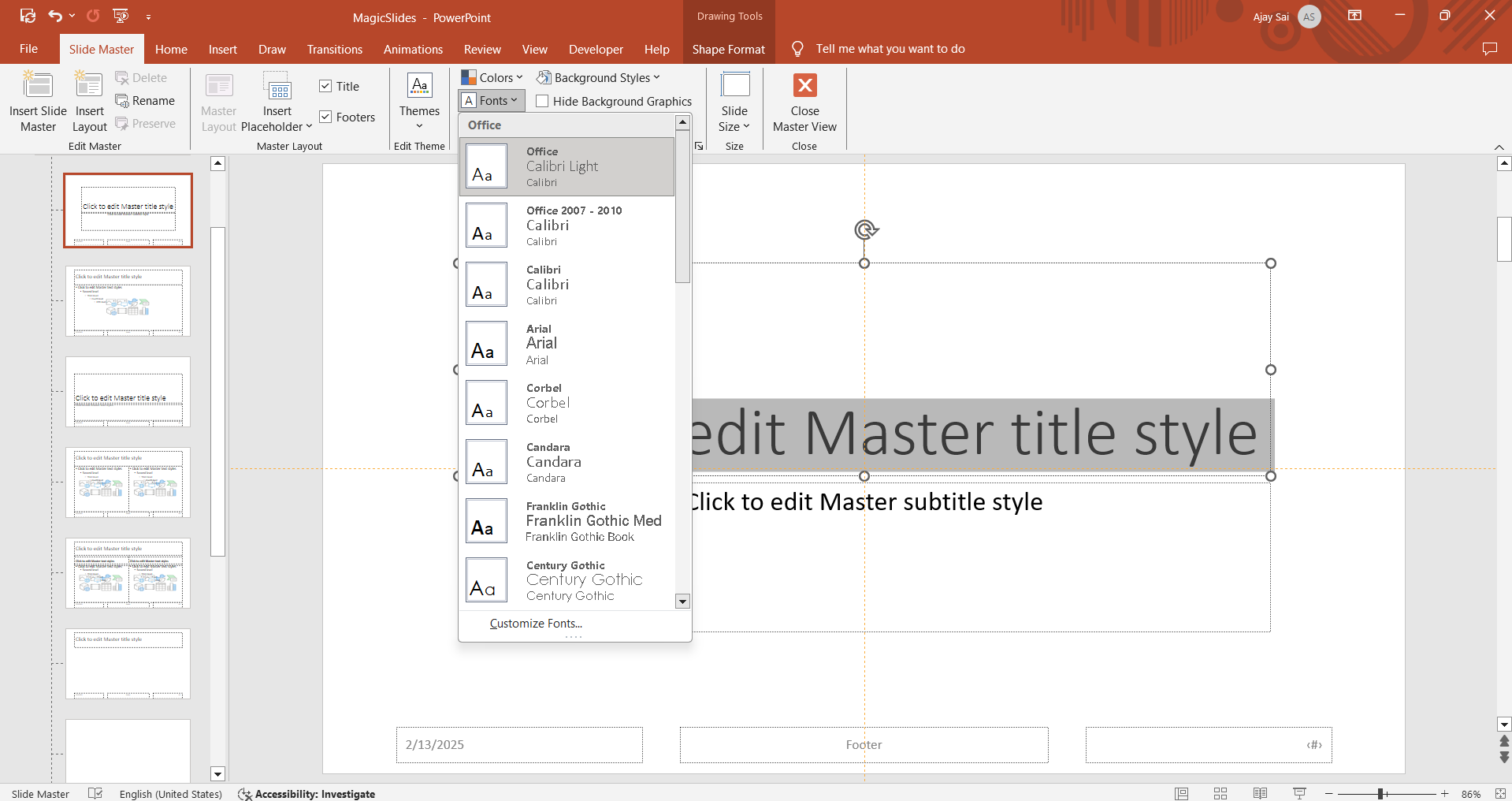
Select the font you want to use for the body text.
Step 6: Apply the Changes to All Slides
After modifying the fonts, click Close Master View under the Slide Master tab.
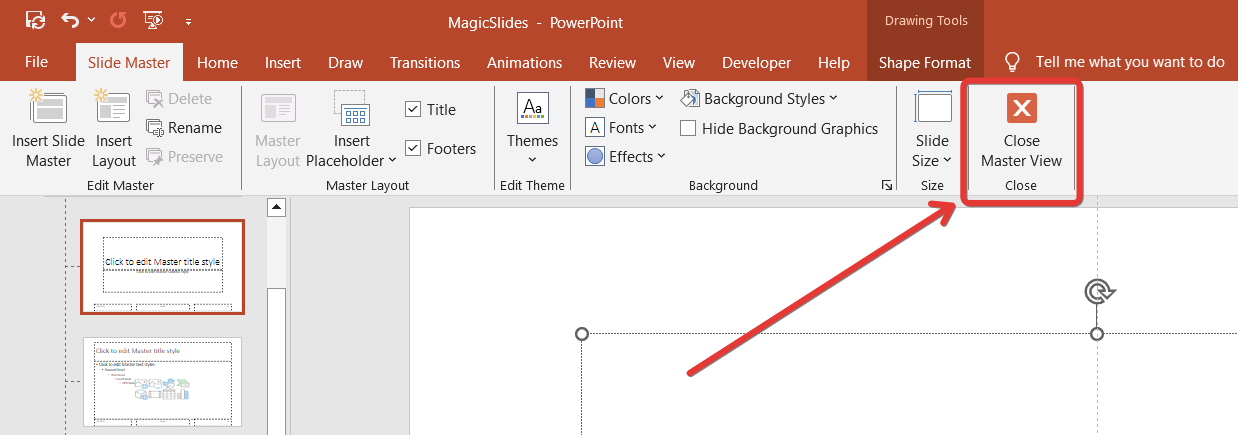
All slides in your presentation will now reflect the new fonts.
Step 7: Manually Adjust Individual Slides (If Needed)
If you need different fonts on specific slides, click on the text box and manually change the font under the Home tab.
Customizing fonts in PowerPoint helps maintain a consistent style, but if you want a faster way to create polished presentations with perfect typography, check out MagicSlides.app. Instantly generate professional slides with AI!
Conclusion
Changing the heading and body fonts in PowerPoint enhances the visual appeal and readability of your presentation.
Using Slide Master ensures a consistent look across all slides, making your presentation more professional and engaging.
FAQs on Changing Heading and Body Fonts in PowerPoint
Can I change the font for only one slide without affecting others?
Yes! Simply select the text on the slide and change the font using the Home tab.
What is the best font for PowerPoint presentations?
Fonts like Arial, Calibri, and Helvetica are great for readability, while Montserrat and Roboto add modern styling.
Can I save my font settings for future presentations?
Yes! After changing fonts in Slide Master, save your presentation as a PowerPoint Template (.potx) for future use.
Now, you can effortlessly customize fonts in PowerPoint and create visually appealing presentations! 🚀


