How to change slide layout in PowerPoint


Enhance your presentations: Learn how to effortlessly change slide layouts in PowerPoint for versatility.
The slide layout in PowerPoint plays a crucial role in structuring your presentation and organizing content effectively. Changing slide layouts allows you to switch between different design templates and arrangements to suit the content of each slide. In this step-by-step guide, we'll walk through the process of changing slide layouts in PowerPoint, empowering you to create visually engaging and well-structured presentations.
How to change slide layout in PowerPoint
Step 1: Open Your PowerPoint Presentation
Begin by opening the PowerPoint presentation where you want to change the slide layout. Ensure that you are in the slide view where you want to modify the layout.
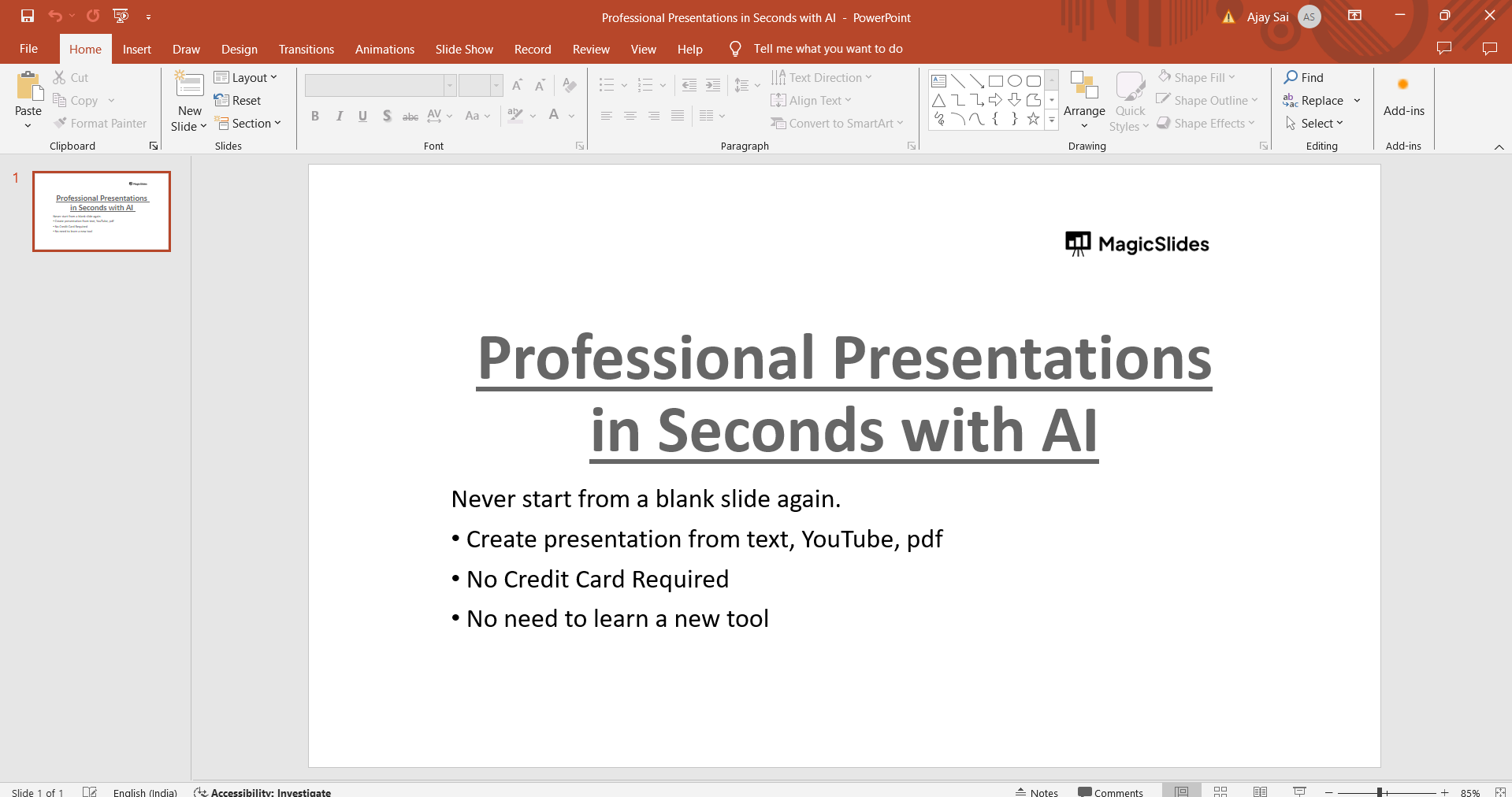
Step 2: Access Slide Layout Options
Click on the slide you want to change the layout for in the thumbnail pane on the left side of the PowerPoint window. Then, navigate to the "Home" tab on the PowerPoint ribbon at the top of the screen.
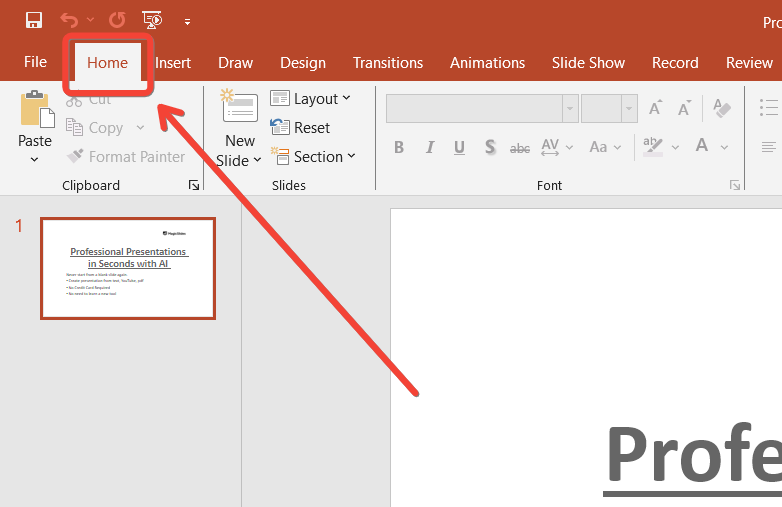
Step 3: Choose the "Layout" Option
In the "Home" tab, locate the "Layout" dropdown menu in the Slides group. Click on the dropdown arrow to view the available slide layout options.
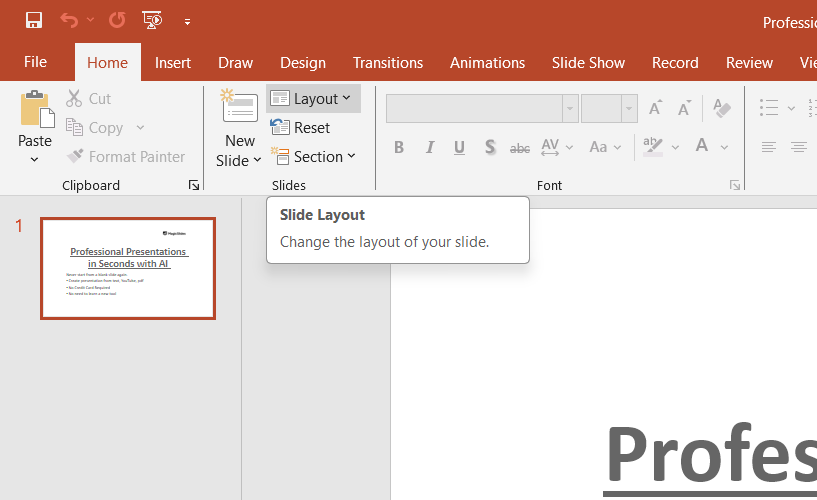
Step 4: Select a New Slide Layout
From the dropdown menu, browse through the various slide layout options such as Title Slide, Title and Content, Two Content, Comparison, and more. Click on the desired layout to apply it to the selected slide.

Step 5: Apply the New Layout
Once you've selected the new slide layout, PowerPoint will automatically apply it to the selected slide. The content placeholders and formatting will adjust based on the chosen layout.
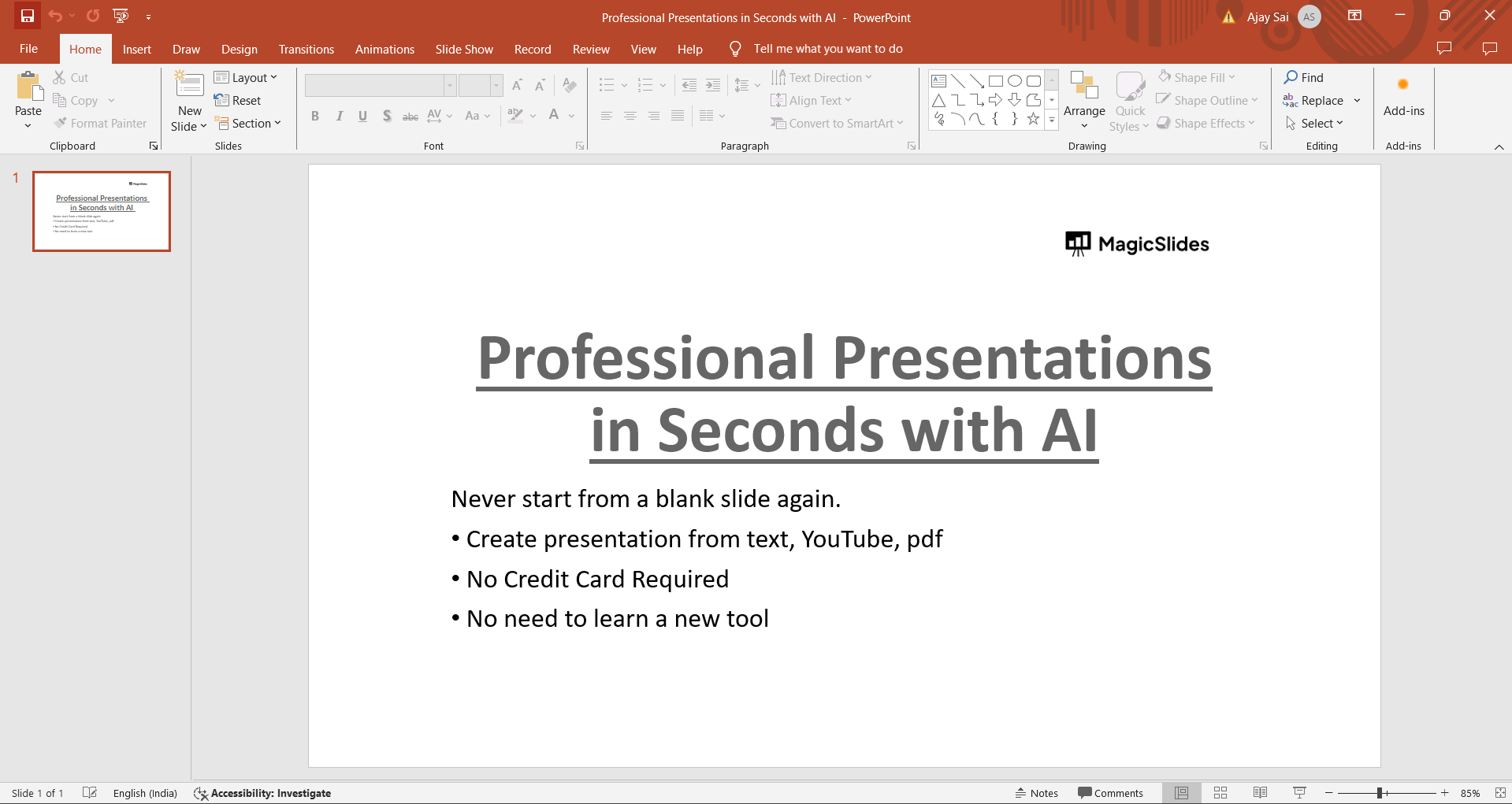
Step 6: Adjust Content and Formatting (if needed)
After changing the slide layout, review the content on the slide to ensure it fits well within the new layout. You may need to adjust text size, position, or other elements to optimize the slide's appearance.
Conclusion:
Changing slide layouts in PowerPoint offers versatility and flexibility in designing your presentations. By following this step-by-step guide, you can easily switch between different slide layouts to enhance the visual appeal and organization of your slides. Whether you're creating a title slide, adding content, or incorporating multimedia elements, mastering slide layout changes empowers you to create professional and impactful presentations. Incorporate these techniques into your PowerPoint workflow to effectively communicate your message and engage your audience.
Frequently Asked Questions:
Will changing the slide layout affect the existing content on the slide?
Changing the slide layout may reposition or resize existing content to fit the new layout. Review and adjust content as needed after changing the layout.
Can I customize slide layouts to suit my specific design preferences?
Yes, PowerPoint allows you to create custom slide layouts or modify existing ones to match your design requirements, including text placeholders and graphics.
Are there predefined slide layouts for specific content types, such as charts or images?
Yes, PowerPoint provides specialized slide layouts tailored for different content types like charts, images, tables, and more. Choose the layout that best suits your content.
Can I revert to the original slide layout after making changes?
Yes, you can revert to the original slide layout by selecting the desired layout from the "Layout" dropdown menu in PowerPoint, undoing any changes made.


