How to change the slide size in Google slides


Optimize your Google Slides presentations by learning to change slide sizes with this user-friendly guide
Google Slides is a versatile tool for creating visually appealing presentations, but sometimes you may find the need to adjust the slide size to better suit your content or presentation format. Whether you're preparing a slideshow for a widescreen display or need a custom size for a specific purpose, knowing how to change the slide size in Google Slides is a valuable skill. In this step-by-step tutorial, we'll walk you through the process to make it easy and efficient.
How to change the slide size in Google slides
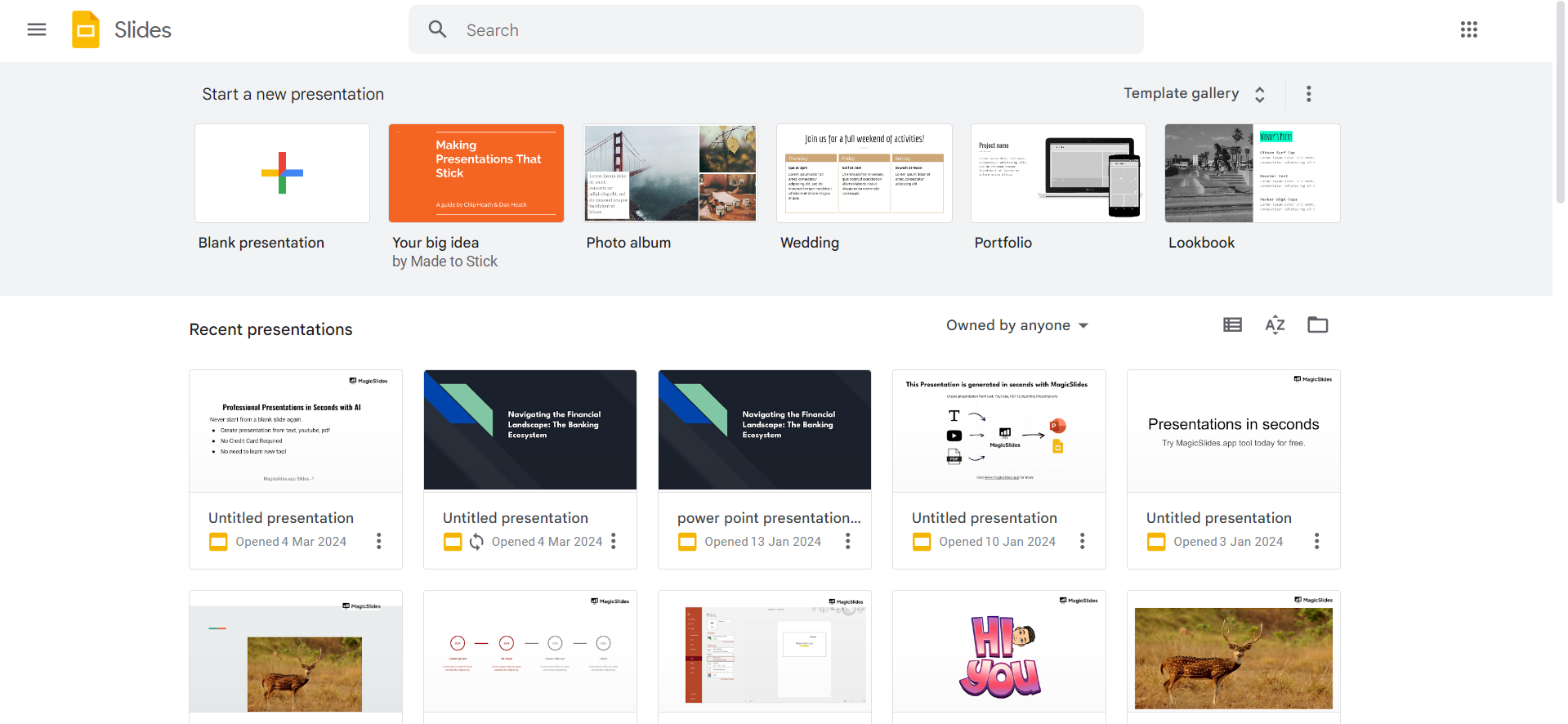
Open Your Presentation:
Begin by opening the Google Slides presentation that you want to edit. If you haven't started one yet, create a new presentation.
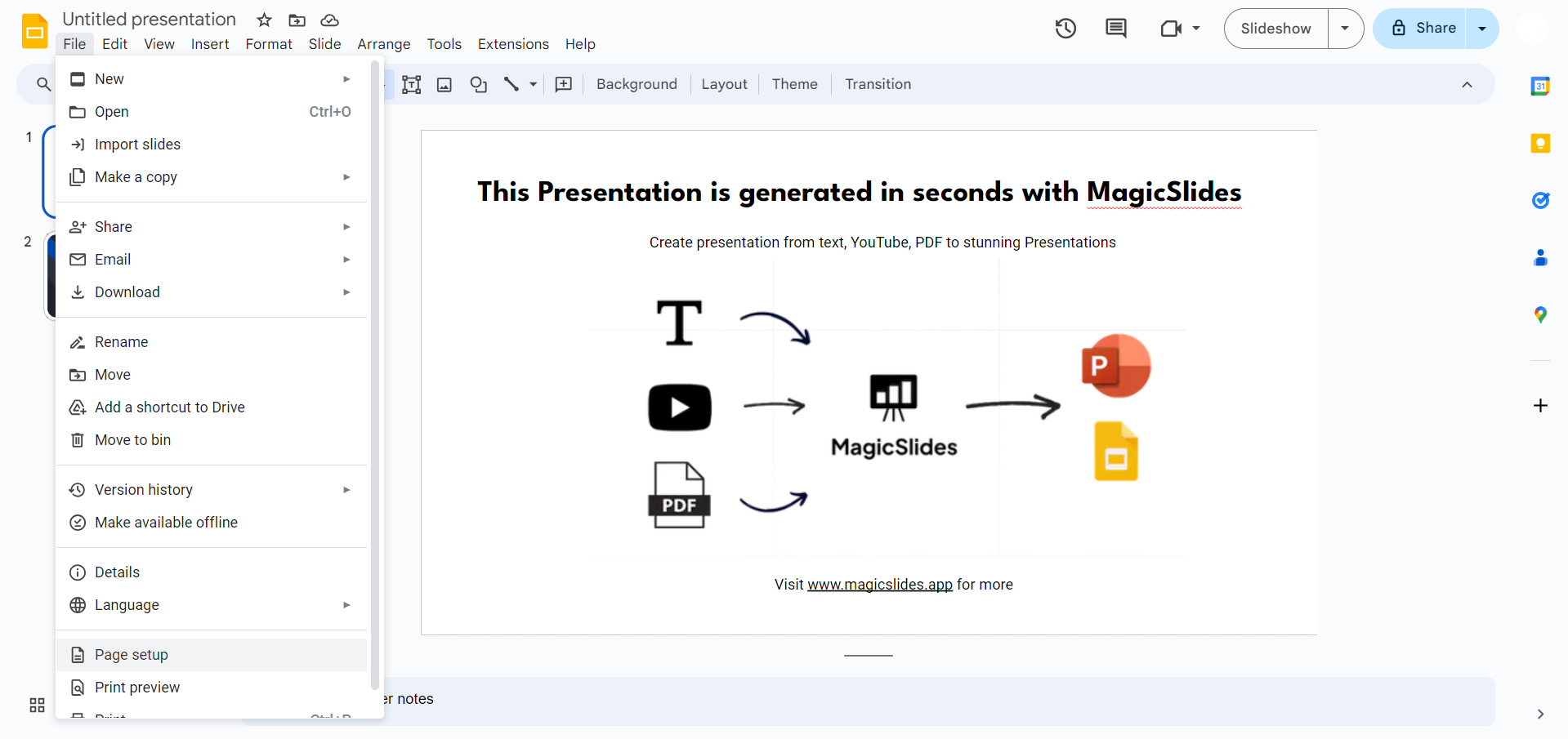
Access the "File" Menu:
In the top-left corner of the screen, locate the "File" menu. Click on it to reveal a dropdown menu with various options.
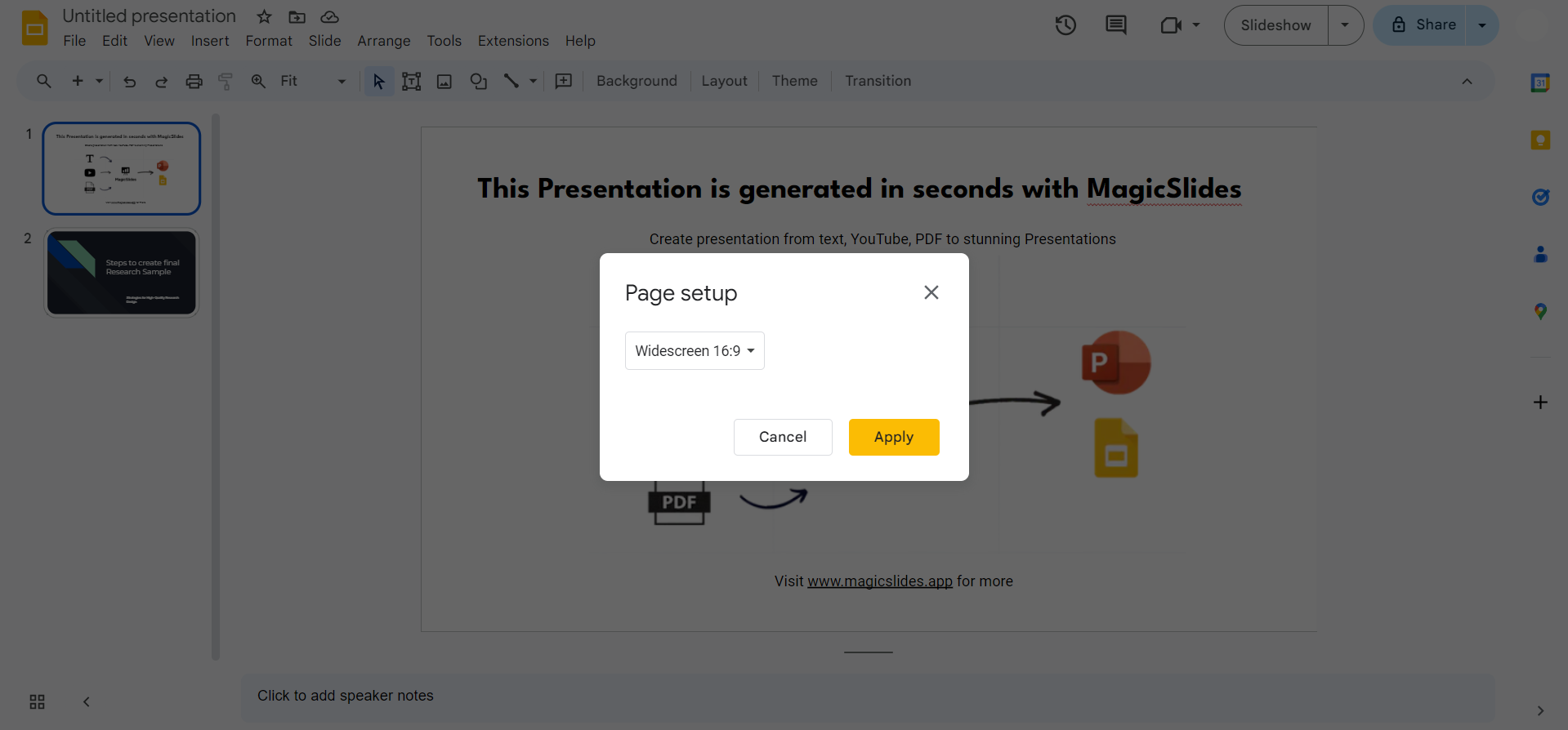
Choose "Page Setup":
Within the "File" menu, find and click on the "Page setup" option. This will open a dialog box where you can customize the page settings.
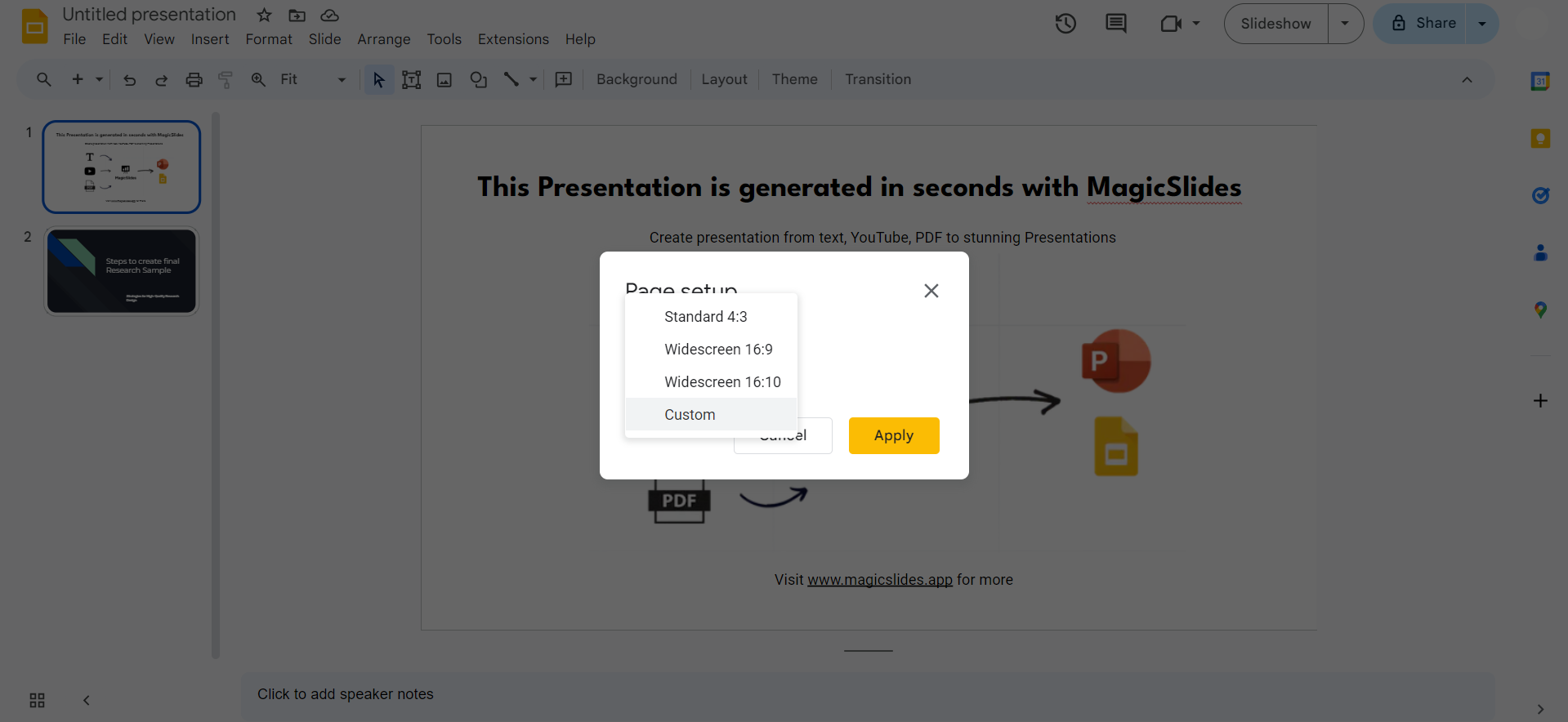
Select "Custom" Slide Size:
In the "Page setup" dialog box, you'll see a dropdown menu with predefined sizes. To set a custom slide size, scroll down and choose the "Custom" option.
Enter Custom Dimensions:
Once you've selected "Custom," you can now enter the specific dimensions for your slides. Input the width and height values in inches, millimeters, or pixels, depending on your preference.
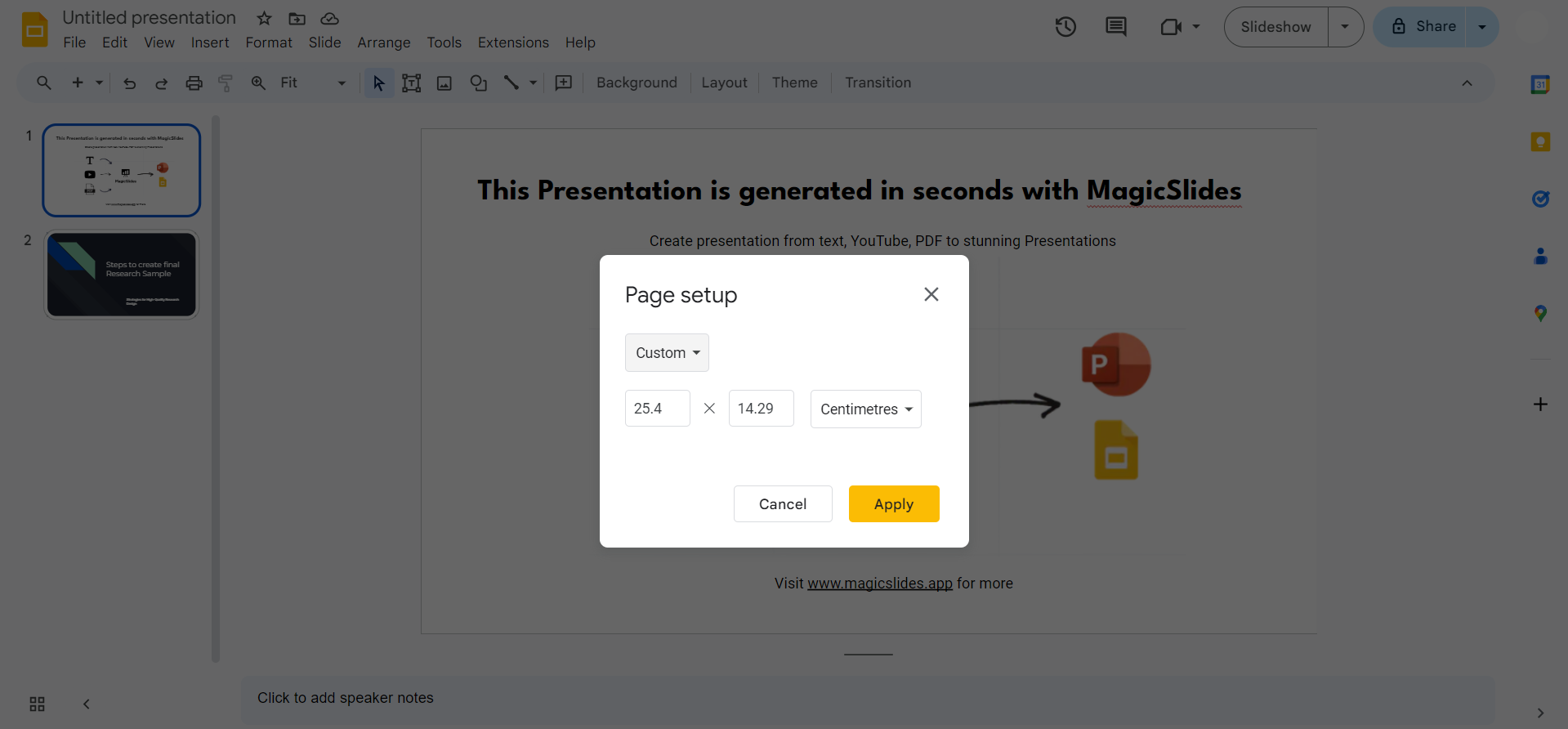
Click "Apply" and then "Done":
After entering the desired dimensions, click the "Apply" button to confirm the changes. Then, click "Done" to exit the "Page setup" dialog box.
Conclusion:
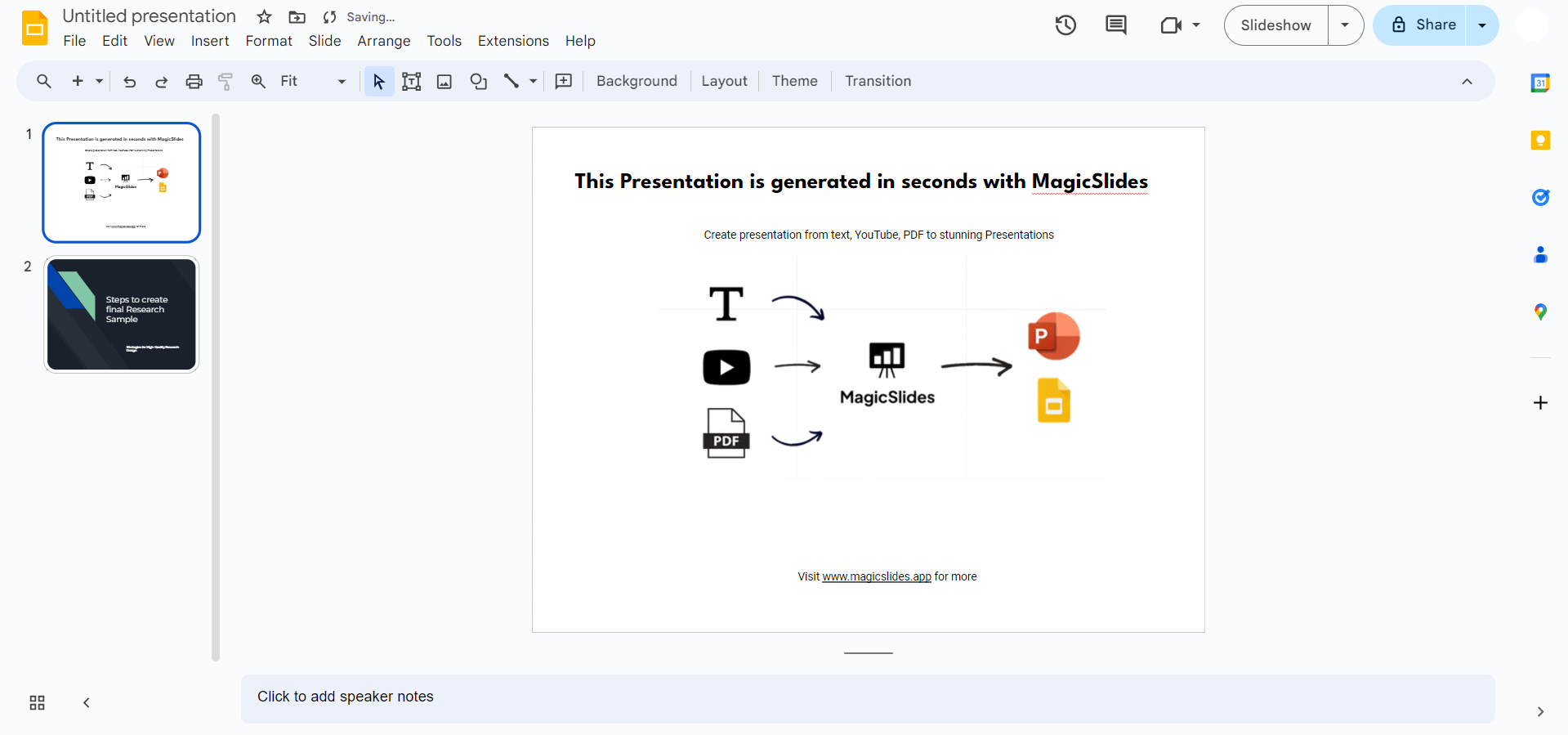
Changing the slide size in Google Slides allows you to tailor your presentations to various display preferences or specific requirements. This simple and straightforward process ensures that your content is presented in the best possible way, making your presentations more effective and engaging. Now, armed with this step-by-step guide, you have the knowledge to effortlessly adjust slide sizes and optimize your Google Slides presentations for any scenario.
Frequently Asked Questions:
Can I change the slide size for an existing presentation in Google Slides?
Yes, you can modify the slide size for an existing presentation by following the steps outlined above.
What are the standard slide size options in Google Slides?
Google Slides offers standard sizes like 4:3 (standard), 16:9 (widescreen), and custom dimensions for flexibility.
Will changing the slide size affect the content layout of my presentation?
Yes, adjusting the slide size may impact content layout. Be prepared to make adjustments after resizing.
Can I revert to the original slide size after making changes?
Yes, you can revert to the original size by revisiting the "Page setup" option and selecting "Standard" sizes.


