how to change theme colors in google slides


Enhance your Google Slides presentations with a personalized touch! Learn how to change theme colors effortlessly.
Google Slides is a powerful tool for creating visually stunning presentations, but sometimes the default theme colors just don't cut it. Whether you're looking to match your company's branding or simply want to add a personal touch, customizing theme colors can make your presentation stand out. In this article, we'll guide you through the steps to change theme colors in Google Slides, giving you the creative freedom you need to make your presentations truly unique.
Changing theme colors in Google Slides is a straightforward process that allows you to tailor your presentations to your specific needs. Follow these steps, and you'll be on your way to creating captivating slides that leave a lasting impression.
How to Change Theme Colors in Google Slides:
Step 1: Open Your Presentation Start by opening the Google Slides presentation you want to customize. If you haven't created one yet, you can start a new presentation by going to Google Drive, clicking on the "+ New" button, and selecting "Google Slides."

Step 2: Access the Slide Master To change theme colors, you need to access the Slide Master. Click on the "Slide" menu at the top and choose "Edit master." This will take you to the Slide Master view, where you can make changes to the overall theme or alternatively you can click on the theme slides when selected the slide.
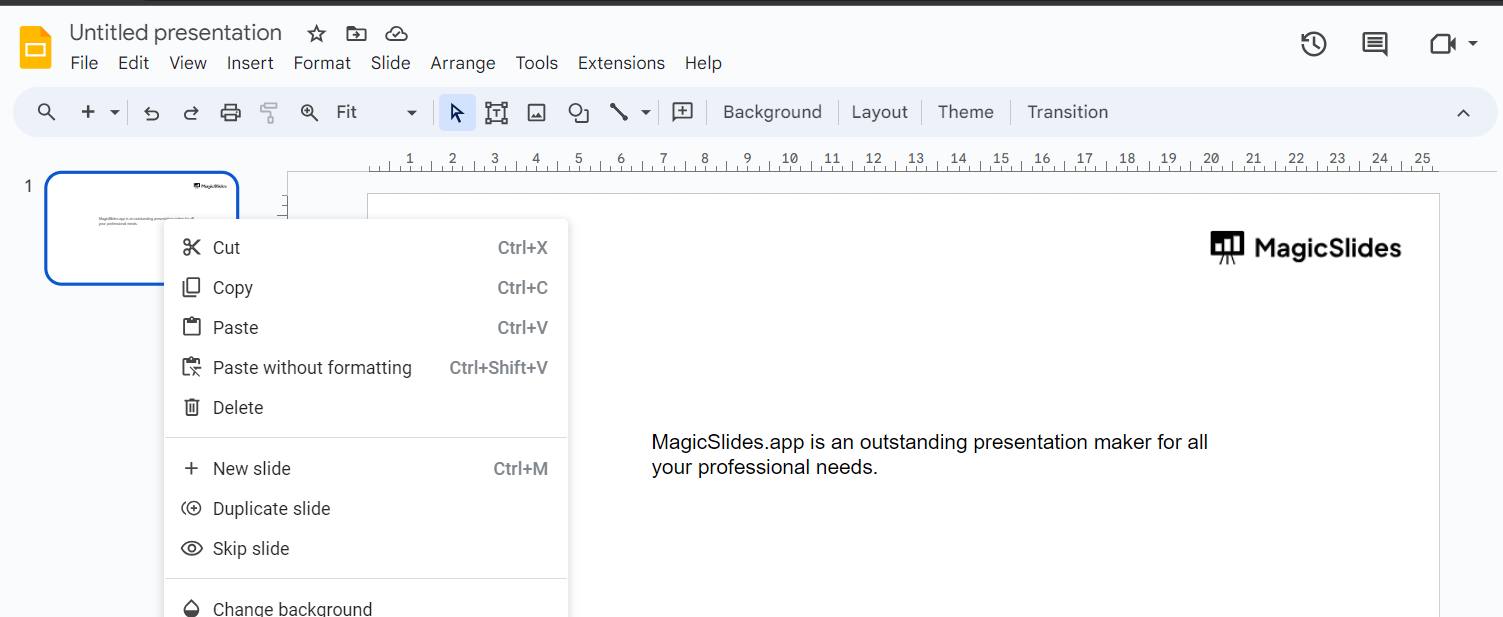
Step 3: Customize Your Theme Colors In the Slide Master view, you'll see a set of theme colors on the right-hand side of the screen. These are the colors that are currently applied to your presentation. To customize them, click on the "Colors" dropdown menu, and you'll have two options:
a) Custom: This option allows you to manually select and customize each of the theme colors. Click on "Custom" and choose your desired colors for text, background, accents, links, and more.

b) Import Theme: If you have a predefined color scheme in mind, you can import it by clicking "Import theme."which can be found at the bottom. This is useful if you want to match your company's branding or maintain consistency across your presentations.

Step 4: Apply Your Custom Theme Colors Once you've customized your theme colors, click "Apply to all" to apply the changes to your entire presentation. You can also choose to apply them to specific slides if you prefer a mixed color scheme within your presentation.
Conclusion:
By following the steps outlined in this guide, you can easily personalize your presentation's color scheme to match your style or branding. Remember that consistency in design can make your slides more polished and professional.


