How to Change to Portrait in Canva


Switching to portrait in Canva is simple and perfect for creating flyers, posters, or vertical content
Designing in portrait orientation is ideal for many types of projects, such as flyers, posters, or even social media stories.
Canva, a versatile design tool, makes it easy to switch between landscape and portrait modes depending on your design needs.
In this guide, I’ll take you through the steps to change your Canva design into portrait orientation, so you can customize your canvas for any project.
How to Change to Portrait in Canva: A Step-by-Step Guide
Step 1: Open Canva and Create or Select a Design
Start by logging into Canva and either open an existing design or create a new one.
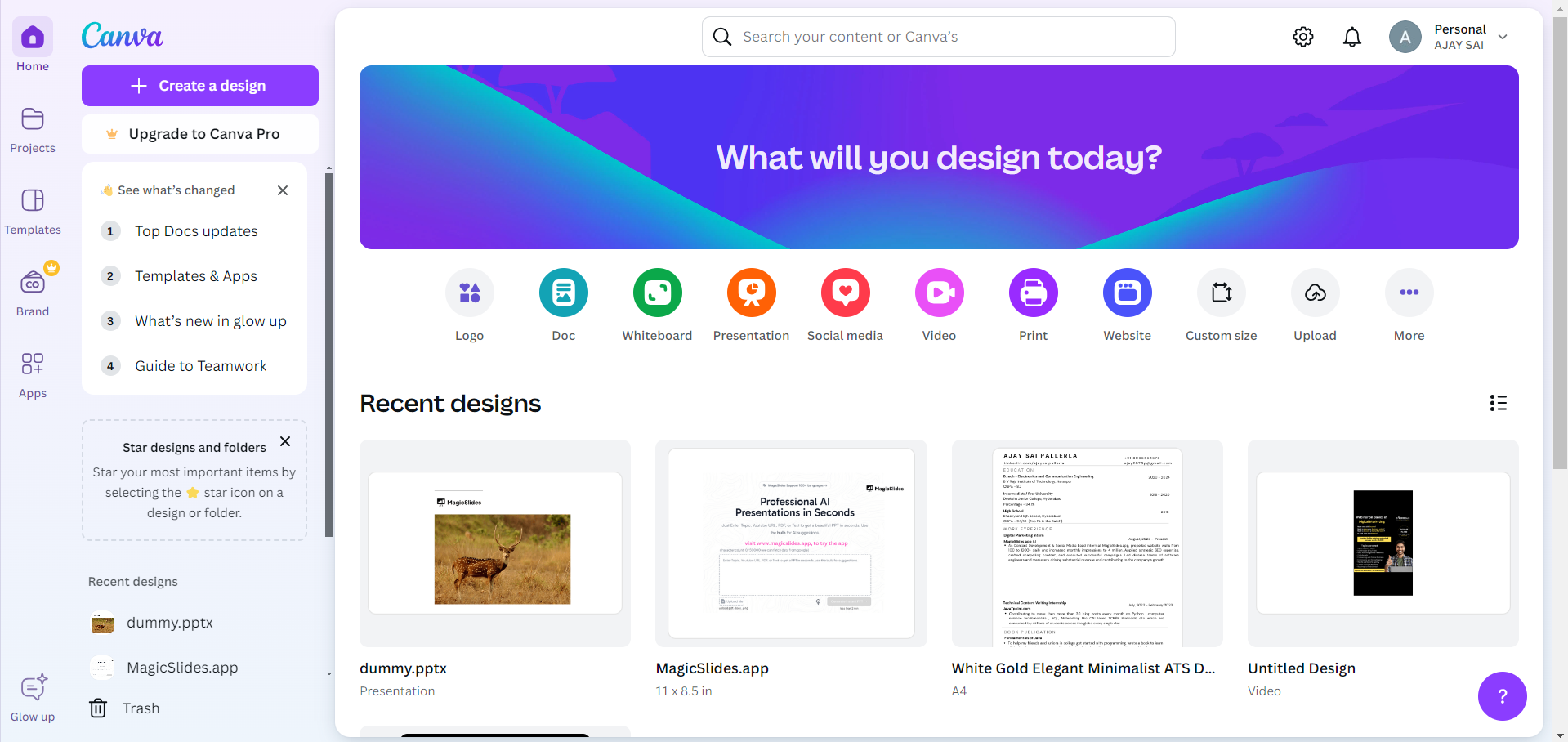
To create a new design, click the "Create a design" button in the top-right corner.
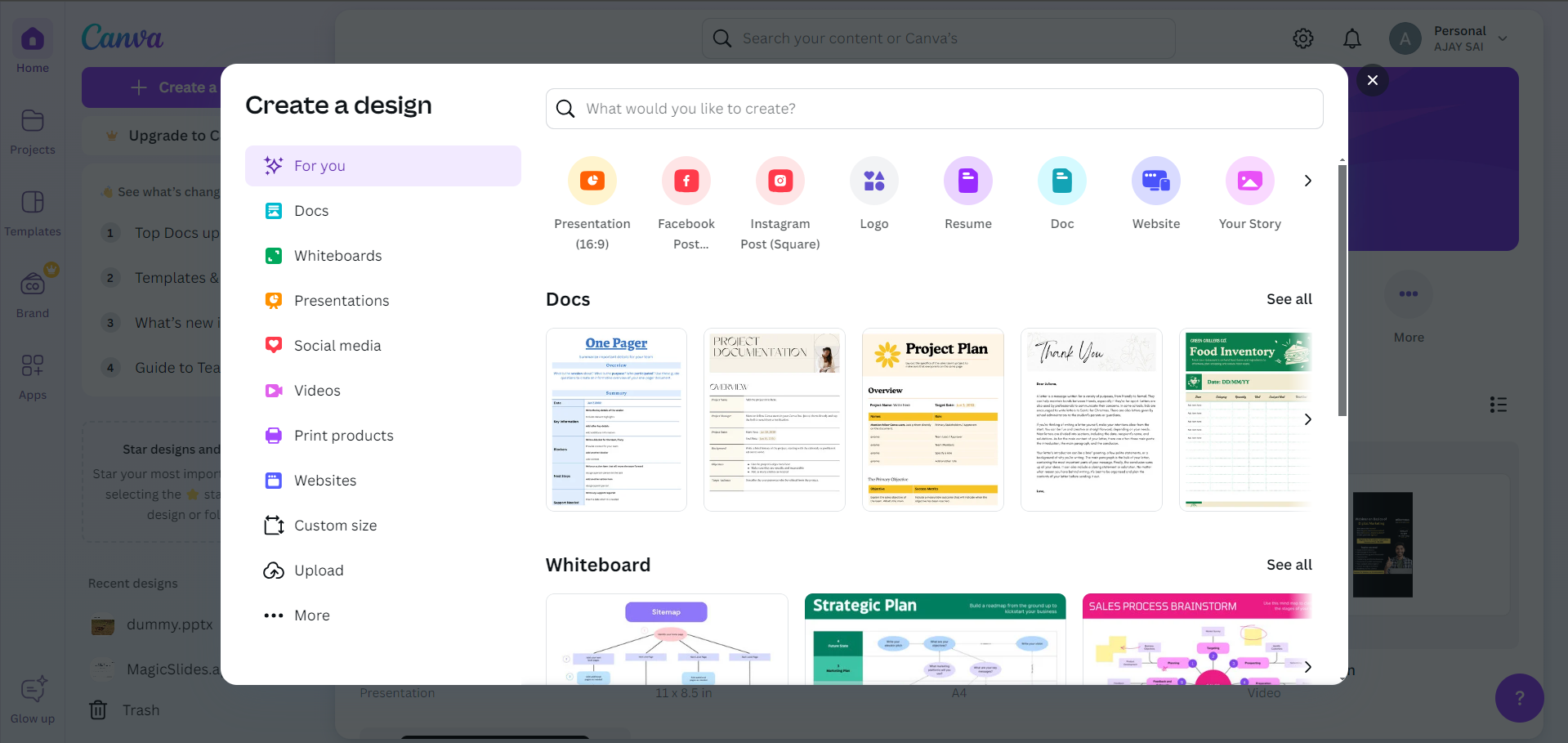
For specific dimensions, you can select "Custom Size" and input the desired dimensions that suit a portrait orientation, such as 1080 x 1920 pixels or 8.5 x 11 inches.
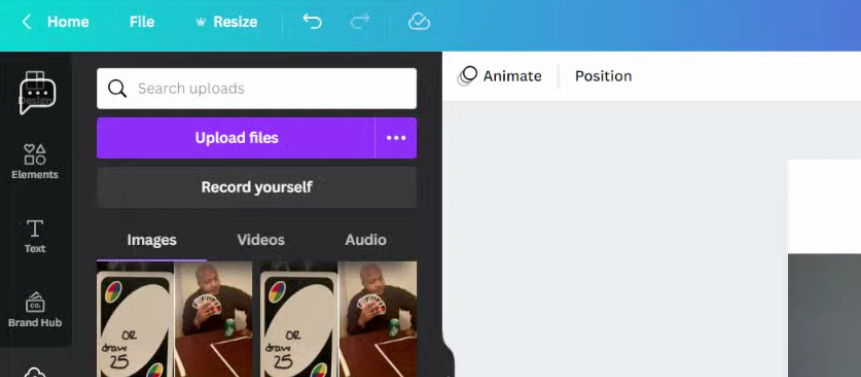
Step 2: Adjust Page Orientation
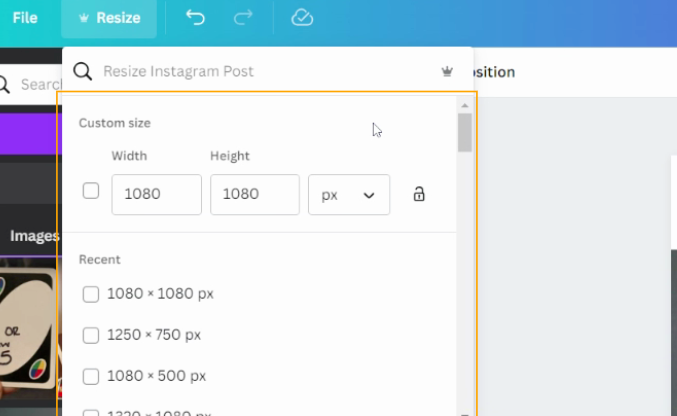
If you are working with an existing design that’s in landscape orientation, go to the top toolbar and click on "Resize."
In the "Resize" menu, you can adjust the width and height to match a portrait layout.
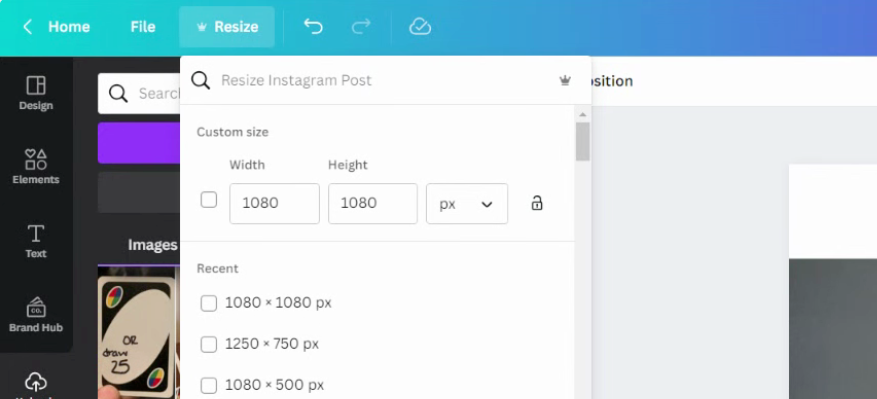
For example, swapping dimensions like making the width smaller than the height will shift the design to portrait. Enter your custom sizes and click “Resize” to confirm.
Step 3: Review and Rearrange Design Elements
Once the canvas is resized into portrait orientation, review your design elements.
Some items might need repositioning or resizing to fit the new layout.
You can drag and drop elements, adjust text boxes, and scale images to make sure everything looks neat and aligned within the new portrait format.
Step 4: Save or Share Your Portrait Design
After adjusting your design to suit the portrait layout, it's time to save or share your work.
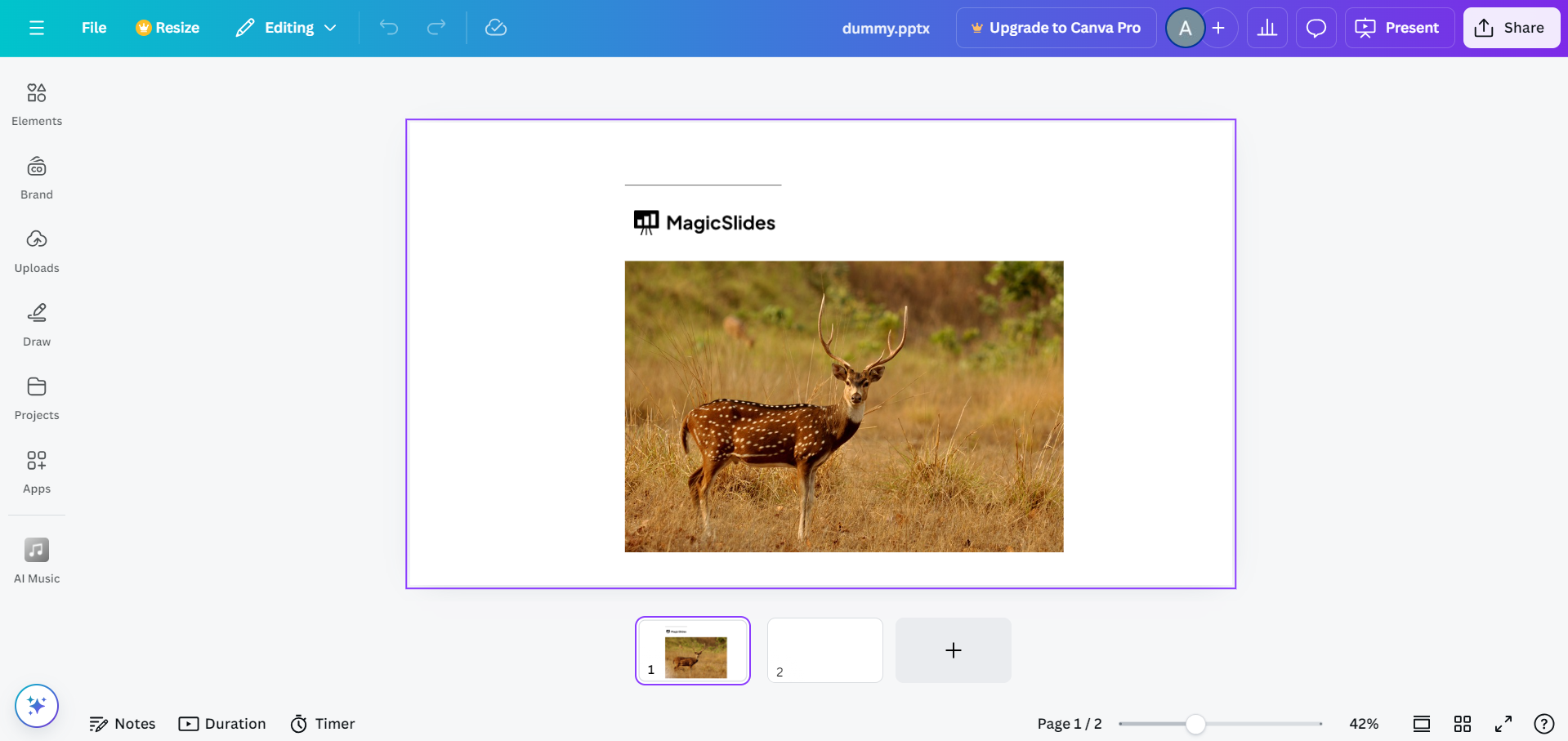
Click the “Share” button at the top right of the screen, then choose the download format that works best for your project, whether it's PNG, JPG, or PDF.
Alternatively, you can share your design directly to social media or through a link.
Conclusion
Switching to portrait orientation in Canva is a straightforward process that allows for more versatile design options.
Whether you're creating a flyer, poster, or mobile-friendly content, Canva gives you the flexibility to customize your canvas with just a few clicks.
By following these simple steps, you can easily adjust your designs for any format and create visually engaging content tailored to your audience’s needs.
FAQs are here to help!
Can I change the orientation of my design without affecting the elements?
While the orientation change itself won’t directly affect your design elements, you may need to manually reposition and resize some objects to fit the new layout.
Can I switch back to landscape orientation after changing to portrait?
Yes, you can easily switch between portrait and landscape orientations by adjusting the width and height in the "Resize" option.
Are there any preset sizes for portrait designs in Canva?
Yes, Canva offers many preset sizes for portrait designs, including options for posters, flyers, and mobile content, which you can choose directly from the "Create a design" menu.


