Addon google slides iconPPT with AISlide TemplatesPPT TemplatesPricingBlog
    PPT with AISlide TemplatesPPT TemplatesPricingBlog
    1. Home
    2. Blog
    3. How to Clip Mask in Canva


    How to Clip Mask in Canva

    Ajay Sai

    Published By

    Ajay Sai

    Approved By

    Admin

    Published On

    December 5th, 2024

    Reading Time

    3 min read

    Master clip masking in Canva to create stunning, custom-shaped visuals for your design projects

    Clip masking, also known as masking, is a powerful feature in Canva that allows you to shape your images into specific frames or designs.
    Whether you're creating a standout social media post or a unique design project, clip masking can elevate your visuals.
    In this step-by-step guide, learn how to effectively apply clip masking in Canva to create eye-catching designs.

    How to Clip Mask in Canva | Steps to Clip Mask in Canva

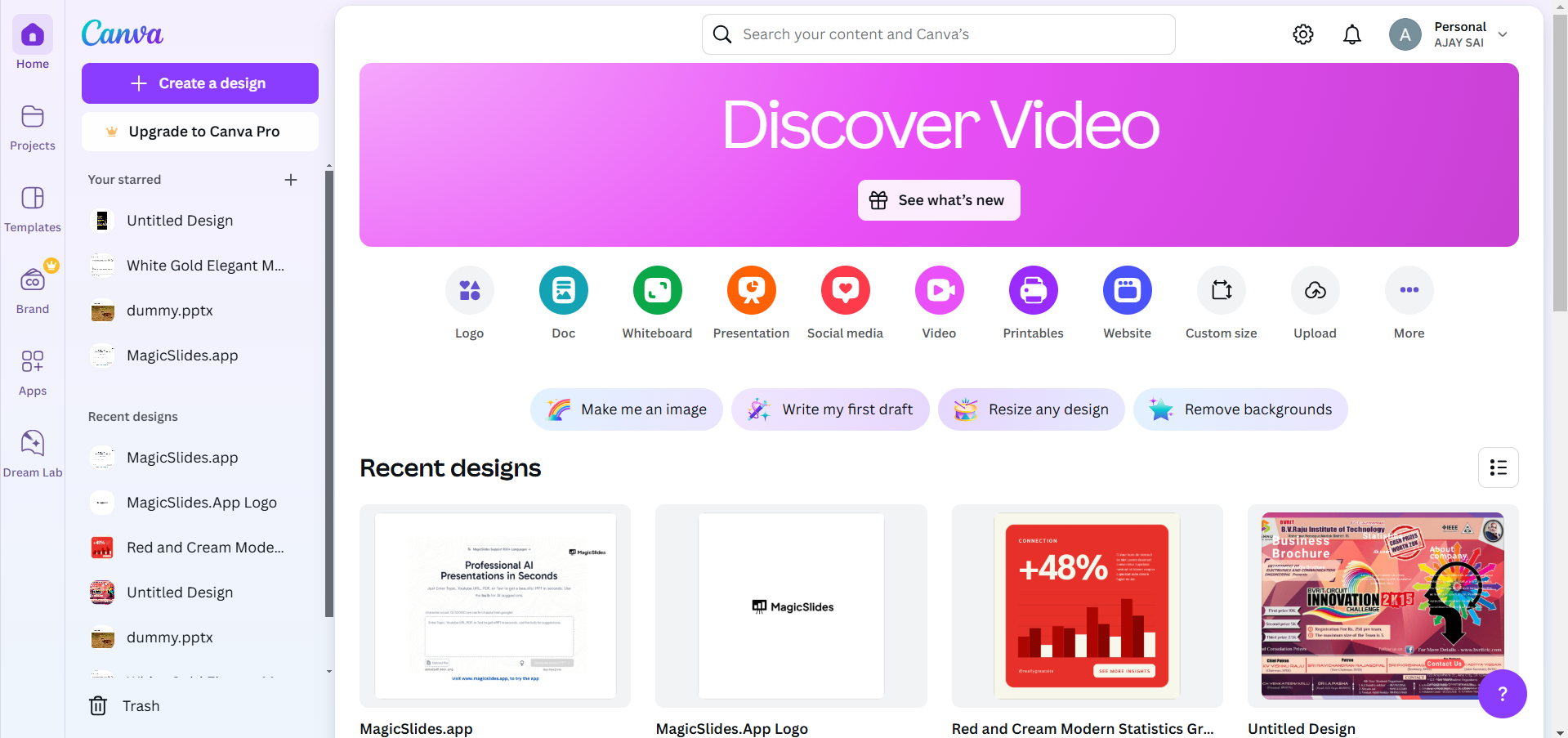
    Step 1: Open Canva and Start a Design

    Log in to Canva and open an existing project or create a new one.
    notion image
    Choose a design type (e.g., poster, presentation, or Instagram post) to set the canvas dimensions.

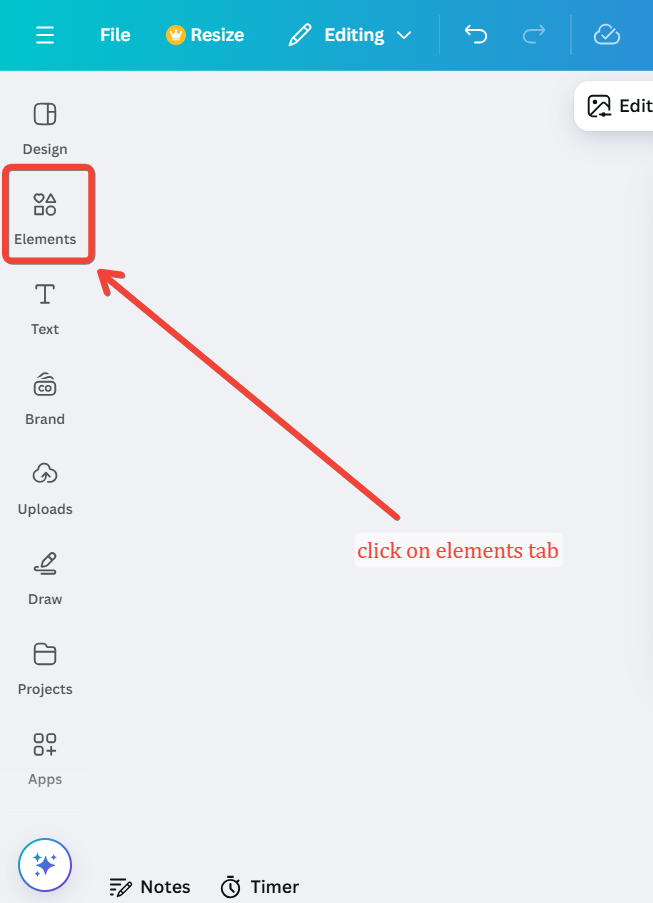
    Step 2: Access the Elements Tab for Frames

    On the left toolbar, click on “Elements.”
    notion image
    Scroll down or search for “Frames” in the search bar.
    Browse the available frame options, including circles, squares, letters, and custom shapes.

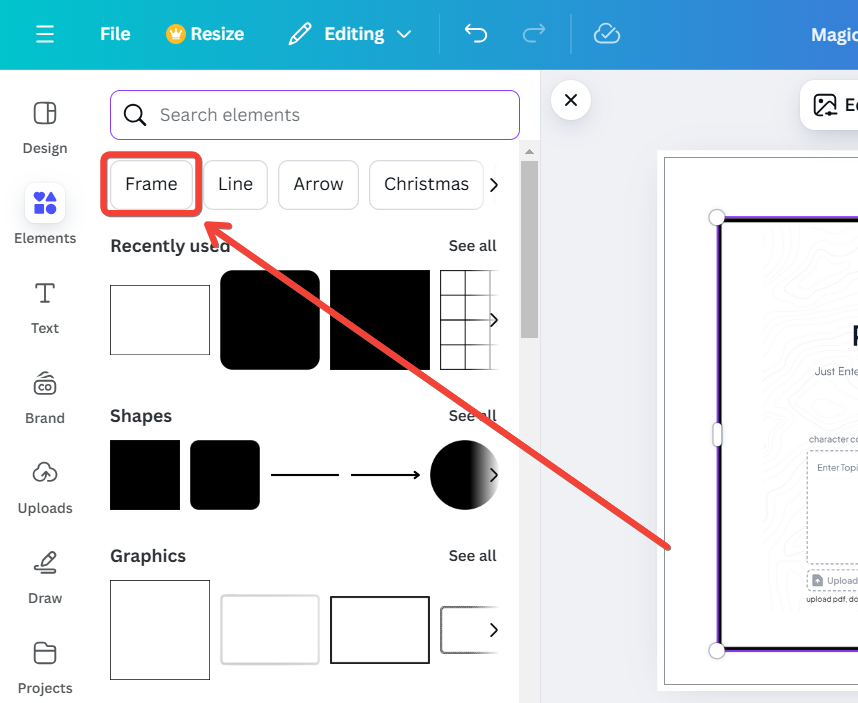
    Step 3: Add a Frame to Your Canvas

    Click on a frame to add it to your canvas.
    notion image
    Resize and position the frame on the canvas to match your design’s layout.

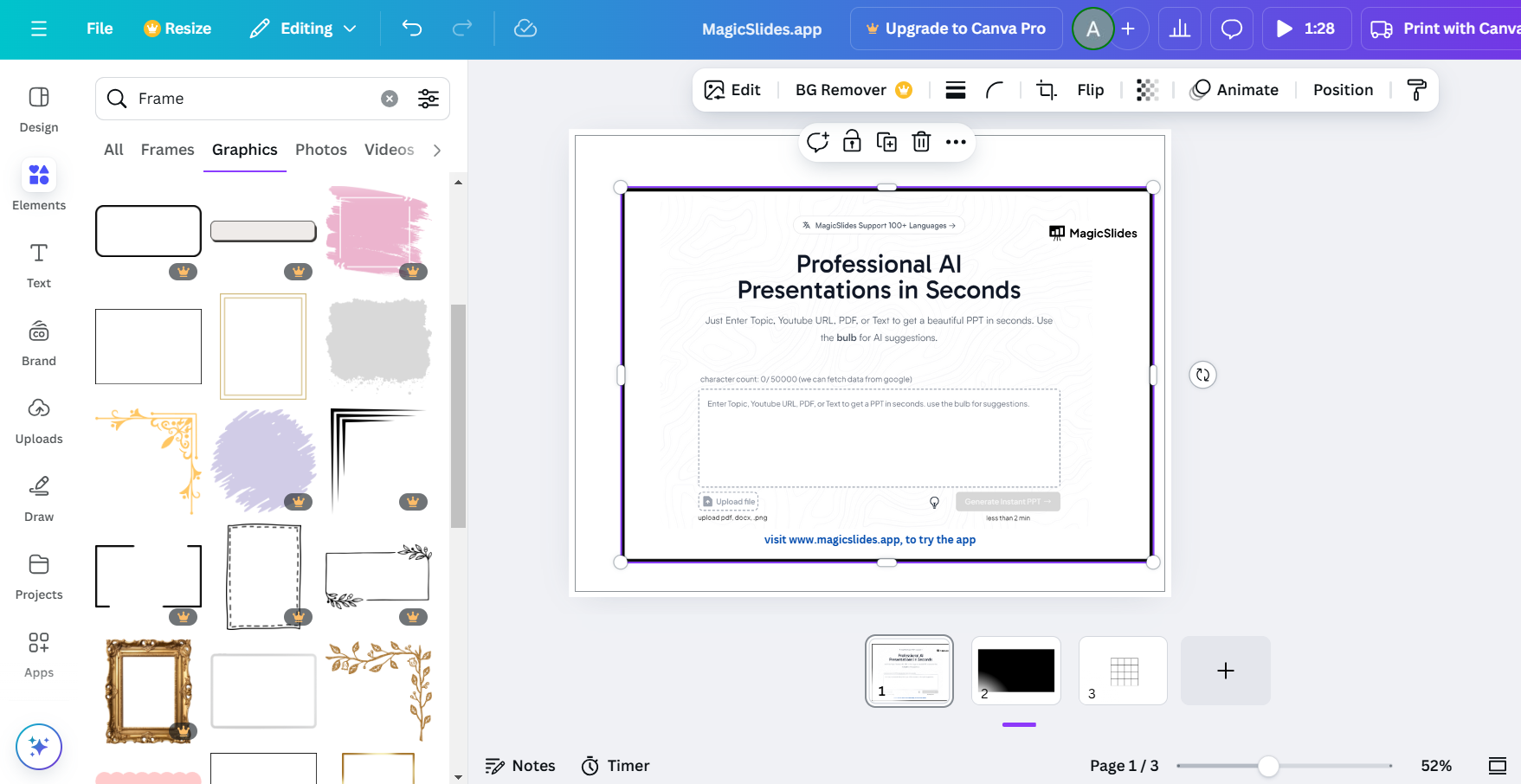
    Step 4: Insert Your Image into the Frame

    Go to the “Photos” tab or “Uploads” to select an image.
    notion image
    Drag the image directly onto the frame. Canva will automatically clip the image to the shape of the frame.

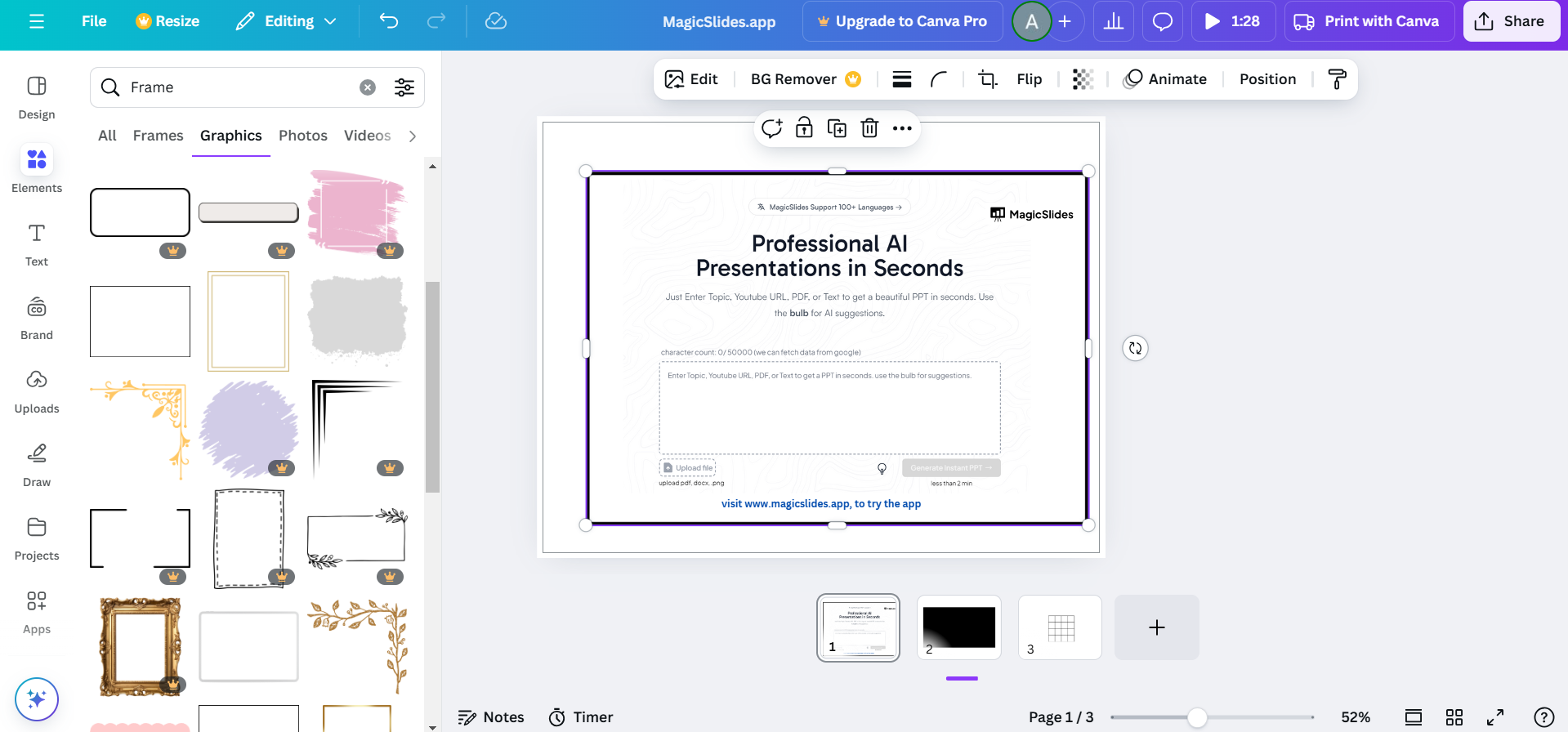
    Step 5: Adjust the Image Inside the Frame

    Double-click on the image inside the frame to adjust its position or zoom level.
    notion image
    Drag the image to reposition it or use the resizing handles to zoom in and out.
    Click “Done” when you’re satisfied with the adjustments.

    Step 6: Add Final Touches

    Enhance your masked image by adding text, graphics, or effects to complete your design.
    Use Canva’s editing tools to adjust colors, brightness, or contrast for better integration.

    Step 7: Save Your Design

    Once your design is ready, click “Share” in the top-right corner and choose “Download.”
    Select the file format (e.g., PNG or JPG) and save your project to your device.

    Conclusion

    Clip masking in Canva is an excellent way to add creativity and depth to your designs.
    By utilizing frames and adjusting images seamlessly, you can create visually appealing projects that stand out.
    Whether for personal or professional use, mastering clip masking will unlock endless design possibilities in Canva.

    FAQs on Clip Masking in Canva

    Can I use custom shapes for clip masking in Canva?

    Yes! Canva’s frames library offers a wide variety of shapes, including letters and custom designs, perfect for clip masking.

    Can I edit the image after applying the clip mask?

    Absolutely! You can double-click the image in the frame to adjust its position, size, or zoom level.

    Is clip masking available in Canva's free version?

    Yes, clip masking is available for free users, though some premium frames and images may require Canva Pro.
    With this guide, you can confidently use clip masking to enhance your Canva projects with professional-looking designs.

    Share on socials

    About the author

    Ajay Sai profile photo
    Ajay Sai— writer at MagicSlides.app

    Ajay have been a techincal writer for more than 2+ years. from coding tutorials to using day to day apps he have helped 100k+ visitors with their various queries

    More from Ajay

    More from the blog

      250+ Good Morning Messages for Her (Romantic, Deep, Cute & Sweet)

      30 January 2026

      200+ Heart Touching Birthday Wishes for Sister (Short, Funny and More)

      29 January 2026

      50+ History Presentation Topics For 2026

      28 January 2026

      How to Add Music to Your Canva Presentation: A Step-by-Step Guide

      27 January 2026

      15 Quick Tips To Use ChatGpt At Work

      22 January 2026

      11 Best AI Tools for Business in 2025

      22 January 2026

      How to Create an Infographic That Clearly Communicates Your Message

      20 January 2026

      How to Create a Sales Presentation Template in Google Sheets

      20 January 2026

      How to Make a Pie Chart on Google Slides in Simple Steps

      19 January 2026

    Table of Contents

    Create Presentations in Seconds

    Transform your ideas into professional presentations with AI. No design skills needed.

    Try MagicSlides Free

    Create Stunning Presentations with AI in Seconds ✨

    Transform any topic, text, YouTube video, PDF or URL into beautiful presentations instantly with MagicSlides AI.

    Try MagicSlides AI Presentation Maker
    MagicSlides AI Presentation

    Footer

    Solutions

    • MagicSlides App
    • Google Slides Add-on
    • MagicSlides in Chrome
    • MagicSlides in Figma
    • MagicSlides in ChatGPT
    • MagicSlides in Telegram
    • MagicSlides in Zapier
    • MagicSlides in Figma Slides

    Tools

    • AI PPT Tools
    • QR Code Generator
    • Design Tools
    • PPT Templates
    • Slide Templates
    • PDF Tools

    Examples

    • AI Presentations
    • PPT by MagicSlides
    • Quizzes
    • Charts
    • Coloring Pages

    Resources

    • Changelog
    • Documentation
    • API Docs

    Top Blogs

    • How to Create Presentation Using ChatGPT
    • 100+ Best Seminar Topics for Students in 2025

    Company

    • Help
    • MCP
    • Blog
    • Pricing
    • Affiliate Program
    • Manage Subscription
    • Privacy Policy
    • Contact Us
    • Terms & Conditions
    • Refund & Cancellation Policy

    We also built

    • SheetAI - GPT For Sheets
    • MagicForm - GPT For Google Forms
    • SecondBrain.fyi
    • BlogBee - Free Blogging Platform

    © 2026 IndianAppGuy Tech Pvt Ltd. All rights reserved.